

What A Black Screen Means
A black screen means the display shows nothing even though the phone may still be on. The phone may vibrate or play a sound while the screen stays dark. The phone may also be fully off and refuse to wake. Both cases look the same at first glance. The steps below separate a display fault from a power fault and from a software crash. Work through them slowly and note what changes after each step.
Do not assume that a black screen means lost data. Many black screen cases leave files untouched. The goal is to wake the phone safely or to reach a state where data can be backed up. A touch fault can look similar when the screen lights but ignores input and you can compare with fixing touch screen unresponsiveness on Android phones when the display itself still works.
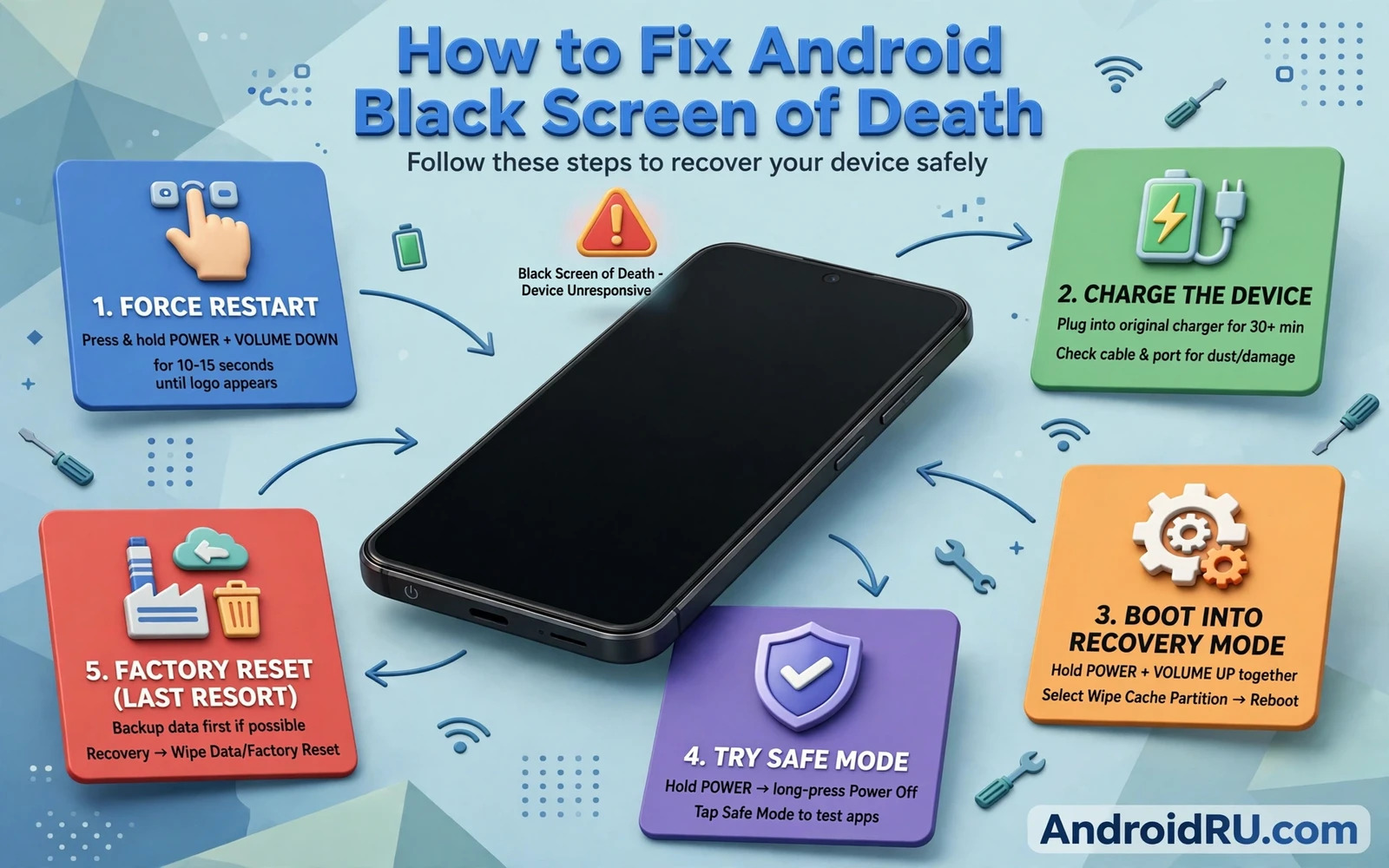
Force Restart With Hardware Keys
Press and hold the power key together with the volume down key for a sustained period until the phone vibrates or shows a logo. The exact key combination differs by phone maker so check the maker method when the first combination fails. Release the keys when the logo appears and wait for the system to load. A force restart clears a frozen system state without deleting files.
If the phone vibrates but the screen stays black then the system may be running with a display fault. If nothing happens at all then power is the next suspect. Note the difference because it changes the next step. A vibrating phone with a dark screen needs display checks while a silent phone needs charging checks first.
- Force restart with power plus volume keys and wait for a logo or vibration
- Charge with a known good cable and charger for at least thirty minutes
- Test a different cable and charger before assuming a battery fault
- Check for a faint image with a bright light when the screen looks fully black
- Boot into safe mode or recovery only after basic power checks pass
Charge And Check For Power Faults
Connect a charger that you know works with another device. Use a cable that you trust and a wall charger rather than a weak computer port for this test. Wait patiently because a deeply drained battery may show nothing for several minutes. Look for a charging icon or a small light after a waiting period. A phone that shows a charging icon after waiting likely only needed a proper charge.
Try a second cable and a second charger when the first pair shows nothing. Cables fail quietly and a faulty cable can mimic a dead phone. Clean the charging port gently with dry air only and never with a metal tool. A blocked port can prevent charging even with a good cable. If charging still shows nothing after two known good setups then a battery or hardware fault becomes more likely.
Check For A Display Fault
Shine a bright light at the screen in a dark room and look for a faint image. A faint image can mean that the backlight failed while the display panel still draws content. This test does not fix anything but it gives a repair service a valuable clue. Note whether touch still works by swiping where the unlock pattern would be and listening for feedback sounds.
A recent drop or water exposure before the black screen points strongly to hardware. Do not open the phone yourself unless you have proper tools and experience. Internal display connectors are fragile and a wrong repair can cause further damage. Overheating before the black screen is another clue and you can review fixing Android overheating problems during normal use to compare heat related faults with display faults.
Power plus volume down - Hold until vibration or logo
Charger - Known good cable - Wait for charging icon
Recovery - Use only after power and display checks
Recovery And Factory Reset As Last Steps
Warning. Recovery options can delete data when you choose the wrong entry. Enter recovery only when basic steps fail and you understand the menu. Use volume keys to move and the power key to select. Choose safe options first and avoid any wipe option until you have a backup or until you accept data loss. A factory reset from recovery is a last resort for a software fault that blocks startup.
If the phone boots after recovery steps then back up data at once before further experiments. A phone that recovered once may fail again without warning. Copy photos and chats and documents to cloud storage or to a computer while the phone still works. A fresh backup turns a future black screen from a data crisis into a repair task.
Frequently Asked Questions
Does a force restart delete my data. No. A force restart only restarts the system. It does not erase files or settings or accounts.
How long should I charge before judging the phone dead. Charge for at least thirty minutes with a known good cable and charger. A deeply drained battery may show nothing during the first minutes of charging.
Black Screen After An Update
A black screen that follows a system update needs a different mindset from a black screen after a drop. An update fault may leave the system half installed. A force restart can sometimes complete the boot that the update interrupted. Wait patiently after a force restart because a first boot after an update can take longer than a normal boot. Avoid interrupting that boot with repeated key presses that may restart the process again.
Recovery mode after a failed update offers a cache clear option on many phones. Clearing cache from recovery does not delete personal files. It removes temporary system files that may block startup. Use only the cache option that you recognise and avoid wipe options until you have exhausted safer choices. A cache clear from recovery is a measured step while a wipe is a last resort that needs a backup.
A black screen after installing a new app points to that app as a suspect. Safe mode can bypass third party apps and let the phone boot normally. When safe mode succeeds then remove the most recently installed apps one at a time. Test a normal boot after each removal. A single faulty app can block startup completely while the rest of the system remains healthy.
Charging behaviour gives clues after an update fault as well. A phone that shows a charging icon but never boots may have a system fault rather than a battery fault. A phone that shows nothing at all after a long charge may have a power fault instead. Note which pattern you see because the pattern guides the next step and prevents wasted effort on the wrong subsystem.
Screen damage and system faults can overlap after a drop that also triggers an update prompt. Separate the two by testing vibration and sound and charging feedback. A phone that vibrates on force restart likely runs its system with a display fault. A phone that stays silent likely suffers a power or system fault. Clear notes about each feedback type help a repair service choose the right test first.
Error messages and install faults share diagnostic logic with black screen faults. A system that cannot install an update may later fail to boot from that same half installed state. Keeping installs clean and storage roomy reduces the chance of a half installed update. You can review fixing an app not installed error on Android for install fault habits that also protect system updates.
Preparing For A Service Visit
Before a service visit write down the full fault story in order. Note the last normal use and any drop or water exposure or update before the fault. Note every step that you tried and the result of each step. Note whether the phone vibrates or charges or shows any light. A clear story saves diagnostic time and helps the service team avoid repeating steps that already failed.
Back up data whenever the phone boots even briefly. A brief boot is a window for backup that may not return. Copy photos and chats and documents at once during that window. A backup taken during a brief recovery turns a later repair into a routine task rather than a data emergency.
Black Screen And Data Recovery
Data recovery from a black screen phone depends on whether the phone still runs beneath the dark display. A phone that vibrates and plays sounds may still sync photos and chats to cloud storage. Check cloud storage from another device to see whether recent files arrived after the fault began. Recent cloud arrivals prove that the phone system still runs and that data remains safe even while the screen stays dark.
A computer connection can also reveal a running phone with a dead screen. Connect the phone to a computer with a trusted cable and watch for a device prompt. A phone that appears as a storage device may allow a direct copy of photos and documents. Unlocking may still be needed before files appear. A trusted computer that paired before the fault often needs fewer prompts than a new computer.
When the phone stays fully silent then data recovery becomes a professional task. Do not attempt board level repair without proper tools and training. A service centre can test power circuits and storage separately from the display. Professional diagnosis protects data better than repeated force restarts on a phone with a power fault. Note every symptom before the visit so the service team can prioritise data safety.
Black Screen Prevention Habits
Prevention starts with battery care and update care. Avoid letting the battery drain fully on a regular basis because deep discharge stresses the battery and can complicate the next boot. Install system updates only when the battery is comfortably charged and the phone can stay undisturbed until the update finishes. An interrupted update is a known path to startup faults that later appear as a black screen.
Physical protection also prevents many black screen cases. A good case and a screen protector reduce drop damage to the display and to internal connectors. Avoid exposing the phone to water even when it claims resistance because resistance weakens over time. A protected phone with careful update habits rarely suffers the sudden black screen that surprises owners of neglected phones.
A Final Black Screen Check
Finish black screen troubleshooting with a written record even when the phone recovers fully. Record the fault date and the steps tried and the step that finally worked. A record helps you recognise a repeat fault early and it helps a service team when the fault returns. A recovered phone deserves a fresh backup at once because a fault that happened once may happen again. Backup plus a written record turns a scary black screen into a managed risk.

