

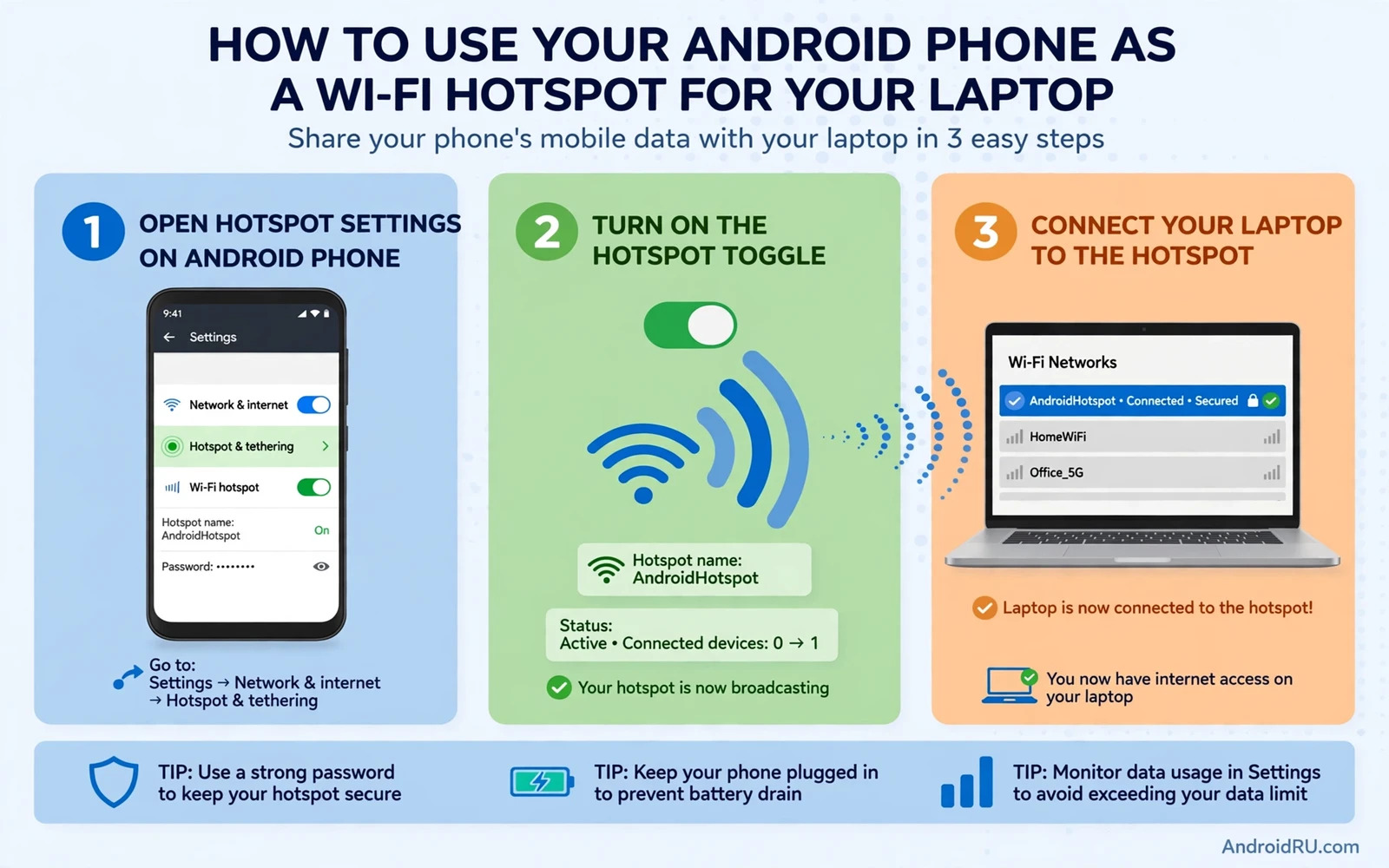
How to Use Android Phone as a Wi-Fi Hotspot for Laptop
My home internet went down twenty minutes before a video call last year, and the only connection in the house was the phone in my pocket. I switched on its hotspot, joined from the laptop, and the call went ahead with only a few frozen frames. That afternoon taught me two things: a phone hotspot is a genuinely useful backup, and it punishes you fast if you switch it on without a plan. A laptop treats a hotspot like any other Wi-Fi network, so it happily starts downloading updates, syncing photo libraries, and backing up files in the background. Your phone pays for all of it in mobile data and battery.
This guide walks through the whole setup the way I actually do it: turning the hotspot on with a strong password, joining from Windows, macOS, and ChromeOS, marking the connection as metered so the laptop stops its background binge, and fixing the faults that show up most often. It is written for anyone who needs a laptop online where there is no router — at a cafe, on a train, in a hotel, or during an outage at home.
What a Wi-Fi Hotspot Does Between Your Phone and Laptop
A Wi-Fi hotspot turns your Android phone into a small portable router. The phone keeps its own mobile data connection — 4G or 5G — and shares it over a short-range Wi-Fi network that only your devices can join. The laptop sees an ordinary wireless network name, asks for a password, and then sends its traffic through the phone to the internet. Nothing about the laptop changes; the browser, email client, and video apps all work exactly as they do on home Wi-Fi.
The trade-off is that the phone does two jobs at once. It maintains the mobile connection and it runs a Wi-Fi radio to serve the laptop, which is why battery drain jumps noticeably the moment the hotspot is on. In practice, a phone that would normally lose 5 to 8 percent of battery per hour of screen use can lose 15 to 25 percent per hour while serving a laptop, and faster still if it is also charging in a warm room. Heat is the other cost: a phone wedged in a bag while hotspotting will throttle its connection to protect itself, so give it air and keep it out of direct sun.
Speed depends almost entirely on the mobile signal, not on the Wi-Fi link between phone and laptop. A laptop sitting a metre from the phone will still load pages slowly if the phone has one bar of 4G in a basement. Before you blame the hotspot, check the signal icon on the phone. If it shows one bar or keeps flipping between 4G and 3G, move the phone near a window or to a higher spot in the room. I have seen a single move across a hotel room take a connection from unusable to good enough for a video call.
Wi-Fi hotspot vs USB tethering vs Bluetooth tethering
Android offers three ways to share its connection, and the Wi-Fi hotspot is the most flexible of them, but not always the best. USB tethering sends the connection through a cable, which charges the phone at the same time and usually gives the most stable speeds. Bluetooth tethering uses very little battery but is slow, fine for email and messaging and poor for anything else. The table below sums up how they compare for laptop work.
| Method | Typical speed | Battery impact | Best for |
|---|---|---|---|
| Wi-Fi hotspot | Fast, limited by mobile signal | High drain | General laptop work, several devices |
| USB tethering | Fast and stable | Phone charges while sharing | Long sessions at a desk with a cable |
| Bluetooth tethering | Slow, roughly 1-2 Mbps | Low drain | Email and chat when battery is critical |
Here is the catch: some carriers treat Wi-Fi hotspot traffic differently from on-phone data, and a few plans block it or charge extra for it. If the hotspot switches on but the laptop gets no internet even though the phone itself browses fine, your plan may not include tethering. That is a carrier rule, not a phone fault, and no settings change on the laptop will fix it. Check your plan details or ask your carrier before a trip that depends on hotspotting.
How much data a laptop session really uses
A laptop is far hungrier than a phone. An hour of document work and email might use 100 to 300 MB. Add a one-hour video call and the total jumps to 500 MB to 1.5 GB depending on video quality. A single Windows feature update can swallow 3 to 5 GB before you notice it. That is why the metered-connection step later in this guide matters more than any other habit here: it is the one switch that tells the laptop to stop helping itself to your data allowance.
Turn On the Wi-Fi Hotspot on Android Step by Step
The menu names vary slightly by brand, but the path is the same on nearly every Android phone sold in the last few years. On a Pixel, go to Settings, then Network and internet, then Hotspot and tethering, then Wi-Fi hotspot. On a Samsung Galaxy, go to Settings, then Connections, then Mobile Hotspot and Tethering, then Mobile Hotspot. On Xiaomi, Oppo, and most other brands, look under Settings, then Connection and sharing, or Settings, then Network and internet, then Hotspot and tethering. If you cannot find it, open Settings and type “hotspot” in the search bar at the top — it will take you straight there.
- Open the hotspot settings. Use the path above for your brand, or search Settings for “hotspot”. Do not switch it on yet — set the password first.
- Set the network name. The default name is usually your phone model, which is fine. Avoid putting your full name in it, since the name is visible to everyone nearby while the hotspot is on.
- Set a strong password. Tap Hotspot password and type a password of at least 12 characters, mixing letters and numbers. Never leave the hotspot open with no password: anyone nearby could join and use your data.
- Pick the strongest security type. Choose WPA3-Personal if your phone offers it, or WPA2-Personal if it does not. Older laptops may not support WPA3, so fall back to WPA2 if a laptop refuses to join.
- Choose the Wi-Fi band. The 5 GHz band is faster and less crowded; the 2.4 GHz band reaches further and works with older laptops. If a laptop cannot see the hotspot at all, switching to 2.4 GHz often fixes it, as explained in the troubleshooting section below.
- Switch the hotspot on. Flip the toggle. The phone will show the hotspot name and password on screen, and a small hotspot icon appears in the status bar.
- Set an automatic switch-off. Most phones offer “Turn off hotspot automatically” when no device is connected. Turn it on with a 5 or 10 minute timeout so a forgotten hotspot does not drain the battery in your bag.
Share the password with a QR code instead of typing it
On Android 10 and newer, the hotspot screen usually shows a QR code, or a small QR icon next to the password. The laptop cannot scan it, but another Android phone can, which is handy when a colleague needs to join from their phone. For the laptop, typing the password once is enough: Windows and macOS remember the network, so the next session is a single click.
Set a data warning before the first long session
Before a long session, open Settings, then Network and internet, then SIMs, then App data usage — or Settings, then Connections, then Data usage on Samsung — and check how much of your monthly allowance is already used. Some phones let you set a data warning at a chosen amount, which is worth doing if your plan is tight. A warning at 80 percent of your allowance is a sensible line: it leaves room to finish the work in hand without cutting you off mid-call.
Quick settings tile for one-tap hotspot control
Pull down the notification shade twice to open Quick Settings, find the Hotspot tile, and long-press it to jump straight to the hotspot settings. If the tile is missing, tap the pencil icon to edit the tiles and drag Hotspot into the active area. After that, switching the hotspot on and off takes two swipes and one tap, which is the habit that actually keeps you from leaving it running by accident.
Connect a Windows Laptop to Your Android Hotspot
With the hotspot on, the laptop side takes about a minute. Click the Wi-Fi icon in the Windows taskbar, find your hotspot name in the list, click Connect, type the password, and wait a few seconds. Open a single ordinary page first to confirm traffic flows before you open work apps. If the page loads, the link works; if it fails, the fault is almost always on the phone side — mobile data off, weak signal, or a plan that blocks tethering — rather than on the laptop.
Mark the hotspot as a metered connection on Windows 10 and 11
This is the single most valuable step in the whole guide. Open Settings, then Network and internet, then Wi-Fi, then click your hotspot network name and switch on “Set as metered connection”. On Windows 11 the path is Settings, then Network and internet, then Wi-Fi, then the network name, then the metered toggle. A metered connection tells Windows to pause automatic updates, pause Microsoft Store downloads, and throttle OneDrive sync while you are on that network. The setting sticks to that network name, so it applies automatically every time you join the same hotspot.
After marking it metered, pause anything else that syncs in the background. Right-click the OneDrive cloud icon in the taskbar and choose Pause syncing. Open Windows Update in Settings and pause updates for a week if you are on a tight plan. Close backup tools and photo sync apps until you are back on home Wi-Fi. I once watched OneDrive start uploading a 2 GB video folder the moment a laptop joined a hotspot; the metered switch alone would have stopped it.
Stop Windows from downloading updates over the hotspot
Even with a metered connection, an update that already started may continue. Open Settings, then Windows Update, and check whether anything is downloading. If it is, pause it from that same screen. Also open the Microsoft Store app, go to Downloads and updates, and pause anything in progress. These two checks take thirty seconds and can save several gigabytes.
Connect a MacBook to the hotspot and switch on Low Data Mode
On a Mac, click the Wi-Fi icon in the menu bar, choose the hotspot name, and enter the password. Then open System Settings, then Wi-Fi, click the Details button next to the hotspot network, and switch on Low Data Mode. Low Data Mode pauses automatic updates, photo sync, and background app refresh on that network, and macOS remembers the choice for that network name. Also pause iCloud Drive sync and Apple Photos uploads if you are about to do a long session — the Photos app can upload hundreds of megabytes of new photos without asking.
Connect a Chromebook to the hotspot
On a Chromebook, click the time in the bottom-right corner, then the Wi-Fi icon, choose the hotspot name, and enter the password. ChromeOS treats the network as metered automatically when it comes from a phone hotspot in most cases, but check under Settings, then Network, then Wi-Fi, then your network, to confirm the metered setting is on. Chromebooks are the lightest of the three laptop types here, since ChromeOS has no large feature updates waiting in the background, but the Google Drive sync and any Android apps installed on the Chromebook can still move data quietly.
Fix a Hotspot the Laptop Cannot See or Join
A hotspot that does not appear in the laptop Wi-Fi list is usually a band problem, not a broken phone. Try the fixes below in order, checking the laptop list after each one.
- Switch the hotspot band to 2.4 GHz. In the hotspot settings, change AP Band or Band from 5 GHz to 2.4 GHz. Older laptop Wi-Fi cards and some office laptops only support 2.4 GHz, so the 5 GHz network is simply invisible to them.
- Move the laptop closer and remove obstacles. Sit within a few metres of the phone with a clear line of sight. Thick walls, metal filing cabinets, and crowded halls all weaken the link.
- Restart the hotspot switch. Turn the hotspot off, wait ten seconds, and turn it on again. Then refresh the laptop Wi-Fi list. This clears the occasional broadcast fault where the phone stops announcing its network name.
- Forget the network on the laptop and rejoin. On Windows, go to Settings, then Network and internet, then Wi-Fi, then Manage known networks, remove the hotspot name, and connect fresh. A stale saved entry with an old password blocks a new connection even when everything else is right.
- Check the password and security type. Retype the password carefully — hotspot passwords are case-sensitive. If the laptop says the password is wrong, open the hotspot settings and check the security type: a laptop that only supports WPA2 will fail against a WPA3-only hotspot, so switch the phone to WPA2 and try again.
- Check the connected-devices limit. Some phones cap the hotspot at 5 or 10 devices. Open the hotspot settings and look at the connected devices list; if it is full of old devices, remove the ones you do not recognise.
Wireless stability on the phone matters here, and the checks in fixing a Wi-Fi connection that drops frequently on mobile can help when the shared link itself feels unstable. The same causes — interference, an ageing radio, and a phone that keeps hopping between bands — show up as a hotspot that appears and vanishes from the laptop list.
The laptop joins but asks for the password again and again
Repeated password prompts usually mean the saved network on the laptop disagrees with the phone, or the phone changed its password after an update. Forget the network on the laptop, as described above, and join fresh with the password shown on the phone screen right now, not the one you wrote down last month. If it still loops, switch the hotspot security from WPA3 to WPA2 — a few older laptop drivers fail the WPA3 handshake in a loop and never report a clear error.
Fix a Hotspot That Connects but Loads Nothing
This is the most frustrating fault because everything looks right: the laptop shows connected, the Wi-Fi icon is full, and no page loads. Work through the phone side first, because the phone side is the cause in most cases.
- Check mobile data on the phone. Open the phone browser and load a page. If the phone itself cannot browse, the hotspot has nothing to share. Toggle mobile data off and on, and check that you are not in airplane mode.
- Check the signal. One bar of 4G in a lift or a basement gives a connection that technically works and practically does not. Move the phone near a window or step outside for a test.
- Toggle airplane mode. Switch airplane mode on for ten seconds, then off. This forces the phone to re-register with the mobile network and often clears a stuck data session.
- Check for a carrier tethering block. Some plans allow phone browsing but block hotspot traffic. If the phone browses fine and the laptop gets nothing, and the same laptop works on another phone hotspot, your plan is the likely cause.
- Turn off any VPN on the phone. A VPN on the phone can break tethering on some devices, because the hotspot traffic does not always route through the VPN tunnel. Switch the VPN off and test again.
- Restart both devices. If nothing above helps, restart the phone, then the laptop, then try again. A fresh session clears more stuck states than any single setting change.
Bluetooth pairing problems share some wireless troubleshooting logic, and you can review fixing Bluetooth pairing failures on Android accessories for a calm step order that also applies to wireless faults. The habit that matters in both cases is the same: change one thing, test, and only then change the next thing. Changing five settings at once leaves you unable to tell which one fixed it.
Pages load slowly even though the signal looks fine
Slow pages on a good signal usually mean something else is eating the bandwidth. Open the laptop task manager or activity monitor and sort by network use to see which app is moving data. Cloud sync tools, game launchers, and update services are the usual suspects. Close the heavy ones, then test again. On the phone side, check whether the phone itself is downloading an app update or backing up photos — the phone shares what is left after its own traffic.
Video calls need a stronger signal than documents do
A weak signal that loads email fine may still break video calls with frozen frames and lost audio. Test a short call before an important meeting when you rely on a hotspot, and move the phone closer to a window if the picture freezes. Switching the meeting to audio only can save data and stabilise a weak connection, and most status meetings work perfectly well with voice and shared documents. Save video for the sessions that truly need faces.
Hotspot Battery, Heat, and Data Habits That Keep Sessions Cheap
A hotspot session is a battery event, so treat it like one. Keep the phone plugged in for any session longer than fifteen minutes, and use a power bank when there is no wall socket nearby. A phone that serves a laptop while charging will still get warm; that is normal, but a phone that feels too hot to hold comfortably is a sign to pause. Put it on a hard surface with air around it rather than on a bed or inside a bag, and take it out of a thick case if it keeps overheating.
End every session with a quick data check. Open Settings, then Network and internet, then SIMs, then App data usage, and note how much the session consumed. A growing awareness of session cost helps you plan future sessions and choose when to use a hotspot and when to wait for Wi-Fi. After a few sessions you will know roughly what an hour of your kind of work costs, and you can decide in advance whether the plan can carry it.
File transfers between phone and laptop can reduce hotspot data needs a lot. Moving a large file directly over a cable or local sharing avoids uploading it through mobile data twice. A direct transfer is faster and cheaper than a cloud round trip over a hotspot. You can plan local transfers with transferring files between Android and PC wirelessly and by USB when large files must move between the two devices.
Hotspot use while travelling and roaming
Travel hotspots need extra planning because roaming data changes both cost and rules. Check your mobile plan roaming terms before a trip that relies on a hotspot: a plan that works at home may charge heavily abroad or may block hotspot use entirely while roaming. A local SIM or an eSIM data plan often suits a long trip better than a home plan hotspot. Planning before departure prevents a shocking bill after return.
Airports and stations offer crowded wireless environments where hotspot discovery can struggle. Keep the phone close to the laptop and away from large metal structures during pairing, and test the connection before an important call rather than assuming it works because the hotspot switch is on. Hotel stays present a choice: hotel Wi-Fi may be faster for large downloads while a personal hotspot may be safer for sensitive work. Use the hotspot for banking and work mail and hotel Wi-Fi for large media downloads when both options exist. Mixing the two by task gives speed where it matters and privacy where it counts.
Multiple devices on one hotspot multiply the cost
Each connected device can run its own updates and sync tasks, so two laptops on one hotspot can burn through a plan twice as fast. Limit hotspot sharing to one laptop when data is tight, and when a second device must join, pause updates on both devices first. A shared hotspot needs shared discipline, because one careless device can consume the whole plan while the other user is still typing their first email.
Hotspot Security Checklist for Shared Connections
Security on a hotspot starts with the password and ends with switching it off. Change the hotspot password whenever you shared it with people who no longer need access, since a password shared once can spread further without your knowledge. Use a fresh strong password for each new group that needs the connection, and check the connected devices list on the phone during the session, disconnecting unknown devices at once. A quick device check takes seconds and protects both data and battery.
Avoid open hotspots with no password even for a quick laptop check. An open hotspot invites anyone nearby to join and consume data. A strong password plus the strongest security option offered by the phone creates a reasonable barrier for casual nearby users. Turn the hotspot off immediately after use so the window for unwanted joins stays as short as possible, and never log into sensitive accounts over a hotspot that strangers may have joined. If you shared the password with a group at a conference, change it the same evening.
What to do when an unknown device appears on your hotspot
Open the hotspot settings and look at the connected devices list. If a device you do not recognise is there, disconnect it from that screen, change the hotspot password immediately, and switch the hotspot off and on again. Then think about who had the old password: it only spreads through people you shared it with. A changed password plus a fresh switch-on is enough in almost every case, and there is no need to reset the whole phone.
Frequently Asked Questions About Android Hotspots for Laptops
Why does my laptop connect to the hotspot but load nothing?
The phone may have mobile data off, a very weak signal, or a plan that blocks tethering. Check mobile data and signal on the phone first, load a page on the phone itself, and then restart the hotspot switch. If the phone browses fine and the laptop still gets nothing, turn off any VPN on the phone and test again, since some VPN setups break hotspot routing.
Does using a hotspot cost extra on my mobile plan?
It depends on the plan. Many plans include hotspot use inside the normal data allowance, some cap hotspot data separately at a lower amount, and a few charge extra or block it outright. The hotspot itself uses the same allowance as on-phone data unless your carrier says otherwise, so check your plan details before a long session, and watch the data usage screen during the first few sessions to learn the real cost.
Is a phone hotspot safe to use in public places?
A hotspot with a strong password is safer than an open public network for most work, because the traffic goes over your own mobile connection rather than a network strangers control. Keep the password private, use the strongest security type the phone offers, check the connected devices list during the session, and turn the hotspot off when you finish. Avoid logging into sensitive accounts if you have just shared the password with a group.
Can I use a hotspot for video calls and streaming?
Yes, if the signal is strong enough. A video call needs a stable connection more than a fast one, so test a short call first and move the phone near a window if the picture freezes. Streaming video uses roughly 1 GB per hour at standard quality and 3 GB per hour at high definition, so it is the fastest way to burn through a data allowance. Audio calls and downloaded content are far cheaper when data is tight.
Why can my laptop not see the hotspot at all?
The most common cause is the Wi-Fi band: switch the hotspot from 5 GHz to 2.4 GHz in the hotspot settings, since older laptop Wi-Fi cards cannot see 5 GHz networks. Other causes are a hotspot that is not actually switched on, a phone in airplane mode, or a laptop that needs its Wi-Fi list refreshed. Restarting the hotspot switch and moving the laptop within a few metres of the phone clears most remaining cases.
Your next step is a five-minute test before you actually need it. Switch the hotspot on now, join from the laptop, mark the connection as metered, and load one ordinary page. Confirm that each step works while there is no deadline pressing on you. A test done today turns the hotspot from a feature you hope works into a backup you know works, and the next time the home internet fails or the hotel Wi-Fi asks for a login you do not trust, you will already have the answer in your pocket.

