

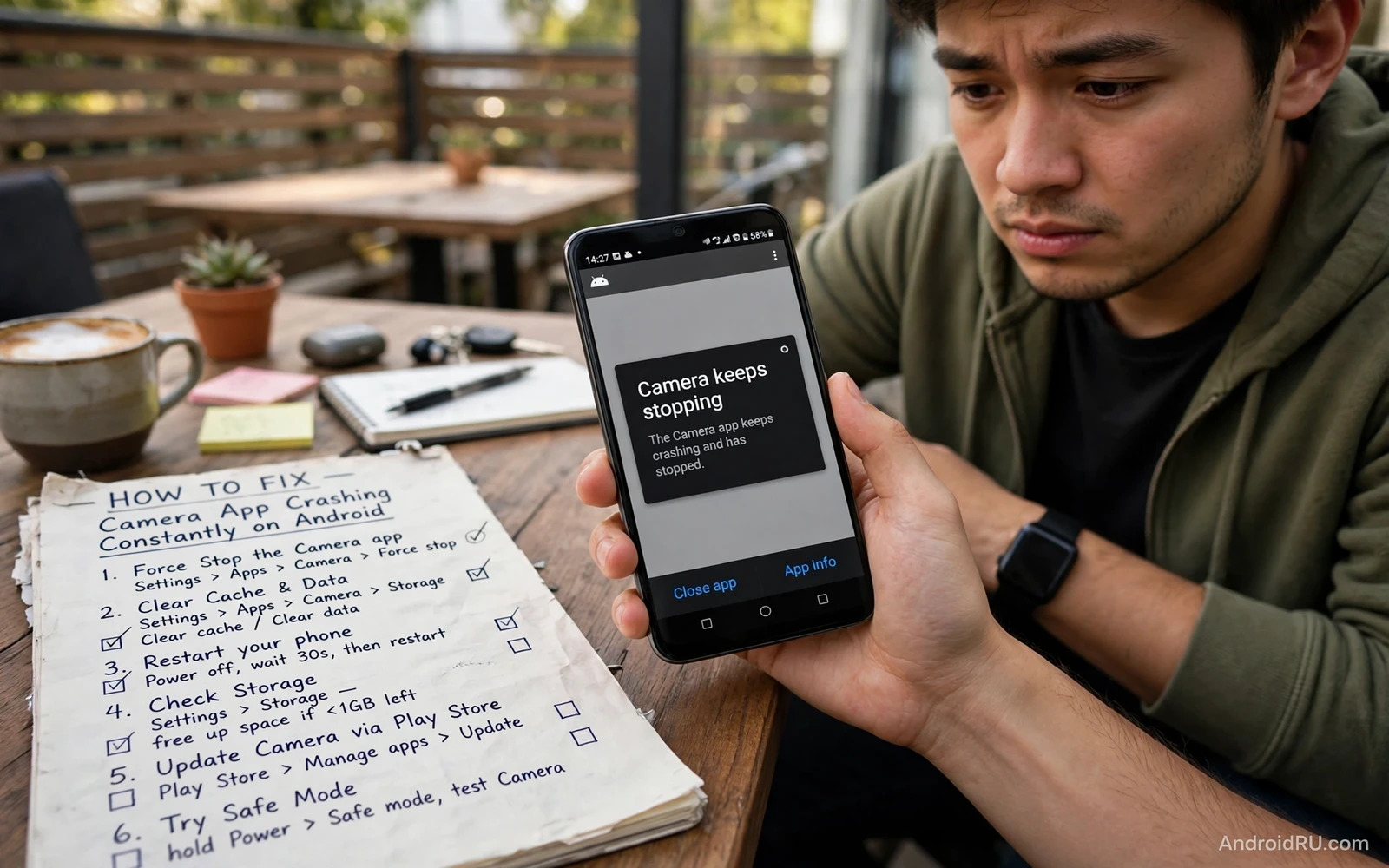
Why A Camera App Crashes Again And Again
A camera app that crashes constantly usually fails at one stage of its startup. It may fail while asking for camera permission. It may fail while loading saved settings. It may fail while another app holds the camera. It may fail because its cache grew corrupt after an update. Each cause looks identical on screen because the app simply closes. The fix depends on finding which stage actually fails.
This guide moves from safe checks to deeper resets in order. You will check permissions and close other camera apps and clear cache and test in safe mode. You will keep photos safe throughout because no step here deletes your gallery. When a camera feature needs a separate port or mode then the install steps in installing a GCam port on any Android device show how camera software layers differ from the stock camera app.
Check Permissions And Close Other Camera Apps
Open app info for the camera app and confirm that camera permission is allowed. Confirm microphone permission as well when you record video with sound. A denied permission can close the app at once when it tries to open the camera. Grant the permission and open the camera again before you try any deeper fix.
Close every other app that may use the camera. Video call apps and social apps and scanner apps can hold the camera even after you leave them. Close them fully from recent apps and then open the camera again. If the camera now works then another app was holding the camera. Open the other apps one at a time later to find which one caused the conflict.
- Confirm camera permission and microphone permission for the camera app
- Close video call and social and scanner apps that may hold the camera
- Clear camera app cache before clearing any other camera data
- Test the camera in safe mode to separate app conflicts from system faults
- Check for a camera app update and a system update before deeper resets
Clear Cache And Reset Camera Settings
Clear cache from camera app info and test again. Cache clearing removes temporary files without deleting your photos. Photos live in the gallery and in storage and not inside camera cache. If the crash continues then open camera settings and reset them to default. A corrupt saved mode or a bad resolution setting can crash startup every time. Default settings remove that risk while keeping your photos safe.
Test both photo mode and video mode after a reset. A crash in video mode only may point to a codec or storage issue rather than a general camera fault. A crash in every mode points to permission or startup data or a deeper system fault. Note which modes fail because that note helps support and helps you judge whether a later step actually worked.
Test In Safe Mode And Check Storage
Safe mode disables third party apps and lets the stock camera run with system apps only. If the camera works in safe mode then a third party app is interfering. Return to normal mode and remove recently installed camera tools and filter apps one at a time. Test the camera after each removal so you can find the interfering app with certainty.
Low storage can also crash the camera when it tries to save a photo or start video. Check free space in storage settings and free space using safe steps if the phone is nearly full. Storage pressure also affects downloads and installs and you can review fixing an app not installed error on Android for a related storage and install checklist. Do not delete photos in a panic. Move backed up photos first and keep originals that are not yet backed up.
Settings - Apps - Camera - Permissions - Allow camera
Settings - Apps - Camera - Storage - Clear cache
Camera - Settings - Reset settings to default
Update Reinstall Or Seek Service
Check for a camera app update and a system update. Updates can fix a crash that started after a system change. If no update exists and safe mode still fails then a deeper system fault is possible. A factory reset is a last step and it needs a full backup first. Most camera crashes resolve long before that stage through permission and cache and conflict checks.
Warning. Do not install camera apps from unknown sources while troubleshooting a crashing camera. An unknown camera app can ask for broad permissions and can make the problem harder to diagnose. Use the stock camera and trusted store apps only during testing. If the stock camera fails in safe mode after updates then a service check is wiser than further app experiments.
Frequently Asked Questions
Will clearing camera cache delete my photos. No. Photos are stored separately from camera cache. Cache clearing removes temporary files only and your gallery stays intact.
Why does the camera work in safe mode but not normally. A third party app is likely interfering in normal mode. Remove recently installed camera and filter apps one at a time and test after each removal.
Camera Modes That Fail Differently
Portrait mode and night mode and panorama mode use different processing paths inside the camera app. A crash that affects only portrait mode may point to depth processing or to a saved portrait setting. A crash that affects only video may point to storage speed or to a video resolution that the phone cannot sustain. Testing each mode separately narrows the fault far better than repeating the same default photo test. Note the failing modes in order so a later fix can be judged mode by mode.
Front camera and rear camera also fail differently. A front camera crash with a working rear camera may point to a front sensor fault or to a beauty filter setting that loads only for selfies. A rear camera crash with a working front camera may point to a rear lens module or to a rear only feature such as zoom processing. Switching cameras during testing gives a quick split between a general app fault and a single sensor fault.
Third party camera tools can hook into the stock camera pipeline on some phones. Filter apps and beauty apps and scanner apps sometimes register as camera helpers. Removing those helpers one at a time can reveal a conflict that cache clearing cannot fix. Keep a list of camera related apps installed on the phone before you start removing them. A list lets you restore useful tools after the faulty one is found.
Storage speed matters more for video than for photos. A slow or nearly full storage medium can cause video recording to stop or the camera app to close during a long clip. Freeing space and testing a short clip at a lower resolution can separate a storage fault from a camera fault. When short clips work but long clips fail then storage or heat is a stronger suspect than the camera app itself.
Heat can also close the camera app during long sessions. A phone that grows hot during video recording may throttle the camera to protect internal parts. Let the phone cool and test a short photo session again. When the camera works while cool but fails while hot then heat management becomes the real fix rather than another app reset. Shade and shorter sessions and a pause between long videos all reduce heat pressure on the camera.
Touch faults can masquerade as camera faults when the shutter button area stops responding. A camera that opens fine but never takes a photo may suffer from a dead touch zone over the shutter. Testing touch across the whole screen separates these faults cleanly. You can compare touch behaviour with fixing touch screen unresponsiveness on Android phones when the shutter area feels dead while the rest of the screen works.
Protecting Photos During Camera Troubleshooting
Back up photos before any deep camera step even though cache clearing alone is safe. A backup protects against an accidental data clear or a factory reset that later becomes necessary. Confirm that recent photos show as backed up in the gallery app. Export important photos to a computer when cloud backup is slow or unavailable. A verified backup turns troubleshooting into a calm process rather than a race against data loss.
Avoid testing with irreplaceable moments. Use test photos of ordinary objects while diagnosing a crash. Save important events for a camera that already works reliably. A test photo costs nothing while a missed irreplaceable moment costs far more. Patience during diagnosis protects both photos and peace of mind.
Camera App And Gallery Relationship
The camera app captures photos while the gallery app displays them. A camera crash does not mean that the gallery lost photos. Open the gallery after a crash and confirm that earlier photos remain intact. A crash during capture may still save the photo when the capture completed before the crash. Checking the gallery after each crash tells you whether the fault blocks capture or only blocks the preview that follows capture.
Gallery cache faults can also mimic camera faults when thumbnails fail to load. A gallery that shows blank thumbnails after a camera crash may simply need its own cache clear. Clear gallery cache separately and reopen the gallery to test thumbnails. Separating camera faults from gallery faults prevents wasted effort on the wrong app.
Cloud backup can delay gallery display after a burst of photos. A gallery that shows uploading status for new photos is working normally rather than failing. Wait for backup to complete on Wi-Fi before judging photo quality or photo presence. A photo that appears after backup completes was never lost. It was only waiting in the upload queue.
Camera Troubleshooting Without Panic
A crashing camera before an important event causes panic that leads to hasty deletions. Pause and use a second camera app that you already trust or borrow a simple photo from another device for the moment. Return to systematic troubleshooting after the event. A calm sequence of permission and cache and safe mode checks beats a rushed factory reset that deletes settings before the event even starts.
Keep a short camera health note after each fix attempt. Record the mode tested and the result and the step just taken. A note prevents repeating a failed step and it shows progress clearly. When the camera finally works the note also records which step fixed it. That record helps future troubleshooting because the same fault rarely appears only once.

