

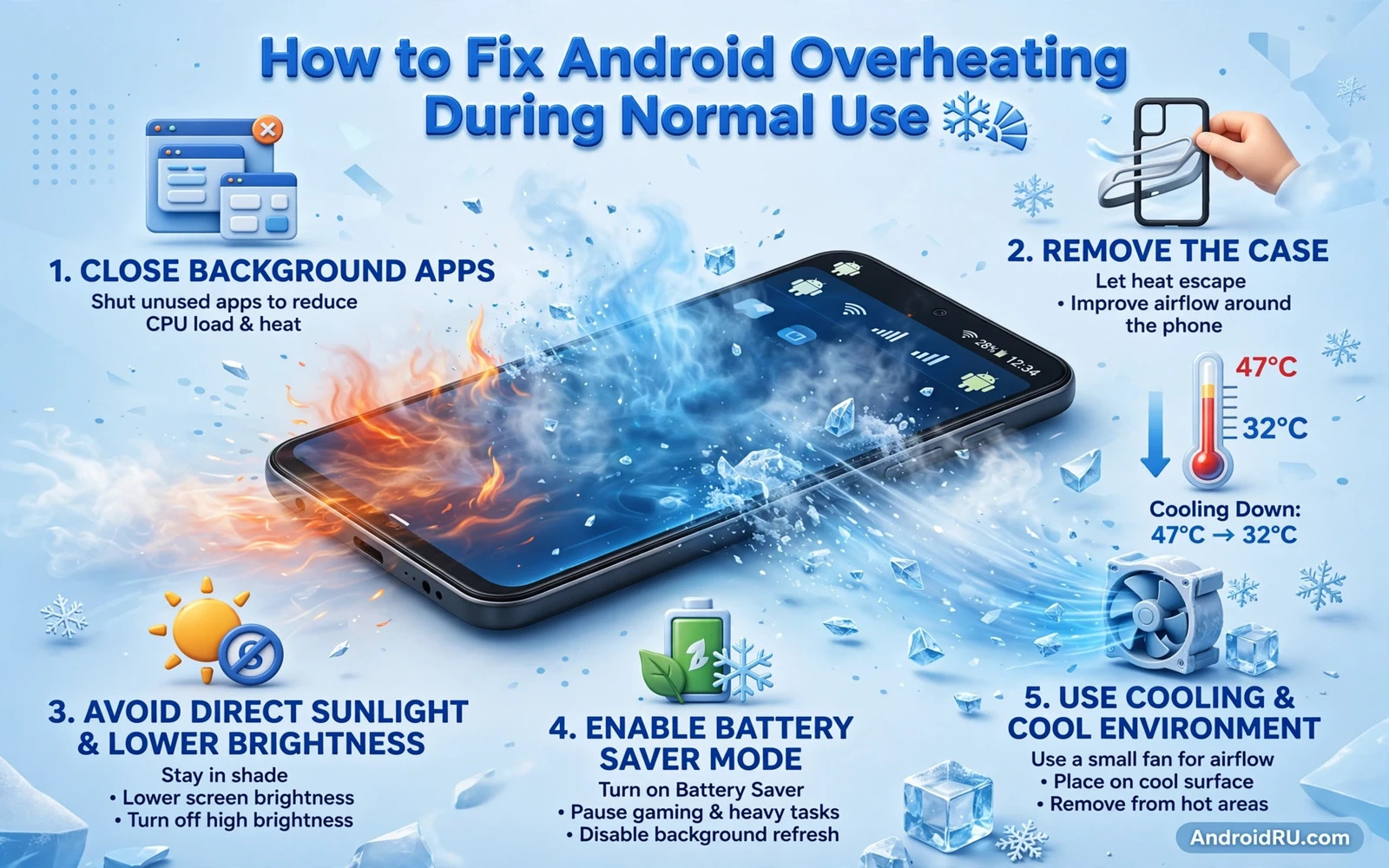
How to Fix Android Overheating Problems During Normal Use
Your phone feels warm while you read messages, scroll a feed, or wait for a bus. Nothing heavy is running, no game is open, and yet the back of the phone is uncomfortably hot. I have seen this pattern on many phones, and it is different from the heat you get after an hour of gaming or a fast charge. Gaming heat has an obvious cause. Normal-use heat means something small is working far harder than it should, and finding it is a matter of testing one cause at a time.
This guide is built for that everyday case. It walks through numbered steps you can follow in order, with real menu names and a clear check after each step, so you can tell whether a change helped before moving on. The causes are ordinary: a single app looping in the background, weak signal forcing the radio to work harder, a case trapping heat, charging habits, or screen settings that keep the processor busy all day. Work through them slowly, and most phones cool down without a repair visit.
Before you start, note two things: when the heat appears, and what you were doing. Heat that appears only while charging points one way. Heat that appears only in one building points another way. Heat that follows one app points a third way. That note turns a vague complaint into a test, and it will save you time if you ever need to describe the problem to a technician.
How to Tell Normal Warmth From a Real Overheating Problem on Android
Phones warm up during normal use. Charging warms a phone. Video calls warm a phone. Navigation warms a phone. A warm phone is not automatically a broken phone, and a little warmth after a video call or a long download is expected. Real overheating feels different: the phone is uncomfortable to hold during light use such as reading messages, and a temperature warning may appear on screen. the heat stays after you close apps.
Measure heat by behaviour, not by guesswork. Close every app, put the phone on a cool hard surface for ten minutes, and see whether it cools. A phone that cools quickly was probably just busy. A phone that stays hot with nothing open has a background cause worth hunting. Check the same test on battery alone and while charging, because a phone that only heats while charging points to the charger, the cable, or the charging speed rather than to an app.
Age matters too. A battery that has served three or four years runs hotter under the same load as a fresh one, and a phone that heats up overnight while idle deserves a different level of attention than one that warms during a video call. Keep that context in mind as you work through the steps: the goal is a phone that stays comfortable during ordinary tasks, not a phone that never warms at all.
Find the App or Process That Heats Your Phone During Normal Use
Most normal-use heat comes from software, and software is the cheapest layer to test. Start here, before you blame the battery or buy a cooler. The steps below are ordered from the easiest check to the deeper one, and you should stop at the step that fixes the problem.
Step 1: Check Battery usage and name the suspect app
Open Settings, then Battery, then Battery usage. Look at the top of the list for the last 24 hours. A hot app usually sits at the top with high use during hours you barely touched the phone. Social and video apps are frequent suspects, because autoplay, location tracking, and constant sync keep them busy in the background. Note the name of the top app, and check whether its use lines up with the hours the phone felt hot.
What to check after this step
If one app stands out clearly, you have a suspect. If no app stands out and the list is dominated by system services, the cause is more likely signal, charging, or a system process, and the later sections will help you test those instead.
Step 2: Force stop the suspect app and watch for one hour
Open Settings, then Apps, then See all apps, tap the suspect, and tap Force stop. Then use the phone normally for an hour and notice whether the back cools down. A clear temperature drop after a force stop confirms the app’s role, and that is useful evidence even if the app heats up again later. A phone that stays hot after a force stop points elsewhere, so do not keep force-stopping apps at random; move on to the next step instead.
Step 3: Restrict background activity for the app that heats the phone
Open Settings, then Apps, then the suspect app, then App battery usage, and choose Restricted. This stops the app from running freely in the background while still letting you open it when you need it. Test for a full day: if the phone stays cool and the app still works when opened, the restriction was the right fix. If the app misbehaves, for example by missing messages, loosen the restriction and consider a lighter alternative app instead of fighting the same one.
Step 4: Turn off autoplay and trim location for social and video apps
Open the suspect social or video app, go to its settings, and turn off video autoplay. Then open Settings, then Location, then App location permissions, and change that app to “While using the app” instead of “Allow all the time”. Change weather and news apps to approximate location where the option exists. These changes cut the constant wakeups that heat a phone quietly all day, and they rarely change how the app feels when you open it.
Step 5: Pause cloud uploads and clear a stuck sync
Photo backup and cloud sync can heat a phone during large transfers, and a stuck upload that retries forever heats the phone without making progress. Open your photos or cloud app, pause backup, and watch the temperature for thirty minutes. If the phone cools, resume uploads on Wi-Fi while the phone sits on a cool surface, and schedule large uploads for cooler times of day. If an upload looks stuck at the same percentage for hours, cancel it and restart it once; a fresh upload often clears the retry loop.
Fix Weak Signal and Location Heat Without Losing Connection
Weak signal heats phones fast because the radio boosts power to hold a connection that keeps dropping. A phone in a basement, a moving vehicle, or a rural area can heat up while sitting idle, and the owner blames the battery when the radio is the real cause. Location services add to the same problem through repeated radio and sensor wakeups.
Step 6: Test the phone where the signal is strong
When heat appears, check the signal bars, then move to a place with stronger signal or connect to Wi-Fi indoors. Watch the temperature for twenty minutes. A phone that cools in strong signal was fighting a weak connection, and the fix is connection, not a new battery. Turn on Wi-Fi calling if your carrier supports it, and use airplane mode only when missing calls is acceptable, for example in a dead zone where the phone would otherwise search all day.
What to check after this step
Repeat the test in the same weak-signal spot on a second day. If heat returns in that spot and nowhere else, you have found a location cause. That pattern is worth noting, because it also explains why the phone feels fine at home and hot at work.
Step 7: Turn off Wi-Fi scanning and Bluetooth scanning you do not need
Open Settings, then Location, then Location services, and turn off Wi-Fi scanning and Bluetooth scanning if you do not use them for discovery. Scanning wakes the radios constantly, even when you are not connecting to anything. Many owners never turned these on deliberately; they arrived with a default or an app request. A phone that stops scanning often cools noticeably within an hour, and you can turn scanning back on any time you need it.
Cool Down Charging Heat, Cases and Wireless Charging
Charging creates heat by nature, and fast charging creates more of it than slow charging. The combination that causes the most trouble is charging plus heavy use plus a thick case, because each layer adds heat while the case blocks it from escaping. Test these layers one at a time, starting with the cheapest test of all: taking the case off.
Step 8: Remove the case and charge on a cool hard surface
Take the case off and let the phone cool on a hard, cool surface such as a table, away from sunlight. Do not put it in a fridge or freezer; rapid cooling can cause condensation inside the phone. A phone that cools quickly after case removal points to the case as a contributor, especially a thick insulating one. A phone that stays hot without a case points to internal load, and the earlier app steps deserve a second look. Never charge a phone inside a bag or under a pillow, where trapped heat has nowhere to go.
Step 9: Switch to slow charging overnight and check the cable
Use slow charging overnight when time allows, and save fast charging for quick top-ups before you leave the house. Avoid gaming or recording video while fast charging, since the combined load of charging plus heavy use pushes temperature up fastest. Check the charger and cable when charging heat feels excessive: a damaged cable or a mismatched charger can cause extra heat. Replace a suspect cable with one recommended by the phone maker and test again for a day before judging the result.
Step 10: Centre the phone on the wireless charger or switch to cable
Wireless charging creates more heat than cable charging in many cases, and alignment matters. A phone sitting off-centre on a pad can heat up while charging slowly. Centre the phone on the pad, remove thick cases or metal attachments that interfere with charging, and see whether the heat drops. If wireless heat becomes a pattern, switch to cable charging for a week; cable charging is usually cooler and faster for the same phone, and wireless charging can stay as a desk convenience rather than the only method.
Screen, Refresh Rate and Performance Settings That Lower Heat
Screen brightness drives heat during long use, and it accumulates slowly and quietly across a day. A bright screen outdoors, a high refresh rate, and a performance mode that pushes the processor hard can keep a phone warm from morning to night without any single app to blame. These settings are worth adjusting because they help normal-use heat more than any single app tweak.
Step 11: Lower brightness, shorten screen timeout, and turn off always-on display
Lower brightness to a comfortable level and turn on adaptive brightness so the screen dims indoors. Open Settings, then Display, then Screen timeout, and shorten it so the screen turns off quickly when idle. Turn off always-on display while heat is a concern. A screen that stays bright for hours adds steady heat, and these three changes together often make the largest single difference for owners who read and scroll for hours a day.
Step 12: Switch to a standard or adaptive refresh rate
Open Settings, then Display, and look for the refresh rate or smoothness setting. A high refresh rate uses more processor and screen power, so switch to a standard or adaptive rate when heat matters. Lower game graphics settings too if you play games: a medium setting often looks nearly as good while running much cooler. Close background apps before a long session, since a clean background runs cooler and smoother than a session with many apps competing for resources.
Step 13: Use balanced mode and test power saving mode as a diagnostic
Open Settings, then Battery, then Battery Saver, or the performance mode setting on your phone, and choose a balanced mode for normal use instead of a high-performance mode. Then, during a heat episode, turn on power saving mode for an hour as a test. A phone that cools in power saving mode points to load as the cause. A phone that stays hot in power saving mode points to a deeper fault, and that result is worth knowing before you spend money on accessories.
Battery Drain and Heat: Fix Both at Once
Heat and battery drain travel together. A hot phone drains faster, and a draining phone often runs a process that also heats it, so fixing heat often fixes drain at the same time. Check Battery usage when heat appears: a top app that drains and heats is the prime suspect. Restrict that app and watch both the temperature and the battery level. Improvement in both measures confirms the fix, while improvement in only one suggests a partial cause that deserves more investigation.
When heat and drain appear together during ordinary tasks, the combined pattern deserves a focused guide rather than random tweaks. The steps for checking background processes, signal, and charging apply to both symptoms at once, and working through how to improve battery life on any Android smartphone alongside these heat checks gives a fuller picture of load across the day. Battery settings and heat settings overlap heavily, and a fix that lowers load helps both measures. Treat heat and drain as two views of the same load problem until evidence separates them.
A short daily routine keeps both measures healthy: keep brightness on auto, keep location on “while using” for most apps, restrict background apps you rarely open, and connect to Wi-Fi indoors when mobile signal is weak. Review Battery usage once a week, after major system updates especially, because updates can reset location and sync settings to defaults and reintroduce heat silently. A two-minute review after an update can save weeks of unexplained warmth.
How Gaming Phones and Thermal Throttling Fit Into Normal-Use Heat
Gaming heat is expected to a degree. Modern games push hardware hard, and a gaming phone may still feel warm after an hour of play, even when its cooling system works well. That warmth during play is not proof of failure. A gaming phone that heats during messaging is a different story, and context separates normal gaming warmth from a fault, so always note the activity when heat appears before you judge the phone.
Reading about how top gaming phones tested for cooling performance and battery handle heat gives useful context for your own phone, because well-cooled models still feel warm under sustained load. Compare your own phone across activities instead of comparing models: a large gap between light-use heat and gaming heat is normal, while a small gap, where light use feels nearly as hot as gaming, points to a background cause. A clip-on cooler helps during gaming sessions, but it does not fix a background app that heats the phone during normal use, so do not spend money on gear for a software problem.
Thermal throttling is the phone slowing itself to control heat. Throttling during long gaming sessions is protection working as designed. Throttling during light use is not normal protection; it signals a load or hardware problem, and it deserves the same investigation as light-use heat. Learning how to fix thermal throttling while gaming on Android helps separate a game-specific heat pattern from a system-wide one. When throttling appears only in one game, the game settings or version may be the cause. When it appears across all tasks, the phone load or hardware is the cause, and system investigation is the next fix.
When Normal-Use Heat Means a Hardware Problem
Most normal-use heat clears with the steps above, but some signs mean you should stop troubleshooting and seek service. A battery that swells, a back cover that lifts, a phone that shuts down during light use, or a phone that heats while powered off or idle overnight all point to hardware. Do not keep using a swollen battery, do not puncture it, and take the phone to an authorized service point with a clear note of the heat pattern and the steps you already tried.
Heat after a drop or water exposure needs service too. Internal damage can cause short circuits that heat the phone, and a drop that cracks the screen can also damage internal cooling paths. Do not try to dry a phone with external heat, and do not charge a phone that may have water inside until it is fully dry and checked when the maker guidance requires it. Physical damage changes the heat equation entirely, and continued heavy use of a damaged phone risks further harm.
One more warning sign is heat that returns within minutes after a restart, with no apps restored yet. A fresh restart with nothing open should run cool. If it does not, back up your photos, messages, and documents first, then seek a service check rather than a factory reset. A reset rarely fixes a hardware heat fault, and a backup turns a risky step into a safe one.
Frequently Asked Questions About Android Overheating During Normal Use
These are the questions owners ask once they have worked through the steps, and the answers add detail the sections above only touched on.
Is it normal for a phone to feel warm while charging?
Yes. Charging warms a phone, and fast charging warms it more than slow charging. A phone that feels warm but comfortable during charging is normal. A phone that feels too hot to hold during charging needs a charger and cable check and a case removal test. Stop charging when heat feels extreme, let the phone cool on a hard surface, and try a different charger before charging again.
Should I put a hot phone in a fridge to cool it down?
No. Rapid cooling can cause condensation inside the phone, and condensation can damage internal parts. Let a hot phone cool naturally on a cool hard surface in shade, remove the case, close heavy apps, and wait. Natural cooling is slower but safer than extreme cold, and a fridge shortcut can create a new problem while solving the heat.
Does a case always cause overheating?
No. A thin case has little effect on temperature, while a thick insulating case can trap heat during heavy use. Remove the case as a test when heat appears: a temperature drop after removal points to the case as a contributor, and a phone that stays hot without a case points to internal load. Judge the case by the activity and by the temperature test, not by how it looks.
Can overheating during normal use damage the battery permanently?
Yes, over time. Repeated high heat ages a battery faster, while occasional warmth during heavy use causes little harm. Sustained high heat during normal use causes more harm, because the battery spends hours at a temperature it was not designed to hold all day. Fixing a persistent heat cause protects long-term battery health, and a cooler phone keeps its capacity longer across years of use.
Your Daily Routine to Keep an Android Phone Cool
Your next step is a short routine, not a single fix. Today, check Battery usage, force stop or restrict the top suspect if one stands out, and take the case off while the phone charges. This week, trim location permissions, turn off Wi-Fi and Bluetooth scanning you do not need, switch to slow charging overnight, and review the settings after any system update. Keep a short note of when heat appears and what you changed, because that log turns guesswork into evidence and helps any technician you ever visit.
Prevention takes little effort once the settings are set. A phone that stays cool during messages, calls, and scrolling is a phone whose battery lasts longer, whose apps run smoother, and whose owner stops worrying about every warm afternoon. Start with Step 1 today, test one change at a time, and stop at the step that brings the temperature down.

