

What The System Cache Partition Holds
The system cache partition holds temporary data that Android uses to run smoothly. It holds temporary files from system updates and app installs and system services. It does not hold your photos. It does not hold your messages. It does not hold your contacts. It does not hold installed apps. Clearing this partition removes temporary data only. The system rebuilds needed temporary data on the next boot. That rebuild can make the first boot after clearing feel slow. The slowness passes as the system settles.
Cache data speeds up repeated tasks. The system stores results it may need again. Over time some cached data becomes stale. Stale cache can cause strange behaviour such as an app that crashes on launch or a system service that responds slowly. Clearing app cache fixes cache problems for one app. Clearing the system cache partition fixes cache problems at system level. The two actions differ in scope. App cache clearing is quick and safe from Settings. System cache clearing requires recovery mode and more care.
Many users confuse cache partition clearing with a factory reset. The confusion is dangerous because the two actions sit near each other in recovery menus on some phones. A factory reset deletes personal data and installed apps. A cache partition wipe does not. Read every menu item in recovery before you select it. When the menu text is unclear stop and look up the exact recovery layout for your phone model. A pause in recovery is always safer than a rushed selection. Recovery mode gives powerful options and powerful options deserve slow reading.
When Clearing Cache Partition Helps
Clear the cache partition when the phone feels slow after a system update. Updates leave old temporary files behind. Those files can conflict with new system code. A cache wipe after an update gives the new system a clean temporary space. Wait a few days after an update first. The system needs time to finish background work after an update. A cache wipe too early may not help because background work is still running. A cache wipe after the system settles is a cleaner test.
Clear the cache partition when system apps crash repeatedly after app cache clearing fails. A system app crash that survives its own cache clear may involve system level temporary data. A partition wipe reaches that level. Clear the cache partition when storage shows a large system temporary usage that does not shrink after normal use. Clear it when installs stall for no clear app reason after simpler install fixes fail. Cache partition clearing is a middle step. It sits between simple app fixes and stronger steps such as a factory reset. Use it in that middle position.
Do not clear the cache partition as a daily habit. Frequent wipes remove the very temporary data that speeds up the phone. The system must rebuild that data after each wipe. Daily wiping can make the phone feel slower rather than faster. Use cache partition clearing when a symptom points to stale system cache. A symptom driven wipe helps. A schedule driven wipe every day does not help. Treat this tool like medicine for a specific symptom not like a daily vitamin.
Back Up Before You Enter Recovery
Back up before recovery even though a cache wipe should not delete personal data. A backup protects you when a menu mistake happens. Back up photos to a computer or cloud storage. Back up contacts through your account sync. Note app data that lives only on the device. Check that the backup finished before you power off. A backup turns a recovery mistake into a recoverable event. Skipping backup to save a few minutes is a poor trade when recovery menus carry a data deleting option nearby.
Charge the phone above half before recovery. Recovery work with low battery risks a shutdown during a wipe. A shutdown during a wipe can corrupt temporary data further. Plug the phone into power during recovery when possible. Keep the charger connected until the phone reboots normally. A stable power supply removes one risk from an already careful process. Do not start recovery work when the battery shows a warning level.
Learn the key combination for your exact model before you power off. Key combinations differ by maker. Some phones use power plus volume up. Some use power plus volume down. Some require a cable connected to a computer to enter recovery. Look up the combination for your model from the maker guidance. Write the combination down. Recovery screens give little help text. Knowing the keys in advance prevents frustrated button pressing that can boot the phone normally instead of into recovery.
Enter Recovery Mode Step By Step
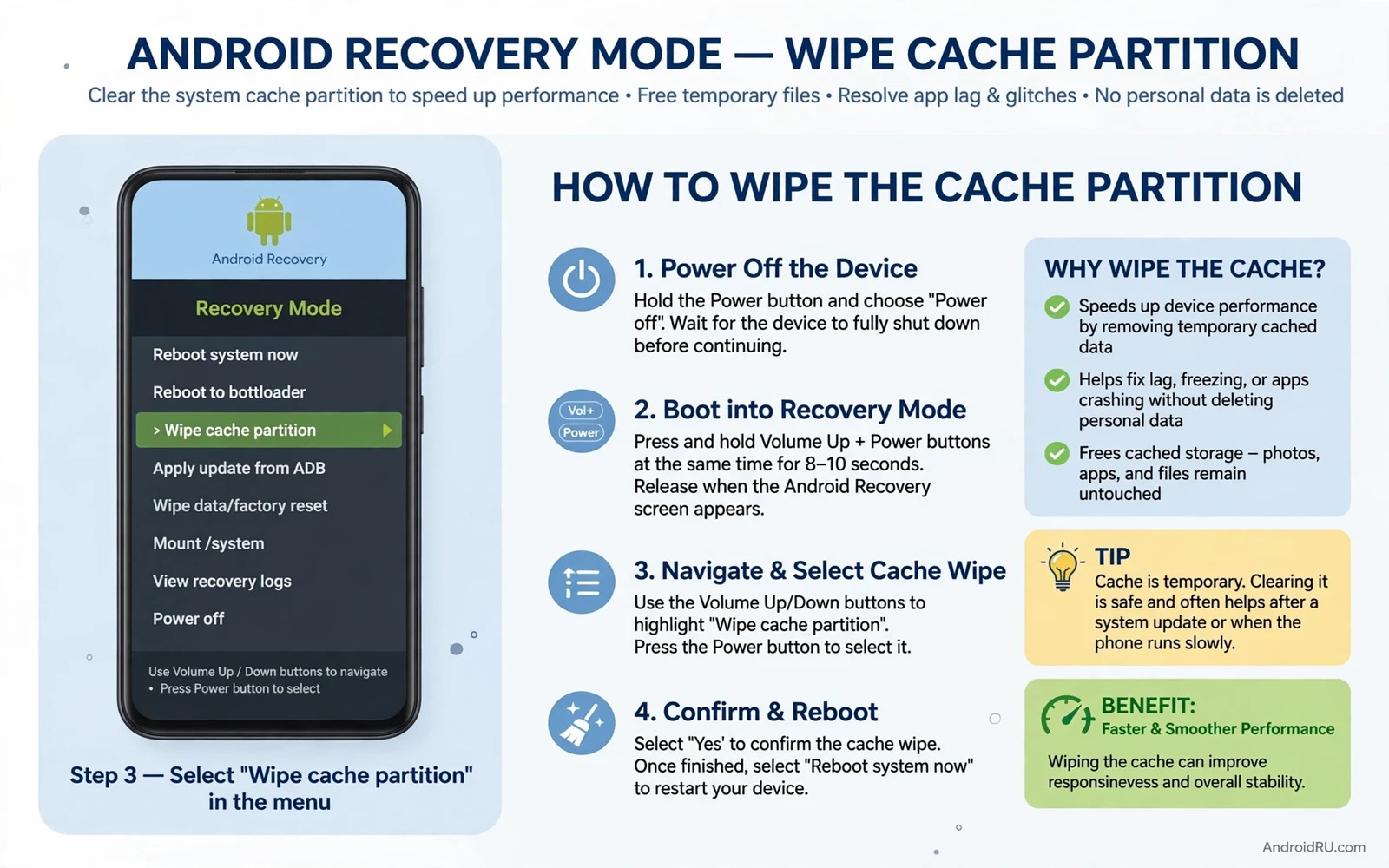
Power off the phone fully. Do not use restart for this step. A full power off gives a clean entry into recovery. Press and hold the key combination for your model. Hold the keys until the maker logo appears and then release them as directed for your model. Wait for the recovery menu to appear. The menu uses simple text and a dark background on most phones. Use volume up and volume down to move the highlight. Use the power button to select an item. Touch input may not work in recovery on some models. Button navigation is the reliable method.
Read the menu slowly. Find the item named Wipe cache partition. The exact wording can vary slightly by model. Some menus say Wipe cache partition. Some say Wipe cache. Do not confuse this item with Wipe data or Factory reset. Those items delete personal data. If you cannot find a cache item on your model then stop. Some newer phones use a different storage layout and may not offer a separate cache partition wipe. Forcing a wipe through an unclear menu is not worth the risk. Use app cache clearing and system settings instead on such models.
Select Wipe cache partition when you are sure of the item name. Confirm when the menu asks for confirmation. The wipe takes a short time. A progress message may appear. Wait for the wipe to finish fully before you press any other key. Impatience in recovery can interrupt a process that should run to completion. When the wipe finishes the menu returns to the main recovery list. Choose Reboot system now. The phone will boot normally. The first boot may take longer than usual while temporary data rebuilds.
After The Wipe And First Boot
Allow extra time for the first boot. Do not force restart the phone when the boot logo stays longer than usual. The system rebuilds caches for system services during this boot. Opening many apps immediately after boot adds load to that rebuild. Wait for the home screen to settle. Open one app and check that it loads normally. Check Settings and storage to confirm the phone boots cleanly. A longer first boot is expected. A boot that never finishes is not expected and needs maker support.
Test the symptom that led you to the wipe. Open the app that crashed before. Try the install that stalled before. Check overall speed during normal use for a day. A cache wipe helps when stale cache caused the symptom. A cache wipe does not help when the cause is a failing app or low storage or a hardware fault. Judge the result after a full day of normal use. A single fast launch right after boot is not proof of a fix. A full day without the symptom is stronger proof.
Clear individual app caches again when needed after the partition wipe. The partition wipe does not replace app cache management. Heavy apps rebuild large caches quickly. Check app cache sizes in Settings after a week. Clear cache for apps that grow very large without benefit. Keep this routine light. Occasional app cache clearing plus a rare partition wipe keeps temporary data healthy without constant rebuilding.
Cache Partition And Install Problems
Install problems sometimes trace to stale system cache. An install that fails after a fresh download and after installer cache clearing may need a system level cache clear. The partition wipe removes temporary installer state that app level clearing cannot reach. Try simpler install fixes first. Restart the phone and check storage and check the file. Remove older versions of the app. Clear installer cache. Only then consider a partition wipe for an install problem. This order keeps recovery use rare and purposeful.
When an install fails repeatedly the error message alone rarely names cache as the cause. A methodical order reveals the cause by elimination. Each simpler fix removes one suspect. The partition wipe removes the system cache suspect. If the install still fails after a partition wipe then cache was not the cause. Move to compatibility checks and file source checks. A failed install after a full methodical sequence points to an incompatible file or a system fault rather than to temporary data.
That elimination order is also the reason a partition wipe guide belongs alongside install troubleshooting. The two topics share the same careful sequence of simple fixes first and recovery only later. When you work through how to fix an App Not Installed error on Android you will see cache partition clearing placed after storage and conflict and permission checks. That placement is intentional. Recovery is a tool for a narrowed cause not a first guess for every install failure.
Cache Partition And Storage Problems
Storage problems and cache problems overlap. A phone low on storage may show slow behaviour that looks like a cache problem. Check storage before a partition wipe. Free space by moving media files and uninstalling unused apps. A partition wipe does not create large free space. It removes temporary system data only. Expect a modest space gain at most. When storage is the real cause a partition wipe will disappoint. Freeing real space through file management helps far more than any cache action.
Freeing storage without deleting apps is a separate skill with its own steps. It involves moving media and clearing app caches and removing downloaded files you no longer need. Those steps preserve apps while creating space. A partition wipe should not be used as a storage freeing trick. Use file management for storage. Use a partition wipe for stale system cache symptoms. Keeping the two goals separate leads to the right tool for each problem.
When storage pressure persists after moving media the next step is to review which apps and files use the most space. The storage screen in Settings shows a breakdown by category. Use that breakdown to target large items. A single large game or a large offline map can use more space than hundreds of photos. Removing one large item can restore comfortable free space. After freeing space test the original symptom again before you enter recovery. Many slow phones recover with space alone.
For phones that still feel cramped after a partition wipe the storage question remains open. A guide that explains how to free up storage space on Android without deleting apps covers media moves and cache management and download cleanup in detail. Those file steps complement a partition wipe rather than repeating it. Combine a clean cache with real free space for the best result. A phone needs both clean temporary data and breathing room in storage to run smoothly.
Cache Clearing And Download Stalls
Download stalls can also involve stale cache. A store download that stalls after network fixes and queue fixes may involve store cache or system cache. Clear store cache first from Settings. Clear Play Services cache next when store cache alone fails. Consider a partition wipe only when both app level cache steps fail and the stall persists across networks. This ladder keeps recovery rare. Most download stalls resolve at app cache level or network level. A partition wipe is the last cache step not the first.
Note the pattern before a partition wipe for downloads. A stall on Wi-Fi only points to network. A stall on every network points to phone state. A stall for one app points to that app file. A stall for every app points to store or system state. Only the last pattern justifies a system cache wipe for downloads. Pattern reading prevents a recovery visit for a router problem. A router problem will still exist after a partition wipe and the visit will have wasted time and risk.
The download queue itself deserves attention before recovery. Pause all downloads and cancel unneeded jobs. Start one download alone. A crowded queue can stall even with clean cache. When the queue is clean and the network is stable and app caches are clear then a partition wipe becomes a reasonable next cache step. The same careful recovery reading applies. Confirm Wipe cache partition and never select a data wipe by mistake. That caution protects the very downloads you aim to fix.
A download stall that survives app cache clearing sometimes needs the same ladder of checks and the store queue steps that come before any recovery visit are explained in the steps to fix a Google Play Store download that stays stuck and those queue steps should come before you enter recovery for a download problem.
Risks And Mistakes To Avoid
The largest risk in recovery is selecting the wrong wipe item. Read the item name twice. On some phones the factory reset item sits directly below the cache item. A single extra volume press can move the highlight to the wrong item. Move slowly. Confirm the highlight position before you press power. If the highlight looks wrong press volume keys to correct it. Never confirm a wipe when unsure of the highlighted item. Backing out of recovery and rebooting normally is always an option when doubt appears.
Another risk is interrupting the wipe. Do not remove power during a wipe. Do not press random keys during a wipe. Wait for completion text. A second risk is entering recovery with low battery. Charge first. A third risk is using a key combination found for a different model. Model specific combinations matter. A wrong combination may boot into a different mode such as download mode. Exit an unfamiliar mode by holding power to restart when the maker guidance says that is safe. Do not select items in an unfamiliar mode.
Do not clear cache partition to chase benchmark scores. Cache exists to speed up the phone. Clearing it forces rebuilding and can lower scores on the next run. Use cache clearing for symptoms not for scores. Do not install apps that promise automatic cache partition clearing without recovery. Real partition wiping requires recovery access. Apps that claim otherwise often only clear app caches or show ads. Trust the built in recovery path over a third party promise.
Frequently Asked Questions
Will wiping cache partition delete my photos. No. Cache partition wiping removes temporary system data only. Photos and messages and contacts and installed apps remain. A factory reset deletes data. Keep the two actions distinct. Read the menu item before you confirm any wipe in recovery. A backup before recovery adds safety against a menu mistake.
How often should I wipe the cache partition. Only when a symptom points to stale system cache. For most users that means rarely. After a troublesome system update or after persistent system app crashes are reasonable times. Daily or weekly wiping is not helpful. Frequent wiping forces the system to rebuild temporary data constantly and can slow the phone.
Why is there no cache partition option on my phone. Some newer phones use a different storage layout without a separate cache partition. Those phones manage system cache differently. Use app cache clearing and storage management instead. Do not force a partition wipe through unofficial tools. Unofficial tools can damage the system layout on phones that lack a cache partition.
Will the phone feel faster immediately after a wipe. Not always immediately. The first boot rebuilds caches and can feel slow. Speed gains appear after the system settles and only when stale cache was the cause. When slow behaviour comes from low storage or a heavy app a cache wipe alone will not fix speed. Address storage and heavy apps for those causes.
Is cache partition wiping safe for a new phone. A cache wipe on a new phone is usually unnecessary. New phones have little stale cache. A new phone that feels slow likely has a setup issue or a heavy app or a weak signal. Check those causes first. Recovery use on a new phone should follow the same symptom driven rule as on an older phone.

