

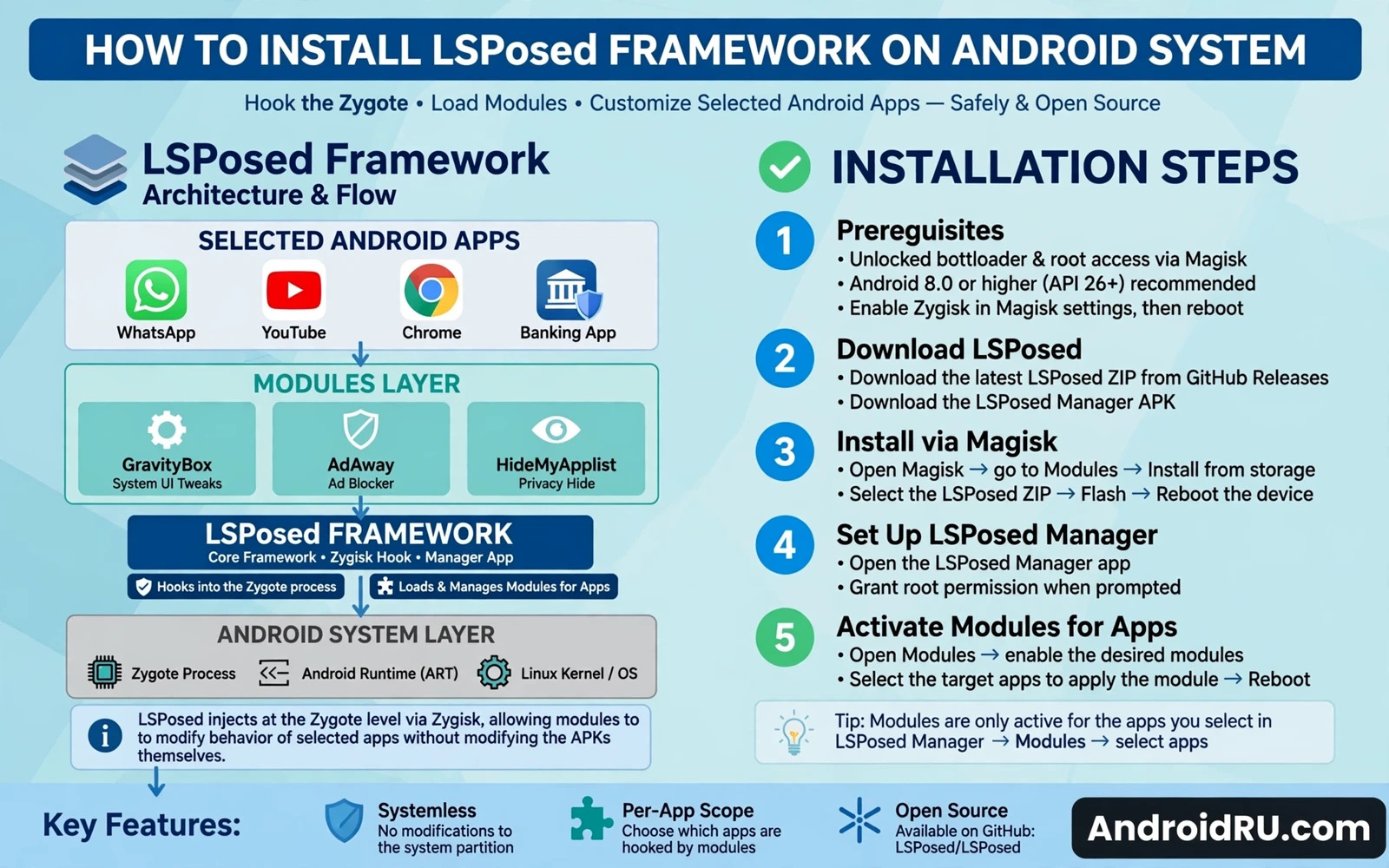
How to Install LSPosed Framework on Android System
LSPosed is a framework that lets modules change app behaviour without changing app files. It builds on the ideas of the older Xposed framework, and it works on modern Android versions through a root method that supports Zygisk or a similar injection path. Modules hook into app code at runtime: they can change interface behaviour, permission behaviour, and features inside a single app, all without touching the app’s own files.
This guide explains installation in safe order, then scope control and troubleshooting. Read the root safety notes before you start, and if you have never rooted a phone before, read the complete Android rooting guide first so you understand the risks, the benefits, and the steps in full. LSPosed is powerful because it sits between apps and the system. A module can alter what an app sees, what an app does, and what an app shows. That middle position also creates risk: a buggy module can crash an app, crash the system interface, or cause a bootloop. Scope control limits that risk, and careful module choice limits it further.
Do not install LSPosed on your only phone without a backup, and do not install it on a phone you need for work tomorrow. Use a secondary device for your first install, learn the recovery steps on that device, and only then consider your daily phone.
What LSPosed is and what it needs
LSPosed injects its framework into the app process at startup, using a mechanism provided by your root method. On Magisk that mechanism is Zygisk, which runs code inside the Zygote process so every app forked from it carries the framework. On KernelSU and APatch, similar injection paths exist, though the exact setup differs. The framework itself does nothing visible until you install modules, and each module declares which apps it wants to modify.
The key idea is scope. A module does not change the whole system. It changes only the apps you assign to it, and only while it is enabled. That design keeps the blast radius small: a bad module affects its scoped apps, not every app on the phone. Understanding scope before you install anything is the most important part of this guide.
Zygisk and the injection path
Zygisk loads your code into the Zygote process, which is the parent of every Android app process. When an app starts, it inherits the loaded code, and LSPosed uses that position to offer its hooking API to modules. The injection happens early, before the app’s own code runs, which is why modules can change behaviour that the app itself never exposes. Magisk and KernelSU and APatch root methods differ in how they provide this injection, so confirm that your root method supports the LSPosed build you plan to install.
Root methods that work with LSPosed
Magisk with Zygisk enabled is the most common path, and it is the best documented. KernelSU can also work when its setup supports the framework, and APatch offers a similar path on supported devices. Check framework compatibility for your root method and your Android version before you download anything. A mismatch can cause boot failure or a silent install that does nothing, and both failures waste an afternoon.
Checking your Android version and root method version
Open Settings, then About phone, and note the Android version. Open your root manager app and note its version. Framework builds differ by Android version and by injection method, so download the framework package that matches your exact setup. Verify the file when the project provides a hash, because a wrong build can fail to load or break app startup.
What you need before installation
Root access is the first requirement. LSPosed needs a root method that can inject its framework at boot, and that root method must already work reliably on your phone. If root itself is flaky, fix root first. A framework installed on top of broken root will only add confusion to the troubleshooting.
A working backup is the second requirement. Back up the system state before you install any framework. A recovery backup lets you restore a working phone after a bad module, and it also lets you test modules without fear. Keep the backup on external storage when possible, and keep stock firmware ready as a deeper fallback. Framework work without a backup is a gamble, and the stakes are a phone that will not boot.
A working backup before you touch anything
Take a full backup in your custom recovery, including the boot and system partitions. Copy that backup off the phone to a computer. A backup that lives only on the phone is useless if the phone will not boot, so the copy matters as much as the backup itself. Test that the backup file is complete before you proceed.
Stock firmware as a deeper fallback
Download the stock firmware for your exact model and keep it on your computer. If a bad module or a bad framework install leaves the phone unable to boot, flashing stock firmware restores a known-good state. Knowing the firmware is ready before you start makes the whole process calmer, because the worst case is already covered.
Installing LSPosed step by step
Follow these steps in order, and confirm each one before moving to the next. Do not install user modules before the framework itself shows active.
- Start with a clean rooted phone and a fresh backup. Open the root manager app and confirm root still works.
- Enable Zygisk when your root method uses it. Reboot once and confirm the phone boots normally. A stable base makes later troubleshooting far easier.
- Install the LSPosed manager app next. The manager app controls the framework, lists installed modules, controls module scope, and shows framework status. Install the manager from the package that matches your root method.
- Open the manager and read the status screen. A green active status means the framework loaded. A missing status means the injection path failed.
- Flash or install the framework module through the root manager when your setup needs that step. Some setups install the framework as a module inside the root manager, while other setups use a separate installer package. Follow the framework instructions for your exact root method.
- Reboot after the framework install finishes.
- Confirm the framework after reboot. Open the manager app again, check that the framework status shows active, check that the version matches the package you installed, and check that the system interface loads normally. Open a simple app and confirm it starts.
Enabling Zygisk in the root manager
In Magisk, open Settings and switch on Zygisk, then reboot. The phone needs that reboot before Zygisk loads anything, so do not skip it. If the Zygisk toggle is missing, your Magisk version may be too old, or your device may need a different root method. Update Magisk first, then try again.
Installing the manager app
The manager app is the control panel for the framework. Install it from the official LSPosed release page, not from a random mirror, because a modified manager app could hide malicious modules. The manager shows the framework status, the installed modules, and the scope settings. Learn the manager before you install any module.
Confirming active status after reboot
After the reboot, open the manager and look for the active status. If it shows active, the framework loaded correctly. If it shows inactive or missing, stop and troubleshoot before adding modules. Installing a module on an inactive framework wastes time and hides the real problem.
Installing and scoping modules
Module installation starts in the manager app. A module package installs like a normal app package in most cases. Open the manager after install, find the module in the module list, and enable it with its toggle. Then open the scope screen for that module, because scope decides which apps the module can touch.
Scope control is the safety feature that makes LSPosed practical. A module scoped to one app cannot affect any other app, so a buggy module breaks one app instead of the whole system. Always scope a module to the smallest set of apps it needs. A module that asks for system-wide scope deserves a careful look at what it actually does, and a module you do not understand should stay disabled until you read its documentation.
Enabling a module in the manager
After installing a module package, open the LSPosed manager, find the module, and switch it on. The module will not work until you also set its scope, so do not be surprised when nothing changes after enabling it. Set the scope, reboot if the module requires it, and then test the module’s effect in the scoped app.
Scope control: which apps a module touches
Open the scope screen and tick only the apps the module needs. A theming module needs the system interface and perhaps one or two apps. A privacy module needs the apps whose behaviour it changes. A module scoped to every app is a module that can break every app, so keep the scope tight. You can widen the scope later if the module needs more apps, and that change is safer than starting wide and narrowing after a crash.
One module at a time
Add one module at a time and test after each one. Install the module, set its scope, reboot if needed, and use the phone normally for a day. If something breaks, you know which module caused it. Installing five modules at once turns a simple problem into a guessing game, and the time you save by batching is lost many times over in debugging.
Troubleshooting: when the framework does not show active
The most common cause of an inactive framework is a mismatch between the framework build and your Android version or root method. Check the version numbers first, then check that Zygisk is actually enabled, then check the manager logs for an error message. The logs usually name the problem directly, whether it is a missing library, a denied permission, or an injection failure.
A second common cause is a conflicting module from an earlier install. If you previously installed a different Xposed-style framework, remove it completely before installing LSPosed. Two frameworks fighting over the same injection path will break both, and the symptoms look like random crashes rather than a clean error.
Wrong build for your Android version
Framework builds are version-specific. A build for Android 13 will not work correctly on Android 14, and a build for Zygisk will not work on a setup that uses a different injection path. Download the build that matches your Android version and your root method, verify its hash, and reinstall. A careful reinstall fixes most inactive-framework cases.
Zygisk not enabled or not loading
Open the root manager and confirm Zygisk is switched on, then reboot and check again. Some Magisk modules conflict with Zygisk loading, so disable other Magisk modules temporarily and test. If Zygisk loads with other modules disabled, re-enable them one at a time to find the conflict.
Bootloop recovery
If the phone bootloops after installing the framework or a module, boot into recovery and use the root manager’s safe mode or the module disable file to turn off all modules. Magisk offers a safe mode that disables modules at boot, and LSPosed respects that. Once the phone boots, remove the offending module, reboot normally, and confirm the phone is stable before trying again. That recovery path is the reason the backup step matters, and it is also why you should never install a framework on a phone you cannot afford to lose for a day.
Staying safe with modules
Choose modules from sources you trust, and prefer modules with public source code and an active maintainer. A module runs inside your apps with broad access, so a malicious module can steal data or break functionality. Read the module description, check when it was last updated, and look for user reports before you install it. The top LSPosed modules to enhance Android customization are a good starting point, since they are widely used and actively maintained, but even popular modules deserve a scope check before you enable them.
Keep the number of active modules small. Each module adds a hook into app code, and hooks interact in ways that are hard to predict. Five well-chosen modules are safer than twenty modules you barely use. Review your module list every few months and remove anything you no longer need.
Choosing trustworthy modules
Prefer modules hosted on the official LSPosed repository or on GitHub with visible source code. Avoid modules distributed only through random download links, especially when they promise features that sound too good to be true. A module that claims to give you paid features for free is a red flag, not a bargain.
What to do when a module crashes an app
Open the manager, disable the module, and reboot. If the app works again, the module was the cause. Check whether the module has an update that fixes the crash, and check whether its scope includes an app it should not touch. A crash that appears after an app update often means the module needs an update too, because the app’s code changed under the hook.
Frequently asked questions
Does LSPosed work without root?
No. LSPosed needs a root method that can inject its framework at boot, and that injection requires root access. There is no supported way to run LSPosed on a phone without root. If your phone cannot be rooted, look for non-root alternatives that achieve the specific feature you want, rather than trying to force the framework onto an unrooted device.
Will LSPosed trip SafetyNet or Play Integrity?
LSPosed itself can affect integrity checks, because it modifies app behaviour at runtime. Whether a specific app detects it depends on the app, the module, and the integrity level it checks. Banking apps and games with strong checks may refuse to run with the framework active. Test each sensitive app after installing the framework, and use scope control to keep LSPosed away from apps that must pass integrity checks.
Can I use LSPosed on Android 15?
Support depends on the LSPosed build and your root method. New Android versions usually need a new framework build, and that build may arrive weeks after the Android release. Check the official release notes for your Android version before you upgrade the system, and do not upgrade Android on a phone that depends on LSPosed until a compatible build exists.
How do I remove LSPosed completely?
Disable all modules in the manager, then uninstall the framework through the root manager or the installer you used, then uninstall the manager app, and reboot. After removal, check that the framework status is gone and that previously scoped apps run normally. A full uninstall is clean when done in that order, and your backup covers the case where something goes wrong.
Start with one module
Install the framework, confirm it shows active, and then add exactly one module. Scope it to one app, test it for a day, and learn how scope and the manager work in practice. That slow start feels unnecessary until the day a module misbehaves, and then the habit of adding one module at a time is what lets you find the problem in minutes instead of hours.
Your next step is the backup. Take it now, copy it off the phone, and only then download the framework package that matches your Android version and root method. A phone with a backup and a plan is a phone you can experiment on safely.

