

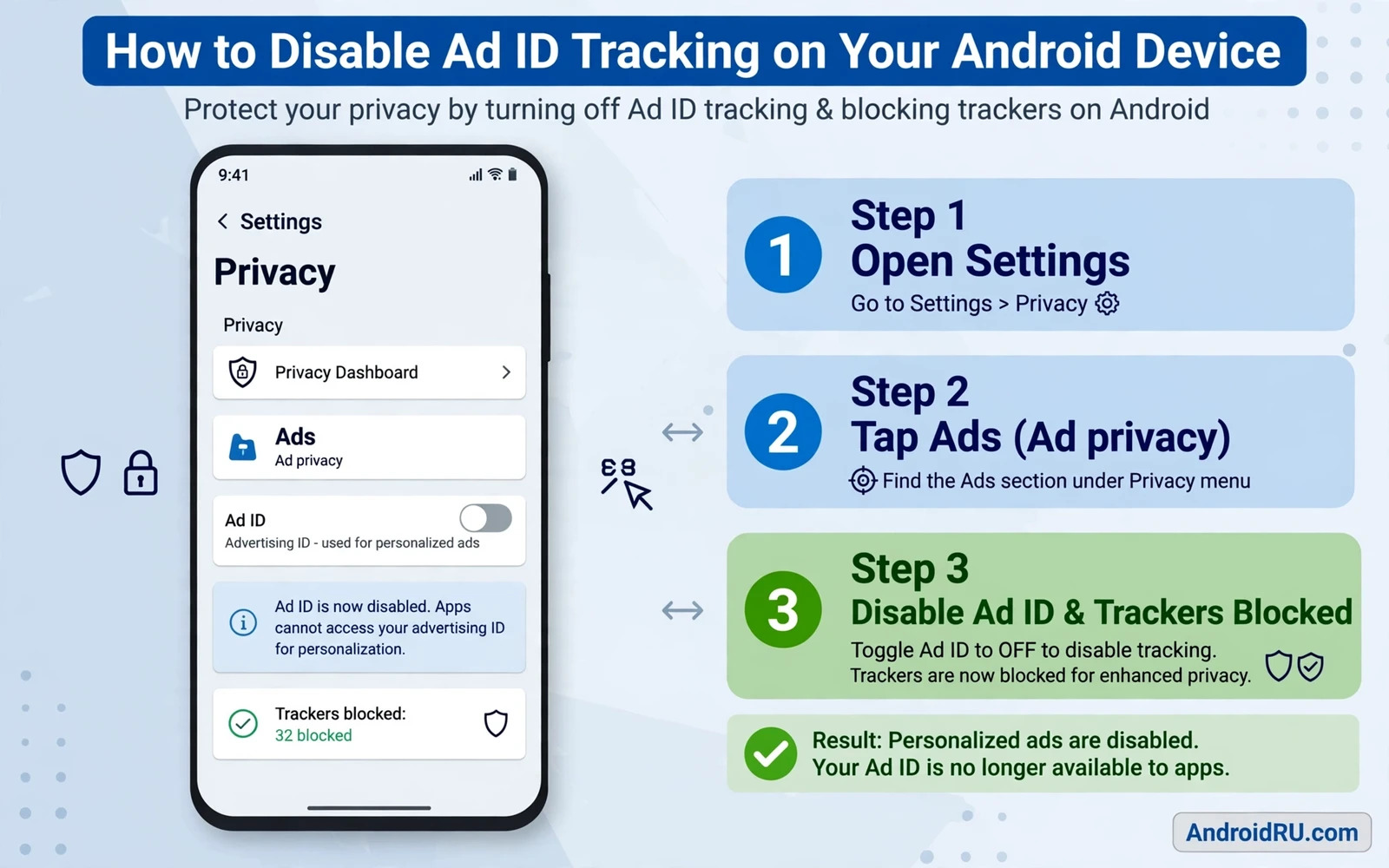
Your Android advertising ID is a unique identifier that apps and ad networks use to build a profile of your interests across different apps. An ad network that sees the same advertising ID in a game and in a news app and in a shopping app can join those activities into a single profile. That profile then drives personalised ads that follow you across the phone. Disabling or deleting the advertising ID breaks that cross app link and forces ad networks to treat each app interaction more independently.
Deleting the advertising ID does not remove all ads from your phone. Apps will still show ads but those ads will be less personalised because they cannot rely on a stable cross app identifier. Some users prefer generic ads over personalised ads even when generic ads feel less relevant. Others notice little difference because contextual ads based on the current app content still appear. The privacy gain lies in breaking the persistent profile rather than in achieving an ad free phone. An ad free phone requires additional blocking tools beyond advertising ID controls.
This guide walks through deleting the advertising ID and opting out of personalised ads and checking connected settings that ad networks exploit. You will also learn the limits of advertising ID deletion because determined trackers use other signals such as device fingerprints and account logins to rebuild profiles. Advertising ID deletion is a valuable layer rather than a complete tracking solution.
Find And Delete Your Advertising ID
Open Settings and then open Privacy or Security and privacy depending on your phone brand and then open Ads. The Ads screen shows your advertising ID options and a delete option on recent Android versions. Tap Delete advertising ID and confirm the deletion. Android then replaces future advertising ID requests with a string of zeros that tells apps and ad networks that personalised tracking is disabled for your device. Existing profiles built from the old ID lose their stable link to your phone from that moment forward.
Some phones place the Ads setting under Google services settings rather than under system privacy settings. Open Settings and then open Google and then open Ads if the system privacy path shows no Ads entry. The control is the same regardless of its location. After deletion restart the phone and revisit the Ads screen to confirm that the deletion persisted. A setting that reverts after restart signals a manufacturer customisation or a device policy that overrides your choice and deserves further investigation.
Opt Out Of Personalised Ads Where Offered
Delete the advertising ID and also switch on the opt out of ads personalisation option when your phone shows it. Deletion and opt out serve connected but distinct purposes. Deletion removes the identifier itself. Opt out signals to ad networks that you do not consent to personalised advertising even when an identifier remains available through another path. Apply both controls together for the strongest result. Check the Ads screen after a major system update because updates can reset privacy choices without a clear warning.
Review personalised ad controls inside your Google account as well because account level ad personalisation affects ads in Google services and in apps that use Google advertising. Open your Google account ad settings from a browser or from the Google app and switch off ad personalisation there. Account level settings and device level settings reinforce each other. A device deletion alone leaves account based personalisation active when you sign into Google services on that device.
Settings That Trackers Exploit
Location history and app activity history feed advertising profiles through channels beyond the advertising ID. Review location permission for apps that show ads and revoke background location for apps that do not need it. Review usage access permissions that let an app see which other apps you use. An advertising app with usage access can profile your habits without needing an advertising ID at all. Revoke usage access for any app that does not provide a clear feature that depends on it.
Check app permissions for advertising libraries inside otherwise innocent apps. A free game may embed several advertising SDKs that collect device model and network information and approximate location. Deleting the advertising ID limits those SDKs but it does not silence them entirely. Combine advertising ID deletion with permission review and with tracker blocking in your browser. Each layer removes a different signal and together they make profile rebuilding measurably harder.
What Changes After Deletion And What Does Not
After deletion you may still see ads that relate to the app that you are currently using because contextual advertising does not need a cross app identifier. A cooking app may show food ads and a sports app may show sports ads based solely on current content. That behaviour is expected and it does not prove that deletion failed. What should change is the feeling that ads follow you from one unconnected app to another based on activity elsewhere. Cross app personalisation should weaken noticeably within days as old profiles lose fresh data.
Some apps may behave strangely after advertising ID deletion because they expected a stable identifier for fraud prevention or for reward tracking. A game that tracks rewards by advertising ID may lose reward history. An app that uses the identifier for legitimate fraud checks may show a warning. Those side effects are usually minor and they reflect the privacy tradeoff honestly. If a critical app breaks after deletion you can weigh its importance against tracking protection and decide whether to keep deletion for that device or to use a separate device for that app.
Building A Broader Anti Tracking Routine
Advertising ID deletion works best inside a broader anti tracking routine. Use a privacy focused browser with tracking protection for web browsing. Review app permissions monthly and remove apps that you no longer use. Avoid signing into advertising driven apps with the same account across every service when separation matters to you. Use separate profiles or separate browsers for social accounts and general browsing. Each habit removes a linking signal and advertising ID deletion removes the most persistent mobile signal of all.
Teach the routine to family members who share devices because a single user who restores an advertising ID or grants broad permissions can rebuild a profile for a shared tablet. Check advertising ID settings on tablets and secondary phones as well as on your main phone. Children tablets deserve special attention because advertising profiles built during childhood can persist into later use. Delete advertising IDs on every Android device in the household and review the settings after each major update.
Ad ID deletion pairs with browser blocking so follow stopping pop-up ads and trackers on Android browsers and reduce noisy prompts with blocking annoying notification spam on mobile while auditing apps that access the camera and microphone catches sensor permissions that advertising apps sometimes request.
- Delete the advertising ID from the Ads screen and confirm deletion after restart
- Switch off ad personalisation in device settings and in your Google account
- Revoke background location and usage access for advertising heavy apps
- Review permissions monthly and remove apps you no longer use
- Check advertising ID settings on tablets and secondary phones too
Checking Ad Tracking Controls After Updates
Ad tracking controls deserve checking after every major system update because updates can reset privacy choices silently. Open the Ads screen after an update and confirm that the advertising ID remains deleted and that personalisation remains switched off. Open Google account ad settings and confirm that account level personalisation remains switched off as well. A two minute post update check prevents months of rebuilt profiling that a reset choice would otherwise allow.
Check app level advertising settings as a companion routine. Many apps offer their own personalised ads toggle inside app settings that operates independently of the system advertising ID. Open settings inside advertising heavy apps such as games and shopping apps and switch off personalised ads there too. An app level toggle that remains switched on can personalise ads using account data even when the system identifier is deleted. System controls plus app controls together close more tracking paths than either control alone.
Review new apps for advertising behaviour before granting them broad permissions. A new game that requests usage access and location access on first launch is signalling an advertising driven business model. Deny permissions that the game does not need for gameplay and delete its advertising ID influence by keeping system deletion active. Uninstall apps that refuse to function without broad advertising permissions when a less intrusive alternative exists. Your phone should serve your needs rather than serving advertisers through apps that you installed for fun.
Ad Tracking On Tablets And Secondary Devices
Tablets and secondary devices often escape ad tracking routines because owners focus privacy effort on the main phone. Check the advertising ID setting on every Android tablet and secondary phone in the household and delete identifiers wherever the setting exists. A tablet used for shopping and video can build a rich advertising profile even when it never makes a phone call. Secondary devices deserve the same deletion and opt out routine as the main phone.
Review advertising settings on shared family tablets together with other household members so that everyone understands why personalised ads reduced. Children may ask why ads changed after deletion and an honest explanation about cross app profiles helps them understand privacy choices. Revisit tablet settings after updates because a tablet that updates rarely may reset privacy choices without anyone noticing for months. Household wide ad tracking hygiene prevents one forgotten tablet from rebuilding a profile for the whole family.
Disabling Ad ID tracking is a quick privacy win that breaks the stable cross app profile behind personalised ads. Delete the identifier and opt out of personalisation and review the connected permissions that trackers exploit. Ads will remain but they will know far less about you across apps. That reduction in persistent profiling is exactly the protection that advertising ID controls are designed to deliver.

