

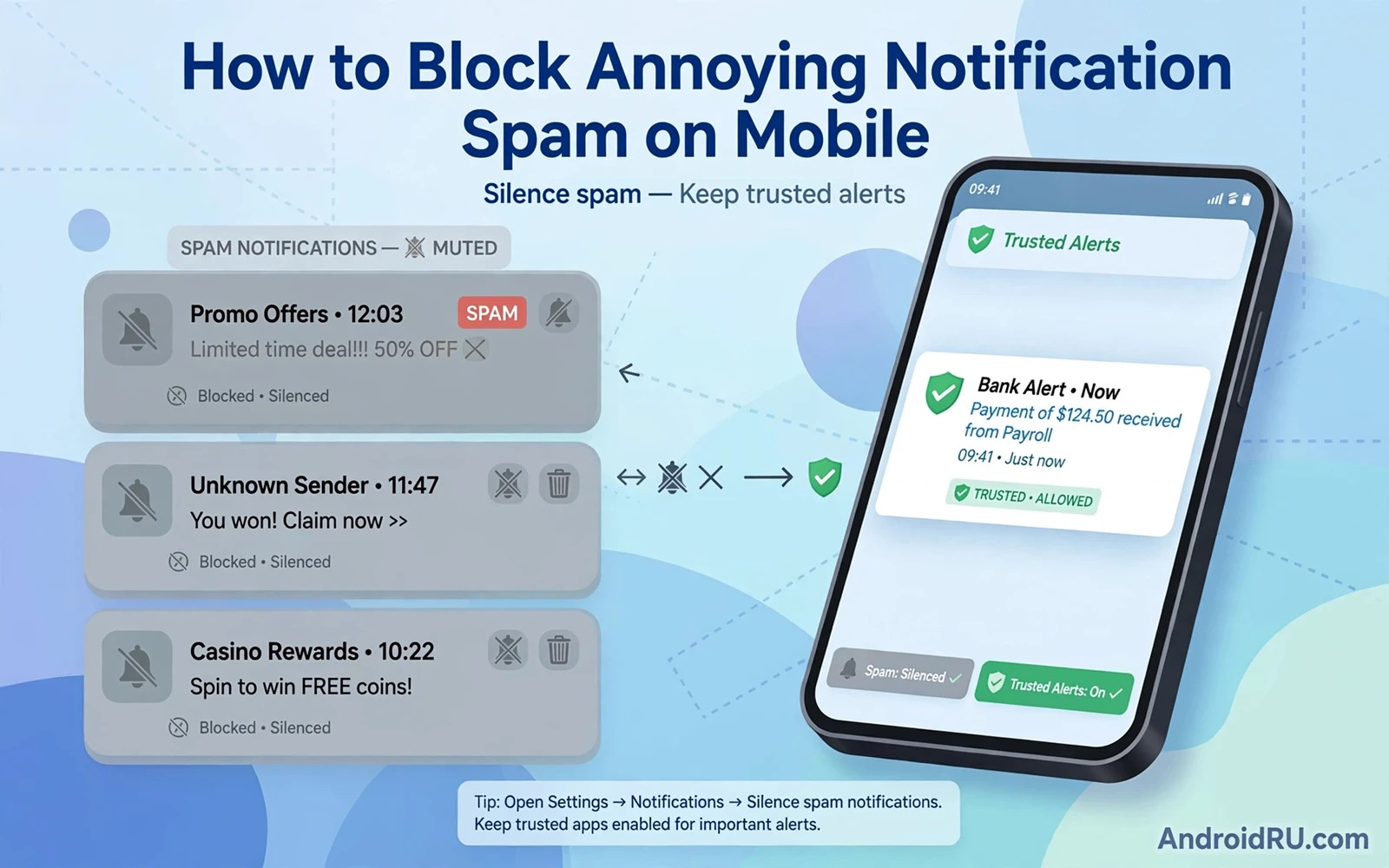
Notification spam feels small at first but it soon fragments attention because every buzz pulls focus away from work and rest and conversation. A phone that buzzes for sales and games and social reactions trains its owner to ignore alerts altogether. That trained ignorance then becomes a safety problem because a truly important alert can hide inside a flood of noise. Blocking spam is therefore not only about comfort but also about restoring trust in the alerts that remain. A quiet phone makes important messages stand out again.
App notifications fall into channels that Android now lets you control separately rather than as a single on or off switch for the whole app. A messaging app may offer separate channels for direct messages and group mentions and reactions and promotions. A shopping app may offer separate channels for order updates and marketing offers. Opening notification settings for one app reveals those channels and lets you silence marketing while keeping order updates alive. Channel control turns a blunt block into a precise filter.
Find The Noisiest Apps First
Start with the noisiest apps first because a small number of apps usually produce most of the spam on a phone. Check notification history or recent notifications in settings to identify which apps buzzed most during the past day. Open each noisy app in settings and turn off promotional channels while keeping any channel that carries account security or delivery information. Repeat that review for a few days because new channels can appear after an app update. A focused start beats a long session that tries to fix every app at once.
Browser notification spam comes from sites that asked for permission once and then send offers and headlines forever. A single careless allow on a news or shopping site can create a daily stream of alerts that look like app notifications. Open browser settings and review site notification permissions and revoke permission for any site that you do not recognise or no longer visit. Block future permission prompts from sites that abuse them by setting the browser to block notification requests by default. A clean site list often removes more spam than any app setting.
Popups and tracker heavy sites create a related form of spam because they push notification prompts as soon as a page loads. A browser with strong popup blocking and tracker protection reduces those prompts before they reach you. That browser defence connects naturally with how stopping pop-up ads and trackers on Android browsers works for cleaner browsing because a quiet browser sends fewer notification requests in the first place. Combine popup blocking with site permission review so that both the prompt and the permission stay under control.
Social Games And System Noise
Social apps deserve a separate review because their notification design often rewards frequent checking rather than calm use. Turn off reactions and likes and suggested content while keeping direct messages and mentions from people that you actually follow. Set quiet hours for social apps so that evening rest stays free from reaction noise. A social app that respects quiet hours still delivers messages but it stops demanding attention at every hour. That balance keeps connection without constant interruption.
Games and shopping apps use notification spam as a retention tool because a reminder can pull a player or a buyer back into the app. Turn off daily reward reminders and sale alerts and comeback messages for games that you play only occasionally. Keep only purchase confirmations and account security alerts for shopping apps. A game that cannot buzz you into playing will still wait patiently when you choose to open it. Your attention should belong to your schedule rather than to an app marketing calendar.
System notifications need care because silencing the wrong channel can hide low battery warnings or security alerts or update notices. Keep system channels for security and device health turned on while silencing promotional channels from manufacturer apps. Review manufacturer app notifications separately because preinstalled apps often carry marketing channels beside useful device channels. A careful system review keeps safety alerts loud while marketing stays silent.
Notification categories on Android also include silent delivery which places a notification in the shade without sound or vibration. Use silent delivery for low priority updates that you still want to check later such as news digests or app tips. Silent delivery preserves information without breaking focus. Reserve sound and vibration for messages and calls and security alerts that truly need immediate attention. That tiered approach mirrors how a good assistant would sort mail into urgent and routine piles.
Silent Delivery Do Not Disturb And Focus
Do Not Disturb mode adds time based control that channel settings alone cannot provide. Schedule Do Not Disturb for sleep and for focused work and allow only starred contacts and repeat callers to break through. Review the exception list regularly because an old exception can become a new source of night time spam. Do Not Disturb works best as a schedule rather than as a manual toggle that you forget to turn off. A schedule protects rest without requiring a daily decision.
Permission style thinking helps notification control because each notification grant is a doorway into your attention. Ask whether an app truly needs to interrupt you or whether it can wait until you open it. A weather app may deserve a severe weather alert but it does not deserve a daily horoscope buzz. A banking app may deserve a transfer alert but it does not deserve a loan offer buzz. Apply the narrowest notification grant that still serves the purpose that made you install the app.
Notification history can reveal spam sources that you missed during a manual review. Open notification history and scroll through the past day to spot apps that sent many alerts while you were busy. That history often shows a pattern such as a shopping app sending a sale alert every few hours. Use that pattern as evidence for a channel block rather than guessing which app caused the noise. History turns a vague feeling of spam into a clear list of culprits.
Widgets and badges add visual spam beside audible spam because a badge count can demand attention even when sound stays off. Turn off badges for apps that use them as marketing pressure and keep badges only for messages and email that need a count. Remove widgets that push promotional content onto the home screen. A home screen without marketing badges feels calmer and it also reduces the urge to open apps out of curiosity. Visual quiet matters as much as audible quiet.
Groups Badges And Shared Devices
Email style notification spam inside messaging apps needs a different tactic because muting a whole app would also mute important contacts. Mute individual noisy groups while keeping direct messages loud. Archive groups that no longer serve a purpose rather than letting them buzz forever. Set custom notification tones for key contacts so that an important message stands out without opening the phone. Group level control keeps social connection alive while silencing group noise.
Children and shared devices benefit from a notification routine that is set before the device changes hands. Silence games and social apps before a child uses a phone for learning or video. Keep only educational app alerts that the child actually needs. Review notification settings after a shared session because a child may have allowed a new site or app prompt during play. A short post session check prevents a single play session from creating a lasting spam source.
Essential settings provide a foundation for notification control because they set the default behaviour for new apps. A strong baseline includes blocked browser prompts and quiet hours and limited badge use. You can build that foundation by studying how essential Android security settings create a safer baseline so that notification hygiene sits beside permission hygiene and update hygiene. A phone with a strong baseline needs less emergency silencing later.
A Weekly Audit For Lasting Calm
Permission review also supports notification control because many noisy apps gain attention through broad permissions that they do not need. An app that reads contacts or location may tailor spam more aggressively than an app with narrow access. You can deepen that review by studying how app permissions work as choices to grant or deny and then narrowing both permission and notification access together. An app with narrow permissions and narrow notifications becomes far less intrusive overall.
A weekly notification audit keeps spam from creeping back after updates and new installs. Spend a few minutes each week reviewing recent notifications and silencing any new marketing channel that appeared. Remove apps that spam despite repeated silencing because an app that ignores your choices does not deserve space on the phone. Keep a short list of trusted alert apps that may always notify you and treat every other app as silent by default. That default silent stance reverses the usual burden so that apps must earn interruption.
Focus modes offer a stronger structure than simple muting because they change notification behaviour by activity rather than by app alone. A work focus mode can allow work messages while silencing social and shopping apps. A personal focus mode can allow family messages while silencing work groups after hours. Configure focus modes around real parts of your day rather than around abstract categories. A focus mode that matches your day will stay enabled while a generic mode will soon be ignored.
Long term calm comes from treating attention as a resource that deserves protection like battery or storage. Each notification grant spends a little attention and each spam alert spends it wastefully. Review grants regularly and revoke grants that no longer serve you and prefer apps that respect quiet defaults. A phone that buzzes only for people and for money and for safety feels like a tool again rather than a slot machine. Protecting attention is ultimately about choosing which voices may interrupt your life.
Notification snoozing offers a middle path between permanent silence and constant interruption for apps that matter only at certain times. Snooze a shopping app during work hours and let its alerts return in the evening when you actually shop. Snooze a news app during sleep and let its digest arrive with the morning. Snoozing respects the app purpose while protecting the hours when attention matters most. Use snoozing for seasonal apps that need attention only during a short period each year.
App update notes can reveal new notification channels that appear silently after an upgrade. Read update notes for apps that previously caused spam and check notification settings again after a major update. An update that adds a new marketing channel should be silenced promptly before it establishes a new habit. Update awareness keeps an audit current because notification behaviour changes with app versions. A quick post update check prevents a quiet phone from slowly becoming noisy again.

