

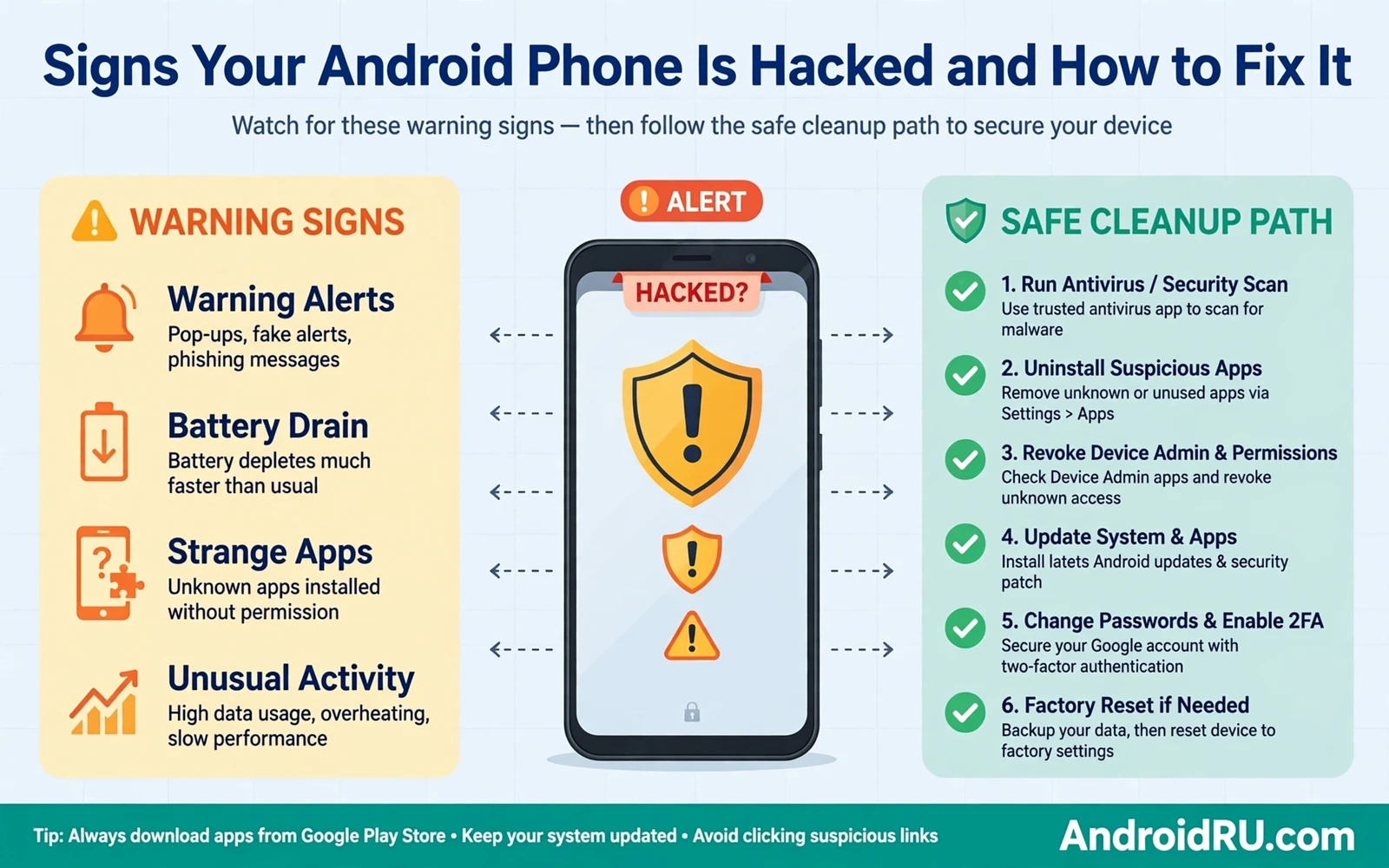
Signs Your Android Phone Is Hacked and How to Fix It
A hacked phone rarely announces itself with a single dramatic warning. The earliest clues look like ordinary annoyance: battery life falls sharply while the phone sits idle, mobile data climbs even though you have not streamed video, an app opens on its own, or the screen lights up at odd hours for no clear reason. One strange event can have an innocent cause, and a new app update or a weak signal can explain a single bad day. A cluster of strange events that persists after a restart and after a normal charging cycle deserves a careful, unhurried investigation, not a shrug.
I have helped friends through this exact situation, and the owners who recovered fastest were the ones who slowed down first. Panic makes cleanup harder: a rushed owner deletes evidence, grants new permissions while trying to fix the problem, or types a banking password into a phone that may still be watched. Start by writing down what changed, when it began, and which apps were installed or updated near that time. Keep the phone usable, but avoid entering passwords or banking details on it until you have checked the most likely causes. A calm record gives you a path forward, and it also helps you judge whether each later step actually improved things.
This guide walks through the warning signs in order of strength, then the checks that separate a real compromise from a dying battery, then the removal steps that work, and finally the account lockdown and habits that keep the phone clean. You will learn how to read battery and data screens, how to audit permissions and device admin access, how to use safe mode and a scanner properly, when a factory reset is the right call, and what to watch in the week after cleanup. Work through it step by step rather than jumping to the reset, and you will usually find the cause without losing your photos or your accounts.
Early signs your Android phone is hacked
The earliest signs share one trait: the phone does things you did not ask it to do, or uses resources you did not spend. Hidden software must use power, network access and processor time to do its work, and that work leaves traces in battery, data and behaviour screens even when the app itself stays invisible. A single trace proves little, because a legitimate app with a bug can drain a battery too. Three or more traces arriving together, especially after a new install or a tap on a suspicious link, point toward a compromise rather than a coincidence.
Battery drain and heat while the phone sits idle
A phone that grows warm in a pocket or on a desk while doing nothing may be running code you did not start. Open Settings, then Battery, then Battery usage, and look for one app standing far above the rest without matching activity from you. A messaging app you used all day should sit near the top; a torch app, a wallpaper app or an app you have not opened in a week should not. Check the same screen over two days: a one-day spike can be an update, but a persistent drain from an app you barely use is a serious clue.
Mobile data spikes with no matching use
Data spikes tell a similar story when background use rises sharply for an app that should stay quiet between sessions. Open Settings, then Network and internet, then Data usage, and check which apps used mobile data in the background over the last month. A hidden app often uploads small amounts of data at night or sends regular bursts through the day. If your data allowance is vanishing days before the billing cycle ends and your own use has not changed, treat the data screen as evidence and note the names at the top of the list.
Apps opening, closing or installing themselves
Apps that open on their own, close without any action from you, or appear on the home screen without your install are stronger warning signs than slow performance alone, because they point to control rather than simple inefficiency. An app you do not remember installing may appear in the app list and resist normal removal, or it may ask for device admin rights when you try to open it. Note the exact name and the install date shown in the app info screen: a recent install date on an app you never chose is a direct lead.
Popups outside the browser and fake system warnings
Popups that appear outside any browser session, warnings that claim your phone is infected, and messages urging you to install a cleaner or claim a prize all belong to the same family of tricks. A real system warning never asks you to install a random cleaner or to call a phone number, and a real security alert never counts down a timer to pressure you. Treat any message that pressures you to act fast as a reason to pause and to verify the claim through a separate trusted route, such as the Play Store listing or the official support page opened from another device.
Battery drain, heat and data spikes that point to hidden apps
Battery, heat and data screens are the most honest witnesses on the phone, because hidden software cannot do its work without spending resources. The skill is reading those screens the way a mechanic reads a dashboard: look for the outlier, compare it with your own use, and watch it over time rather than trusting one reading. A legitimate app can spike for a day after an update, so the pattern across several days matters more than any single number.
| Sign you can see | Likely cause | First action |
|---|---|---|
| Battery falls fast while idle | Hidden background process | Check Battery usage for the top app |
| Phone warm in a pocket | Constant background work | Force stop the suspect and watch the temperature |
| Data allowance vanishing early | Background uploads | Check Data usage by app for the last month |
| Phone slow with no apps open | Memory pressure from hidden code | Restart, then check running services |
| New app you never installed | Malicious install or bundle | Check install date, then uninstall in safe mode |
| Messages sent you did not write | Account or app control | Change the account password from another device |
How to read the battery usage screen properly
Open Settings, then Battery, then Battery usage, and sort by the last 24 hours and then by the last 7 days. An app that tops both lists while you barely used it deserves a closer look. Tap the app to see foreground versus background time: a legitimate app shows most of its time in the foreground when you used it, while a harmful app often shows hours of background time with minutes of foreground time. That split is one of the clearest tells on Android, and it costs nothing to check.
How to read the data usage screen properly
Open Settings, then Network and internet, then Data usage, then App data usage, and look at background mobile data for each app. Messaging and email apps legitimately use background data all day, but a game, a torch or a photo editor should show almost none. Turn off background data for the suspect app as a test: if battery life and data use improve within a day, you have found a strong candidate. Keep a note of the numbers before and after, because the comparison is what proves the fix worked.
Why performance drops follow the same pattern
A hidden process competes for memory and processor time and leaves less room for the apps you actually use, so the phone stutters, apps reload when you switch back to them, and the keyboard lags. Performance drops alone prove nothing, because a full storage or an ageing battery can cause the same symptoms. The combination is what matters: slow performance plus battery drain plus data use from the same app, at the same time, is a pattern worth acting on.
Strange messages, popups and account activity after a hack
Account activity often reveals a compromise before the phone itself shows a clear fault, because an attacker usually wants accounts more than hardware. Friends may receive messages or links you did not send, your accounts may show login attempts from places you have never visited, and password reset emails may arrive that you did not request. Each of these is a signal to check from a second trusted device, not from the phone you suspect.
Messages and calls you did not send
Check your sent messages and call history for items you do not recognise, and ask a friend who received a strange link to forward it back to you without tapping it. A link sent from your account to many contacts at once is a classic sign of account control, and it spreads the problem to people who trust you. Change the password for that account from another device, sign out all sessions, and warn the contacts who received the message so they do not tap the link.
Login alerts and password reset emails
A login alert from a new device or a new city deserves immediate attention, especially when it arrives at an odd hour. Open the account security page from a trusted device and look at recent sign-in activity, active sessions and recovery settings. A password reset email you did not request means someone knows your address and is testing the door; do not tap links inside that email, but go to the account page directly and change the password there. Start with email first, because email can reset many other accounts.
Settings that change themselves
A phone that turns off Play Protect, disables a lock screen, adds an unknown fingerprint, or changes the default browser on its own is showing control rather than wear. Check Settings, then Security, and look for changes you did not make. A changed lock screen or a new enrolled fingerprint is a serious sign: remove the unknown biometric, set a fresh PIN, and treat the phone as compromised until the cleanup is complete.
How to check permissions and device admin access on Android
Permissions give hidden software its power, so a permission review should come before any deletion spree on a phone that shows warning signs. Open Settings, then Privacy, then Permission manager, and look first at camera, microphone, location, accessibility and device admin access, because those permissions allow an app to watch, to listen and to control far more than a normal tool should need. An app that asks for broad access while offering a narrow feature deserves suspicion even when its name sounds familiar or helpful.
You can deepen this check by studying how hidden spyware reveals itself through quiet background behaviour and then comparing those patterns with the apps that stand out on your own device. The patterns in that guide, such as background data at night and battery use that does not match your activity, line up closely with what you will see in your own battery and data screens. Remove permission from any app that cannot justify its access in plain terms, and keep a note of each change so you can restore access later for an app that proves itself trustworthy.
Permissions that should always raise questions
- Accessibility access for a torch, a cleaner or a wallpaper app, since accessibility can read screens and tap buttons.
- Device admin access for any app that is not a work profile or a find-my-device tool you installed yourself.
- Camera and microphone access for apps with no recording or calling feature.
- Permission to draw over other apps for an app that has no floating window feature.
- Notification access for an app that does not need to read your messages.
How to revoke device admin access safely
Open Settings, then Security, then Device admin apps, and look at every app listed there. Revoke admin rights for any app you do not recognise or that no longer needs that powerful role, then try uninstalling it again. An app that regains admin rights on its own after revocation signals a deeper problem that a factory reset should address. Admin review closes a loophole that many cleanup guides overlook, because a harmful app with admin rights can resist removal and reinstall itself after a normal uninstall.
Why accessibility access is the most powerful permission
Accessibility services can read what is on the screen, fill in text, and tap buttons on your behalf, which makes them the most powerful permission a normal app can hold. Legitimate uses exist, such as screen readers and switch controls, but a flashlight or a battery saver has no honest need for it. If an app you barely know holds accessibility access, revoke it first and watch whether strange behaviour stops. That single change often ends the symptoms faster than uninstalling a dozen harmless apps.
How to remove malware from your Android phone step by step
Removal works best in a fixed order: observe, isolate, uninstall, scan, and watch. Skipping ahead to a factory reset loses the chance to learn which app caused the trouble, and deleting many apps at once hides the culprit. Work through the steps below one at a time, and check symptoms after each step so you know what actually helped.
Step 1: restart into safe mode and watch
Safe mode blocks most third-party apps from starting while the phone runs, which gives you a cleaner workspace for removal. Press and hold the power button, then press and hold the Power off option until the Reboot to safe mode prompt appears, and tap OK. In safe mode, look for apps that still behave strangely or that still appear when they should stay dormant. If battery drain and popups stop in safe mode, a third-party app is the cause; if they continue, the problem sits deeper in the system or in a preinstalled app.
Step 2: uninstall unfamiliar apps one at a time
In safe mode, open Settings, then Apps, and uninstall unfamiliar apps one at a time, watching whether symptoms ease after each removal rather than deleting many apps at once. If an app refuses removal, check device admin access first and revoke that access before you try uninstall again. A step-by-step removal keeps the phone usable and shows which app was actually responsible for the trouble. Clear the storage and cache of a suspicious app through its app info screen before uninstalling, so leftover files do not restore the problem.
Step 3: run a full scan and read the whole result
A scanner can support your manual review but it should never replace your own judgement about apps and permissions. Run a full scan with the built-in protection tool and read the result in full rather than trusting a single clean or threat label at the top of the screen. You can place that scan in a wider routine by reading how Google Play Protect manual scans check apps on demand so that you know what a scan can catch and what it can miss. When the scan flags an app, remove that app and check whether battery use and data use return to normal in the hours that follow.
Step 4: follow the full removal order to a clean restart
Removal steps for known malware follow a simple order that protects your data while it removes the threat from the phone. Start with safe mode and permission review, then uninstall the suspicious app and clear its storage and cache through app settings. Restart the phone normally and watch for a full day to see whether popups and drain and data spikes stay away. You can follow that same order in detail by studying how malware removal works from safe mode through a final restart and then applying each step slowly on your own device. If symptoms return after removal, the cause may sit deeper in the system or in a second app that you have not yet examined.
What to do when symptoms return after removal
Returning symptoms after a careful removal point to a second app, a preinstalled app, or a compromised account rather than the app you just removed. Repeat the battery and data checks and look for the next outlier, then check account sessions again from a trusted device. A second round of safe mode removal often finds the partner app that reinstalled the first one. If two careful rounds find nothing and symptoms persist, move to the factory reset section rather than deleting apps at random.
How to lock your accounts again after a phone hack
After removal, the most important job is to lock accounts again before an attacker can return through a password that was already exposed. Change passwords for email, banking, shopping and social accounts, and use a unique password for each service so that one leak cannot open every door at once. A password manager can generate and store those unique passwords, and it can also warn you when a password has appeared in a known leak. Work from a second trusted device, and start with email, because email can reset almost everything else.
The value of that second lock becomes clear when you explore how two factor authentication adds a second barrier across apps, because a stolen password alone then fails to open an account. Prefer an authenticator app or a security key over a code sent by text when that choice is available, since text codes can be intercepted when a phone number is targeted. Take time to review recovery email addresses and recovery phone numbers as well, because an attacker who controls recovery can undo a password change.
Change passwords in the right order
- Email first, then banking, then shopping, then social accounts.
- Use a unique password for each service, generated by a password manager where possible.
- Sign out of all sessions on each account after changing the password.
- Turn on a second factor on each account, starting with email and banking.
- Check recovery email and recovery phone numbers for changes you did not make.
Check bank statements and account alerts
Look through bank and card statements for the last month for charges you do not recognise, including small test charges of a few cents that attackers use to check whether a card works. Tell your bank about any suspicious charge and ask about recent login attempts on the banking app. Turn on transaction alerts for every account that offers them, so the next unusual charge reaches you within minutes rather than at the end of the month.
When a factory reset is the right fix for a hacked phone
A factory reset remains the strongest option when symptoms survive careful removal and when you cannot identify the app that causes the trouble. It wipes the phone back to a known clean starting point, which is exactly what you need when the cause hides too well to find. The cost is time: a reset takes an evening of backing up, wiping, and setting up again. That cost is worth paying when softer steps have failed twice, when an app regains admin rights on its own, or when banking credentials may have been exposed.
Back up safely before you reset
Back up photos, contacts and documents first through a trusted route, and avoid backing up app data from a suspicious app that might carry the problem back onto the cleaned phone. Use Google Photos or a computer copy for photos, export contacts to your Google account, and save documents separately. Write down the list of apps you truly need, and skip the rest during setup. Restore data in small batches after the reset and watch for any return of symptoms after each batch, so a bad restore does not undo the whole cleanup.
Reset and set up as a fresh device
Reset through Settings, then System, then Reset options, then Erase all data, and set the phone up as a fresh device rather than restoring a full backup at once. Install only the apps you truly need in the first days after the reset, and add the second factor to your accounts before you restore anything else. A fresh setup feels slow for a day, but it gives you a clean baseline: any symptom that returns after a fresh setup points to an account or a restored file, not to the phone itself.
How to keep your Android phone safe after recovery
Long-term protection after a hack depends on habits that are easy to repeat every week rather than on a single dramatic cleanup. Install apps only from trusted sources, read permission requests before you accept them, and keep the system updated so that known flaws get patched. Review installed apps once a month and remove anything you no longer use or no longer recognise. Keep a backup routine running in the background so that a future reset never threatens your photos or your contacts.
A monthly check that takes ten minutes
- Open Battery usage and Data usage and look for an app that stands out without matching use.
- Open Permission manager and check camera, microphone, location and accessibility holders.
- Open Device admin apps and confirm nothing new has gained admin rights.
- Check account sign-in activity for email and banking from a trusted device.
- Remove apps you have not opened in a month.
Watch network behaviour for a week after cleanup
Network behaviour after cleanup deserves a quiet watch period, because a hidden app may try to reconnect to a remote server after removal. Watch mobile data use for a few days and note any app that shows background data without any matching activity from you. A clean phone should show background data mainly from messaging, email and system services you already know. Any new background data spike after cleanup deserves a second permission review and a second scan. A watch period turns a one-time cleanup into a confirmed recovery.
Helping family through the same cleanup
Family help during a hack should follow the same calm order rather than a rushed remote fix over the phone. Ask the owner to note symptoms and to avoid logging into banking on the affected phone until a check is complete. Guide them through permission review and safe mode removal step by step and confirm each step before moving to the next. A guided cleanup protects accounts while it also teaches the owner how to spot warning signs in future. Calm guidance beats fast guesswork when money and privacy are at stake.
Frequently asked questions about a hacked Android phone
Can a phone be hacked without tapping a link?
Yes, though it is less common than link and install tricks. A phone can pick up harmful software from a malicious app installed outside the Play Store, from a compromised Wi-Fi network that serves a fake update, or from an app that turns harmful after an update changes its behaviour. The most common route remains the simplest: a convincing message, a fake cleaner, or a free version of a paid app that carries extra code. Keeping installs to trusted sources closes the most common door.
Does a factory reset always remove the hack?
A factory reset removes almost every app-level threat, because it wipes the data partition and reinstalls the system from a clean image. It does not remove a threat baked into the system partition on a rooted phone, and it does not fix a compromised account, which is why password changes matter alongside the reset. It also does not help if you restore a backup that contains the harmful app. Reset, set up fresh, change passwords, and restore in small batches to make the reset count.
How do I know the phone is clean after fixing it?
Watch the phone for a full week after cleanup. Battery life should return to its normal pattern, background data should settle to messaging and email, popups should stop, and no new unfamiliar app should appear. Run one more full scan at the end of the week, and check account sign-in activity once more from a trusted device. A quiet week across all four checks is the best confirmation you can get without specialist tools.
Should I change all my passwords after a hack?
Change email and banking passwords first, then shopping and social accounts, and use a unique password for each service. You do not need to change every password in the same hour, but you should finish the important ones within a day of cleanup. Turn on a second factor wherever it is offered, and check recovery settings on each account. A password change on a phone that is still compromised helps little, so finish the phone cleanup first, then change passwords from a trusted device.
Your next step after spotting the signs
The signs of a hacked Android phone are easy to miss one by one and hard to ignore together: fast battery drain, heat while idle, data spikes, strange messages, popups outside the browser, and settings that change themselves. The fix follows a calm order that works: note the symptoms, check battery and data, audit permissions and device admin access, remove the culprit in safe mode, scan, lock your accounts again, and watch the phone for a week. A factory reset is there when softer steps fail, and it works best with a careful backup and a fresh setup.
Your next step takes ten minutes today. Open Battery usage and Data usage, write down the top three apps on each screen, and compare them with your own use. If one app stands out on both screens without a good reason, revoke its permissions, force stop it, and check the battery tomorrow. That one check either clears your worry or gives you the name of the app to remove, and either outcome is better than wondering.
Start with the battery and data screens, because those two screens show what hidden software cannot hide. Change passwords from a second trusted device once the phone is clean, starting with email and banking. Keep the monthly ten minute check running after recovery, and the next attempt will meet a phone that is watched, patched, and far harder to hold quietly.

