

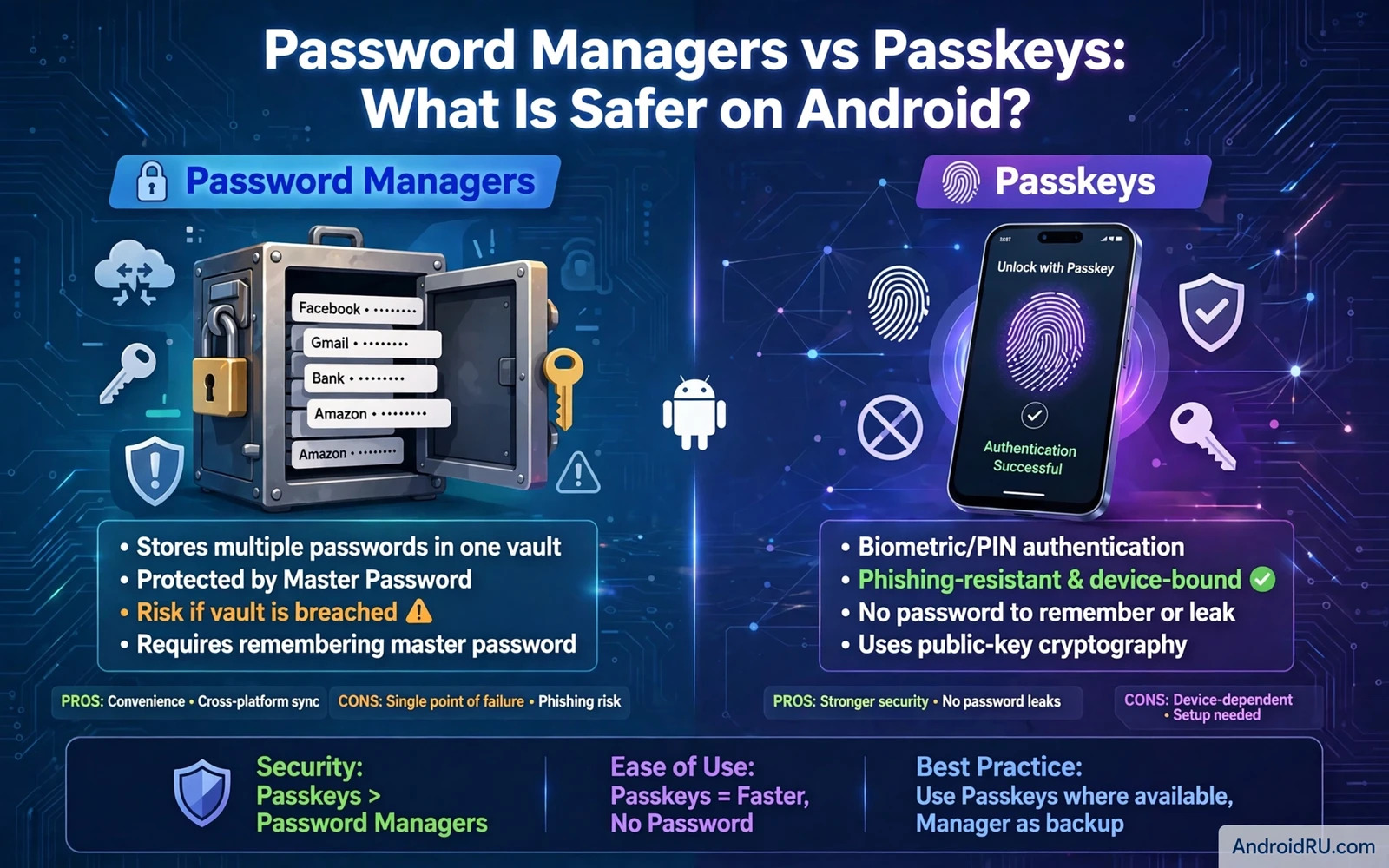
Password Managers vs Passkeys: What Is Safer on Android?
I spent years typing passwords on a phone keyboard, and I still remember the day I realised how bad my system was. I reused three passwords across almost everything, and one of them had leaked in a breach I never heard about. That scare pushed me to test both sides of the modern login debate properly: a password manager on one hand, and passkeys on the other. After three years of using both daily on Android, my answer is not the clean verdict most headlines promise. Passkeys win clearly on phishing resistance. Password managers win clearly on coverage. The safest setup on Android today uses both, each where it is strongest, with a recovery plan you have actually tested.
This guide compares the two methods the way real attacks test them: phishing pages, server breaches, a stolen phone, malware, and the morning you lose your device and need back in. You will learn how each method works under the hood, where each one fails, and how to combine them without turning your own security into a puzzle you cannot solve when it matters.
The short version: enable passkeys on your email and banking first, keep a password manager for everything that does not support passkeys yet, and protect the two accounts that guard all the rest — your Google account and your manager account — better than any other account you own.
How Password Managers Actually Protect Your Android Logins
A password manager stores every account password in an encrypted vault that opens with one master password, or with your fingerprint or face after the vault has been opened once. The manager generates long random passwords that no human would memorise, then fills them into apps and browsers automatically. Autofill matters more than most people realise: it removes typing errors, and it only fills credentials for the matching domain, so a fake login page that looks identical to your bank gets nothing from the manager. That domain check quietly blocks a whole class of phishing that still catches people who type passwords by hand.
A good manager also watches your vault like a security review that never sleeps. It flags reused passwords, weak passwords, and passwords that have appeared in known breaches. When I ran my first vault health check, it found eleven reused passwords I had forgotten about, including one on an old shopping account that shared a password with my email. Fixing those took an afternoon. Leaving them would have meant one breach anywhere could have handed an attacker the keys to my inbox.
What a Good Password Manager Does Beyond Storage
Storage is only the start. Modern managers on Android check your saved passwords against breach databases, warn you when a service you use announces a breach, and let you change a weak password from inside the app. Some offer secure notes for backup codes, Wi-Fi passwords, and software licence keys, which means the manager slowly becomes the place where all your sensitive text lives. That concentration is both the strength and the risk of the whole approach, and it is why the choice of manager matters so much.
The Master Password Is the Whole Game
Your master password is the one secret that guards all the others, so it deserves more care than any password you have ever chosen. Make it long, unique, and used nowhere else — a phrase of five or six random words works well and is easier to type on a phone than a jumble of symbols. Turn on two-step verification for the manager account itself, because the cloud copy of your vault is protected by that account. And write the master password on paper, stored somewhere safe away from your phone. Losing it can lock you out of every stored account at once, and no support team can recover a properly encrypted vault for you. That is the trade-off of real encryption: nobody else can open it, including the company that made it.
How Passkeys Work on Android
A passkey is a pair of cryptographic keys created for one service. The private key stays on your device and never travels to the service. The public key goes to the service and checks a challenge during sign-in, without ever revealing the private key. When you sign in, Android asks for your fingerprint, face, or PIN to authorise use of the private key for that one sign-in. No typed secret crosses the network, so a phishing page cannot capture a passkey by tricking you into typing it, and no shared secret sits on the service waiting to leak in a breach.
The technology behind this is FIDO2 and WebAuthn, the same standards behind hardware security keys. Google, Apple, and Microsoft all support it, and on Android the system handles passkey creation and sign-in through the credential manager, which means apps and Chrome can offer passkeys without each developer building the cryptography from scratch. When a site offers “sign in with a passkey” or “create a passkey”, Android walks you through a short flow that usually takes less than a minute.
Synced Passkeys vs Device-Bound Passkeys
Not all passkeys behave the same way, and the difference decides your recovery plan. Synced passkeys travel between your devices through your Google account, so a new phone receives them during setup. That convenience is real: I set up a new phone last year and my passkeys arrived with the rest of my account data. Device-bound passkeys never leave one piece of hardware, which gives even stronger isolation, but losing that single device can mean losing the only way into an account unless you registered a backup method first. Before relying on a passkey as your only sign-in, check which kind the service creates, and register a second sign-in method for anything important.
Where Android Stores Your Passkeys
On Android, passkeys live in Google Password Manager by default, and Android 14 and later also let third-party password managers act as passkey providers, so your manager of choice can create and fill passkeys too. This matters because it lets you keep passkeys and passwords in one place, with one recovery story, instead of scattering credentials across providers you will forget about in a year. Check your credential provider settings under Settings, then Passwords and accounts, to see which provider currently handles your passkeys.
Phishing Resistance: Where Passkeys Clearly Win
Phishing resistance is the clearest advantage of passkeys, and it is not close. A fake login page can capture a typed password and relay it in real time, and it can even forward a one-time code. It cannot extract a private passkey that never leaves your device, because there is nothing to type and nothing to intercept. The passkey is cryptographically bound to the real domain, so a lookalike domain simply fails the check. This is phishing-resistant sign-in in the strongest sense: the protection does not depend on you spotting the fake page.
Password managers reduce phishing risk through domain matching, and that help is genuine — the manager will not fill your bank password into a page that only pretends to be your bank. But a determined user can still copy a password out of the vault and paste it into a fake page by hand, especially under pressure from a message claiming the account will be closed. Passkeys remove that human step entirely, which is exactly why they matter most for the accounts attackers target first: email, banking, and cloud storage.
Why Domain Matching in Managers Helps but Is Not Enough
Domain matching is a guardrail, not a wall. It works when you let autofill do its job and never type or paste a password yourself. The moment you copy a password manually — because autofill did not trigger, or because you are on a device without your manager — the guardrail is gone. My rule is simple: if a password needs to be typed by hand, treat that as a sign something is off, and check the address bar before continuing.
| Attack or situation | Passkeys | Password manager |
|---|---|---|
| Phishing page | Blocked by design — no secret to steal | Blocked by domain matching unless you paste manually |
| Server breach | Only public keys leak — useless alone | Hashed passwords leak — crackable if weak or reused |
| Stolen phone | Needs your biometric or PIN first | Needs your master password or biometric first |
| Works on every service | No — support still growing | Yes — works everywhere passwords work |
| Recovery after losing a device | Easy if synced, hard if device-bound | Easy with the master password, painful without it |
| Family sharing | Awkward — tied to one biometric profile | Built in — share selected logins securely |
Data Breaches: What Leaks and What Does Not
Breach resistance also favours passkeys, for a structural reason. A service that stores passkeys holds only public keys. A public key on its own cannot sign in as you, so a breach of that database gives attackers nothing they can use directly. A service that stores passwords holds hashes, and hashes can be attacked offline. Strong, unique, randomly generated passwords resist that attack well. Short, reused, human-chosen passwords do not, and the breach databases traded online are full of exactly those.
The practical damage of a password breach is credential stuffing: attackers take a leaked email and password pair and try it on hundreds of other services, betting that the victim reused the same password somewhere else. A password manager breaks that chain by making every password unique, which is why even a manager full of passwords is dramatically safer than a brain full of reused ones. Passkeys break the chain at a deeper level by removing the shared secret from the service entirely.
Why a Breach Still Hurts Password Users Years Later
Leaked passwords do not expire. I have seen breach-notification emails arrive for services I had not used in five years, and the password in question was one I had reused in my early days online. The habit that saves you is uniqueness: a password that exists in exactly one place can only ever compromise that one place. Both managers and passkeys deliver uniqueness, but passkeys deliver it in a form that cannot be replayed at all.
Stolen Phones and Malware: The Local Attack Problem
Device theft presents a more balanced picture than phishing does. A stolen phone still requires the attacker to get past your lock screen before passkeys become usable, and a strong PIN or a long lock-screen password matters far more than most people think. A short four-digit PIN can be guessed or observed over a shoulder. A six-digit PIN, or better, an alphanumeric lock-screen password, changes the maths completely. The same logic applies to a stolen vault: a manager protected by a weak master password is vulnerable in a different way, because the vault file itself can be attacked offline if the attacker extracts it.
Malware on the device threatens both methods, because it can abuse an already-open session regardless of credential type. No credential method removes the need for device security, app hygiene, and account recovery controls. Passkeys raise the bar sharply for remote attacks. Device protection remains essential for local attacks, and that is a job for your lock screen, your update settings, and your permission choices together.
Your Lock Screen Is the First Line of Defence
Every credential on your phone sits behind the lock screen, so a weak lock screen undermines everything else. Use a six-digit PIN at minimum, turn on automatic locking after a short timeout, and keep fingerprint or face sign-in enabled so the strong fallback stays convenient instead of annoying. That is why app-level locking deserves attention alongside credential choice even when passkeys handle the sign-in itself: each gate covers a different moment of risk, and together they leave fewer gaps for a borrowed or stolen phone to exploit.
Permissions That Can Interfere With Sign-In
An app that can read notifications or draw over other apps could interfere with sign-in prompts in ways a strong password alone cannot prevent. Review the permission choices that limit what apps can observe during sign-in whenever you register a new credential on the phone. Deny notification access and overlay permission to apps that have no real need for them, and check the permission manager twice a year for anything you granted in a hurry and forgot about.
Everyday Convenience and Family Sharing
Passkeys feel effortless once set up, because sign-in becomes a biometric prompt rather than a typing task. That ease encourages people to keep strong protection switched on instead of disabling it for convenience. Password managers feel effortless too once autofill is configured, because long random passwords fill automatically. The difference appears during setup and recovery. Passkey setup is quick per service but must be repeated for each service that supports it. Manager setup takes longer at first but then covers every service, including those without passkey support, from day one.
Shared devices and family accounts complicate both methods. A passkey tied to one person’s biometric profile does not transfer easily to another family member, and sharing a passkey often means sharing the device or the account that syncs it. A manager with secure sharing can share selected passwords with family without revealing them in plain text, and it can revoke that sharing later. For a household, the manager remains the practical tool for shared logins, while passkeys shine for personal accounts.
Shared Accounts and Work Policies
Work accounts should follow employer guidance, because corporate policies may require a specific method or prohibit syncing credentials to a personal cloud. If your employer issues a hardware security key, use it for work and keep personal passkeys separate. For shared family accounts such as a streaming service or a household shopping account, choose the method every authorised user can actually use without sharing biometrics. Convenience that only works for one person in a household is not convenience at all.
Recovery When You Lose Your Phone
Recovery is where credential choices succeed or fail in practice, and it is the part most people skip until the day they need it. A synced passkey recovers with your cloud account on a new device, provided you can sign into that account securely — which is why your Google account deserves a passkey and a hardware backup of its own. A device-bound passkey requires a fallback method registered in advance, such as backup codes or an alternative sign-in option. A password manager recovers with its master password and its own recovery method on a new device, which is straightforward when the master secret is known and painful when it is forgotten.
Test recovery for one important account before you actually need it. Sign out on a second device, or use a browser you rarely touch, and walk through the recovery flow. The gaps you find during a calm test are easy to fix. The gaps you find during a real emergency are not.
The Two-Method Rule for Banking and Email
Register at least two sign-in methods for every important account, so losing one device never means losing the account. For email and banking, that usually means a passkey plus a manager-stored password, or a passkey plus printed backup codes stored somewhere safe. Store backup codes offline, away from the phone itself — a drawer at home beats a note on the phone you just lost. And consider an emergency access feature in your manager, which lets a trusted person request access after a waiting period, for the day you cannot act yourself.
A Practical Combination for Android Users
Most Android users benefit from using both methods rather than choosing one exclusively. Use passkeys where services support them, because phishing resistance is a genuine improvement that no password can match. Keep a password manager for services without passkey support, and for backup codes and secure notes. Let the manager hold the fallback passwords for your passkey accounts, so recovery remains possible even if a passkey is lost. This combination covers modern services with passkeys and older services with strong unique passwords, and it avoids forcing every account into a single method that may not fit.
Broader phone protection supports both methods. The habits in essential Android security settings protect the device that holds your keys and your vault alike: keep the lock screen strong, keep system updates automatic, and review app permissions regularly. Enable two-step verification for the cloud account that syncs passkeys and for the manager account itself. Credential safety is a chain that includes the device, the account, and the recovery plan, and the weakest link decides the outcome.
A Twice-a-Year Credential Review
Review your credential setup twice a year. List the accounts that use passkeys and the accounts still using passwords. Upgrade high-value password accounts to passkeys as services add support. Replace any reused passwords the manager flags. Remove old devices from your account device lists so retired phones cannot serve as sign-in shortcuts. The transition from passwords to passkeys will take years across the whole web. A thoughtful combination today gives you passkey strength where it exists and manager discipline everywhere else.
Frequently Asked Questions
What happens if I lose the phone that holds my passkeys?
If your passkeys sync through your Google account, they arrive on your replacement phone when you sign into that account during setup, so the loss is an inconvenience rather than a disaster. If a passkey was device-bound and never synced, you will need the fallback method you registered for that service, such as backup codes or a secondary sign-in option. This is why you should never rely on a device-bound passkey as the only way into an important account.
Can I use a passkey and a password for the same account?
Yes, and for important accounts you should. Most services that support passkeys keep the password as a fallback, so you can sign in either way. Keep that fallback password long, unique, and stored in your manager, and treat it as a recovery tool rather than your daily sign-in. The passkey handles everyday sign-ins with phishing resistance, while the password stays ready for the day the passkey is unavailable.
Is a password manager still worth it if passkeys take over?
Yes, for years to come. Most services still do not support passkeys, and some may never add them, so a manager remains the only practical way to give every account a unique strong password. Managers also hold backup codes, secure notes, and shared family logins that passkeys do not cover. Think of the manager as the foundation and passkeys as the upgrade for your most valuable accounts, not as a replacement for the foundation.
How do I move my passkeys to a new Android phone?
Synced passkeys move automatically when you sign into the same Google account on the new phone and complete setup, including the transfer of your credential provider data. Device-bound passkeys do not move, so before switching phones, check each important account and register a passkey on the new device, or keep the old device signed in until the new one is verified. After the move, remove the old phone from your Google account device list.
What to Do Today
Start with the two accounts that guard everything else: your email and your Google account. Turn on passkeys for both, then add a passkey to your bank. Install a password manager if you do not have one, import your saved passwords, and let it replace every reused password with a unique one. Write your master password on paper and store it safely. Print backup codes for email and banking and keep them away from your phone. Then set a reminder to review the whole setup in six months. You do not need to finish the transition in one evening. You need a system where each account has a strong method, a second way in, and a recovery plan you have already tested once.

