

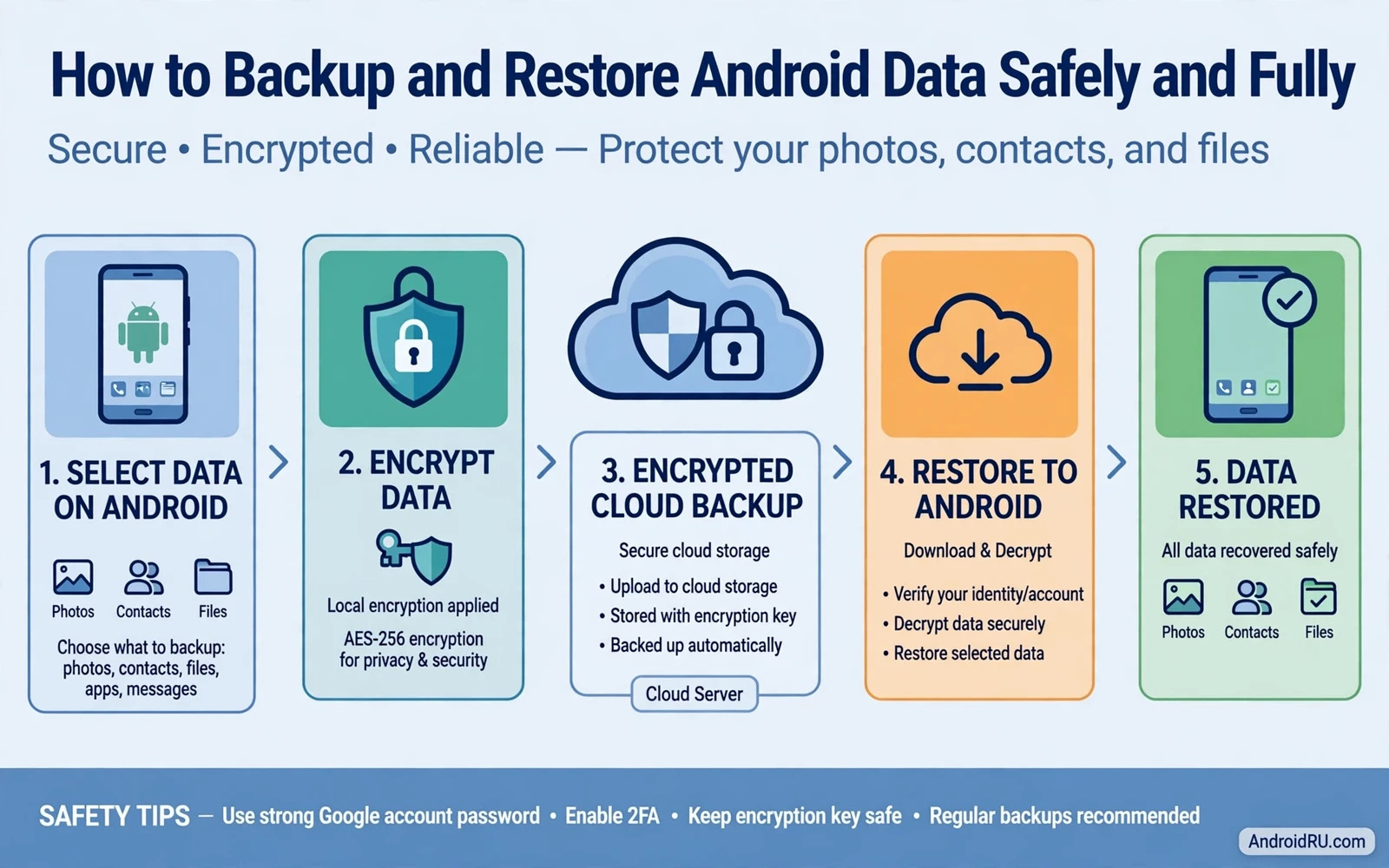
A backup is a promise that your photos and messages and contacts and documents will survive a broken phone or a lost phone or a factory reset. That promise only holds when the backup actually ran and when it actually contains the data you assume it contains. Many people discover gaps at the worst moment because a setting was off or a category was excluded or storage ran full silently. This guide explains how to build a backup that covers the whole phone and how to restore it safely without restoring problems along with the data.
Start by listing what matters most to you before touching any setting. Photos and videos usually top the list followed by contacts and messages and app data and documents. Each category may live in a different place and each may need a different backup method. A single switch rarely covers everything despite the reassuring label on the main backup screen. Mapping your data first prevents the common failure where photos are safe but messages are gone or contacts return while documents do not. A short inventory turns backup from a vague hope into a verifiable plan.
Cloud Backup And What It Really Covers
Built-in cloud backup typically covers app data and call history and device settings and SMS messages where the carrier and region support that category. It may not cover photos at full quality unless photo backup is enabled separately. It may not cover files in the downloads folder or documents stored outside managed folders. Open backup settings and read each category line by line rather than trusting the main toggle alone. Enable photo backup explicitly and choose quality settings that match your storage budget and your need for original resolution.
Check the last backup date and the backup size after enabling each category. A backup dated weeks ago signals a problem with network or storage or battery optimisation blocking the job. A suspiciously small backup size may mean a major category is missing. Run a manual backup once after setup and confirm that the date updates. Automatic backups should then continue in the background but manual verification remains the only proof that automation works. A backup you never verified is a hypothesis and not a safety net.
Local Backups As A Second Layer
Cloud backup protects against device loss but a local copy protects against account problems and cloud outages and accidental deletion in the cloud itself. Connect the phone to a computer and copy photos and videos and documents through a file transfer. Keep that copy on an external drive that you store away from the phone. Repeat the copy monthly or after major events such as a holiday or a project deadline. A local copy also speeds up restore when internet access is slow or limited.
Encrypt sensitive local backups where the tool offers that option and store the encryption password separately from the drive. An unencrypted drive holding personal photos and documents becomes a privacy risk if it is lost or stolen. Label drives with dates rather than with contents that invite curiosity. Test opening a few files from the local copy after each transfer because a copy operation can fail silently for individual files. Two independent copies in two places beat one perfect copy in one place.
Photos Messages And App Data In Detail
Photos deserve special attention because they are irreplaceable and often large. Enable photo backup with original quality if storage allows and use a second photo service or a local drive as a fallback for the most important albums. Check that videos back up as well because some settings back up photos by default while treating videos as optional. Review trash and archive folders in the photo app because deleted items may still be recoverable for a limited period. Move truly important photos into a clearly named album so they are easy to verify during a restore test.
Messages include SMS and chat app histories and each chat app manages its own backup. Enable chat backup inside each messaging app separately and confirm that media inside chats is included if you want images preserved. Some chat backups require a separate cloud account linked inside the app itself. App data for games and productivity tools restores best when the app uses cloud sync tied to your account. Open each critical app and confirm that sync is enabled rather than assuming the system backup captures its internal state. Detail at this level separates a full backup from a partial one.
Preparing A Safe Restore
Restore begins before the reset or the new phone arrives. Gather account credentials and backup codes and Wi-Fi passwords in a safe place outside the phone. Note which apps need manual sign-in and which use two-step verification. Charge the phone fully and connect to stable Wi-Fi before starting a restore because interruptions can leave data half-restored and hard to diagnose. Set aside enough time for the process rather than starting it minutes before you need the phone for an urgent task.
During setup choose restore from the correct backup and confirm the backup date shown on screen. A backup from the wrong account or an older date can overwrite expectations and waste hours. Let the restore complete app downloads in the background while you verify core data first. Check contacts and messages and photos early because early detection of a gap leaves time to try an alternative source. Restore is a process to verify step by step and not a single button to trust blindly.
Avoid Restoring Problems With The Data
A full restore can return a problem along with your data if the problem lived inside app data or settings. After cleaning a compromised phone restore selectively rather than restoring every app automatically. Install essential apps first and add others over several days while watching for returning symptoms. That patience matters after malware removal and the cleanup sequence for removing malware from an Android phone pairs with selective restore to keep a clean device clean. A backup is a tool for recovery and not a reason to restore everything without thought.
Settings restore can also return a misconfiguration that caused trouble in the first place. Review restored permissions after a restore because apps may regain broad access you had previously revoked. Review notification settings and battery settings for apps that behaved badly before. Treat the restored phone as a fresh start with familiar data rather than as an exact clone of the old device. Selective restore takes longer but it gives you a chance to leave bad habits and bad apps behind.
Backup For Loss Theft And Device Change
Loss turns backup from convenience into rescue because the original device may never return. Remote lock and erase protect data on the lost phone while backup protects your ability to continue life on a replacement. The guide to locating and remotely wiping a lost Android phone explains the finder side of that plan and backup completes it on the recovery side. Enable both sides before loss happens because neither can be set up reliably after the phone disappears. Together they answer the two questions every loss raises namely where is the phone and where is my data.
Device change is the happiest test of a backup because it happens on your schedule. Use a transfer tool for a direct phone-to-phone move when both devices are present and keep cloud backup as a fallback. Verify photos and messages on the new phone before wiping the old one. Keep the old phone untouched for a week after migration as an extra safety net. Only wipe it once you are certain the new phone holds everything you need. A careful migration avoids the regret of discovering a missing album after the old phone is already reset.
Maintain Backups Over Time
Backups decay when storage fills or accounts change or apps update their backup behaviour. Review backup settings quarterly and after any major system update. Check storage quotas for cloud accounts and archive old videos locally if the quota approaches its limit. Update the local drive copy after holidays and projects and life events that create irreplaceable content. Replace ageing external drives before they fail rather than after. Maintenance is unglamorous but it is the difference between a backup plan and a backup memory.
Test a partial restore once a year by restoring photos to a spare device or by verifying file integrity from the local copy. A test reveals silent failures while you still have the original device to fix them. Document your backup locations and methods in a simple note stored away from the phone. Family members who might need to recover data in an emergency will thank you for that note. A backup plan that only you understand in your head is fragile. A backup plan written down and tested regularly is resilient.
Backup settings sit inside the same security screens that control screen lock and updates. A quarterly review that checks security screens that control screen lock and updates together with backup dates catches a disabled backup at the same moment it catches a missed update. Pairing those checks saves a second review trip and keeps protection and recovery in step.
Versioning adds resilience when a file is overwritten by mistake or damaged by a faulty app. Keep two recent versions of critical documents where your storage plan allows it so a bad save does not erase the only good copy. Name versions by date in plain language and store the older version in a different folder from the current working copy. That simple habit turns many small accidents into minor inconveniences rather than permanent losses.
Test one document restore end to end each quarter by opening a restored file on a second device and confirming its contents match the original exactly.
- Inventory photos and messages and contacts and documents before setup.
- Enable cloud backup and photo backup separately and verify dates.
- Keep a local encrypted copy on an external drive as a second layer.
- Back up each chat app inside its own settings.
- Restore selectively after malware cleanup or serious problems.
- Verify the new phone fully before wiping the old phone.

