

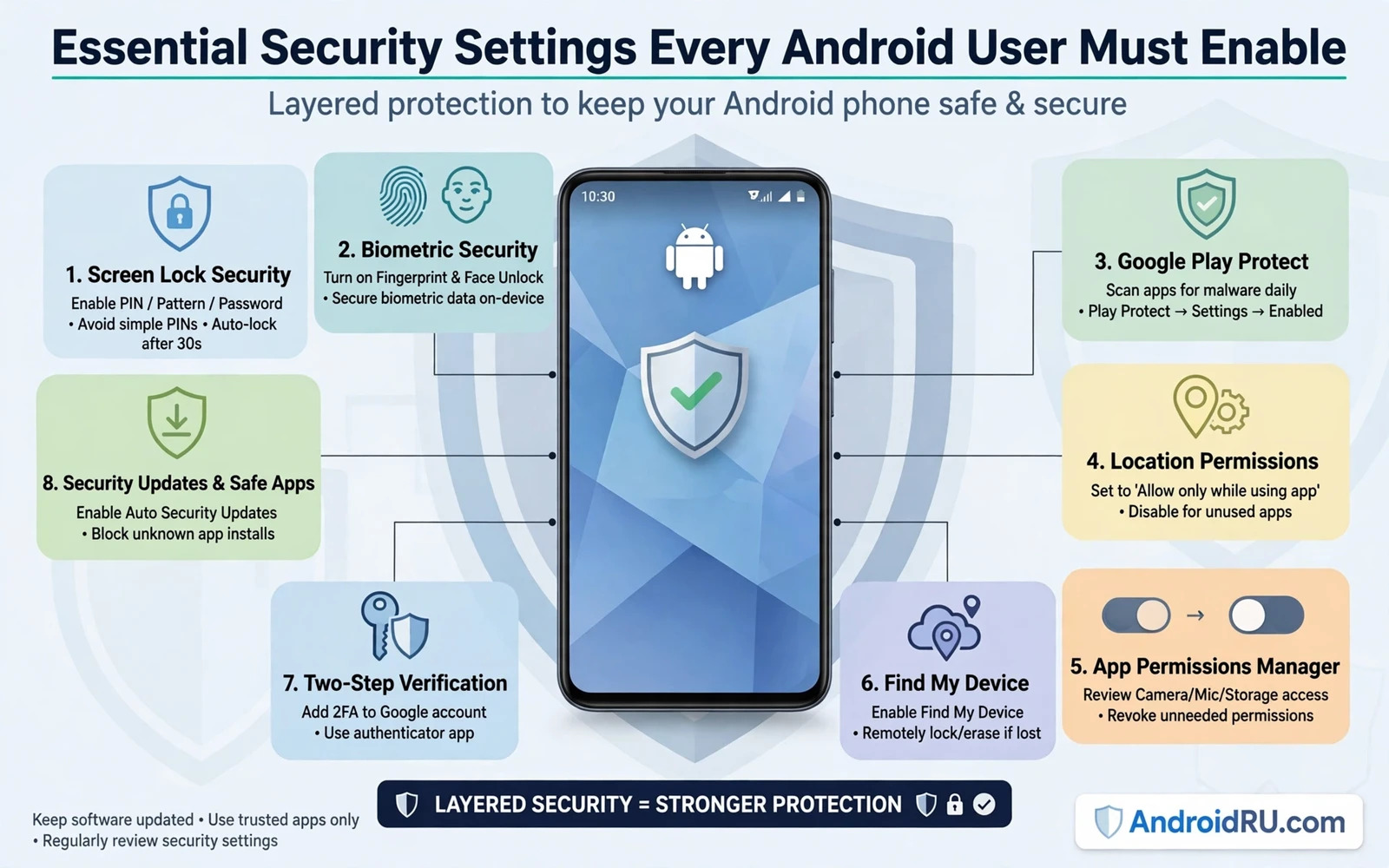
Your phone holds your messages and your photos and your banking access and your work documents in one small device that travels everywhere with you. A few settings decide whether a stranger can open that device or whether a careless app can read data it does not need. Security on Android does not require expert knowledge or expensive software or constant worry. It requires a short setup routine and a habit of checking a few screens from time to time. This guide walks through the settings that matter most and explains why each one earns its place on your phone.
Start with the lock screen because it is the first barrier between your data and anyone who picks up your phone. A strong PIN or a long password beats a short simple pattern that a watcher can memorise in seconds. Biometric unlock adds speed without removing that fallback because the PIN still protects the device after a restart or after a long period without use. Set the screen to lock quickly when you put the phone down and hide sensitive notification content so a message preview does not reveal codes or private details on a locked screen. These choices cost almost nothing in daily convenience and they raise the effort needed to break into your phone sharply.
Keep Your System And Your Apps Updated
Security updates close holes that attackers already know about and that is why delaying them leaves a known weakness open for longer than needed. Turn on automatic system updates where your phone offers that option and allow app updates over Wi-Fi so fixes arrive without manual effort. Restart promptly when an update asks for a restart because many patches only take effect after the device boots with the new code. If storage is tight then free space before an update rather than skipping the update itself. An updated phone is not invulnerable but it removes the easiest and most widely used attack routes.
App updates matter just as much as system updates because browsers and messaging apps and banking apps handle untrusted content every day. Review update settings in your app store and keep automatic updates enabled for apps you trust and use often. Remove apps you no longer use instead of leaving them installed and outdated because an unused app still holds permissions and still presents a surface that can be exploited. A smaller set of current apps is easier to watch and easier to understand than a large set of forgotten ones. Treat every installed app as a guest in your home and keep only guests you still welcome.
Review Permissions With A Critical Eye
Permissions decide what an app can read and record and change on your phone. A torch app does not need your contacts and a wallpaper app does not need your microphone and a game does not need your precise location at all times. Open the permission manager and sort by permission type so you can see every app that holds location access or microphone access or camera access in one view. Change always-on access to access only while the app is in use wherever that option exists. Remove permissions from apps you have not opened in weeks because an app you forgot still keeps the access you once granted.
Learning how to judge each request pays off across every app you will ever install and the reasoning behind deciding which permissions deserve approval helps you answer the next prompt with confidence instead of guessing. One-time permissions are useful for rare tasks such as scanning a document or sharing a single photo. Grant them once and let the system revoke them automatically when the task ends. Watch for permission prompts that appear without a clear reason during ordinary use because that timing often signals a feature that does not need the access it requests. When in doubt deny the permission first and see whether the app still works for the task you wanted.
Protect Accounts With Strong Sign-In Checks
Your device lock protects the phone itself but your accounts need their own protection because they live beyond the phone. Use a unique password for every important account so a leak at one service cannot unlock the rest of your life. Turn on two-step verification for email and banking and cloud storage and social accounts wherever it is offered. Prefer an authenticator app or a hardware key over a code sent by text message when both options exist because text codes can be intercepted in ways that app codes cannot. Store backup codes in a safe place away from the phone so you can recover an account even when the phone is lost.
Check active sessions from time to time and sign out devices you no longer recognise or no longer use. A session left open on an old tablet or a borrowed computer stays valid until you revoke it. Review security alerts promptly and change the password at once if an alert describes a sign-in you did not make. Avoid signing into important accounts on shared devices or on networks you do not trust. Small habits at the account level protect you even when the phone itself is replaced or repaired or reset.
Lock Sensitive Apps Separately
System security sets a baseline but some apps deserve an extra layer because they hold money or private conversations or health records. A second lock on a banking app or a messaging app stops a casual borrower from opening it while your phone is already unlocked. The same idea applies to photo vaults and note apps that store personal documents. Choose a method you will actually use every day because a lock that annoys you will soon be disabled and then it protects nothing. Fingerprint unlock for individual apps strikes a good balance between speed and protection for most people.
Many phones offer built-in app locking and the details of securing apps behind biometrics or a PIN show how to add that layer without installing extra software of unknown quality. If your phone lacks a built-in option then research any third-party locker carefully before granting it the broad access it needs to watch other apps. A locker that demands excessive permissions trades one risk for another. Test the lock after setup by handing the phone to a friend in a controlled way and confirming that protected apps ask for authentication while ordinary apps open normally.
Use Networks And Browsing With Care
Public Wi-Fi is convenient and it is also a place where attackers can watch traffic or impersonate a hotspot with a familiar name. Avoid signing into banking or email on an open network unless the connection is protected end to end by the service itself. Turn off automatic Wi-Fi connection to unknown networks and forget networks you used once at a hotel or a cafe. Disable Bluetooth discoverability when you are not pairing a device because an always-visible device invites unwanted connection attempts. These network habits reduce exposure without forcing you to avoid public Wi-Fi entirely.
A virtual private network can add a layer of encryption on untrusted networks but it should never become a reason to ignore other settings. Choose a provider with a clear privacy policy and a reputation you can verify through independent reviews rather than advertising claims alone. Understand that a VPN shifts trust from the network to the provider so the provider choice matters more than the marketing promises. Keep the VPN updated and test it after setup to confirm that traffic actually passes through it. Network safety works best as one layer among several rather than as a single magic shield.
Prepare For Loss Before It Happens
Loss and theft are security events just as much as malware or phishing. Enable device location and remote lock and remote erase features before you need them because you cannot enable them on a phone you no longer hold. Test the location feature from another device while the phone sits at home so you know exactly how the finder screen looks and what options it offers. Keep the phone number of your carrier handy so you can suspend service quickly if the phone disappears. Preparation turns a panic moment into a short checklist that you have already rehearsed.
Backups complete the loss plan because a wiped phone is only a disaster when its data cannot be restored. Set automatic backups for photos and messages and app data and test a restore on a spare moment rather than during a crisis. If a phone ever shows signs of infection then the cleanup steps in removing malware and viruses from an Android phone pair naturally with a fresh restore from a clean backup. A clean backup lets you reset without fear because your important data waits safely elsewhere. Security settings protect the phone you hold today and backups protect the life that phone contains.
Build A Routine You Can Maintain
Security fails when it depends on a single heroic cleanup once a year. A short monthly routine works better than a long annual overhaul. Check for system updates and review new permission grants and glance at installed apps and confirm that backups ran successfully. Delete old downloads and screenshots that contain sensitive documents. Review notification privacy after any major system update because updates sometimes reset preferences. Each check takes only a few minutes and together they keep small problems from growing into serious ones.
Teach the same habits to family members who share devices or accounts with you because the weakest device on a shared account can affect everyone connected to it. Explain phishing in plain terms and show how a message that creates urgency often tries to bypass careful thinking. Encourage questions rather than shame when someone clicks a suspicious link because early reporting limits damage. Security is a shared practice in a household just as it is a personal practice on a single phone. Start today with the lock screen and the updates and the permissions and let each small improvement compound over time.
- Use a strong PIN or password plus biometrics for the lock screen.
- Keep system updates and app updates automatic wherever possible.
- Grant permissions only while in use and revoke unused access regularly.
- Enable two-step verification on email and banking and cloud accounts.
- Turn on device location and remote lock before the phone is lost.
- Run automatic backups and verify that a restore actually works.

