

What Winlator Does And What It Cannot Do
Winlator is a tool that creates a Windows-like environment on an Android device so some PC games can run without a real Windows computer. It translates Windows calls into instructions that Android hardware can understand. That translation layer is impressive but it is not magic. Light and older PC games tend to run best because they need less power and fewer modern graphics features. Demanding modern titles may run slowly or fail to start even on a strong phone. Setting honest expectations at the start saves frustration later.
Compatibility depends on many factors including the game engine and the graphics API and the input method and the phone processor. A game that runs well for one player may struggle for another player on a different device. Community reports can guide your choices but they are not guarantees. You should test with a game you already own and treat early sessions as experiments. Success in this guide means a stable and playable session rather than a promise that every PC title will work perfectly.
Before You Install Anything
Start by checking storage and battery and device capability. Winlator and a game together need generous free space because Windows files and game files add up quickly. Free up space before you begin and keep the phone charged during setup. A mid range or flagship phone with a capable processor will give a smoother experience than an entry level device. A controller or a keyboard and mouse setup can also improve play for games that were designed for PC input rather than touch.
You should only use game files that you own legally through a legitimate store or disc backup that you have the right to use. Avoid unknown repacks and cracked copies because they can hide malware and break compatibility in ways that look like Winlator problems. A clean legal copy gives you a fair test and a safer device. Keep your Android system updated and back up important data before you experiment with a new compatibility layer. Caution at this stage protects both your games and your phone.
Players who enjoy classic systems may also like the retro picks in Top Game Emulators for Android: Retro Gaming Guide because the same patience and testing habits apply to older console titles. Emulation rewards methodical setup rather than rushed installs.
Installation Steps In Order
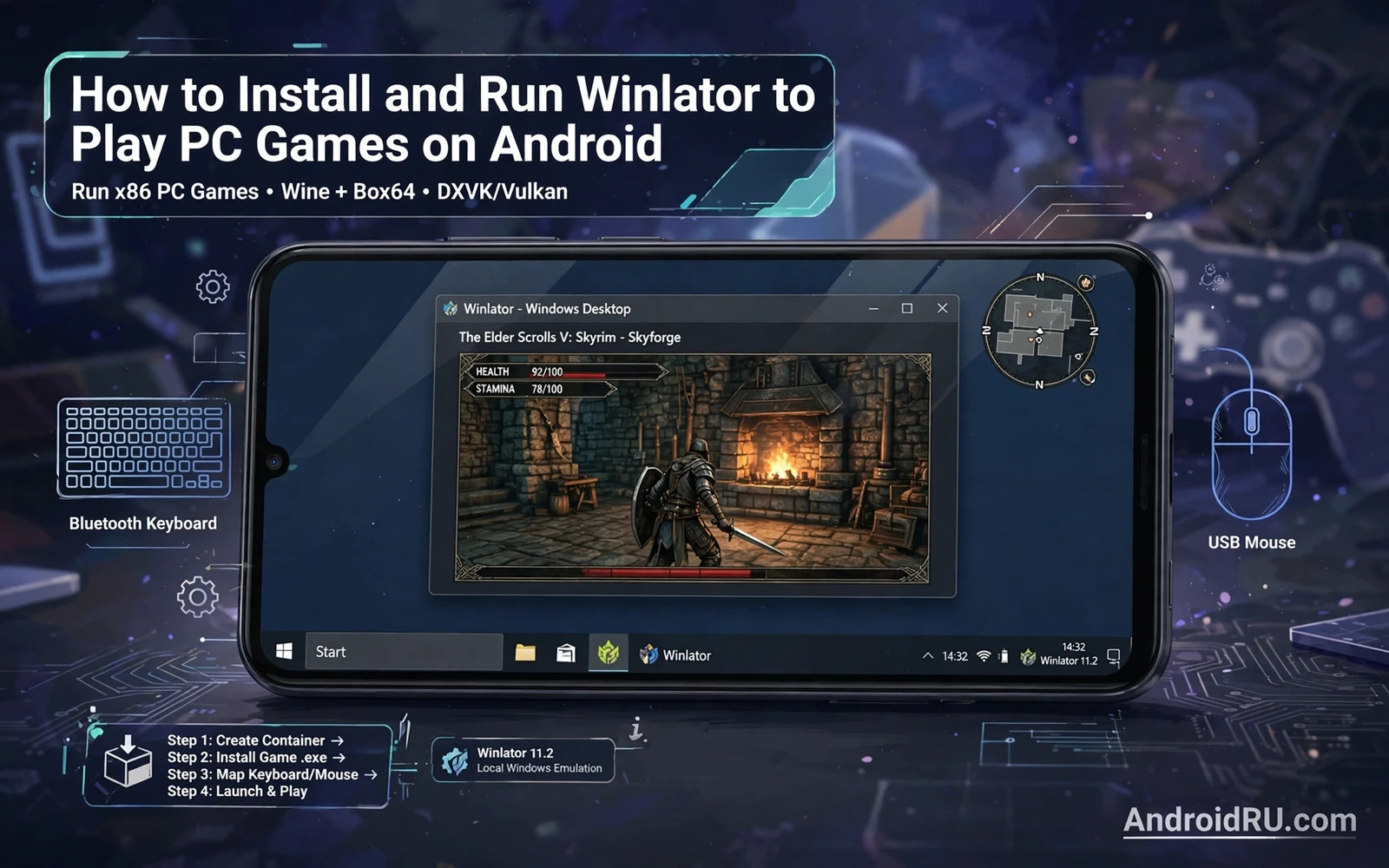
The general flow has four stages and each stage deserves care. First you obtain Winlator from its official distribution channel and install it on your phone. Second you create a container which acts as a separate Windows-like space with its own settings. Third you adjust graphics and input settings for your device. Fourth you place your game files inside the container storage and run the installer or the game executable from within Winlator. Skipping a stage or rushing the settings stage is the most common cause of early failure.
When you create a container you will face choices about screen resolution and graphics driver and audio handling. Start with modest settings rather than maximum settings. A lower resolution may look softer but it often turns an unplayable game into a smooth one. You can raise settings later once a game runs stably. Save the container after each successful change so a failed tweak does not force you to rebuild everything from scratch. Small steps and saved states make troubleshooting far easier.
A Simple Setup Checklist
Use this checklist before your first launch. Free storage is ready and the phone is charged. Winlator is installed from a trusted channel. A container exists with modest graphics settings. Game files are legal copies placed in container storage. Input is planned whether touch controls or a controller or a keyboard setup. A test game is chosen that is light and well suited to compatibility testing. Each item on this list removes one common failure point before you press start.
If a game fails to launch do not change five settings at once. Change one setting and test again. Note what you changed and whether the result improved or worsened. That discipline turns a confusing failure into a clear experiment. Many Winlator problems have simple causes such as a wrong resolution or a missing file or an input profile that blocks the start button. Patient testing beats random tweaking every time.
Controls For PC Games On A Touch Screen
PC games were designed for a mouse and keyboard so touch controls need thoughtful mapping. Winlator lets you map virtual buttons and sticks to keyboard keys and mouse actions. Place movement controls where your left thumb rests naturally and place action buttons where your right thumb can reach them without stretching. Keep the layout simple at first and add extra buttons only when a game truly needs them. A crowded overlay hides the game and slows your reactions.
A physical controller often feels better for action games and racing games while a keyboard and mouse setup often feels better for strategy games. Pairing advice matters here because a stable Bluetooth connection prevents input drops during tense moments. Players who plan to use a gamepad can learn pairing basics from How to Set Up PS5 DualSense Controller on Your Android Phone and apply the same care to their Winlator sessions. Good input is half of good performance.
Performance Tuning Without Guesswork
Performance tuning starts with measurement rather than opinion. Notice whether a game stutters during busy scenes or loads slowly or drops input. Stutter during busy scenes often points to graphics settings. Slow loads often point to storage speed or a large game install. Input drops often point to control mapping or a weak wireless link. Naming the symptom helps you pick the right fix instead of changing random options and hoping for improvement.
Lower resolution and simpler graphics options usually give the largest gains. Disable demanding shadows and reflections first because they cost power without changing gameplay. Close background apps before a session so Winlator gets more memory and processor time. Keep the phone cool with short breaks during long sessions because heat can reduce performance over time. A stable medium setting that holds smooth play beats a high setting that swings between fast and slow.
Cloud play offers a different path when local translation is too heavy for a title. Players who want to compare approaches can read Cloud Gaming on Android: GeForce Now vs Xbox Cloud Tested and decide whether streaming suits a demanding game better than local emulation. Both paths have a place in a smart gaming setup.
Troubleshooting Common Problems
A black screen after launch often means a graphics setting mismatch. Return to modest settings and test again before you assume the game is incompatible. A crash during install often means a missing file or insufficient storage rather than a Winlator fault. Check file integrity and free space first. Missing sound often means an audio setting needs a different profile in the container. Work through one symptom at a time and keep notes on what you tried.
Input problems deserve separate checks. Test the virtual controls in a menu before you test them in combat. Test a controller in another app to confirm the pairing is stable. Test keyboard input with a simple menu navigation task. Isolating the input layer from the game layer shows whether the problem sits in Winlator settings or in the game itself. That separation saves hours of unfocused troubleshooting.
Controller mapping inside Winlator shares ideas with dedicated mapping tools. Readers who want finer control can study How to Map Controller Buttons on Android Using Keymapper and apply the same layout thinking to virtual buttons and physical gamepads. Clear zones and consistent placement reduce mistakes during fast play.
When To Stop And Choose Another Path
Not every PC game belongs on a phone through Winlator. If a game needs constant high end graphics power or complex keyboard shortcuts or precise mouse aiming then a phone session may stay frustrating even after careful tuning. That outcome is not a failure of your effort. It is useful information about fit. A native Android version or a cloud stream or a real PC session may serve that title better. Winlator shines brightest with light and older games that value gameplay over raw spectacle.
Keep your Winlator library small and focused. A few well tested games that run smoothly bring more joy than a large library of half working titles. Revisit settings after major Winlator updates because new drivers and fixes can change compatibility. Document the settings that work for each game so a future rebuild takes minutes rather than hours. A tidy setup turns Winlator from an experiment into a reliable way to enjoy PC classics on the go.
Saving And Sharing Your Setup
Save your working container settings as soon as a game runs well. Note the resolution and graphics driver and input layout that produced stable play. A written note or a screenshot of settings saves hours when you rebuild a container after an update. Share those notes with friends who own a similar phone model but warn them that results may differ on other hardware. Shared settings are starting points rather than guarantees and honest caveats help the community more than bold claims.
Keep your game library organised inside Winlator. Give each game its own folder and keep installers separate from save files. Back up save files before major changes because a failed tweak should never cost campaign progress. A tidy setup also makes troubleshooting faster because you can isolate one game without disturbing others. Treat Winlator like a small PC that deserves the same care you would give a real computer and it will repay that care with stable sessions.
Testing Games Safely Inside A Container
Testing inside a container protects your main setup because each container keeps its own settings and files. Create a test container for an unfamiliar game and keep your working container untouched. If the test game fails or corrupts settings then only the test space suffers. Delete the test container without regret and try a different configuration. That isolation habit turns risky experiments into safe learning.
Record test results in a simple log with game name and settings and outcome. A short log prevents repeating failed configurations weeks later when memory fades. Note which graphics driver worked and which resolution held steady and which input layout felt natural. Over time that log becomes a personal compatibility guide tailored to your exact phone model. Personal guides beat generic lists because they reflect your hardware rather than someone else hardware.
Share test results honestly with the community when you feel ready. Mention your phone model and settings and whether the game ran smoothly or barely or not at all. Honest reports help other players set expectations and help developers of compatibility tools prioritise fixes. A community built on accurate reports grows stronger than a community built on hype and vague success claims.

