

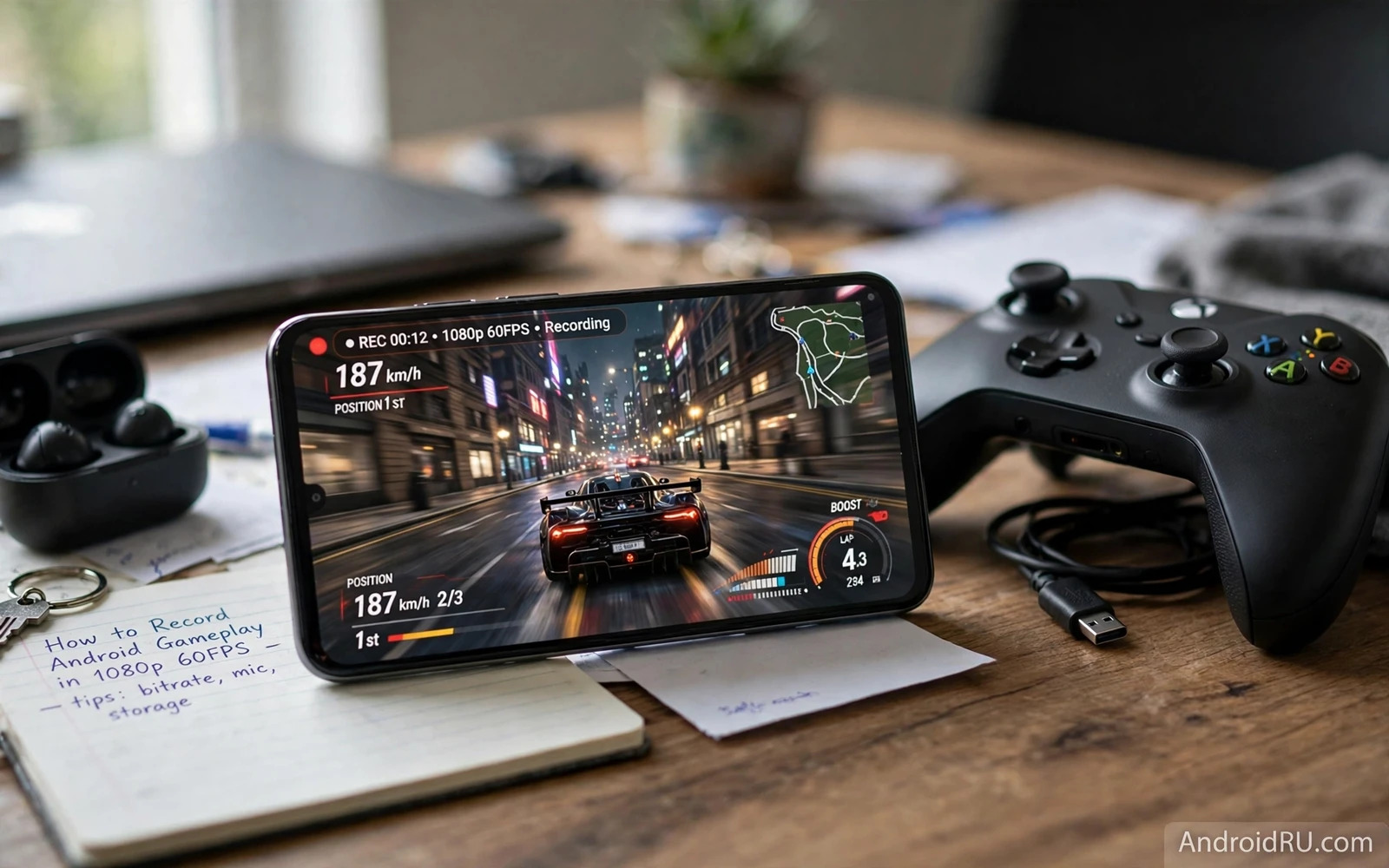
What 1080p 60FPS Recording Means
Recording in 1080p means capturing video at a high definition resolution that looks sharp on phones and on larger screens. Recording at 60 frames per second means capturing sixty pictures each second so motion looks smooth. Together they create clips where fast movement stays readable and character motion looks fluid. That combination suits action games and racing games where motion defines the excitement.
Smooth recording needs more than a setting toggle. The phone must render the game and encode video at the same time. That dual workload uses processor power and storage bandwidth. A phone that plays a game smoothly may still struggle to record it smoothly at maximum settings. Testing with a short clip reveals the real capability of your phone better than a specification list.
File size grows with resolution and frame rate. Longer clips need more free storage. A short highlight clip needs only modest space. A full match recording needs careful storage planning. Knowing file size behaviour before a long session prevents a recording that stops midway through a great play.
Choosing A Recorder
Many Android phones include a built in screen recorder in quick settings or in a gaming hub. Built in recorders often integrate well with system performance and game tools. They usually offer resolution and frame rate options in a simple menu. They also avoid extra app permissions. Start with the built in recorder when your phone offers one.
Third party recorders can add features such as face camera overlays and live commentary and custom bitrate controls. Those features help creators who want polished clips. They can also add complexity and background load. Choose a third party recorder only when you need a feature the built in recorder lacks. Keep the feature set simple for gameplay highlights.
Check recorder permissions before recording. A recorder needs screen capture permission to record video. It may need microphone permission for commentary. It may need storage permission to save clips. Grant only permissions you actually need for the clip you plan to make. A commentary free highlight needs no microphone permission.
Setting Resolution Frame Rate And Quality
Open recorder settings before you open the game. Select 1080p as the resolution when the option exists. Select 60 frames per second as the frame rate when the option exists. Select a high quality encoding option when the menu offers quality levels. Save settings and return to the game. Changing settings during a match can interrupt recording or gameplay.
Test the settings with a short clip in a busy game scene. Play the clip back on the phone and on a larger screen if possible. Look for stutter during fast movement and for softness during detailed scenes. Look for audio sync between game sound and picture. A short test clip saves disappointment after a long recording session that turns out choppy.
If recording stutters then lower one setting at a time. Lowering frame rate first can stabilise motion encoding. Lowering resolution first can reduce file size and processing load. Test again after each change. A stable clip at slightly lower settings beats a choppy clip at maximum settings every time. Quality means smoothness as much as sharpness.
Preparing Phone Storage And Performance
Free up storage before a long recording session. Delete old clips and unused downloads. Move important clips to cloud storage or a computer when the phone offers that option. Recording needs free space not only for the final file but also for temporary encoding work. A nearly full phone can stop recording unexpectedly.
Close background apps before recording. Background video apps and downloads compete for processor and network resources. A clean phone gives the game and the recorder the best chance to run smoothly. Turn on do not disturb or game mode to block banners during recording. A banner in a clip distracts viewers and can break immersion.
Performance optimisation helps recording as much as it helps play and How to Optimize Android for Gaming: Max FPS and No Lag covers tweaks for steadier frame pacing. A phone that runs a game steadily will record it steadily. Optimisation and recorder settings work together. Apply both before an important session rather than during it.
Recording With Sound And Commentary
Game sound can come from internal audio on phones that support it. Internal audio captures clean game sound without room noise. Microphone audio captures your voice and room sound. A mix of both suits commentary clips where voice explains play. Test audio sources in a short clip because support varies by phone and by game.
Commentary adds personality to a clip but it also adds complexity. Speak clearly and keep comments short during fast action. Pause commentary during quiet moments to let game sound breathe. A headset microphone often sounds cleaner than a phone microphone at arm length. Test voice levels so commentary never drowns out important game cues.
Music in recorded clips needs care. Game music is part of the game experience. Added music from other sources can create sharing problems on some platforms. Keep clips focused on game audio when you plan to share publicly. That habit avoids muted audio and keeps clips ready for any platform.
Capturing Great Moments
Great clips start before recording begins. Decide whether you want a highlight or a full match. Highlights need short recordings around key moments. Full matches need long recordings and more storage. A highlight approach suits sharing because viewers enjoy concise exciting moments. A full match approach suits analysis because you can review decisions across a whole game.
Start recording a few seconds before the action you want. Early start captures setup and context. Stop recording a few seconds after the action ends. Late stop captures reaction and result. Trimming extra seconds later is easy. Missing the start of a great play cannot be fixed later. Generous start and stop margins protect great moments.
Team play clips benefit from clear communication and Best Multiplayer Esports Games for Android Competition shows how team moments become memorable highlights. A coordinated team fight makes a better clip than a solo lucky moment. Record team sessions when your squad plays well together. Those clips showcase skill and cooperation at once.
Editing Trimming And Sharing
Trim clips to remove dull waiting time and failed attempts. Keep the setup and the payoff and cut the rest. A short clip with a clear beginning and ending holds attention better than a long clip with scattered moments. Add a simple title or caption when the platform allows it. A clear caption helps viewers understand the clip without watching the whole match.
Check the final clip on a phone screen before sharing. Small screens hide detail that larger screens reveal. A clip that looks sharp on a phone may look soft on a television. A clip that looks smooth on a phone may stutter when compressed by a sharing platform. Uploading a test clip privately can reveal compression effects before a public share.
Racing clips can also showcase smooth motion well and Best Android Racing Games for Speed Enthusiasts offers fast games that test recording quality. Racing motion exposes frame drops quickly because the whole scene moves. If a racing clip stays smooth then most other genres will stay smooth too. Use a fast game as a stress test for recorder settings.
Troubleshooting Recording Problems
If a clip has no sound then check audio source settings and app permissions. Some games block internal audio for privacy or licensing reasons. In that case microphone audio near a speaker can capture sound but quality will suffer. Test audio before an important session so a silent clip does not surprise you later.
If a clip stutters then check storage space and background apps and heat. A hot phone may throttle recording quality to protect itself. A short break lets the phone cool. A phone stand improves airflow during long sessions. Recording in a cool room also helps because direct sunlight adds heat quickly.
If a clip stops early then check free storage and recorder time limits. Some recorders limit clip length by default. Change the limit when you need longer recordings. Keep an eye on storage during long sessions because a full storage warning can end a recording without a clear alert inside the game.
Good Recording Habits
Build a simple recording routine. Free storage and close background apps. Enable game mode and confirm recorder settings. Test with a short clip when trying new settings. Record with generous margins around great moments. Trim and review before sharing. That routine takes minutes and it protects hours of gameplay from technical disappointment.
Recording gameplay in 1080p at 60 frames per second is achievable on many Android phones with the right settings and preparation. Start with built in tools and test short clips first. Adjust settings for stability over maximum numbers. With practice your clips will look smooth and sharp and ready to share with friends and fellow players.
Recording Settings For Different Game Types
Different game types benefit from different recording priorities. Fast action games need high frame rate most because motion clarity defines quality. Slow strategy games need high resolution most because text and interface detail define quality. Puzzle games need both in moderation because boards stay readable even at modest settings. Matching recorder settings to genre gives better clips than using maximum settings for every game.
Portrait games need different framing awareness than landscape games. A portrait clip fills a phone screen naturally but leaves empty space on a wide screen. A landscape clip fills a wide screen naturally but shrinks on a phone. Record in the orientation the game uses natively and avoid rotating the phone mid clip. A stable orientation keeps viewers comfortable and keeps interface elements readable.
Long form recordings benefit from chapter style editing after capture. Split a long session into highlights and full segments so viewers can choose their preferred length. A highlight version suits social sharing. A full version suits detailed review and tutorial use. Offering both versions from one recording session maximises value from a single play session.

