

What Button Mapping Solves
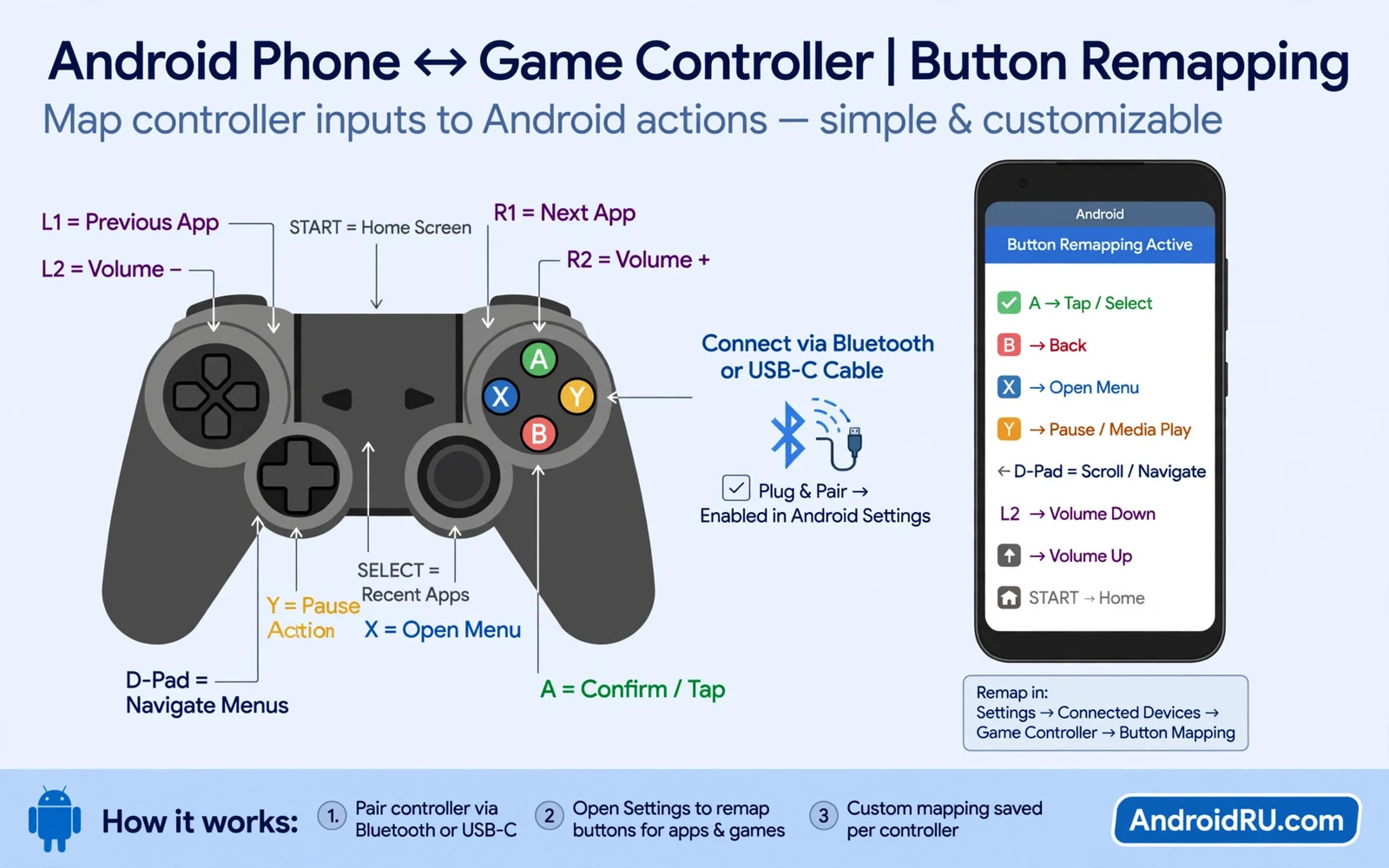
Many Android games offer touch controls only and ignore a connected controller. Button mapping bridges that gap by translating controller presses into touch actions on the screen. Pressing a physical trigger can tap an on screen fire button. Moving a stick can drag a virtual joystick. That translation lets you play touch only games with the comfort and precision of a gamepad.
Mapping also helps players with different hand needs. A player can move a difficult touch button to a comfortable shoulder trigger. A player can assign a complex gesture to a single button press. A player can create a layout that reduces thumb travel across a large screen. Custom mapping turns a generic control scheme into a personal setup.
Keymapper style tools work by creating profiles that link physical inputs to screen positions. A profile stores the mapping for one game. Switching profiles when you switch games keeps layouts organised. A well named profile saves confusion later because you can tell at a glance which game it belongs to.
Before You Start Mapping
Connect your controller first and confirm Android recognises it. Open a game or a controller test screen and press each button to see if inputs register. Charge the controller fully for a long mapping session. A controller that disconnects during mapping can create incomplete profiles and confusion. A stable connection at the start saves troubleshooting later.
Choose one game for your first profile and learn its touch layout well. Note where the movement joystick sits and where action buttons sit. Note which buttons you use most often during real play. That list guides mapping priorities because frequent actions deserve the most comfortable physical buttons. Rare actions can sit on less accessible buttons.
Controller setup basics can help before mapping and How to Set Up PS5 DualSense Controller on Your Android Phone covers pairing and connection checks. A controller that pairs cleanly will map cleanly. A controller with connection drops will frustrate mapping even when the mapping itself is correct. Fix connection first and mapping second.
Creating Your First Profile
Open the mapping tool and create a new profile with the game name. Select the controller as the input device when the tool asks. Open the target game through the tool or switch to the game after starting the profile. A floating mapping interface should appear over the game screen. That overlay is your workspace for placing virtual buttons.
Add a button mapping for each important touch control. Drag the virtual button to the exact screen position of the touch control. Assign a physical button to that virtual button by pressing the desired controller button when prompted. Test each assignment immediately with a short press. A mapping that looks right but presses the wrong screen area will fail in real play.
Start with movement and primary actions before adding secondary actions. Map the joystick first because movement affects every moment of play. Map fire and jump next because those actions decide most encounters. Map menu and special actions last because they matter less during fast play. That order gives a playable layout quickly even before the profile is complete.
Mapping Sticks Triggers And D-Pads
Stick mapping needs care because a stick produces continuous movement rather than a simple tap. Assign the stick to the on screen joystick area and set the centre and range correctly. Test slow movement and fast movement separately. A stick that moves too sensitively will overshoot targets. A stick that moves too slowly will feel unresponsive in fast scenes.
Triggers work well for fire and aim because they feel natural under the fingers. Assign the main fire action to a comfortable trigger. Assign aim or secondary fire to the other trigger when the game uses it. Shoulder buttons suit jump and reload and weapon switch because they sit ready under the fingers without leaving the sticks.
D-pad mapping suits menu navigation and quick item selection. Assign each direction to a separate on screen button when the game uses directional taps. Test diagonal presses if the game needs them. Some games treat diagonal input differently so a quick test in a safe area prevents surprises during a match.
Testing And Refining The Layout
Test the profile in a practice area or a casual match before ranked play. Play for several minutes and note any button that feels awkward or any action that triggers late. Adjust one mapping at a time so you can tell which change helped. Changing many mappings at once creates confusion about what improved and what worsened.
Watch for accidental presses during intense play. A button placed too close to a stick can trigger when you grip tightly. Move sensitive actions away from high traffic areas. Add a small dead zone for sticks when tiny movements cause unwanted drift. Refinement is normal and even experienced players adjust layouts over days.
Competitive players can study team play demands in Best Multiplayer Esports Games for Android Competition to prioritise mappings for ranked matches. Ranked play punishes awkward layouts more than casual play. A layout that feels fine in a relaxed match may fail under pressure. Testing under pressure reveals the final adjustments a profile needs.
Profiles For Different Games
Create a separate profile for each game because touch layouts differ widely. A shooter profile needs fast fire and aim mappings. A racing profile needs steering and brake mappings. A platform profile needs jump and dash mappings. Reusing one profile across games creates mismatched buttons and frustration. Separate profiles keep each game feeling native.
Name profiles clearly with game name and controller type. Add a note about the layout version when you make major changes. Back up profiles when the tool offers export or cloud sync. A backup prevents losing hours of tuning after a phone reset or a tool reinstall. Treat a refined profile like a valuable save file.
Share profiles cautiously because screen sizes and game versions change touch positions. A profile built for a large tablet may misalign on a smaller phone. A profile built for an older game version may miss new buttons. Use shared profiles as a starting point and adjust positions for your own device before trusting them in live play.
Troubleshooting Common Mapping Problems
If a button does nothing then check whether the profile is active and whether the correct controller is selected. Check whether the virtual button sits exactly over the touch control. Check whether another app or overlay blocks input. Restarting the mapping tool and the game often clears a stuck overlay. Test one button at a time to isolate the fault.
If movement feels inverted then check stick direction settings. Some games expect opposite vertical movement for camera control. Flip the relevant axis and test again in a safe area. If a trigger fires twice then check for duplicate mappings on the same physical button. Remove the duplicate and test again.
Emulator players may also benefit from classic control ideas in Top Game Emulators for Android: Retro Gaming Guide where controller layouts often feel native. Emulator mapping can teach stick and D-pad habits that transfer to Keymapper profiles. Both approaches reward patience and testing. A clean emulator layout shows what a good mapping should feel like.
Good Habits For Long Term Mapping
Keep layouts simple at first and add complexity only when needed. A simple layout with reliable core actions beats a complex layout with many rarely used buttons. Add advanced mappings after core play feels natural. That gradual approach prevents overwhelm and builds muscle memory steadily.
Review profiles after game updates because touch layouts can shift. A button that moved by a small amount can break a mapping completely. A quick check after each major update keeps profiles working. Update profile notes when you change a layout so future you understands the change.
Button mapping on Android turns a touch only game into a controller friendly experience. Start with one game and map core actions carefully. Test in casual play and refine under pressure. With patience your gamepad will feel like a natural extension of the game rather than a workaround.
Advanced Mapping And Multi Button Actions
Advanced mapping can assign a sequence of screen actions to one physical button when a game needs a repeated combo. A single press can open a menu and select an item in games where that sequence never changes. Use sequences sparingly because a sequence that works in one situation may fail in another. Core actions should always stay as direct mappings so they never misfire during fast play.
Multi button actions let two physical buttons combine for a special move. A shoulder button plus a face button can trigger a skill that needs two touch buttons at once. That combination saves thumb travel and keeps movement on the stick during the action. Test combinations in a safe area because accidental combinations during normal play can waste important skills.
Accessibility mapping deserves attention because custom layouts can help players with limited thumb reach or grip strength. Moving frequent actions to shoulder buttons reduces strain. Enlarging virtual button zones reduces missed presses. A mapping tool that supports accessibility well can open touch only games to a wider audience. Share accessibility layouts with clear notes so other players can adapt them to their own needs.
A final mapping test should mimic real match pressure rather than a quiet menu. Play a full casual match with the new profile and note every awkward press. Adjust the worst button first and test again. Repeat that loop until core actions feel automatic. A profile that survives pressure testing will feel trustworthy in ranked play and will let you focus on strategy instead of controls.
Controller mapping is a skill that improves with testing and patience. Keep refining one button at a time until the layout disappears from your thoughts during play. When controls feel invisible then you can focus fully on the game itself and enjoy every match.

