

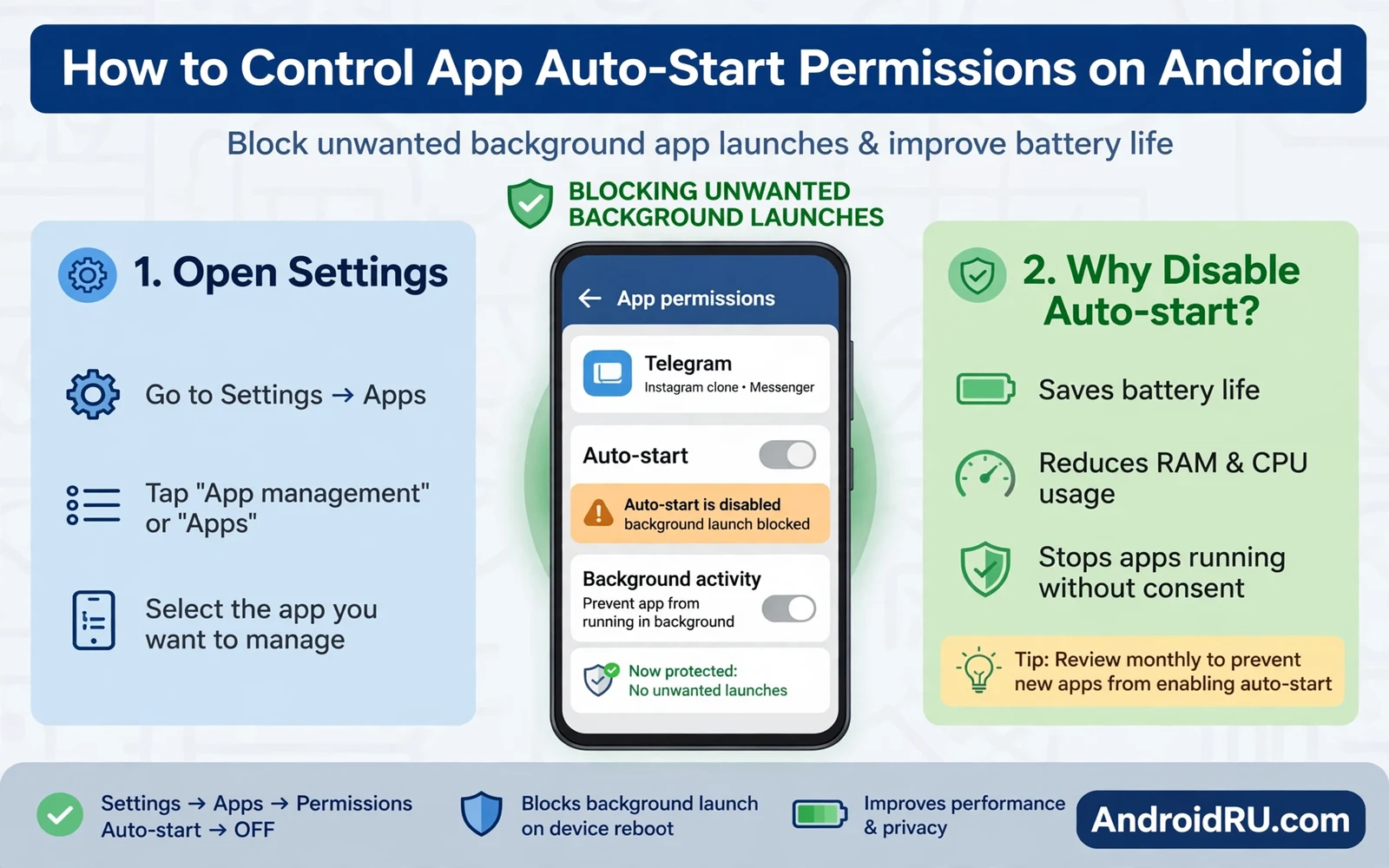
How to Control App Auto-Start Permissions on Android
Restart your phone and watch what happens in the first minute. Messaging apps wake up, alarms arm themselves, and a handful of other apps quietly start working in the background. Some of them need to. A shopping app that launches itself after every restart does not. The difference between those two groups is the auto-start permission, and controlling it is one of the fastest ways to make a phone feel quicker and last longer on a charge.
This guide explains what auto-start actually controls, where the setting lives on Pixel, Samsung, Xiaomi, Oppo, Vivo, OnePlus, and Realme phones, and which apps should keep it and which should lose it. You will get real menu paths, a safe way to test changes without missing an important message, and a fix for the delayed notifications that follow a careless change.
I have tuned this on my own phones for years, and the pattern is always the same: restrict the apps you open deliberately, keep the apps that must reach you, and change a small batch at a time. The phone gets quieter, the battery lasts longer, and nothing important goes missing.
What App Auto-Start Permissions Actually Control on Android
Auto-start controls whether an app can launch itself after a phone restart, or after another app or system event triggers it. When it is on, the app can wake up on its own, run background work, and prepare notifications before you ever tap its icon. When it is off, the app stays dormant until you open it, and the system will not launch it for routine refresh work.
That sounds simple, but it sits inside a wider system. Android also limits background work through battery optimisation, background data rules, and notification permissions. Auto-start is one layer of that system, and it is the layer that decides who gets to wake up at boot. An app can have auto-start off and still receive a push notification, because push messages arrive through a system service rather than through the app itself. That distinction is why turning auto-start off rarely breaks messaging the way people fear it will.
Auto-start versus background data versus battery optimisation
These three settings are often confused, and confusing them is how people break their own notifications. Battery optimisation is the layer most people forget to check. Auto-start governs launch triggers after boot and after system events. Background data governs whether an app can use mobile data or Wi-Fi while it runs in the background. Battery optimisation governs how aggressively the system restricts background work when the app has been idle. An app can hold one permission while lacking another, and a problem app usually needs attention in more than one layer.
Here is the practical rule I use. If an app launches itself after a restart and keeps running, auto-start is the layer to change. If an app uses data while you are not using it, background data is the layer to change. If an app drains battery while idle, battery optimisation is the layer to change. Check all three for a problem app, because tuning only one layer often leaves the real cause untouched.
A fuller picture of how Android decides which background apps live and which get killed helps here, and the guide on how Android handles background apps and memory management explains that system view: why some apps restart even after you close them, how memory pressure triggers clean-ups, and why a restricted app can still wake for a critical task. Read it before you blame auto-start for behaviour that actually comes from the memory manager.
Why some apps restart even after you close them
Android may restart apps for notifications, for scheduled tasks, and for system events, even after you swipe them away from the recent apps screen. Swiping an app away closes its visible window; it does not always stop its background services. Auto-start controls limit those restarts for the apps you choose, but system-level restarts for core services still occur when the system needs them. That distinction prevents surprise when a restricted app still wakes for a genuinely critical task, such as an alarm.
Some apps also restart because another app triggers them. A share action, a link tap, or a file opening can wake an app that you had not planned to use. That is normal behaviour for apps that handle shared content, and it is not a reason to restrict them. The apps worth restricting are the ones that wake themselves up on a schedule, with no user action and no message to deliver.
How push notifications still arrive when auto-start is off
Push notifications for most messaging and email apps travel through a Google system service, not through the app itself. The service receives the message, wakes the app briefly to display it, and then lets the app sleep again. That is why turning auto-start off for a messaging app can still leave its notifications working, as long as battery optimisation is not also set to Restricted. If messages stop arriving after a change, battery optimisation is usually the culprit, not auto-start.
Apps that run their own push service, without the Google service, are the exception. A few messaging apps, some email apps, and some regional apps keep their own connection alive, and those genuinely need auto-start to stay reachable after a restart. If you use one of those, keep auto-start on for it and restrict the shopping and game apps instead.
Where Auto-Start Controls Live on Pixel, Samsung, Xiaomi, Oppo and Vivo
Stock Android does not expose a single auto-start toggle for every app in one place. Owners control the related behaviour through battery settings, notification settings, and the app info screen. Several phone makers add a dedicated auto-start manager inside their security or battery settings, and that manager is the fastest place to work when your phone has one. The paths below cover the phones most readers actually own.
When a path below does not match your phone, use Settings search. Type auto start, or autostart, or background, and the search will usually find the right screen faster than browsing menus. Screenshots from your exact phone model help when a guide path differs, because a toggle name on one phone can appear under a different name on another.
Pixel and stock Android: no single toggle, three screens that matter
On a Pixel, open Settings, then Apps, then See all apps, then tap the app, then tap App battery usage. Choose Restricted to stop the app running in the background, Optimised for the normal balance, or Unrestricted to let it run freely. Restricted is the closest stock Android gets to turning auto-start off, and it is the setting to use for shopping apps, games, and news apps that you open deliberately.
For a second layer, go back to the app info screen, tap Notifications, and turn off the notification categories you do not need. An app that cannot notify you has less reason to wake up, and a quieter notification shade is a useful side effect. Then check Settings, then Apps, then the same app, then Mobile data and Wi-Fi, and turn off Background data if the app has no reason to refresh while you are not using it.
Samsung One UI: battery limits and background usage
On a Samsung phone, open Settings, then Battery and device care, then Battery, then Background usage limits. Turn on Put unused apps to sleep, and add the apps you want to restrict to the Sleeping apps or Deep sleeping apps list. Deep sleeping apps never run in the background and never receive updates until you open them, which is the strongest restriction Samsung offers and the right choice for games and shopping apps.
Samsung also lets you control the same behaviour per app: Settings, then Apps, tap the app, then Battery, and choose Restricted, Optimised, or Unrestricted. Use Restricted for the apps you want to keep dormant. Keep messaging, alarm, and calendar apps on Optimised or Unrestricted, because a sleeping messaging app is a missed message, and the battery saving is not worth that cost.
Xiaomi HyperOS and MIUI: the dedicated autostart manager
Xiaomi phones have the clearest auto-start control of any major maker. Open Settings, then Apps, then Manage apps, then tap Permissions, then tap Autostart, and you will see a per-app toggle list. Or open the Security app, tap the settings gear, and look for Autostart. Turn off autostart for shopping, game, news, and social apps, and leave it on for messaging, alarm, and banking apps.
Xiaomi also adds a second layer that can undo your work: battery saver per app. Open Settings, then Apps, tap the app, then Battery saver, and choose Background settings. If an app is set to restrict background activity here as well, its notifications can arrive late. For messaging apps, keep autostart on and set battery saver to No restrictions, then test message delivery after a restart.
Oppo, Vivo, OnePlus and Realme: permission manager autostart
On Oppo phones running ColorOS, open Settings, then Apps, then App management, tap the app, then tap Battery usage, and set Allow background activity to off for apps you want to keep dormant. For the autostart list itself, open the Phone Manager app, tap Privacy permissions, then tap Startup manager, and toggle each app. OnePlus phones running OxygenOS use the same Phone Manager path, because the two systems share their settings layout.
On Vivo phones running Funtouch OS, open Settings, then Apps, then tap the app, then tap Battery, and set Background power consumption to off for the apps you want to restrict. Vivo also keeps an autostart list under Settings, then More settings, then Applications, then Autostart, on some models. If that path is missing on your model, use the iManager app, tap App manager, then Autostart manager, which is the same list under a different roof.
On Realme phones running Realme UI, open Settings, then Apps, then App management, tap the app, then Battery usage, and turn off Allow background activity. Realme also offers an autostart list in the Phone Manager app, under Privacy permissions, then Startup manager, matching the Oppo layout. The names repeat across these makers because the underlying system is shared, so learning one path usually teaches you the others.
How to find the autostart screen with Settings search when the menu hides it
If none of the paths above matches your phone, open Settings and tap the search bar at the top. Type autostart first. If nothing appears, type auto start with a space. If that also fails, type background activity, then battery optimisation, then startup manager, one at a time. Settings search indexes screens that the menu hides, and it finds the right page on nearly every skin I have tried.
A second trick is to long-press the app icon on your home screen, tap App info, and work from there. The app info screen always has the battery and permission sections, even on phones that hide the autostart manager. From App info you can set battery to Restricted and turn off background data, which gives you most of the benefit even without a dedicated toggle.
Which Apps Should Keep Auto-Start and Which Should Lose It
The decision is not about how much you like an app. It is about what happens if the app stays asleep until you open it. If the cost of a missed alert is real, keep auto-start on. If the cost is nothing more than a slightly older feed when you open the app, turn it off. That one test sorts almost every app on your phone correctly.
Apps that should keep auto-start: messaging, alarms, calendars and security
Messaging apps need auto-start to deliver calls and messages promptly after a restart, especially the ones that run their own push service. Alarm apps need auto-start to ring reliably after a restart, because an alarm that sleeps through a reboot is worse than useless. Calendar apps may need it for timely reminders, and security apps may need it for protection after boot. Keep auto-start on for apps where a missed alert carries a real cost.
A missed work message or a missed alarm outweighs a small battery saving every time. I learned that the hard way years ago, when I restricted a messaging app to save battery and missed a time-sensitive reply from a client for three hours. The battery saved was a few percent. The cost was a lost afternoon of back-and-forth. Keep the important apps awake.
Test messaging delivery after any restriction change. Send yourself a message from another device, restart the phone, and see whether the message arrives within a minute. If it does not, restore auto-start for that app at once, and check its battery optimisation setting as well, because the two layers together usually explain the delay.
Apps that can lose auto-start safely: shopping, games, news and social
Shopping apps rarely need instant launch after boot, because you open them deliberately when you want to buy something. Games rarely need auto-start, because gameplay starts with a tap. News apps can wait for an explicit open rather than pushing constant refresh work. Social apps can survive delayed refresh when you check them manually, and utility apps that run only on demand can lose auto-start without harm.
Restrict these categories first and observe the battery and speed gains. On my own phone, restricting a dozen shopping, game, and news apps cut overnight battery drain by a noticeable amount and made the phone feel quicker after a restart, because fewer apps were competing for attention in the first minute. The apps themselves worked exactly as before when I opened them.
Social apps deserve a note of caution. If you rely on a social app for time-sensitive messages, treat it like a messaging app and keep it awake. If you use it for scrolling and catching up, restrict it. The same app can sit in either group depending on how you use it, so decide by your own habit, not by the category name.
How to check whether a delayed message came from your auto-start change
A delayed alert pattern points to an over-restricted app, and the fastest way to confirm it is to check when the alert actually arrived. The guide on how to view dismissed alerts in Android notification history shows how to open the notification history screen and see the real arrival time of each alert, instead of guessing from when you noticed it. If the history shows a message arriving an hour late, and the delay started the day you changed the setting, you have found your cause.
Restore auto-start for that app while keeping restrictions elsewhere. That targeted fix beats blanket changes that break communication, and it keeps the battery gains from the other apps you restricted. Change one app back, test for a day, and only then change another if the problem continues.
How to Test Auto-Start Changes Without Breaking Important Alerts
Change auto-start for a small group of apps at a time, five at most. A small batch makes it easy to spot which change caused a missed alert, because the list of suspects stays short. Wait a full day after each batch before judging battery gains, because a single day gives messaging and scheduling behaviour enough time to reveal problems. Restart the phone after changes to test boot behaviour directly, because a restart test reveals whether important apps still launch as needed.
Keep a short note of what you changed and when. A note that says 7 November, restricted shopping, games, and news apps, is enough. When a problem appears three days later, the note tells you what changed and what to undo first. Without the note, you will undo everything at once and lose the gains along with the problem.
A one-day test routine after each batch of changes
Morning: restart the phone, then check that your alarm app, messaging app, and calendar app are all awake and working. Send yourself a test message from another device and confirm it arrives within a minute. Midday: check battery usage in Settings, then Battery, and note whether the restricted apps have used less power than before. Evening: open the restricted apps one by one and confirm they still work normally when you tap them. If all three checks pass, the batch is safe, and you can restrict the next group tomorrow.
If a check fails, undo the most recent batch first, not the oldest one. The newest change is the most likely cause, and undoing it first saves you from disturbing settings that were working fine. Test again for a day, then re-apply the batch one app at a time if you still want the gains.
How to fix delayed notifications step by step
A missed alert after a restriction deserves a quick diagnostic pass before panic. Check three layers for that app, in this order: notification permission, battery optimisation, and auto-start. Open the app info screen, confirm notifications are on, set battery to Optimised or Unrestricted, and turn auto-start back on. One of those three layers usually explains the delay, and the order matters because notification permission is the fastest to check and the most commonly missed.
Restore the most permissive setting for that app first, then tighten other layers gradually if you still want the savings. Communication apps deserve a conservative approach, because reliability matters more than marginal battery savings. A messaging app that arrives late is a messaging app that has failed at its one job.
Auto-Start, Security and Battery Life: The Trade-Offs That Matter
Auto-start abuse can serve adware and tracking, because a persistent app can monitor activity continuously. An app that restarts after every close, requests broad permissions, and shows ads in odd places is behaving in a way that deserves a closer look. Restricting its auto-start is a reasonable first step, but it is not a cure. If an app behaves that way, check its permissions, check its battery use, and consider removing it entirely rather than merely quieting it.
Battery life is the other side of the same coin. Every app that launches at boot uses memory and CPU in the first minutes after a restart, and every app that polls in the background uses battery through the day. Restricting the apps you open deliberately usually saves a few percent of battery a day, and on an older phone with a tired battery, a few percent is the difference between reaching bedtime and reaching for a charger at dinner.
The trade-off is real, though. Restrict too much and you miss messages. Restrict too little and the phone stays busy. The balance that works for most people is simple: keep five to ten apps awake, restrict the rest, and review the list once every few months, because new installs quietly add themselves to the awake group.
| App type | Keep auto-start | Why |
|---|---|---|
| Messaging and calls | Yes | Missed messages carry a real cost |
| Alarm and clock | Yes | Must ring after every restart |
| Calendar and reminders | Yes | Timely alerts matter |
| Security and banking | Yes | Protection must start at boot |
| Shopping | No | You open it deliberately |
| Games | No | Play starts with a tap |
| News and social feeds | No | Delayed refresh is harmless |
How to set up a new phone so auto-start stays calm from day one
A new phone is the best time to set this up, because no bad habits have formed yet. During setup, grant auto-start only to the apps you already know must reach you. For everything else, leave the default, then restrict in batches over the first week. The guide to essential system settings to change on new Android phones covers the notification and battery controls that complement auto-start limits, and a phone with calm notifications needs fewer background launches in the first place.
Review the list again after a month, because apps you install later will ask for the same permissions. A monthly check takes five minutes: open the autostart manager, or the sleeping apps list, and look for names you do not recognise. Restrict the ones you open deliberately and keep the ones that must reach you. That habit keeps the phone fast for its whole life, not just its first week.
Frequently Asked Questions About App Auto-Start Permissions
Will turning off auto-start stop my WhatsApp messages?
Usually not. Most messaging apps receive push messages through a Google system service, so the message arrives even when the app itself is asleep. The risk appears when battery optimisation is also set to Restricted, or when the app runs its own push service instead of the Google one. Test it after the change: restart the phone, send yourself a message from another device, and check that it arrives within a minute.
Why does an app keep turning its own auto-start back on?
Some apps re-request auto-start when you open them, and some makers reset the setting after a system update. If an app keeps coming back, check its battery setting as well, because an app set to Unrestricted can behave as if auto-start were on. If it still returns after both changes, the app is working against your choice, and you should weigh whether you still want it on your phone.
Is it safe to turn off auto-start for every app at once?
No, and that is the one mistake this guide warns against most strongly. Turning everything off at once breaks alarms, delays messages, and silences reminders, and you will not know which app caused which problem. Change five apps at a time, test for a day, and keep messaging, alarm, and calendar apps awake throughout. A slow, tested change beats a fast, broken one.
Does auto-start affect battery life enough to notice?
Yes, on most phones, though the size of the gain depends on how many apps were waking up. Restricting a dozen shopping, game, and news apps typically saves a few percent of battery a day and makes the phone noticeably quicker after a restart. The gain is largest on older phones and on phones with many pre-installed apps that launch at boot without being asked.
What to Do Today to Control App Auto-Start
Open Settings search, type autostart, and open the first app on the list that you open deliberately: a shopping app, a game, or a news app. Turn its auto-start off, or set its battery to Restricted if your phone has no autostart toggle. Restart the phone, check that your messages and alarm still work, and then restrict four more apps from the same group tomorrow.
That small start is the whole method. Five apps at a time, one day of testing between batches, and the important apps left awake throughout. Keep messaging and alarms awake, restrict everything you open deliberately, and let the battery gains prove the change was worth making. Your phone will feel calmer within a week, and you will know exactly which apps earned the right to wake up on their own.

