

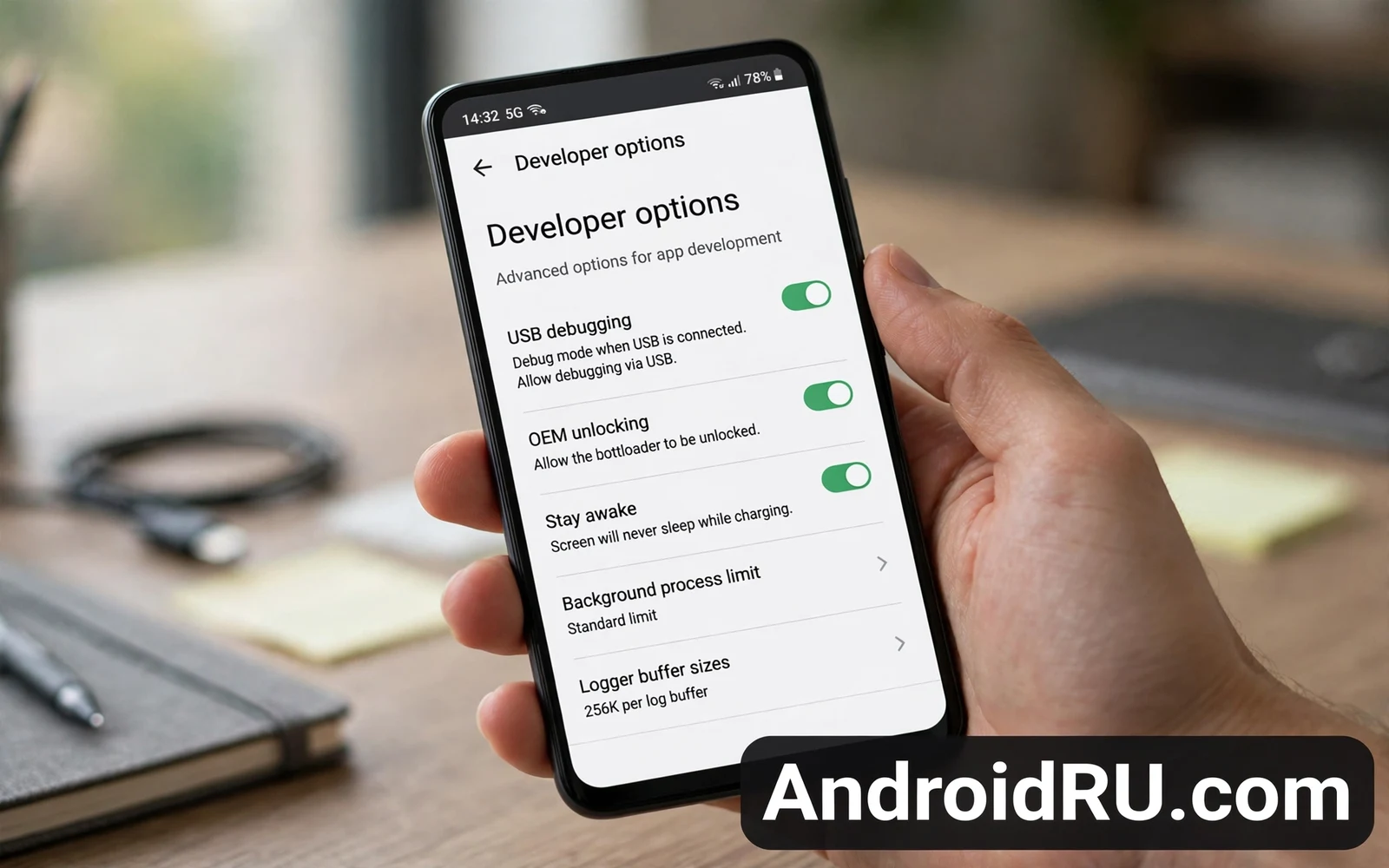
Developer options hide a set of advanced tools behind a simple unlock step. These tools help developers test apps and help advanced users diagnose problems. These tools can also harm your phone when used without understanding. A single wrong toggle can break an app or drain battery or weaken security. This guide explains how to enable developer options safely. It explains which options are useful and which options you should leave alone. It also explains how to turn developer options off again when you finish.
Developer options are not a secret menu for everyday users. Developer options exist so that app makers can test behavior on real phones. Advanced users can borrow those tools for troubleshooting. Everyday users rarely need them for daily tasks. Enable developer options only when you have a clear task in mind. A clear task might be testing an app or capturing a bug report or connecting to a computer for file work. A vague curiosity is not a strong reason to change system internals.
Safety starts with a backup and a calm mindset. Back up photos and messages before you change advanced settings. Note the original value of any option that you change. Change one option at a time. Test the change before you change another option. A careful pace lets you undo a problem quickly. A rushed pace can leave you unsure which change caused a problem.
How To Enable Developer Options
Open settings and find the about phone section. Find the build number entry in that section. Tap the build number several times until the phone confirms developer mode. The phone may ask for your lock PIN before it enables the mode. Enter the PIN only on your own phone and only in settings. A real enable step never asks for a password in a random app or web page.
After the taps succeed a new developer options entry appears in settings. The entry usually sits in the system section. Open that entry and review the list before you change anything. The list is long and technical. Do not feel pressure to understand every option at once. Focus on the option that matches your task. Leave every other option at its default value.
If you enable developer options by accident then you can turn them off at the top of the same screen. Turning the main switch off hides the menu again. Turning the main switch off also resets many toggles to safe defaults on many phones. Check that the menu hides after you switch it off. A hidden menu cannot be changed by accident later.
Enabling developer options alone does not root your phone. Enabling developer options alone does not unlock your bootloader. Enabling developer options alone does not void support in the same way as those deeper steps. Developer options do open tools that can change app behavior. Treat the menu as a workshop rather than a toy box. A workshop needs care even when it does not require a full system change.
USB Debugging And Computer Connection
USB debugging lets a computer talk to your phone through developer tools. Developers use USB debugging to install test apps and read logs. Advanced users use USB debugging to copy files and run diagnostic commands. USB debugging should stay off when you do not need it. An active USB debugging connection gives a computer deep access to your phone. A computer that you do not trust should never receive that access.
Enable USB debugging only for a computer that you own and trust. Connect the phone with a cable that you trust. Check the fingerprint prompt that appears on the phone. The prompt shows a key for the computer. Accept the prompt only when the computer is yours and the timing matches your action. Revoke old computer authorizations in developer options when you finish a task. A revoked authorization forces a fresh prompt next time.
Public charging stations deserve special care when USB debugging is on. A public port can be a data port in disguise. A data port can try to talk to a phone with debugging enabled. Use a charge only cable or a data blocker when you charge in public. Turn USB debugging off before you plug into an unknown port. A few seconds of care prevents a silent data connection.
Wireless debugging follows the same safety logic. Wireless debugging lets a computer connect over Wi-Fi without a cable. Wireless debugging needs a pairing code and a network that you trust. Use wireless debugging only on your home network. Turn wireless debugging off after the task finishes. A debugging service that stays on is an open door that you may forget.
Useful Options For Testing And Diagnosis
Stay awake can keep the screen on while charging. Stay awake helps developers test an app without the screen timing out. Stay awake wastes battery when left on. Turn stay awake off after testing. A screen that stays on all night drains battery and heats the phone for no benefit.
Show taps and pointer location can help you record a tutorial or show a bug. Show taps draws a marker where you touch. Pointer location draws a trail for finger movement. These visual tools help another person follow your steps. Turn them off after recording. Visual markers distract from normal use when left on.
Animation scale options control how fast windows and transitions move. A lower scale makes the phone feel faster. A lower scale does not make the processor faster. A lower scale only shortens the animation time. Try a modest change and test daily apps before you settle on a value. An animation value that feels rushed can make the phone feel nervous rather than fast.
Bug report tools in developer options can capture logs for a developer. A bug report contains system details and app activity. Share a bug report only with a developer or support channel that you trust. Check a bug report for private data before you share it widely. A bug report shared in a public forum can expose details that you meant to keep private.
Options You Should Leave Alone
OEM unlocking is a high risk option in developer options. OEM unlocking allows bootloader unlock on some models. Bootloader unlock wipes the phone. Bootloader unlock can break banking apps and payment apps. Bootloader unlock can break device integrity checks. Do not enable OEM unlocking unless you understand the full unlock process and you accept data loss and app limits. A casual tap on this option can start a path that is hard to reverse.
Mock location options can fake your location for testing. Mock location can break maps and ride apps and weather apps. Mock location can also violate terms for location based services. Leave mock location off unless you are testing your own app with a clear purpose. Turn mock location off as soon as testing finishes. A phone that reports a fake location confuses every app that depends on real location.
Background process limits can break messaging and music and alarms. A strict limit can stop an app from delivering a message on time. A strict limit can stop a music app from playing in the background. A strict limit can delay an alarm app. Leave process limits at the default value for daily use. Developers use process limits to test app behavior under pressure. Daily users gain little from that test and lose reliability.
Force GPU rendering and similar graphics toggles can cause glitches on some apps. A graphics toggle that helps one app can break another app. A graphics toggle can also increase battery use. Leave graphics toggles at defaults unless a developer asks you to test a specific app with a specific toggle. Note the original value before any test. Restore the original value after the test finishes.
Developer Options And App Development
Developers use developer options to test an app on a real phone rather than only on an emulator. A real phone reveals touch behavior and sensor behavior and battery behavior that an emulator may hide. A real phone also reveals maker differences that an emulator cannot show. Developer options help a developer see logs and layout bounds and overdraw. These tools turn a phone into a test bench for an app.
Layout bounds show the boxes around interface elements. Layout bounds help a developer find a misaligned button. Layout bounds help a developer find a text view that overlaps another view. Layout bounds distract a normal user because every screen gains colored boxes. Turn layout bounds off after a layout test. A screen full of boxes is not a daily interface.
Strict mode can flash the screen when an app does slow work on the main thread. Strict mode helps a developer find performance problems early. Strict mode annoys a normal user because flashes appear during normal app use. Leave strict mode off for daily use. Enable strict mode only when you test your own app and you want to catch slow operations.
Do not use developer options to chase speed claims from random videos. A random video may suggest a toggle that harms stability. A random video may suggest a toggle that drains battery. A random video may suggest a toggle that breaks an app. Trust official developer documentation and your own tests over a viral tip. A toggle that truly helped every phone would already be a default setting.
Turning Developer Options Off Again
The safest end to a developer session is a full switch off. Open developer options and turn the main switch off at the top. Check that the menu entry hides from settings. Check that USB debugging no longer prompts when you connect a cable. Check that visual tools like show taps no longer appear. A clean switch off returns the phone to a normal state.
Revoke USB debugging authorizations before you switch off when you used a computer. Open the revoke option in developer options. Confirm the revoke step. A revoked computer must ask again before it can connect. Revoking old computers matters when you used a shared or work computer for a test. A forgotten authorization can outlive the test that created it.
Restart the phone after a developer session when you changed several options. A restart clears temporary states from testing. A restart lets apps return to normal background behavior. A restart also reveals any app that still misbehaves after testing. Test core apps after the restart. Open messaging and banking and maps and check that each app works normally.
If a problem stays after switch off then undo changes one by one from your notes. Your notes should list each option that you changed and its original value. Restore original values in reverse order. Restart after each restore when the problem is serious. Contact official support if the problem stays after all values return to defaults. A problem that survives a full reset may need a deeper check.
Safe Habits Around Developer Tools
Keep developer options off by default. Enable them only for a task with a clear end point. Set a time to switch them off after that task. A task with no end point tends to leave debugging on for weeks. Weeks of debugging on increase exposure to untrusted computers and ports. A short enable window gives you the tool without the long exposure.
Never enable developer options for a stranger or for a remote helper that you do not trust. A stranger who asks you to enable USB debugging may want deep access to your phone. A stranger who asks you to enable OEM unlocking may want to change your system. A legitimate support helper explains each step and lets you revoke access after the session. A helper who rushes you past warnings deserves suspicion.
Developer options matter for testing because understanding Android API levels helps you see why an app behaves differently after a system change. An app that targets a newer level faces stricter rules. An app that targets an older level may behave in an older way. Developer tools let you observe that behavior on a real phone. Observation beats guessing when an app misbehaves.
Hidden system tools overlap with developer tools in useful ways and hidden features in the latest Android update include settings that pair well with careful developer testing. A focus mode can silence distractions during a test. A private space can separate test apps from daily apps. A battery view can show whether a test app drains power. Use safe hidden tools beside developer tools rather than instead of them.
Developer control grew over a long platform history and Android history from Cupcake to Android 15 shows how system control grew from simple toggles to a full developer menu. Early versions offered few testing tools. Modern versions offer a rich set of tools with clear warnings. Rich tools demand more care from the user. Care grows with understanding of what each tool can change.
Quick Checklist
- Back up before changing any advanced setting
- Note the original value of every option you change
- Change one option at a time and test it
- Keep USB debugging off when not in use
- Revoke computer authorizations after a task
- Turn developer options off after the task ends
- Leave OEM unlocking and process limits at defaults
- Restart and test core apps after a session

