

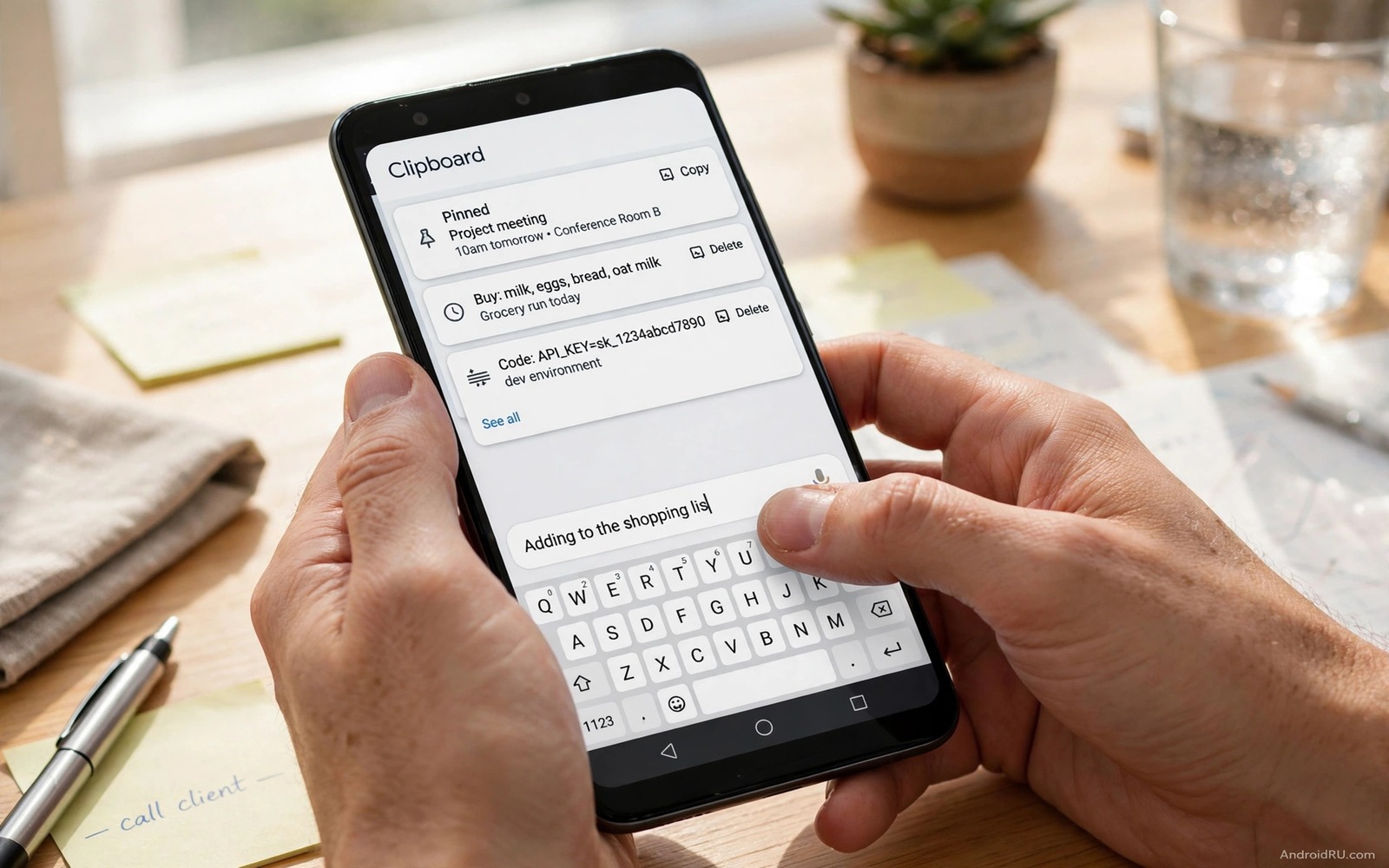
Typing on a phone feels slow when the same phrases appear again and again. An address and an email signature and a common reply can eat many minutes each day. Clipboard shortcuts solve that waste because they store phrases that you can paste in one tap. A clipboard manager keeps a history of copied items and it lets you pin the phrases that you use most. That small change can cut daily typing in half for many owners.
A clipboard shortcut is not just a copy paste trick. It is a personal phrase library that grows with your real work. A support worker can pin greeting phrases and a student can pin citation formats and a seller can pin product replies. Each pinned phrase saves a retype and it also prevents a typo in an important detail such as an address or a code. A typo free paste is a quiet quality win that adds up over weeks.
Clipboard shortcuts pair well with text expansion because both cut repeated typing in different ways. text expansion hacks that cut long typing shows how a short code can expand into a full phrase. Use clipboard pins for phrases that you paste whole and use expansion for phrases that you type inside a sentence. Both tools together cover most repeated typing.
Turn On Clipboard History Safely
Open your keyboard settings and look for clipboard history or clipboard manager. Turn it on and test it by copying a short phrase and opening the clipboard panel. The panel should show the phrase as a recent item. Pin that phrase if you want to keep it beyond the normal history limit. A pinned item stays available even after many new copies push older items out.
Check the history size and the retention time in the keyboard settings. A history that holds only ten items may drop a useful phrase too fast. A history that holds fifty items may keep sensitive copies for too long. Choose a size that fits your work and clear the history when it holds codes or passwords. Never pin a password or a bank code because a pinned item stays visible to anyone who opens the clipboard panel.
Test clipboard paste in a notes app before you use it in a real message. Copy a phrase and paste it into a test note and check that spacing and line breaks survive. Some apps strip formatting on paste and some apps keep it. A test note reveals the behaviour without risking a real message. Adjust the phrase format based on that test so pastes look clean in real use.
Build A Pin Library For Daily Phrases
Start with five phrases that you type every day. A home address and a work email signature and a polite greeting and a common reply and a meeting link cover many jobs. Pin those five and use them for a week before you add more. A small pin library stays fast to browse and a large pin library slows you down with choice. Add a new pin only when you type a phrase three times in one week.
Name each pin by its job rather than by its first words when the keyboard allows a label. A label such as Address Home or Reply Late tells you the purpose at a glance. A label that repeats the phrase itself adds no help. Keep labels short and consistent so the pin list reads like a menu. A menu style list is faster to scan than a wall of full phrases.
Group pins by context when the keyboard supports folders or sections. A work group and a personal group keep the lists separate and they prevent a work phrase from appearing in a personal chat by mistake. A group also helps when you share a phone with family because personal pins stay out of a work session. Check whether your keyboard offers groups before you build a long list.
A Clipboard Pin Example In Code
The code below is a small developer example that shows how a clipboard manager can store a text clip. It creates a clip object with a label and a text value. It does not replace a keyboard clipboard and it does not run on a phone on its own. Use it only to learn how a pin can be represented as data in an app project. A real keyboard stores pins with extra safety checks for sensitive content.
ClipData clip = ClipData.newPlainText("Address", "12 Main Street");
clipboard.setPrimaryClip(clip);
Attribution: the code above is an original example written for this guide. It follows the standard command interface shipped with the Android platform tools and it uses only public commands that work on a normal developer setup.
After the example you can see why a clipboard pin needs a clear label and a clean text value. A label helps the user find the pin fast and a clean value prevents a paste with extra spaces. A real app should also warn before pinning a long secret such as a token. That warning protects users who copy a secret without thinking about clipboard history.
Paste Faster In Messages Email And Forms
In messages a clipboard pin can send a common reply in two taps. Open the clipboard panel and tap the pin and send. That speed helps when you answer many similar messages in a row. Check the pasted text before you send because a pin from a different context can sound wrong. A quick read before send prevents a polite reply from landing in the wrong chat.
In email a signature pin can close a message professionally without retyping. Paste the signature at the end of a draft and check that the name and phone number look right. A signature pin should include only public contact details. Never include a private number in a signature pin that you might paste into a public thread by mistake.
In forms a clipboard pin can fill an address or a reference number fast. Paste the value and check each field before you submit. A form field may trim spaces or may reject a format that looks fine in a note. A field by field check takes seconds and it prevents a failed submission. That check is worth the time even when the paste looks perfect.
Protect Sensitive Clips And Privacy
Clipboard history can hold sensitive data such as passwords and codes and private addresses. Clear history after you copy a sensitive item and never pin a sensitive item. Some keyboards offer a sensitive content warning or an auto clear timer. Turn on those protections when they exist. A clipboard that auto clears sensitive items is safer than a clipboard that keeps everything forever.
Be careful with third party clipboard apps because they can read every copied item. A clipboard app with network permission could in theory send copies to a server. Use only a keyboard clipboard from a trusted maker or a well reviewed app with a clear privacy policy. Check permissions after install and deny network access when the app does not need it for its core job.
A shared phone needs extra clipboard care because a pinned phrase can reveal personal details to the next user. Clear personal pins before you hand the phone to another person. A quick clear takes seconds and it protects privacy. That care also matters for other shared tools and keyboard shortcuts that control an entire Android device should be tested on your own profile before sharing.
Use Clipboard Pins For Codes And References
A reference number or a tracking code is a perfect clipboard pin because it is long and easy to mistype. Pin a code that you paste often and check it once before you pin it. A correct pin saves retyping and it prevents a digit error that can delay a delivery or a payment. A wrong pin is worse than no pin because it spreads the same error fast. Verify before you pin.
A code pin should carry a label that states the job such as Order Code or Tracking Number. A label helps you pick the right code from a list of similar numbers. A list of bare numbers looks identical at a glance and a wrong pick is easy. A label plus a short hint in the pin list prevents most mix ups.
Rotate code pins when a code expires or a project ends. An expired code in the pin list can cause a failed form or a wrong lookup. Delete expired pins during a monthly review. A fresh pin list stays trustworthy and a stale list slowly becomes a trap.
Common Mistakes
One common mistake is to pin a password or a code for convenience. A pinned secret stays visible in the clipboard panel and it can leak to the next user. Never pin secrets. Another mistake is to build a huge pin library on day one. A huge library slows browsing and it hides the best pins. Start with five pins and grow slowly.
A further mistake is to paste without reading in a fast message thread. A wrong pin in a wrong chat can embarrass or confuse. Read the pasted text before you send. A further mistake is to ignore clipboard history size. A small history can drop a useful phrase and a large history can keep sensitive data too long. Set a size that fits your work.
A final mistake is to trust a clipboard app without checking its permissions. A clipboard app can read sensitive copies and a careless permission grant can expose them. Check permissions and privacy policy before you trust a new clipboard tool. The same check applies to other productivity tools and automation apps that are easier than complex Tasker should be chosen with the same care.
Frequently Asked Questions
How many clipboard pins should I keep?
Start with five daily phrases and add a new pin only after you type a phrase three times in a week. A small library stays fast to browse. A large library slows you down and hides the pins that matter most.
Is clipboard history safe for passwords?
No. Clipboard history can keep a password visible to apps and to the next phone user. Type passwords from a password manager instead of copying them when possible. Clear history at once if you copy a password by mistake.
Can I use clipboard shortcuts in any app?
Most apps that accept text input work with clipboard paste. Some secure apps block paste for security reasons. Test paste in each app that you use often and keep a manual fallback for apps that block it.
Conclusion
Turn on clipboard history today and pin five phrases that you type every day. Test paste in a notes app and check spacing before you use pins in real messages. That small setup can save many minutes each day.
After a week review your pins and delete any pin that you never used. Add only phrases that you typed three times in that week. A tight pin library stays fast and it grows only with real need.
Clear sensitive history regularly and never pin a secret. A safe clipboard habit protects both speed and privacy. That balance is the real payoff of clipboard shortcuts.

