

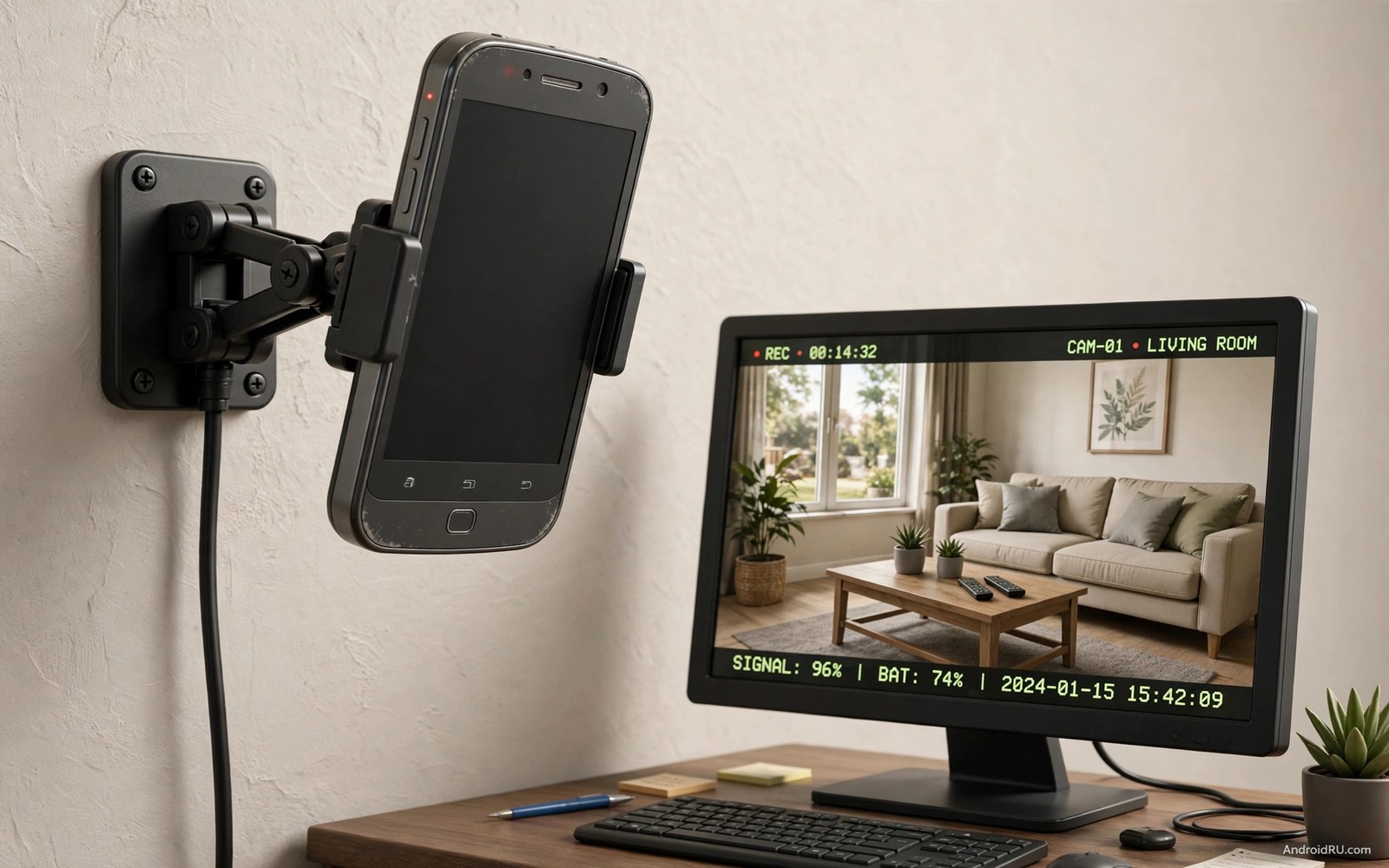
An old phone sits in a drawer. It still has a working camera. It still connects to Wi-Fi. It can become a security camera today. No new hardware is needed. No monthly fee is needed for basic use. A free app turns that drawer phone into a watchful eye for your home.
The idea works because security cameras are mostly a camera plus software. An old phone already has both. It has a lens and a processor and a network radio. A camera app adds motion detection. It adds alerts. It adds remote viewing from your main phone. The result rivals a budget camera for indoor use.
Limits exist and deserve honesty. An old phone is not weatherproof. It is not designed for outdoor mounting. Its battery may be weak. Its night vision relies on room light. Indoor use in a living room or a garage entry works well. Outdoor use in rain fails fast. Use the phone where it belongs.
This guide shows a complete indoor setup. You will learn app choice and placement. You will learn power and network tricks. You will learn motion alerts without false alarms. You will also learn privacy rules for cameras inside a home.
Choosing the right app for an old phone
Pick an app with a viewer mode and a camera mode. The old phone runs camera mode. Your main phone runs viewer mode. Both modes must come from the same app family. A mismatch means no connection. Test the pair on your home network first. A pair that works locally will usually work remotely too.
Motion detection is the core feature. The app should record only when motion occurs. Continuous recording fills storage fast. Motion clips save space and review time. Check sensitivity settings carefully. High sensitivity records every shadow shift. Low sensitivity may miss a slow walker. A middle setting suits most living rooms.
Alert options matter next. A push alert to your main phone is the minimum. An email alert with a snapshot helps when push fails. A sound alert on the camera phone itself can deter an intruder. Choose alerts you will actually notice. An alert you ignore is worse than no alert because it creates false safety.
Cloud versus local storage is a key choice. Cloud clips survive phone theft. Local clips stay private and free. Many apps offer a short free cloud history. Local storage on a memory card gives longer history. Use cloud for recent clips and local for archive when possible. Readers who build a full home toolkit should also see essential apps every Android power user installs first because a camera phone still needs basic maintenance apps.
Placement and power that keep it running
Place the camera high in a corner. A high corner sees the whole room. It also keeps the phone out of easy reach. Angle it slightly downward. A level angle wastes half the view on ceiling. A steep angle misses faces at the door. Test the view from your main phone before fixing the mount.
Power is the biggest practical problem. An old battery may last only a few hours alone. Keep the phone plugged in permanently. Use the original charger when possible. A weak charger may not keep up with camera work. Check after an hour that the battery percentage rises or holds steady. A falling percentage on a charger means the charger is too weak.
Heat matters for a plugged-in phone. A phone in direct sunlight overheats fast. A phone inside a closed box overheats too. Place it where air flows. Avoid a window sill in summer sun. A cool spot keeps the camera running all day. An overheated phone shuts down at the worst moment.
Use a simple mount that holds the phone firmly. A small tripod works on a shelf. A wall mount works for a corner. Tape is a poor mount for long term use. Heat loosens tape. A falling phone breaks and stops recording. A stable mount is cheap insurance.
Network and remote viewing setup
Connect the camera phone to your home Wi-Fi. Use the 2.4 GHz band when the camera sits far from the router. The 2.4 GHz band travels through walls better. The 5 GHz band is faster but shorter range. A distant camera needs range more than speed. A camera near the router can use either band.
Set a static address or a reserved address in the router when the app supports local viewing. A changing address breaks bookmarks. A reserved address stays stable. You do not need this step for cloud based apps. Cloud apps find the camera through an account. Local apps benefit most from a stable address.
Test remote viewing from mobile data. Leave home Wi-Fi on your main phone. Open the viewer app on mobile data. Watch the live feed for a minute. A feed that works on mobile data works from anywhere. A feed that works only on home Wi-Fi needs a cloud setting fix. Test remote viewing before you rely on it during a trip.
Secure the camera account with a strong password. A camera inside your home deserves the strongest protection you give any account. Enable two factor authentication when offered. A weak camera password exposes your living room to strangers. Security for a camera is not optional.
Reducing false alarms
False alarms ruin trust fast. A camera that alerts for every curtain movement gets muted. A muted camera helps no one. Start with motion zones. Draw a zone over the door area only. Exclude a window with moving trees outside. Exclude a television screen that flickers. Zones cut most false alarms at once.
Adjust sensitivity in small steps. Lower sensitivity by one step after a day of false alarms. Raise it by one step after a missed event. A week of tuning finds the sweet spot for your room. Pets need special care. A pet zone at floor level excluded from alerts helps. A pet that triggers every alert will train you to ignore them.
adb shell dumpsys wifi | grep -i ssid
adb shell dumpsys battery | grep -i level
ping -c 4 192.168.1.60
The snippet above is an original example written for this guide. It shows how an advanced user can check Wi-Fi and battery state from a computer. It is not a required step for normal camera setup.
Schedule alerts for times that matter. Night alerts matter most for many homes. Day alerts matter when the house is empty. A schedule that matches your routine reduces noise. An alert at a time you are home and awake is less useful. Tune the schedule after the first week of real use.
Using two old phones together for better coverage
Two old phones cover a home better than one. Place one at the front door view. Place one in the main living area. Two angles make identification easier. A person seen from two sides is harder to dispute. Two phones also survive a single failure. One camera offline still leaves the other watching.
Stagger the power supplies for two cameras. Use different outlets on different circuits when possible. A tripped breaker then kills only one camera. A single power strip failure kills both. Small redundancy choices add real reliability. Reliability matters more than resolution for security use.
Name each camera clearly in the viewer app. Front door and living room beat camera one and camera two. Clear names speed up alert review. An alert from a named camera tells you where to look at once. An alert from a numbered camera needs a mental map. Clear names save seconds when seconds matter.
Label motion clips by time and camera at export. A clip named only with a random number is hard to find later. Export important clips with a date and a room name. Keep exported clips in a separate folder from daily motion clips. A separate folder speeds up police or insurance review. It also prevents automatic deletion from clearing an important clip. Export within a day of an incident while details stay fresh in memory.
Common mistakes
The first mistake is pointing a camera at a private space without consent. A camera in a shared home affects everyone there. Tell household members where cameras sit. Avoid bedrooms and bathrooms entirely. Consent and placement rules protect trust at home.
The second mistake is relying on battery alone. An old battery dies overnight. A camera that dies at night misses the hours that matter most. Permanent power is mandatory for security use. Battery only suits a temporary check.
The third mistake is using a weak Wi-Fi signal. A weak signal drops frames and misses motion. Move the router closer or add an extender. A camera with a poor connection records gaps. Gaps defeat the purpose of a camera.
The fourth mistake is never checking recordings. A camera that records but is never reviewed may hide a failure. Review one motion clip per week. A weekly check proves the system still works. It also teaches you the normal patterns of your home.
FAQ
Can an old phone record at night?
Yes in a room with some light. A hallway light or a street light through a window often suffices. Total darkness defeats a normal phone camera. An infrared illuminator can help but adds cost and complexity. A small night light in the room is the simplest fix.
Will the camera phone overheat if left plugged in?
It can in a hot spot or with a poor charger. Place it in airflow and away from sun. Use a good quality charger. Check the phone temperature during the first day. A phone that stays warm but not hot is fine. A phone too hot to touch needs a cooler spot.
Do I need a SIM card in the camera phone?
No for home Wi-Fi use. Wi-Fi alone carries the video to your viewer app. A SIM helps only as a backup connection. A cheap data SIM can keep alerts flowing during a Wi-Fi outage. Most homes do not need that backup for indoor use.
Conclusion
An old phone makes a capable indoor security camera. A good app adds motion detection and alerts and remote viewing. Permanent power and a high corner placement keep it reliable. Motion zones and sensitivity tuning cut false alarms. Privacy rules keep the home trusting the camera.
Your concrete next step is to set up one old phone this weekend in the room you most want to watch. Mount it high and plug it in and test remote viewing from mobile data. Walk through the room and check that motion alerts arrive. If alerts work then you have a free security camera. Readers who monitor device health should also explore system monitor apps that check hardware health and the ultimate automation app that will do work for you because a camera phone benefits from health checks and automation too.

