

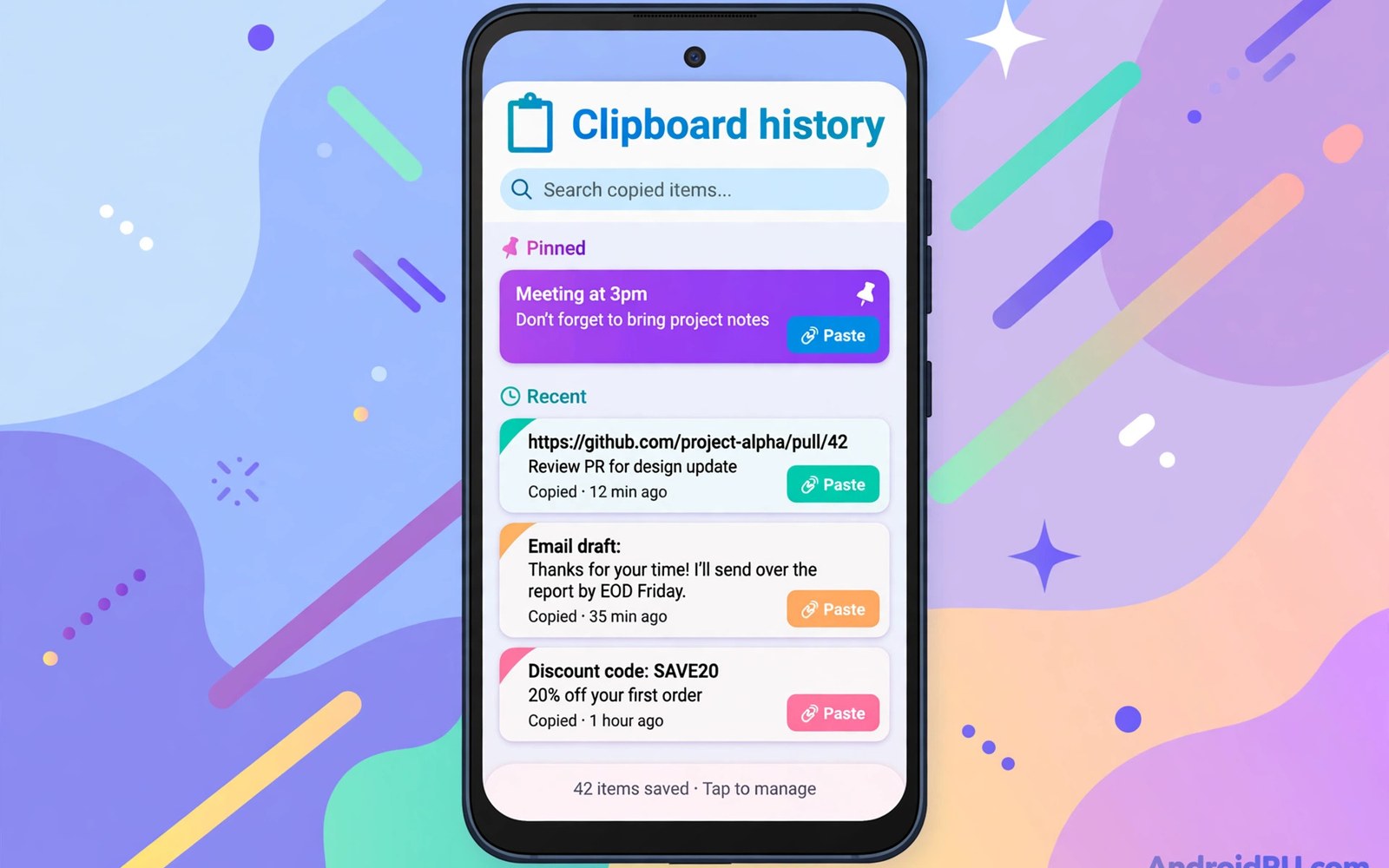
Top clipboard manager apps for Android store and retrieve copied text and solve a small daily frustration with a large time saving. A clipboard manager keeps a history of copied text so an address copied in the morning can paste again in the evening. This article shows how to use clipboard history safely without exposing passwords or sensitive text.
Many people copy the same address or reply many times a day and retype it each time. A clipboard history removes that repetition with a list that you can search and pin. A history that grows without limits will become clutter unless pins and search keep it usable.
Start by pinning the five snippets you copy most often. Addresses and greetings and account numbers for non sensitive use top most lists. Five pinned items will save more time than a hundred unpinned history entries. A closer look at split-screen multitasking can help you compare daily tools before you commit to one setup.
What matters most
History length must balance usefulness against clutter and privacy. A history of fifty items covers a busy day without becoming a maze. A history of thousands of items will slow search and it will hold sensitive text for too long.
Search inside clipboard history matters when you need an item from hours ago. A search by word or by app source can surface a copied address in seconds. A history without search forces endless scrolling through old items.
Pinning keeps essential snippets at the top of the history list. A pinned address or greeting should survive history cleanup and app restarts. Unpinned items can expire after a day without harming daily work.
How to choose the right setup
A clipboard manager built into a keyboard suits users who paste inside typing. A standalone clipboard app suits users who copy across many apps and need a floating panel. Both paths work and the choice depends on where you paste most.
Sync across devices helps when copied text must travel to a tablet or computer. A synced clipboard should offer encryption and a short retention time. Avoid syncing passwords or sensitive codes through any clipboard system.
Privacy controls matter most for clipboard history because copied text can be sensitive. A manager with auto delete and exclusion rules for password apps protects daily use. Set auto delete to one day for general history and pin only safe snippets.
A practical daily routine
Copy items once and reuse them from history rather than copying again. A copied address used three times in a day should come from history on the second and third use. History reuse turns copying into a one time cost per item. A related look at calendar and scheduling apps can show how a second tool fits the same workday without adding clutter.
Pin a snippet at once when you notice a second use of the same text. Pinning takes one tap and it saves many future copies. A snippet pinned early will stay ready for the rest of the week.
Clear history at the end of the day except for pinned safe items. A daily clear protects privacy and it keeps search fast. A clear routine also prevents sensitive text from lingering in history for weeks.
Costs and privacy and limits
Many clipboard managers are free with history limits that suit daily use. Advanced sync and unlimited history may need a paid tier. Pay only when sync or history limits block real work rather than for themes.
Clipboard data can include passwords and codes copied by mistake. A manager that warns before copying from a password app reduces that risk. Never pin a password or a sensitive code in clipboard history.
The cost of a clipboard manager is attention when history grows too large. A manager that needs constant tidying will waste the time it should save. Keep history short and pins few and let search do the rest.
A useful example
A quick clipboard check shows current clipboard state and access settings on the device. The commands below dump clipboard service state and show notification settings. Use the same check when a clipboard app stops capturing after an update.
adb shell dumpsys clipboard
adb shell cmd clipboard clear
adb shell settings get secure clipboard_access_notification
This clipboard check pattern follows the approach described in the official Android developer documentation for clipboard services and access settings. The same documentation explains how clipboard access notifications protect copied content.
What to check after a week
After a week check whether history actually saved a retype during busy work. A manager that never gets opened has not changed habits. Place the history panel where your thumb can reach it during typing.
After a week check privacy by reviewing history for sensitive items that should not linger. A history with passwords or codes needs stricter auto delete rules. Fix exclusion rules before sensitive text appears again. A practical look at mobile spreadsheet apps can help you judge whether your current setup still earns its place on your phone.
After a week check pinned items for usefulness and remove dead pins. A pinned item unused for a month should leave the pin list. A lean pin list will stay fast to scan during work.
Deeper checks for careful users
Text snippets inside a clipboard manager can act like a light text expansion system. A pinned snippet pasted with one tap suits replies and addresses. Combine clipboard pins with keyboard snippets only when each tool has a clear role.
Image clipboard history suits designers and social users who copy pictures often. Image history fills storage faster than text history. Limit image history to a few items and delete images daily.
Floating clipboard panels help when pasting across apps without switching keyboards. A floating panel that stays on screen can block content if it is too large. Resize the panel to a small strip that expands only on tap.
Making the choice stick
A clipboard habit sticks when the history panel opens with one gesture during typing. Learn the gesture for your keyboard or app on day one. A panel that needs many taps will lose to retyping during busy work. A one gesture panel turns history into a reflex. Practise the gesture for a week until it feels natural.
A pin list needs a monthly review or it will grow into clutter like history itself. Review pins each month and remove any pin unused for a month. A lean pin list stays fast to scan during work. A bloated pin list slows pasting and defeats the purpose. Keep pins to the ten most used safe snippets.
A clipboard exclusion rule for password apps deserves a test before daily use. Copy a password in a password app and check that history did not capture it. A test that fails reveals a setting problem while it is still easy to fix. A test skipped will reveal the problem after sensitive text already lingered. Repeat the test after each app update.
A shared device needs a clipboard clear habit at the end of each session. Clear history before handing the phone to someone else. A history left on a shared device can expose personal text to the next user. A clear habit takes seconds and it protects privacy reliably. Make clearing part of the routine for handing over a device.
A clipboard sync rule should limit retention to a short period such as one day. A short retention keeps synced snippets useful without storing old text forever. A long retention increases exposure if a synced device is lost. A short retention also keeps search fast across devices. Review sync retention monthly and shorten it when possible.
A clipboard manager earns a permanent place when it saves a retype every day for a month. Track repeat pastes simply for a week to prove the saving. A manager with no daily saving has not changed habits. A manager that saves daily will feel essential within weeks. Keep the manager that proves daily value rather than the manager with the longest history.
A week of practice
Day one of practice should pin five safe snippets and set auto delete to one day. Use history for every repeat paste during the day. A history used daily will prove its value fast. A history unused on day one shows a panel access problem. Fix panel access before judging the manager itself.
Day three of practice should test privacy by copying a password in a password app. Check that history did not capture the password. A clean test proves exclusion rules work. A captured password shows a setting to fix at once. Repeat the test after each app update.
Day five of practice should review pinned items for usefulness and remove dead pins. A lean pin list will stay fast to scan during work. A bloated pin list will slow pasting and defeat the purpose. Keep only pins used in the last month.
Day seven of practice should count repeat pastes saved during the week. A daily saving proves the manager earns its place. A manager with no daily saving has not changed habits. Decide on evidence and keep the manager that proved daily value.
Common mistakes
Most clipboard manager problems come from privacy habits rather than from app features. The list below names the mistakes that cause the most trouble.
- Pinning passwords or sensitive codes in clipboard history.
- Keeping thousands of history items with no auto delete rule.
- Syncing clipboard content without checking encryption and retention.
- Copying the same text again instead of reusing history.
- Letting pinned items grow until the pin list becomes clutter.
- Ignoring exclusion rules for password and banking apps.
Each mistake above is easy to avoid with auto delete and pin limits and exclusion rules. A clipboard manager that feels safe will get used every day. Keep history short and pins safe and clear history daily.
Frequently asked questions
Are clipboard manager apps safe on Android?
Clipboard managers are safe when auto delete and exclusion rules protect sensitive text. Avoid pinning passwords or codes in history. Choose a manager with local history and clear privacy settings.
Can clipboard history sync to other devices?
Some clipboard managers sync history across devices with encryption options. Sync suits non sensitive snippets such as addresses and greetings. Keep passwords and sensitive codes out of synced history.
How long should clipboard history be kept?
One day of history suits most daily work and protects privacy. Pinned safe snippets can stay longer because you chose them deliberately. Clear unpinned history daily to keep search fast.
Conclusion and next step
A clipboard manager works when history is searchable and pins stay lean and privacy rules are strict. A history that grows without limits will become clutter and a risk. Short history plus safe pins will save typing time every day.
Your concrete next step is to pin five safe snippets today and set auto delete to one day for general history. Use history for every repeat paste this week. A lean clipboard habit will save minutes daily without exposing secrets.

