

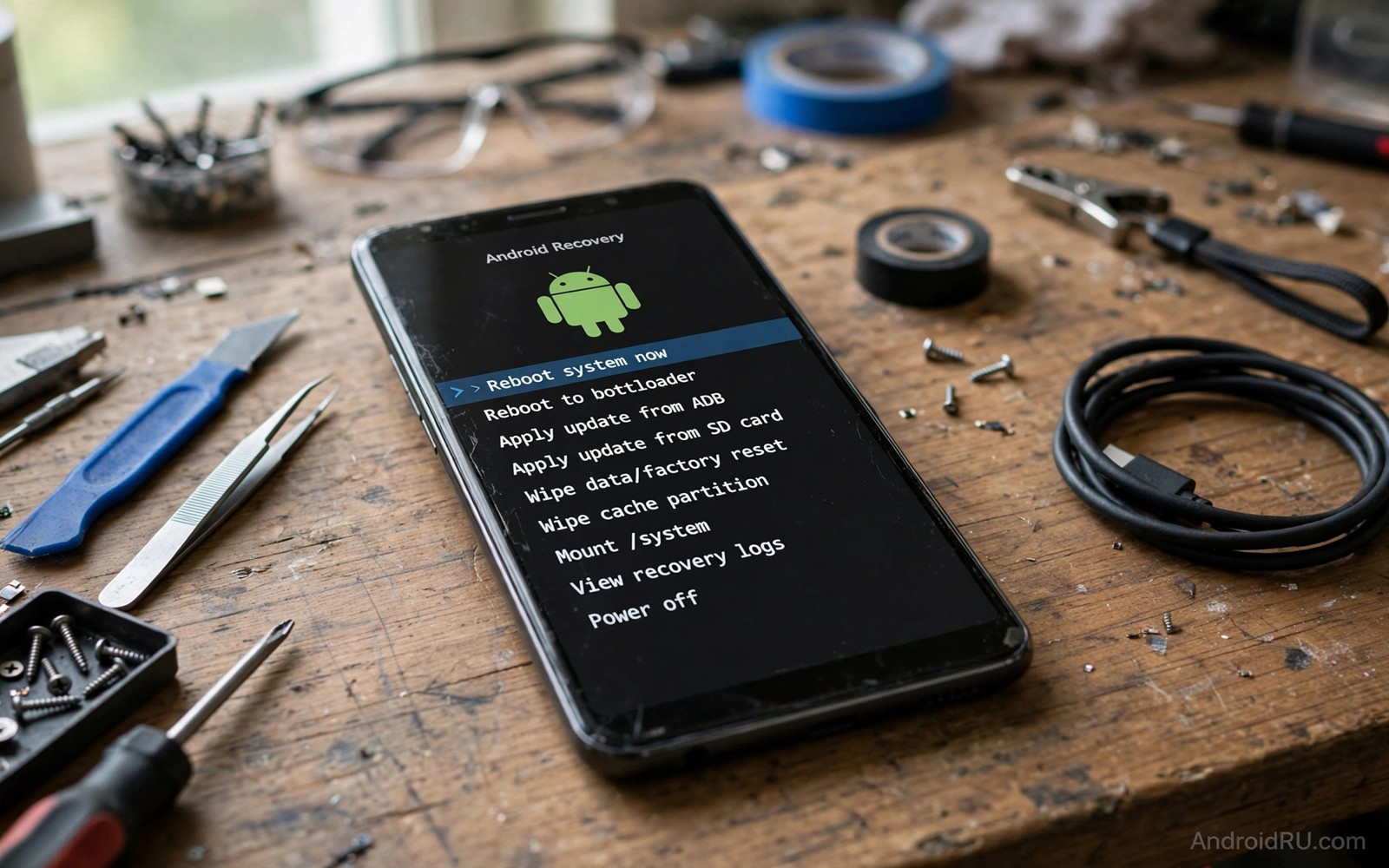
Recovery is the safety net for a rooted phone. It restores backups. It flashes updates. It wipes a broken system. An old recovery may still boot. It may still offer familiar menus. It may fail silently on a modern phone layout. That silent failure appears only when you need recovery most.
Modern Android changed partitions and encryption. A/B slots replaced single system partitions. Dynamic partitions replaced fixed partitions. File-based encryption replaced full-disk encryption on many devices. Old recovery tools were built before those changes. They may not see dynamic partitions correctly. They may not decrypt modern storage correctly. Even a modern recovery is only part of the safety net, so keeping a secret emergency recovery command in mind gives you one more way back when menus alone cannot help.
This guide explains why an upgrade matters. It compares modern recovery options in general terms. It gives a migration path that preserves your old backups. It explains backup format differences. It helps you test the new recovery before a crisis. A tested recovery is a safety net. An untested recovery is a hope.
Start by identifying your current recovery version and your phone layout. Note whether your phone uses A/B slots. Note whether it uses dynamic partitions. Note the Android version. Those facts decide which modern recovery fits. A recovery for a different layout may boot but fail to restore.
Why old recovery fails on modern phones
Old recovery may not mount the data partition on encrypted devices. It may ask for a password it cannot process. It may show an empty data folder. A backup to an unreadable partition is useless. A restore from an unreadable partition is impossible. Encryption support is the most common old recovery failure.
Dynamic partitions add another failure point. A modern system uses a super partition that contains logical partitions. Old recovery may not resize or map those logical partitions correctly. A flash to the wrong logical partition can break boot. A backup that misses a logical partition restores incompletely.
A/B slots confuse old recovery menus. Old menus assume one system and one boot partition. Modern phones have two of each. An old recovery may flash to the active slot only. It may ignore the inactive slot. An update that expects both slots may then fail. Slot awareness is essential now.
Touch and display drivers also age. Old recovery may lack drivers for a new screen. It may show a blank screen on a new panel. It may ignore touch input. A recovery you cannot see or touch cannot help you. Modern recovery builds include current drivers for supported models.
Modern recovery options in general
Modern custom recovery builds update the old codebase for new layouts. They add dynamic partition support. They add current encryption support. They add slot awareness. They keep the familiar backup and restore menus. Those builds suit users who want continuity with better compatibility.
Alternative recovery tools take a different approach. Some focus on fastboot-based flashing rather than on-device menus. Some focus on payload flashing for A/B devices. Some integrate with root managers for backup handling. Each alternative suits a different workflow. Choose based on how you actually recover.
Stock recovery remains an option for unrooted users. It offers factory reset and update sideloading. It lacks full backup restore. It lacks custom flashing. A rooted user needs more than stock recovery offers. Keep stock recovery only if you plan to unroot fully.
Check model support before choosing. A modern recovery that lacks your model is not modern for you. A recovery built for a similar model may boot but fail on partitions. Exact model support matters more than feature lists. Community builds for your model are the best signal.
Migration without losing old backups
Copy old backups to a computer before migrating. Old backup formats may differ from new formats. A new recovery may not read an old backup directly. A computer copy preserves the old backup regardless. It also frees phone storage for new backups.
Test whether the new recovery reads the old backup location. Boot into the new recovery. Check whether it sees the backup folder. Do not restore yet. A visible folder does not guarantee a readable backup. It only confirms storage access. Note the result.
Create a fresh backup with the new recovery immediately. A fresh backup uses the new format. It covers the current system state. It becomes your primary restore point. Keep the old backup as a secondary point until the new backup proves restorable.
Test a restore only on a secondary device if you have one. A restore test on a daily driver risks data loss if the backup is bad. If you lack a secondary device then test backup verification features instead. Some recoveries verify backup integrity without restoring. Use that feature when available.
Backup strategy for modern layouts
Back up boot and system and data together for a full restore. A boot-only backup cannot restore apps. A data-only backup cannot restore a broken system. A full set covers both failures. Store the full set outside the phone. External storage or a computer copy protects against phone loss.
Back up before every major change. A system update deserves a backup. A manager switch deserves a backup. A new module set deserves a backup. A backup routine takes minutes. A recovery without a backup takes hours or fails entirely.
Label backups with date and build number. A label turns a folder of backups into a usable archive. An unlabeled backup forces guessing during a crisis. Guessing wastes time when time matters most. A clear label costs seconds at creation.
Boot image patching and recovery work together. The guide on patching a boot image manually with fastboot covers boot patching. A recovery backup plus a stock boot image gives two restore paths. Two paths beat one.
Testing recovery before you trust it
Test recovery with a safe checklist. Boot into recovery. Check that touch responds. Check that storage mounts. Check that backups list correctly. Check that the current system version shows correctly. Each check takes seconds. Together they prove recovery readiness.
Test backup creation in recovery. Create a small backup of boot only. Check that the backup file appears. Check its size is plausible. Delete the test backup after verification. A backup creation test proves write access. Listing alone does not prove it.
Test sideload or flash readiness without flashing. Check that recovery recognises a test package file. Do not flash the test package. Recognition proves file access. Flashing an unneeded package adds risk. Stop at recognition for a routine test.
Test recovery after every system update. An update can change partition layout. It can change encryption behaviour. A recovery that worked before may fail after. A post-update test catches that failure early. Early catches allow a recovery update before a crisis.
Document recovery test results with dates. A dated log shows when recovery last proved working. It also shows gaps in testing. A gap of many months is a warning. Monthly tests keep the log fresh. Fresh logs build confidence.
Keep recovery images for your model in your rescue folder. Store the current recovery image. Store the previous recovery image as well. A previous image gives a rollback path if a new recovery fails. Two images beat one during a recovery problem.
Pair recovery testing with boot image testing. The guide on patching a boot image manually with fastboot covers boot verification. A tested recovery plus a verified boot image gives a complete rescue set. Test both together quarterly.
Test recovery touch input at different brightness levels. A recovery screen may behave differently at low brightness on some panels. A brightness test ensures you can operate recovery in varied conditions. Operability matters during a night-time crisis.
Keep a written recovery boot key combination for your model. A key combination note helps when the system will not boot normally. Store it with your inventory note outside the phone. The guide on updating a rooted device over the air also relies on recovery readiness for safe updates.
Keep recovery test notes with your inventory. A note that recovery worked on a given date builds confidence. A note that it failed prompts an upgrade. Dated notes turn vague trust into evidence. Evidence is what survival planning needs.
Common mistakes
- Upgrading recovery without copying old backups to a computer first.
- Assuming a new recovery can read an old backup format without testing it.
- Choosing a recovery for a similar model instead of the exact model.
- Testing a restore on a daily driver without a verified secondary backup.
- Keeping only a data backup and then discovering a broken system cannot be restored.
Frequently asked questions
Can I keep old TWRP if it still boots?
Booting is not enough. Recovery must also decrypt data and handle your partition layout. Test decryption and backup listing. If either fails then the old recovery is not a safety net.
Will upgrading recovery delete my data?
Flashing recovery alone should not delete user data. A wrong flash target can still cause damage. Back up before flashing. Verify the partition target for your model.
How often should I create a new backup?
Create a backup before every major change and monthly for a daily driver. A monthly backup plus change backups covers most failures. More frequent backups help only if storage allows it.
fastboot flash recovery recovery.img
fastboot reboot recovery
# Flash a recovery image and boot into it on your own device.
# Replace recovery.img with your exact recovery file name.
The commands above are generic flashing examples written for this guide. They show the recovery flash sequence. They assume your device uses a dedicated recovery partition. They do not apply to A/B devices that use boot-based recovery.
Conclusion
Modern recovery matters because partitions and encryption changed. Old tools fail on dynamic partitions and modern encryption. Upgrade to a recovery built for your exact model and layout. Copy old backups first. Create a fresh backup immediately. Verify that the new recovery sees your storage.
Your concrete next step is to boot into your current recovery today. Check whether it can see and list your data partition. If it cannot then plan a recovery upgrade before your next major change.

