

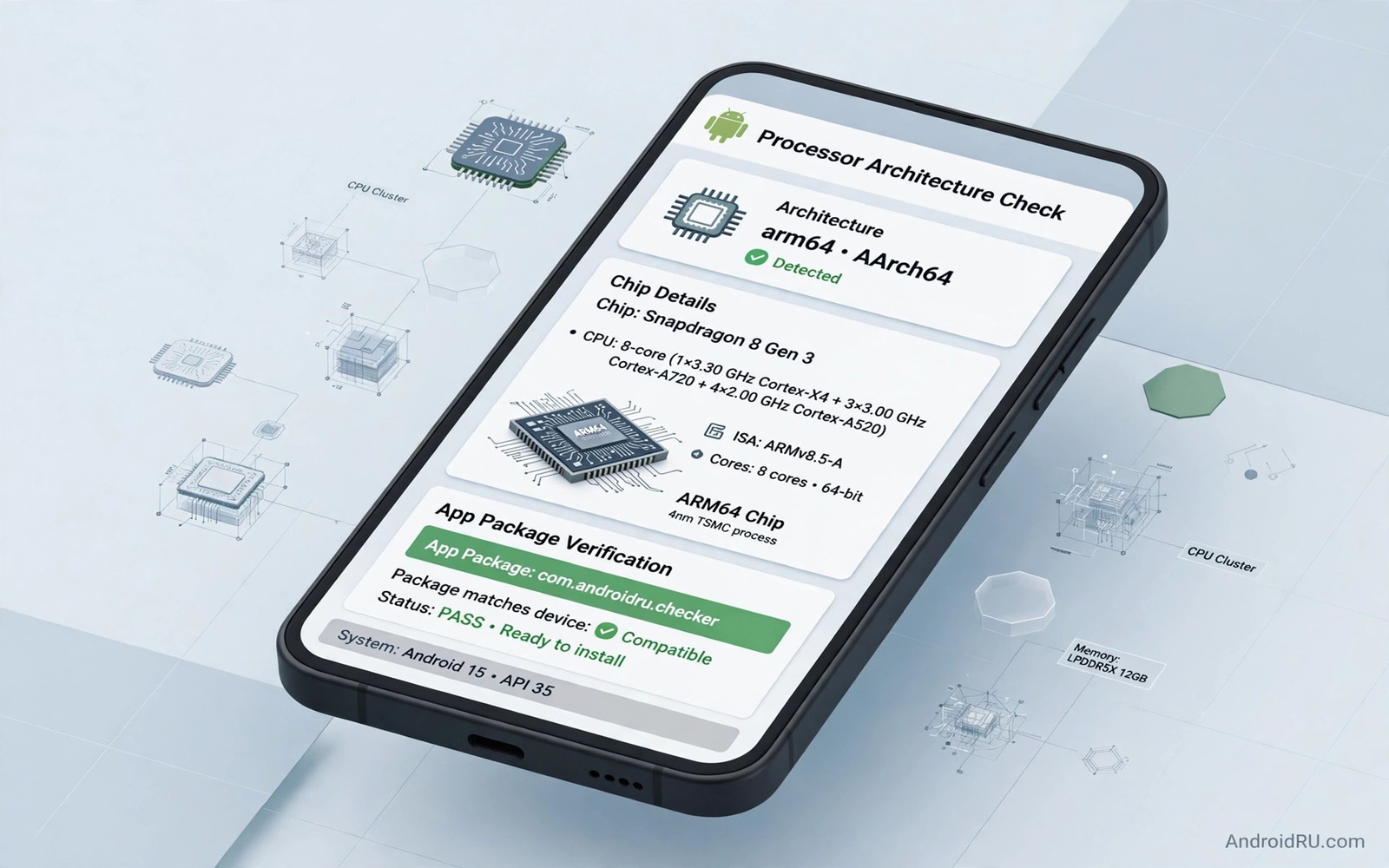
A download finishes and the installer refuses to run. The file looks right and the version looks right and the icon looks right. The problem is invisible. The app was built for a different processor type. Your phone cannot run its native code. That failure wastes time and it confuses users who did everything else correctly. Checking your processor architecture before you download prevents it entirely. The check takes less than a minute once you know where to look.
Most modern Android phones use arm64. That name describes a 64 bit processor design from a well known chip family. Older phones may use armv7 which is 32 bit. A few devices use x86 designs. An app built only for arm64 will not run on an armv7 phone. An app built for armv7 can often run on an arm64 phone through compatibility. A universal app contains code for several types and it works almost everywhere. The safest download is a universal build or a build that matches your phone exactly. If you are still learning outside installs then start with how to sideload apps safely before you pick a file.
Find Your Processor Type In Settings And Apps
Your phone settings rarely show the processor type in plain words. A system info app can show it clearly. Look for a field called ABI or supported ABIs or CPU architecture. The value arm64-v8a means that your phone is arm64. The value armeabi-v7a means that your phone is 32 bit arm. The value x86_64 means that your phone uses a 64 bit x86 design. Write that value down once and keep it in your notes. You will use it for every manual download after that.
You can also check with a simple command from a computer if developer tools are enabled. The command prints the supported ABIs for the connected phone. It does not change anything on the phone. It is a read only check that gives you a clear answer. Keep that answer with your backup notes. A future download decision will be faster because you will not need to check again.
Read A Download Page Like A Technician
A good download page lists the supported architectures for each file. Look for a label such as arm64-v8a or armeabi-v7a or universal. If the page lists only one type then that file works only on phones with that type. If the page lists universal then the file should work on most phones. If the page lists no architecture at all then treat the file with caution. Ask for more detail or choose a different source that lists it clearly.
File size can hint at architecture too. A universal file is usually larger because it contains code for several processor types. A single architecture file is usually smaller. Size alone is not proof. Use it as a hint and confirm with the label. A small file that claims to be universal deserves a second look. A large file that lists only one architecture may contain extra assets rather than extra code.
A Matching Routine Before Every Download
Build a routine that you follow before every manual download. The routine should be short and it should catch the most common mismatch. Start with your recorded ABI value. Compare it with the file label. Check the version and the package name too. A file that matches on architecture but not on package name is still the wrong file. All three checks must pass before you download.
- Record your phone ABI value once and keep it in your notes.
- Compare that value with the architecture label on the download page.
- Prefer a universal build when your exact type is not listed.
- Check the package name and the version before you download.
- Keep the downloaded file until the app proves stable after install.
- Delete files that fail to install and note why they failed.
If a file fails to install then read the error message carefully. A message about an incompatible app or a missing native library often points to architecture. A message about a parse error can point to a corrupt download or a version built for a newer Android release. Do not keep trying the same file after an architecture failure. Find a build for your type instead. Repeating a failed install will not change the processor inside your phone.
Split Files And Architecture Together
Split files add a second layer to architecture matching. A split set includes a base file and config files for architecture and screen density and language. Your phone needs the config file that matches its processor. An installer that handles splits will pick the right config automatically if you give it the full set. A manual install of only the base file will fail or crash. That is why split handling matters as much as architecture labels.
Download the full split set for one version from one source when a split set is offered. Do not mix a base file from one version with a config file from another version. Mixed splits create bugs that look like architecture problems but have a different cause. If you are unsure about splits then read how to install split APK files before you attempt a split install. That guide explains the full set concept in practical terms.
Verify The Installed App After Download
After a successful install open the app and test its main feature. A native code mismatch can also appear as a crash after launch rather than a refusal to install. If the app crashes at once on a specific feature then architecture may still be the cause. Check whether the feature uses native code such as a camera engine or a game engine. Those features depend most on processor code. A simple text screen may work while a native feature fails.
The commands below list installed packages and show details for one app. They also show the supported ABIs for the device. Use them to confirm your phone type and your installed version after a manual download. They do not install anything by themselves.
adb shell getprop ro.product.cpu.abi
adb shell pm list packages -f
adb shell dumpsys package com.example.app
adb shell pm path com.example.app
The commands above are original examples written for this guide. They show safe checks you can run on your own device. They do not come from any outside publication.
Help Friends Avoid The Same Broken Download
Friends often ask why an app that works on your phone fails on theirs. Architecture is a common answer and it is easy to explain once you know it. Ask them to check their ABI value with a system info app. Compare it with the file they downloaded. In many cases the mismatch will be obvious at once. That simple check saves a friend from trying ten different files at random.
When you share a file with a friend share the architecture label too. Do not share only the file name. A file name rarely shows the architecture. Add a short note with the ABI value and the version and the source. That note helps the friend decide whether the file fits their phone before they download it. Good sharing habits reduce broken installs for everyone in a group.
Keep a shared note for a family group if you often help relatives with phones. List each phone model and its ABI value in that note. Update it when someone gets a new phone. That list turns future help into a quick lookup instead of a long troubleshooting session. It also prevents the classic mistake of sending an arm64 file to an older armv7 phone.
Old Phones And The Architecture Surprise
An older phone that still works well can surprise you with its architecture. A phone from a budget line may use a 32 bit design even when its screen and battery feel modern. A phone bought in a different market may use a different chip than the same model name in your country. Those variations mean that model name alone is not a reliable guide. Always check the ABI value on the actual phone in your hand. That habit prevents a download that fits a review unit but not your unit.
When you upgrade from an old phone keep your ABI note updated. A new phone may share the same brand but use a new processor type. Old download habits can then fail on the new phone. Update your notes on the day you set up a new device. Check the ABI value during setup and write it next to the model name. That five minute task saves many failed downloads over the life of the phone.
Finally remember that app developers slowly drop old architectures. A 32 bit phone may lose support for new versions of popular apps over time. That loss is not a fault in your download choice. It is a sign that the app now requires a newer processor design. When that happens look for a lite version or an older stable version that still supports your phone. A lite version can extend the useful life of an old phone by years.
Common Mistakes
The most common mistake is downloading the first file on a page without reading its label. The first file is often for the most common phone type. It may not match yours. Always read the label first. Another mistake is assuming that a newer phone must be arm64. Most are but a budget phone can still use a different design. Check your own phone instead of guessing from its age or price.
- Downloading the first file without reading its architecture label.
- Assuming that every modern phone uses arm64 without checking.
- Installing only the base file from a split set.
- Mixing split files from different app versions.
- Retrying a failed architecture install instead of finding the right build.
People also blame the download source when the real cause is architecture. A source can be honest and still host a file that does not fit your phone. Check the label before you blame the source. That habit keeps you from abandoning a good source over a simple mismatch.
Frequently Asked Questions
What does arm64-v8a mean for my phone?
It means that your phone uses a 64 bit arm processor design. Apps built for arm64-v8a should run on it. Apps built only for a different design may fail to install or crash.
Can an arm64 phone run an armeabi-v7a app?
Often yes through compatibility for 32 bit arm code. Performance may differ and some features may behave differently. A native arm64 build is still the better choice when it exists.
What should I download if no architecture is listed?
Choose a different source that lists the architecture clearly. A missing label is a warning sign. If you must proceed then prefer a file labelled universal and test it carefully.
Conclusion
Broken downloads are often not broken files. They are correct files for the wrong processor. A one minute ABI check removes that whole class of failure. Record your value and read file labels and handle split sets as a full set. Those three habits make manual downloads predictable. Your concrete next step is to check your ABI value today with a system info app and write it in your notes. For a wider safety routine explore how to check if sideloading is safe and for file integrity learn how to verify APK checksum hashes before you install.

