

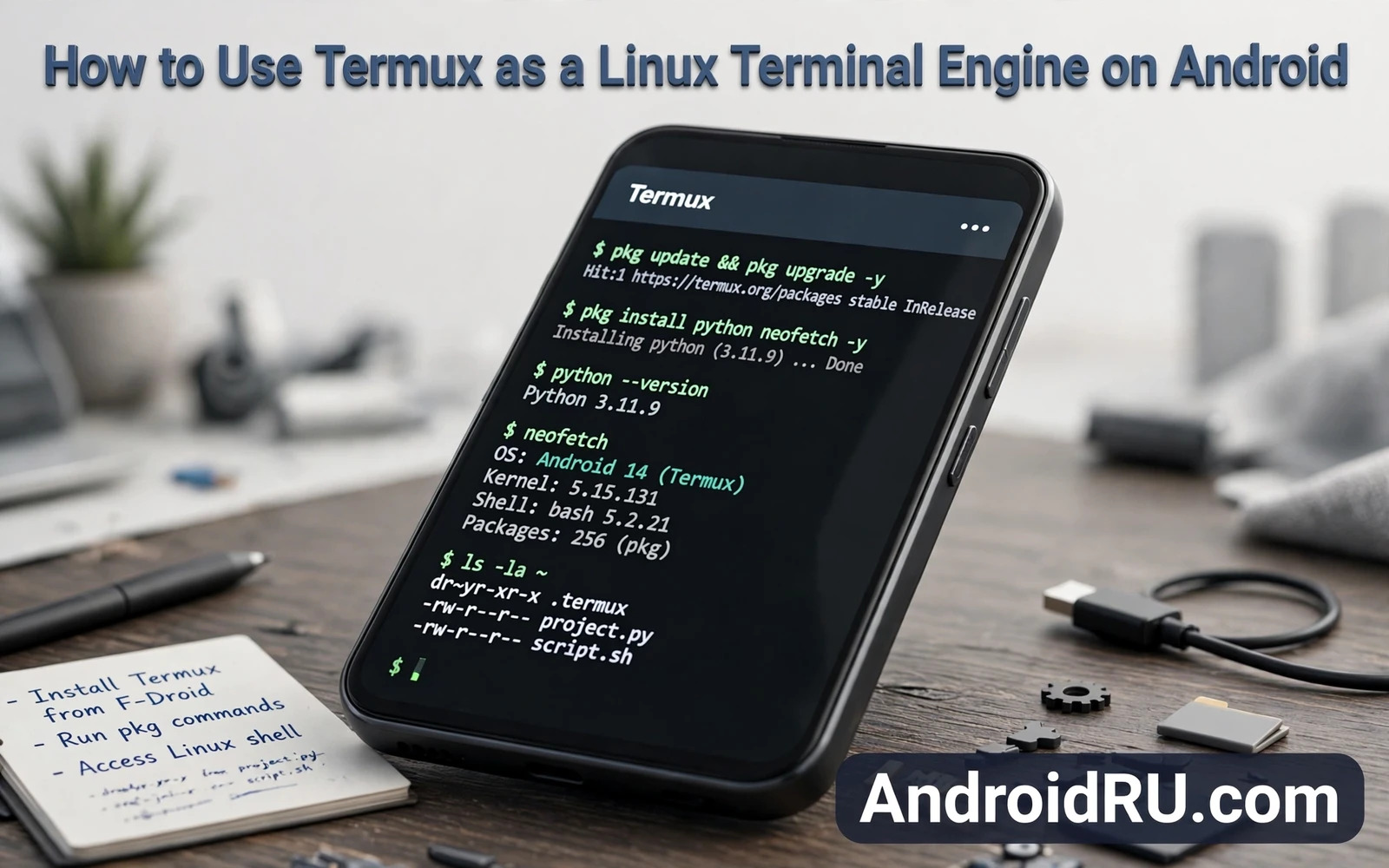
What Termux is
Termux is a terminal emulator and Linux environment for Android. It gives a phone a command line where text commands control the system. It includes a package manager that installs command line tools. It provides shells and editors and scripting languages. It does not need root access for its basic use. That no root design makes Termux accessible to curious users. It also limits what Termux can change outside its own sandbox. Understanding that sandbox boundary is the first lesson.
A terminal engine treats the phone as a set of files and processes rather than as icons and menus. A command can list files and move files and search text. A command can run a script that repeats a task many times. A command can start a small server for local testing. Those abilities turn a phone into a portable workstation. They also demand care because a text command can delete files faster than a menu can. A terminal rewards precise typing and punishes guesswork.
Read this warning before you run commands from random posts. A terminal command can delete data in seconds. A command copied blindly can change settings you did not intend to change. A script from an unknown author can exfiltrate files or install unwanted tools. Termux work can void warranty expectations when it is paired with root tools. Back up data before experimenting with powerful commands. A careless command can delete data and can leave a phone in a bootloop that needs a full restore. Do not run commands on your only phone without understanding each part. Keep a spare device for risky experiments when possible. A terminal is a power tool rather than a toy.
Installing Termux the safe way
Install Termux from a trusted distribution channel for the app rather than from a random file host. Random hosts can ship altered builds. A trusted channel provides updates and a clear version history. After install open Termux and update its package lists. Install only tools you understand and need. A minimal tool set is easier to audit than a large one. Remove tools you stop using. A lean terminal stays fast and stays understandable.
Learn the shell basics before installing heavy tools. Practice listing files in the home folder. Practice moving into folders and back out again. Practice viewing a text file without editing it. Practice creating a test folder and deleting only that test folder. Those small drills build muscle memory for safe navigation. They also reveal how paths work on Android. A path mistake is the most common beginner error. Slow drills prevent fast disasters.
Termux first drills
ls
pwd
cd testfolder
cat notes.txt
mkdir practice
rmdir practice
Storage access in Termux needs an explicit setup step. Termux starts in its own home folder by default. Access to shared storage requires a permission grant through a setup command. Grant that access only when you need file work outside the sandbox. Keep sensitive folders out of terminal experiments. A terminal with broad storage access can delete shared files quickly. Limit scope until a task truly needs wider access. Scope discipline is a core terminal safety habit.
The package manager and daily tools
The Termux package manager installs tools from repositories. Update the package lists before installing anything new. Install a text editor for editing scripts. Install a file search tool for finding text across files. Install a network test tool for checking local connectivity. Install a scripting language when a task needs automation. Each tool adds ability and adds surface for mistakes. Install tools one at a time and learn each one briefly. A tool you cannot explain is a tool you should not run blindly.
Scripts turn repeated commands into a single repeatable action. A script is a text file with commands in order. Running a script executes those commands without retyping them. That repeatability reduces typing errors. It also multiplies the impact of an error inside the script. Test a script on dummy files first. Read every line aloud before running it on real files. Keep scripts in a dedicated folder with clear names. A script library built slowly becomes a personal toolkit.
A terminal editor feels strange at first for readers used to touch keyboards. Learn movement keys and save keys and exit keys before editing a real file. Practice on a dummy file until saving feels automatic. A common beginner trap is editing a file and then failing to exit the editor. Another trap is saving a half edited file by accident. Dummy practice removes both traps. Patience with the editor pays off across every later terminal task.
Termux as a Linux learning engine
Termux teaches Linux concepts on hardware you already carry. File permissions control who can read or write a file. Processes run in the background and can be listed and stopped. Environment variables carry settings between commands. Pipes send output from one command into another command. Those concepts transfer directly to desktop Linux. A phone terminal therefore doubles as a classroom. Skills learned in Termux remain useful on larger machines.
A local server inside Termux can host a test page for learning web basics. A scripting language inside Termux can automate file renaming. A text processing tool can clean a messy log file. A version control tool can track changes to a script folder. Those projects teach real skills without needing a computer. Start with one small project and finish it fully. A finished small project teaches more than five half started large projects. Momentum comes from completion.
Termux does not replace a full Linux desktop for heavy work. It lacks direct access to many hardware features without root. It runs inside Android sandbox rules. It shares the phone battery and heat limits. Heavy compilation can drain battery and heat the phone. Long running servers can be killed by Android battery optimisation. Learn those limits early. A tool used within its limits feels powerful. A tool pushed past its limits feels broken. Respect the sandbox and the battery.
Automation and safety habits
Automate only tasks you have already done by hand several times. Hand repetition reveals edge cases that a script must handle. A script written before hand practice hides those edge cases. Log script output to a file so failures can be reviewed. Check the log after each run during early use. Add a dry run mode when a script deletes or moves files. A dry run prints planned actions without executing them. That preview catches path errors before they cost data.
Never paste a command you do not understand into Termux. Break the command into parts and look up each part. Check what each flag does. Check which folder the command targets. Check whether the command deletes or overwrites anything. If any part stays unclear then do not run the command. Ask for an explanation from a trusted source in plain language. A command that cannot be explained is not ready to run. That rule alone prevents most terminal disasters.
Font file work offers a gentle first terminal project for many readers. The Android system fonts walkthrough explains font choice and testing without root. Termux can inspect a font file and organise font folders for that project. That pairing keeps terminal learning tied to a visible result. A readable phone screen shows the payoff of file work immediately. It also keeps the terminal away from system partitions. Learn file skills on fonts before touching deeper system areas.
Terminal logging can support careful performance experiments on rooted phones. The Android CPU and GPU overclocking walkthrough stresses long stability testing over short tests. Termux can record behaviour during those sessions without heavy overlay apps. That record helps a reader review heat and crashes after cooling. It does not make overclocking safe by itself. It simply adds evidence to a risky experiment. Use the terminal as a notebook rather than as a safety net.
Hooks and terminals solve different problems even though both feel powerful. The LSPosed API hooking walkthrough explains how hooks intercept calls inside apps. Termux runs commands outside apps in a sandbox. A terminal command cannot hook an app method directly. A hook cannot run a shell script directly. Knowing that boundary stops confusion between two power tools. Use Termux for files and scripts and learning. Use hooks only for app behaviour with full awareness of risk.
Keeping a healthy Termux setup
Update packages regularly yet read update notes for tools you rely on. An update can change a command flag or a default behaviour. Test essential scripts after a major update. Keep a backup of your script folder on a computer. A Termux reinstall wipes the sandbox including scripts. That wipe is painless when scripts live elsewhere too. A script folder backup turns a reinstall into a short restore. Treat scripts as personal work worth preserving.
Clean up storage access and unused tools every few months. Remove test folders that no longer serve a purpose. Remove tools that were installed for a single experiment. Review which folders the terminal can reach. A tidy terminal boots faster and confuses less. It also reduces the blast radius of a mistaken command. A small and understood tool set beats a large and forgotten one. Termux rewards the same discipline as any workshop. Keep the bench clean and the tools sharp.
Termux and file safety in practice
File safety in Termux starts with working in a test folder. Create a folder named practice and do all experiments inside it. Delete only inside that folder during learning. That habit contains mistakes to a disposable area. It also builds confidence for wider file work later. A beginner who practices in a safe folder learns faster because fear drops. A beginner who practices in a shared folder learns slower because every command feels dangerous. Safety and learning reinforce each other.
Back up scripts and notes outside Termux on a regular schedule. A Termux reinstall wipes the sandbox and everything inside it. A backup on a computer or in shared storage survives that wipe. Copy the script folder after each meaningful change. That habit takes seconds and saves hours of rewriting. Treat scripts like documents that deserve version history. A simple dated copy after each change is enough for personal use.
Join a learning community for terminal questions when stuck. Describe the command and the error message and the goal in plain words. A clear question earns a clear answer. A vague question earns guesses. Learning communities reward readers who show their attempted steps. They also warn against dangerous commands that appear in random posts. Community review adds a safety layer to solo terminal learning. Use that layer generously.

