

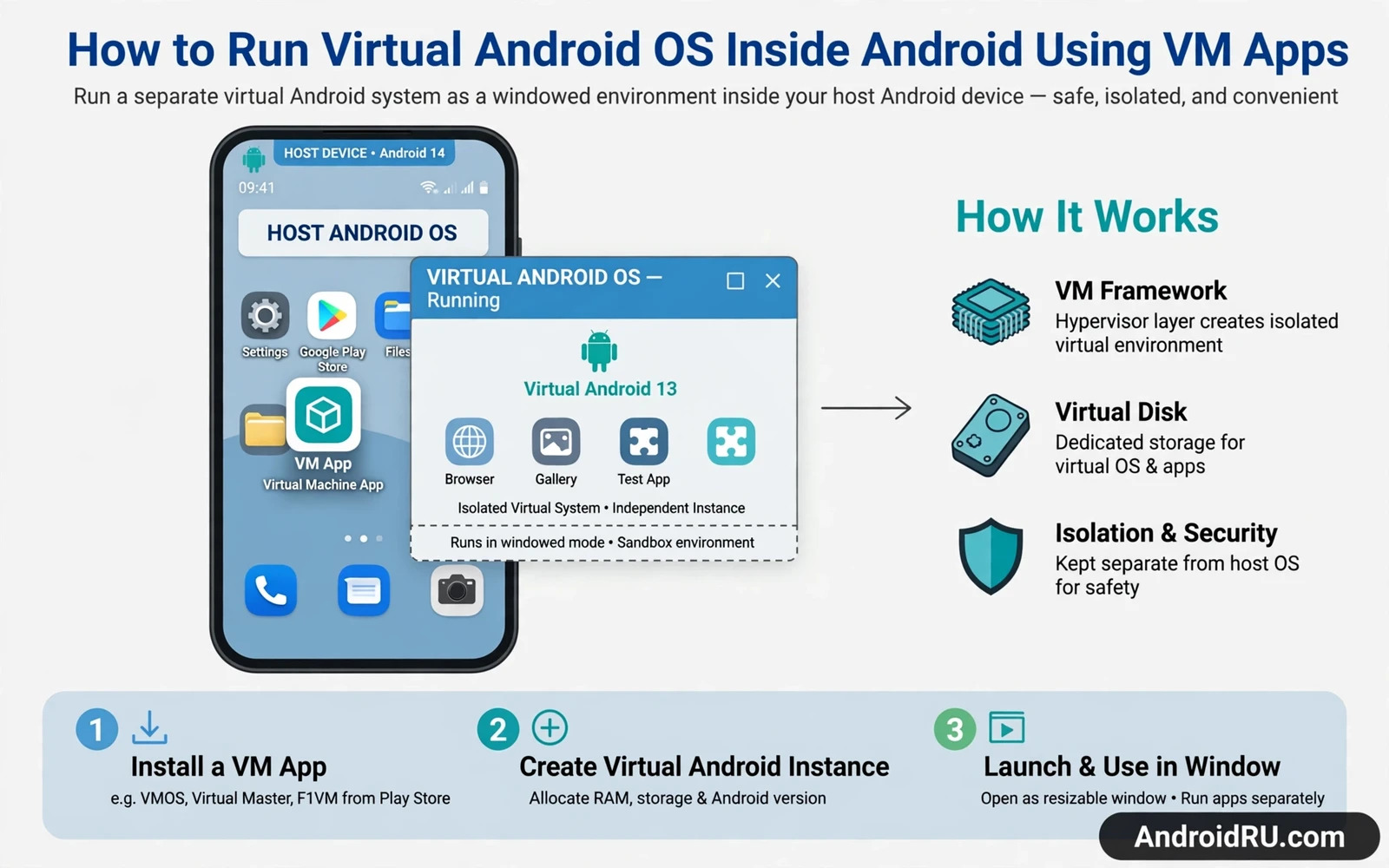
Virtual Android apps let you run a second Android system inside your main Android phone. The inner system behaves like a separate phone with its own apps and settings and storage space. That separation is useful for testing and for trying risky apps and for keeping work apps apart from personal apps. This guide explains how virtual Android works and which limits matter and how to set up a virtual system safely. It does not promise desktop level virtualization because a phone has far less power and far less isolation than a computer.
Read the safety warning before you install any virtual machine app. A virtual system still runs on your real phone and a bad setup can waste storage and drain the battery and overheat the device. Some virtual apps ask for wide permissions and some require root access for full features. A mistake in the host system can still cause data loss and can void the device warranty and can cause a bootloop or a brick when root tools are involved. Back up photos and videos and documents and accounts before you start.
How Virtual Android Differs From An Emulator
A virtual Android system shares the phone kernel with the host system in most mobile VM designs. That sharing makes the inner system lighter than a full computer emulator but it also limits isolation. An app inside the virtual system may still see host hardware details and it may still depend on host services for storage and network access. A true emulator that copies different hardware would be slower and heavier and it is rarely practical on a phone. Understanding that sharing helps you set honest expectations for privacy and for performance.
A virtual system is also different from a second user profile or a work profile. Profiles separate apps and data but they share the same system image and the same settings core. A virtual system gives you a separate system image and separate app installs and a separate launcher in many designs. That extra separation costs storage and memory and battery life. Choose profiles when you only need app separation and choose a virtual system when you need a separate system environment for testing.
Choosing A VM App And Checking Requirements
Start by checking storage and memory on your phone before you install anything. A virtual system needs several gigabytes of free storage for its image and its apps and its updates. It also needs free memory while it runs because the host system and the inner system run at the same time. A phone with low free storage will fail during image creation and a phone with low memory will stutter in both systems. Free up space first and close heavy apps before you create the inner system.
Check the permission list of the VM app before you grant anything. A VM app may need storage access and network access and permission to draw over other apps for its control panel. Be cautious when an app asks for accessibility access or device admin rights without a clear reason tied to a feature you plan to use. Read user reviews for reports of boot problems and battery drain and data loss. A VM app with a history of host system damage is not worth testing on a daily phone.
Terminal skills help you inspect what a VM app does and the Termux terminal guide shows how a command line environment works on Android without a full virtual system. That guide is a good first step when you only need Linux tools rather than a second Android system. Termux uses far less storage and far less battery than a virtual Android image. Try Termux first when your goal is tools and scripts rather than a separate Android desktop.
Setup Steps In Safe Order
Install the VM app from a trusted source and grant only the permissions that setup clearly requires. Create the virtual image with the default settings first and do not change advanced options on the first run. Default settings are tested by the app maker and they reduce the chance of a failed image. Wait for image creation to finish fully before you open other heavy apps. Interrupting image creation can leave a broken image that wastes storage and must be deleted and rebuilt.
After the inner system starts for the first time set up its basic settings on its own. Sign in only with a test account when you plan to test unknown apps inside the virtual system. Keep sensitive accounts and banking apps and private photos out of the test system. Install one test app at a time and watch battery use and heat during the first hour. If the phone gets hot or the host system lags then stop the virtual system and reduce its memory setting or remove it entirely.
Check free storage before creating an image
Create image with default settings first
Install one test app at a time
Performance Limits And Daily Use
Performance inside a virtual system will always be lower than performance on the host system. Games and camera apps and heavy video apps may lag or fail inside the virtual system because hardware access passes through extra layers. Audio may delay and sensors may behave differently and some apps may refuse to run when they detect a virtual environment. Do not judge a normal app by its behavior inside a virtual system alone. Test the same app on the host system when you need a fair result.
Battery life also drops while a virtual system runs because two systems share one battery and one processor. The host system keeps running its own services while the inner system runs its own services at the same time. That double load heats the phone and it drains the battery faster than normal use. Use virtual Android for short test sessions and stop the inner system when the test ends. Leaving it running in the background all day wastes battery for no benefit.
ADB knowledge helps you move files between host and guest and the ADB command guide for power users explains file transfer and package checks that work across both layers. That guide helps you copy a test file into the virtual system and verify that it arrived intact. Use ADB checks instead of guessing when a file seems missing inside the guest. A missing file is often a path mistake rather than a VM failure.
When A Virtual System Is The Wrong Tool
A virtual system is the wrong tool when you need full privacy isolation or full hardware performance. Banking apps and secure work apps may detect the environment and refuse to run or they may behave in unsafe ways. A virtual system is also the wrong tool for fixing a broken host system because the guest depends on the host. Fix host problems on the host first and only then return to virtual testing.
Guest System Limits In Detail
Guest system storage behaves like a container file on the host rather than a separate physical disk. That container grows as you install apps inside the guest and it shrinks only when you delete data inside the guest and clean up the container. A guest that looks empty on its own settings screen may still hold a large container on the host. Check host storage after guest cleanup to confirm that space actually returned. A container that never shrinks can slowly eat host storage over months.
Guest network access usually passes through host networking rather than a separate radio connection. That sharing means guest apps see the same network as host apps in most designs. A guest VPN may protect guest traffic while host traffic stays outside the VPN depending on the design. Test network behavior inside the guest before you assume that guest traffic is isolated. Isolation claims in marketing text deserve a real test with a simple network check inside the guest.
Guest sensors and hardware features depend on what the VM app passes through from the host. GPS and camera and fingerprint hardware may work differently inside the guest or may not work at all. An app that needs a fingerprint sensor inside the guest may fail even when the host sensor works perfectly. Plan guest tests around software features rather than hardware features when pass through support is unclear.
Choosing Between VM And ROM Testing
A virtual system suits quick app tests while a custom ROM suits full system tests because a ROM replaces the host system entirely. A VM test cannot prove how an app behaves on a different ROM kernel or a different system framework. A ROM test on a spare phone gives that full proof but it costs more setup time and more risk. Choose the VM for app level questions and choose a spare phone ROM test for system level questions.
ROM knowledge helps you make that choice and the custom ROM ranking guide explains which ROM families suit daily use and which families suit experiments. That guide helps you decide whether a full ROM test is worth the effort for your question. Many questions that look like ROM questions turn out to be app questions that a VM can answer faster and safer.
Keep guest images small by installing only the apps needed for the current test. A guest full of old test apps wastes host storage and slows guest startup and complicates results. Delete the guest image when a test series ends and create a fresh image for the next series. Fresh images give cleaner results than long lived images full of leftover test data.
Guest Backup And Cleanup
Back up guest data separately from host data because a host backup may not include the guest container in a restorable form. Export important files from the guest to host storage before you delete a guest image. A guest image deleted without an export loses everything inside it with no recycle step. Treat guest deletion as permanent and double check exports before you confirm deletion.
Clean up guest containers regularly because old images consume host storage silently. List guest images by size on the host and delete images tied to finished tests. A host phone with little free storage will slow down and may fail to install updates. Guest cleanup is part of host maintenance rather than an optional extra.
Document each guest test with the VM app version and the guest settings and the apps tested and the result observed. That documentation lets you repeat a successful test and lets you avoid repeating a failed test. Undocumented guest tests waste time because the same setup questions return with every new test series.
A virtual system is the right tool for safe app testing and for learning and for separating a risky experiment from your daily apps. Keep the guest clean and keep the host backed up and keep test accounts separate from real accounts. With those limits respected a virtual Android system becomes a useful lab inside your pocket instead of a risky toy that threatens your main phone.

