

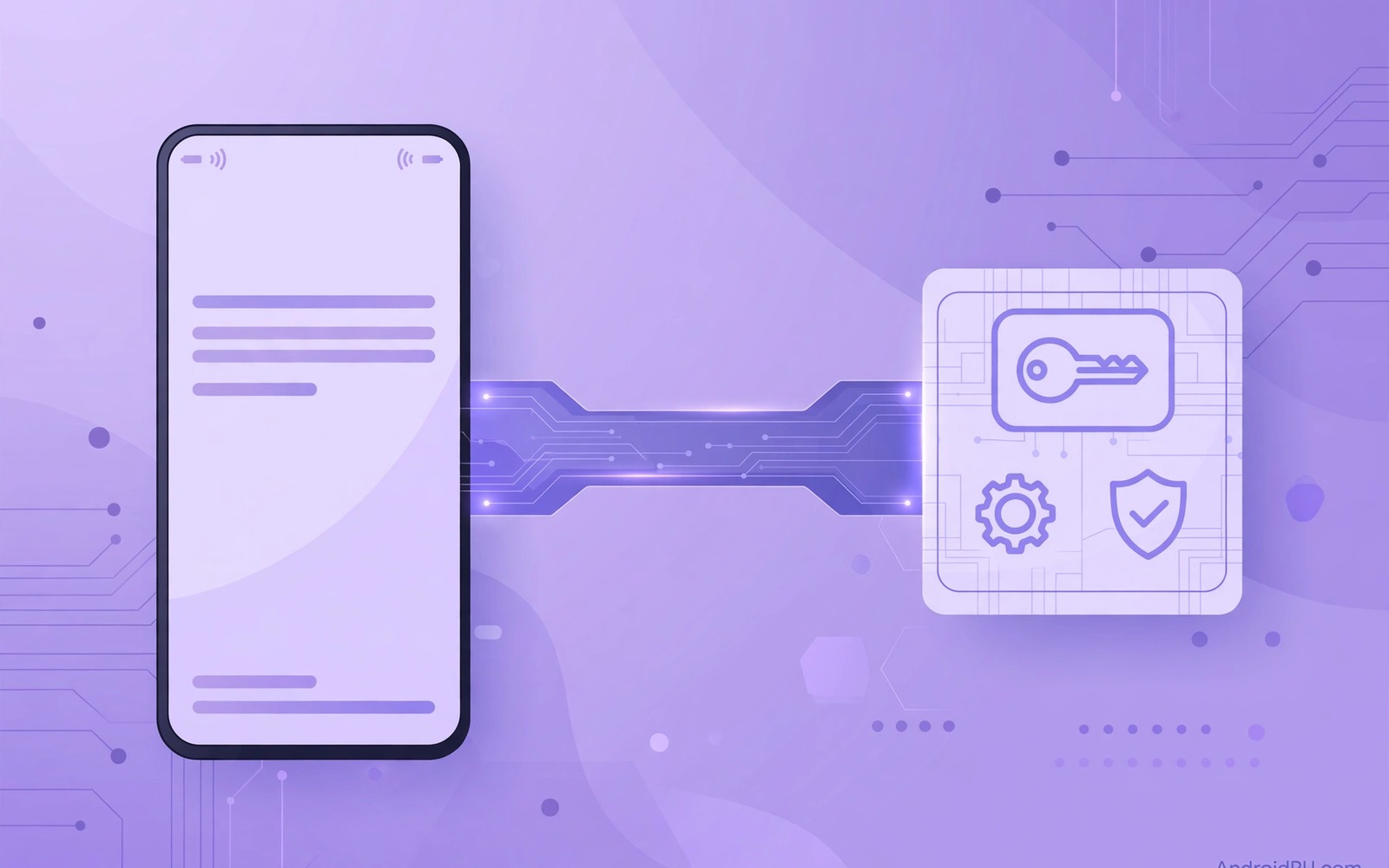
Some Android apps need deeper system access than a normal app gets. A file manager may want to manage all files. An automation app may want to change a system setting. A backup app may want to read app data. Root access gives that power but it also breaks safety checks and warranty terms for many users. Shizuku offers a middle path. It lets approved apps use system level interfaces without full root. That distinction matters for users who want power without losing device safety.
Shizuku works by running a privileged service that apps can talk to. The service uses a developer interface that Android already provides. When you start Shizuku you grant that service a higher level of access for the current session. Apps that support Shizuku can then ask the service to perform system tasks on their behalf. The service checks each request against its own rules. An app cannot simply take over your phone through Shizuku. It can only use the interfaces that Shizuku exposes. If you are new to system tools then first learn how to sideload apps safely so your Shizuku apps come from trusted sources.
How Shizuku Works In Plain Terms
Think of normal apps as guests in a house with locked rooms. System APIs are the keys to some of those rooms. Root gives a guest a master key to every room. Shizuku gives a trusted helper a set of specific keys. An app asks the helper to open a specific room for a specific task. The helper checks the request and opens only that room. The app never holds the master key itself. That design limits damage if an app turns out to be untrustworthy.
The helper service must be started after each reboot on most phones. Starting it requires a computer command or a wireless debugging step. That step feels technical at first but it becomes routine quickly. Some phones support a simpler start method. Others need the computer step every time. Check the start method for your phone model before you commit to Shizuku as a daily tool.
What Apps Benefit Most From Shizuku
File managers benefit because they can access shared storage more fully. Automation apps benefit because they can toggle settings that normal apps cannot change. App managers benefit because they can install and manage packages with fewer prompts. Backup tools benefit because they can read more app data for a restore. Each benefit comes from a specific system interface. An app that does not need those interfaces gains nothing from Shizuku.
Ordinary apps such as messaging and social apps do not need Shizuku. Granting them system access would add risk without benefit. Only enable Shizuku for apps that clearly explain why they need it. Read the app description for the specific feature that requires Shizuku. If the description is vague then the app may not need it at all. A vague system request deserves doubt.
Starting Shizuku Safely
Install Shizuku only from a trusted project channel. Do not use a copy from a random file site. A fake Shizuku app could abuse the very access it claims to manage. After install follow the official start guide for your Android version. The guide will show a wireless debugging step or a computer command step. Follow it exactly and do not skip the pairing step.
- Install Shizuku only from a trusted project channel.
- Follow the start guide for your exact Android version.
- Pair wireless debugging carefully and check the code.
- Enable Shizuku access only for apps you trust and understand.
- Restart Shizuku after a reboot before you use dependent apps.
- Revoke access at once for any app that behaves strangely.
After Shizuku starts open one supported app and test its system feature. A file manager should show more folders. An automation app should toggle a setting that was blocked before. If the feature still fails then Shizuku may not be running or the app may need a different permission. Check the Shizuku status screen first. A status screen that says running is the first clue that setup worked.
Limits And Risks To Understand
Shizuku does not give full root power. Some tasks still require root or a custom system. A task that changes core system files will fail through Shizuku. A task that needs a kernel change will fail too. Those limits are intentional. They keep the phone in a supported state for banking apps and safety checks. If an app promises full root power through Shizuku alone then that claim is false.
Risk comes mainly from the apps you authorise. An authorised app can use the exposed interfaces for its stated purpose and possibly for more. A malicious app with Shizuku access is more dangerous than a normal malicious app. That is why the trust list matters so much. Authorise few apps and review that list regularly. Remove any app you no longer use from the authorised list.
Daily Life With Shizuku Running
Daily life with Shizuku is mostly invisible once setup is done. Your file manager works better and your automation runs smoother. The main friction is the restart after a reboot. You must start Shizuku again before dependent apps regain their power. Some users automate that step with a shortcut. Others accept the manual step as a small price for extra power. Choose the method that fits your patience.
Battery impact from Shizuku itself is small. The service runs quietly in the background. Apps that use Shizuku may use more battery if they perform heavy tasks. A backup app that scans many files will use battery regardless of Shizuku. Judge battery use by the app task and not by Shizuku alone. If battery drain grows after enabling Shizuku then check which authorised app is working hardest.
Check System Access With Simple Commands
The commands below list installed packages and show details for one app. They help you confirm which version is installed after setup. They do not start Shizuku by themselves. They are checks for your own device.
adb shell pm list packages -f
adb shell dumpsys package com.example.app
adb shell pm path com.example.app
adb shell cmd package list packages
The commands above are original examples written for this guide. They show safe checks you can run on your own device. They do not come from any outside publication.
When Root Is Still The Honest Answer
Some users truly need root for a specific task such as a custom kernel or a deep system mod. Shizuku cannot replace those tasks. Pretending otherwise wastes time. If your goal requires root then research root properly and accept its tradeoffs. Do not force a Shizuku workaround for a root only job. A forced workaround can fail in confusing ways and it can leave your phone in a half modified state.
For most power users Shizuku covers the common needs without root risk. File management and automation and app management are the main wins. Those wins are enough to justify Shizuku for many users. They are not enough for a user who wants to change the core system. Know which group you belong to before you invest time in setup.
Finally keep your Shizuku setup documented in a short note. Write the start method and the authorised apps and the date of setup. That note helps you restore the setup after a phone reset. It also helps you review the authorised list later. A short note beats a vague memory when a problem appears months later.
Authorised Apps And Your Review Routine
Your authorised list is the heart of Shizuku safety. Review it every month like you review subscriptions. Open Shizuku and list every app with access. Ask whether you still use each app and whether it still needs system access. Remove any app that fails either test. A short authorised list is easier to protect than a long one. It also reduces the chance that a forgotten app abuses access later.
When you install a new Shizuku app add it to a note with the date and the feature it enables. That note becomes your review aid next month. You will not need to guess why you authorised an app. You will read the note and decide quickly. A note also helps you restore the setup after a phone reset. You can reauthorise only the apps that still matter.
Finally watch for apps that request Shizuku access without a clear reason in their description. A vague request is a red flag. Contact the developer or check community forums before you grant it. A legitimate developer will explain the exact system feature they need. A vague developer may be hiding a broader use of access. Doubt is a healthy response to a vague system request.
Common Mistakes
The most common mistake is authorising every app that asks for Shizuku. That habit turns a controlled helper into an open door. Authorise only apps with a clear system need. Another mistake is installing Shizuku from an untrusted copy. A fake copy can abuse the access it manages. Use only the trusted project channel.
- Authorising every app that requests Shizuku access.
- Installing Shizuku from a random file site copy.
- Expecting full root power from Shizuku alone.
- Forgetting to restart Shizuku after a phone reboot.
- Leaving old apps on the authorised list after you stop using them.
People also skip the status check after a reboot. They blame an app for failing when Shizuku simply is not running. Check the status screen first when a system feature stops working. That check takes seconds and it solves many support questions.
Frequently Asked Questions
Does Shizuku void my warranty or break banking apps?
Shizuku itself does not root your phone and it usually does not break safety checks. Banking apps may still behave differently depending on their own checks. Test your banking app after setup and keep it off the authorised list.
Do I need a computer every time I restart Shizuku?
It depends on your phone and Android version. Some setups need a computer command after reboot. Others use wireless debugging from the phone itself. Check the start method for your model.
Can I remove Shizuku completely if I stop using it?
Yes. Uninstall Shizuku and revoke its access and remove authorised apps from the list first. A normal uninstall returns your phone to its previous state for most users.
Conclusion
Shizuku gives power users a safer middle path between normal apps and full root. It exposes specific system interfaces through a trusted helper. It works best when you authorise few apps and understand each one. It fails when you treat it as unlimited root. Your concrete next step is to list the system tasks you actually need today and check whether any of them truly require Shizuku. If one does then install Shizuku from a trusted channel and authorise only that app first. For a wider system tool view explore open source app replacements and for permission safety read how to audit third party store installs before you grant system access.

