

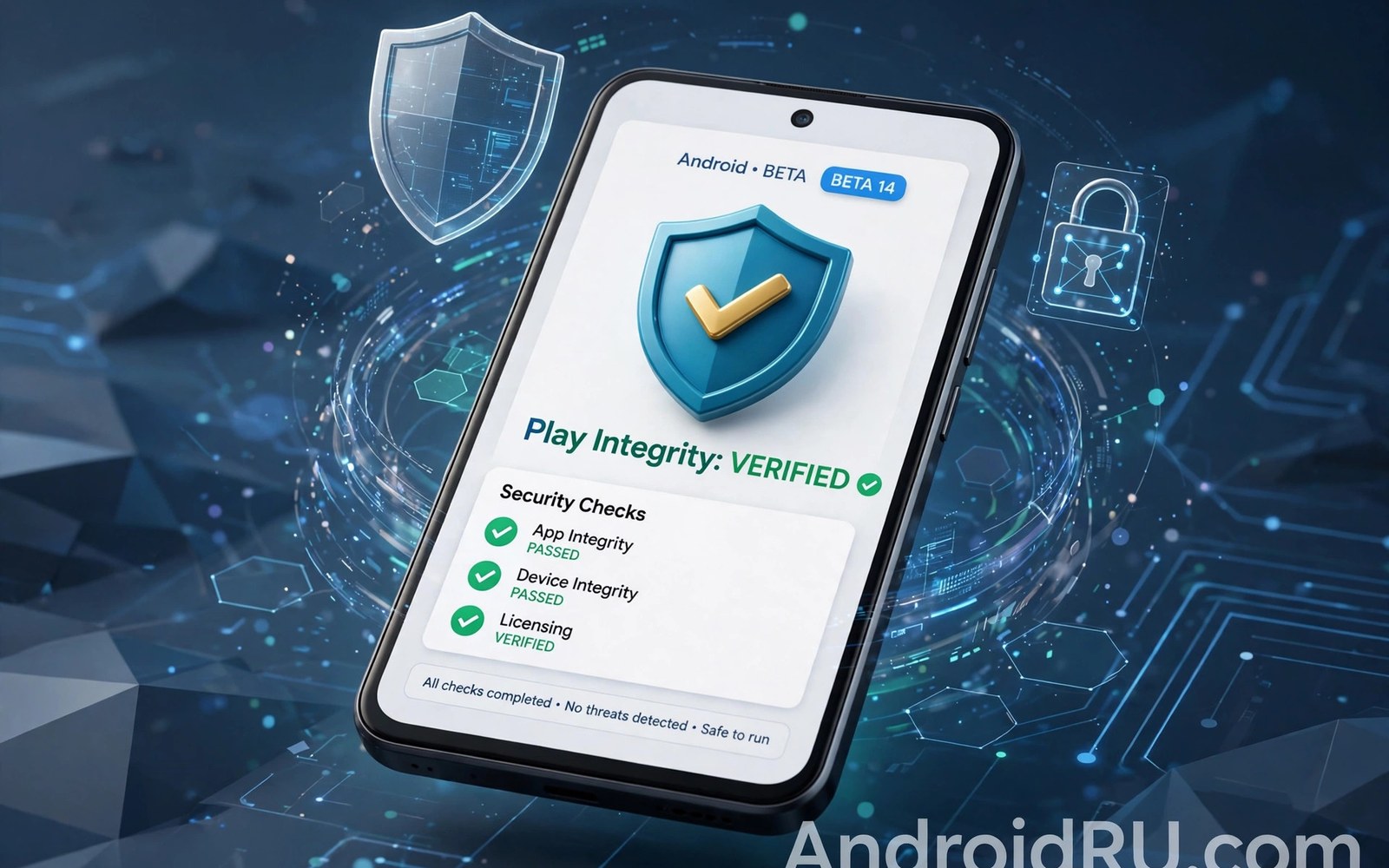
How SafetyNet and Play Integrity React to Beta System Software
You join an Android beta for one shiny feature, and the next morning your banking app refuses to open. Your tap-to-pay wallet stops working at the checkout. A game you play every night tells you the device is not trusted. Nothing on your phone changed except the system version, and that alone was enough. I have watched this exact sequence play out on my own test phone, and the cause was never the app. It was the integrity verdict that the new beta build produced.
SafetyNet and Play Integrity are the two systems apps use to ask Google one question: is this phone running software Google recognises as genuine and untampered? A beta build gives a complicated answer to that question, because it is genuine Google software that is not finished yet. This article explains what each system checks, what changes when you install a beta, which apps break first, and how to decide whether a beta is safe for your daily phone.
SafetyNet vs Play Integrity: What Each One Actually Checks
SafetyNet was Google’s original attestation system. When an app asked, SafetyNet checked the device and returned two booleans: basicIntegrity, which says the device is not obviously tampered with, and ctsProfileMatch, which says the device matches a known good profile that passed Google’s compatibility tests. It also reported an evaluation type, BASIC or HARDWARE_BACKED, describing how the verdict was reached. Google has deprecated the SafetyNet Attestation API, and developers have been told to move to the Play Integrity API instead, but many apps still carry SafetyNet checks in older versions, so both systems matter in practice.
Play Integrity is the replacement, and it answers with verdicts rather than booleans. Its device integrity field can return MEETS_STRONG_INTEGRITY, MEETS_DEVICE_INTEGRITY, or MEETS_BASIC_INTEGRITY. Strong integrity needs hardware-backed proof, a locked bootloader, and a certified build. Device integrity needs a genuine build that Google recognises. Basic integrity is the loosest verdict: the device is not obviously compromised, but it may be running uncertified software. Play Integrity also returns an app integrity verdict, which confirms the app itself has not been modified, and an account verdict for licensed apps. Apps pick the verdict level they demand, and that choice decides whether your beta phone passes or fails.
| Feature | SafetyNet Attestation | Play Integrity API |
|---|---|---|
| Status in 2026 | Deprecated, being phased out | Current standard for new apps |
| Main result | basicIntegrity and ctsProfileMatch booleans | Device, app and account verdicts |
| Strongest signal | HARDWARE_BACKED evaluation type | MEETS_STRONG_INTEGRITY verdict |
| What it checks | Signs of tampering and profile match | Build certification, bootloader, app tampering |
| Who uses it | Older app versions still in the wild | Banking, wallet, streaming and game apps |
| Behaviour on beta | ctsProfileMatch often fails on beta builds | Strong verdict usually fails, device verdict varies |
Why the two systems disagree on the same phone
A phone can pass one check and fail the other, because they ask different questions. SafetyNet’s ctsProfileMatch compares the device against a profile of certified builds, and a beta build often has no matching profile yet. Play Integrity’s device verdict is more forgiving: it can pass a beta build that Google has registered, while still refusing the strong verdict because the build is not a final release. When an app refuses to work on your beta phone, the verdict it demanded matters more than the verdict you got.
The verdict ladder, from loosest to strictest
Think of the Play Integrity verdicts as rungs on a ladder. MEETS_BASIC_INTEGRITY is the bottom rung: the phone looks untampered. MEETS_DEVICE_INTEGRITY is the middle rung: the build is a genuine, recognised one. MEETS_STRONG_INTEGRITY is the top rung: hardware-backed proof, locked bootloader, certified release build. A beta usually lands on the middle rung at best, and that gap between the middle and the top is where most beta problems live.
Why Beta Builds Trip Integrity Checks Even on Untouched Phones
The most confusing part of beta testing is that your phone is completely untouched, never rooted, bootloader still locked, and the verdict still fails. The reason is in the build itself. Beta builds are signed with test keys or carry build tags that mark them as test builds, and Google’s servers know the difference. The build fingerprint of a beta, the string that identifies the exact system image, may not sit in the allowlist that grants a strong verdict, because the build is not a final release.
Google can also update verdict rules during a beta cycle from the server side, without touching your phone. A check that failed last week may pass after a server-side change, and a check that passed yesterday may fail after the next beta update. That moving target is the single hardest part of testing a beta on a daily phone: the verdict is not a property of your phone alone, it is a decision made by Google’s servers about a build that is still changing.
Build tags, fingerprints and test keys explained simply
Every Android build carries a fingerprint, a long string naming the maker, device, version and build number, and a set of build tags. A stable release carries the tag release-keys. A beta or engineering build often carries test-keys instead. Apps and attestation servers read those tags as a quick signal: release-keys means a production build, test-keys means something unfinished. You can inspect your own phone with two commands from a computer, and for a wider view of how testers read these details, explore beta testing basics before you go further.
adb shell getprop ro.build.fingerprint
adb shell getprop ro.build.tags
Read the output before you run anything else. A fingerprint ending in a beta build number and tags that say test-keys tells you the build is not a certified release, and that alone explains most failed verdicts. Never paste a command from an unknown source without reading it first. A command can wipe data or change a system setting in seconds, so check each flag against official guidance before you run it on your main phone.
Why a verdict can change without a new install
Because Google updates its verdict rules server-side, your phone can gain or lose a passing verdict overnight with no update at all. Testers who log their verdicts daily during a beta cycle see this clearly: the same build, the same phone, a different result on Tuesday than on Monday. That is normal beta behaviour, and it is why a single day of testing tells you almost nothing about the whole cycle.
What Breaks First: Banking Apps, Payments and Games on Beta
Not every app cares about integrity verdicts. Your notes app and your browser will work fine on any beta. The apps that break first are the ones that handle money or enforce fairness, because they have the most to lose from a compromised device. Banking apps are the usual first casualty. Many of them demand MEETS_DEVICE_INTEGRITY at minimum, and some demand the strong verdict, which a beta almost never provides. The app may refuse to open, refuse to show your balance, or block transfers while letting you browse read-only pages.
Google Wallet and tap-to-pay are next. Contactless payments rely on a device integrity verdict, and when the verdict drops, the wallet can stop working at the checkout with no warning until you try to pay. That failure mode is the worst kind: it appears at the exact moment you need the phone most. Streaming apps with protected content and competitive games with anti-cheat checks follow the same pattern, though games usually fail more gracefully with a warning rather than a lockout.
How to test your critical apps on day one of a beta
Test payment apps early in a beta cycle, on the first day, before you need them urgently. Open each banking app, try a small transfer or a balance check, and try a tap-to-pay purchase for a small amount. Note which apps pass and which fail, and write the result down with the build number. Early discovery gives you time to roll back before a failed payment becomes an emergency. If a core app fails and no fix arrives within a reasonable time, that is your signal to leave the beta rather than wait it out.
Apps that usually survive a beta without trouble
Most everyday apps do not check integrity at all. Messaging, email, maps, photo editors, music players and browsers generally work fine on beta builds, and their problems, when they appear, are ordinary bugs rather than verdict failures. The dividing line is simple: if the app moves money, guards paid content, or enforces fair play, expect trouble. If it does not, expect the usual beta roughness, crashes and battery quirks, but not a locked door.
How to Check Your Play Integrity Verdict Before and After a Beta Install
You cannot manage what you do not measure, and verdicts are no exception. Before you install any beta, record your baseline: which verdict your phone returns on stable software, and which of your apps depend on it. That baseline turns a vague “my banking app broke” into a precise “I lost MEETS_DEVICE_INTEGRITY on build AP31, and it returned on the next beta”. Developers and support teams can act on the second version. They can do nothing with the first.
The simplest check needs no computer. Open the Play Store, tap your profile icon, then Settings, then About, and look for Play Protect certification. A device that says “Device is certified” is in good shape. Then open your banking and wallet apps and confirm they work. That two-minute check, done before the beta and again after it, catches most verdict changes without any tools at all.
- Record your stable baseline. Write down your build number from Settings, then About phone, then Build number, plus your Play Protect certification status and which payment apps work.
- Install the beta, then wait a day. Indexing and optimisation run in the background for a day or two after a major install, so judge verdicts after that settling period rather than in the first hour.
- Re-check certification and payments. Repeat the Play Protect check and open each banking and wallet app. Test a small tap-to-pay purchase if you can.
- Log the result with the build number. Note the date, the build number, and which apps passed or failed. A short log helps you spot patterns across builds.
- Change one thing at a time. A system update plus an app update plus a settings change makes fault-finding much harder. Change one variable and observe the result.
Reading a verdict result without a computer
Some apps in the Play Store display your Play Integrity verdicts directly, and testers use them as a quick readout after each beta update. Install one such checker, run it after each new build, and compare the verdicts with your log. Treat the checker as a diagnostic tool, not as a fix: no app on your phone can grant you a verdict Google’s servers refuse to give.
What to do when a verdict drops after an update
First, wait 24 hours and re-check, because server-side verdict rules can lag behind a new build. Second, check the beta release notes, which often name apps that may break. Third, check whether the app itself updated at the same time, because an app update can raise its own verdict requirement. Only after those three checks should you consider rolling back, because a rollback wipes your data and you should not pay that price for a problem that fixes itself overnight.
Beta Verdicts by Use Case: Who Can Join and Who Should Wait
The honest answer to “should I join the beta” depends entirely on what your phone has to do for you. A beta is a trade: early features in exchange for instability, and the price of that instability is set by your daily apps, not by your enthusiasm. The table below gives a verdict per use case, so you can judge your own situation instead of copying someone else’s.
| Use case | Typical verdict on beta | Main risk | Recommendation |
|---|---|---|---|
| Secondary phone, no banking | Device integrity often passes | Minor bugs, battery drain | Safe to join and test freely |
| Daily phone, banking apps essential | Strong verdict fails, device varies | Banking or wallet lockout | Do not join on your main phone |
| Daily phone, tap-to-pay daily | Device verdict can drop any build | Payment fails at checkout | Wait for stable, or carry a backup card |
| Developer testing one feature | Varies by build week to week | Broken test environment | Join on a spare device or emulator |
| Competitive gamer, anti-cheat games | Strong verdict fails | Game refuses to launch | Stay on stable until the game supports beta |
| Curious user, everything backed up | Device integrity often passes | Rollback wipes data | Join, but keep a tested backup first |
Who should join a beta without hesitation
If you have a secondary phone, no banking apps that matter, and a backup you have actually tested, join the beta and enjoy it. That is the exact situation beta programmes are built for. You get early features, you can report bugs that shape the final release, and a broken app costs you nothing. For a sense of what else a beta can change day to day, read the related beta guidance on battery and stability before you enrol.
Who should never join on a main phone
If your phone is how you pay for groceries, receive work calls, or log into your bank, the beta is not worth it. A failed verdict can block payments while every other app keeps working, which makes the failure easy to miss until the worst moment. The same goes for anyone who depends on a single phone for emergency calls or two-factor codes. Wait for the stable release, and let other testers absorb the rough builds.
Root, Custom ROMs and Beta: How the Risks Stack Up
Beta status alone can trigger a failed verdict. Root status alone can trigger a failed verdict. Together, they stack: a rooted phone on a beta build has two separate reasons to fail, and fixing one does not fix the other. An unlocked bootloader is a third strike, because the strong verdict requires a locked bootloader and hardware-backed attestation. This stacking is why advice that works for a stock beta tester fails for a rooted one, and why the two groups should never copy each other’s verdicts.
Do not try to fake a passing verdict with unofficial tools. That path can lock your account, break future updates, and leave you with a phone that passes today and fails permanently tomorrow. Google’s verdict system is designed to notice exactly that kind of manipulation, and the cost of getting caught is higher than the cost of waiting for stable software.
Custom ROMs face the same wall, only taller
A custom ROM on a beta base has the same problem as a stock beta, plus an uncertified build fingerprint that no server-side update will fix. Some ROMs pass the basic verdict and fail everything above it, which is enough for messaging and browsing but not for banking or payments. If payments matter to you, a custom ROM and a beta together are the worst combination on this list, and no settings tweak changes that.
Why hiding root does not restore a strong verdict
Tools that hide root can sometimes restore the basic or device verdict, because they remove the visible signs of tampering. They cannot restore the strong verdict, because that verdict needs hardware-backed proof from a certified build with a locked bootloader, and no software trick can manufacture that proof. Testers who chase the strong verdict on a modified phone are chasing a result the system is built to refuse.
Rolling Back to Stable and Restoring Your Verdicts
Leaving a beta is not a tap in Settings. For most phones it means opting out of the beta programme, waiting for the next stable over-the-air update, or flashing the stable factory image by hand. The over-the-air route is gentler but slower, and on Pixel phones opting out usually triggers a wipe, so back up first. Flashing a factory image gives you stable software at once, but it also wipes the phone and needs a computer, a cable, and care with the unlock state of your bootloader.
After the rollback, your verdicts should return to their stable baseline within a day, once Google’s servers see the certified build again. Re-run the checks from the earlier section: Play Protect certification, banking apps, and a tap-to-pay test. If a verdict stays broken after a full return to stable, the problem is no longer the beta, and a clean flash of the factory image is the next step.
Before you roll back, save your evidence
Write down the build number, the verdicts you saw, and which apps failed, before you wipe the phone. That note is useful twice: it tells you which beta build to avoid if you rejoin later, and it gives developers a clean report if you file feedback. A backup made after a fault cannot restore data that is already gone, so make the backup before the rollback, not during it.
A Practical Beta Testing Routine That Keeps Your Daily Apps Working
A good beta routine is boring on purpose. It trades excitement for a checklist, and the checklist keeps your daily apps working while you test the new features. Read the release notes before you install a new beta build, because they list known issues and often name apps that may break. Check storage and battery before an update starts, plug the phone in, and clear old downloads first. Tell the people who depend on you about the test window, so a hiccup in calls or messages becomes a planned test instead of a surprise.
Keep a simple log during beta testing: the date, the build number, the verdict, and the fault you saw. Update one thing at a time when you can, and review permissions after each install, because a beta build may change a permission prompt or reset a privacy setting. Long-term beta users often revisit beta feature insights when a new build changes behaviour again, since a fresh build can revive an old fault or fix one you had learned to work around.
Common mistakes that turn a beta test into a recovery job
- Skipping a backup because the update looks small. Small updates wipe phones too, and a backup made after a fault cannot restore data that is already gone.
- Installing a beta on a main phone without a rollback plan. Know your way back before you go forward, including whether the way back wipes your data.
- Changing many settings at once and blaming the beta. One change at a time keeps fault-finding possible.
- Ignoring release notes that already list your fault. A five-minute read can prevent a full day of troubleshooting.
- Sharing a beta fault as a final verdict. Check a second build before you declare a feature broken, because server-side verdict rules change weekly.
- Leaving debug options on after testing ends. Turn off developer options you no longer need, so they do not weaken the phone’s security later.
Frequently Asked Questions About SafetyNet, Play Integrity and Beta Software
Can a beta build pass Play Integrity with a strong verdict?
Almost never. The strong verdict needs a certified release build, a locked bootloader and hardware-backed attestation, and a beta build is not a certified release by definition. Most beta phones pass the device verdict at best, and that is enough for many apps but not for the strictest banking apps. If an app demands the strong verdict, it will stay blocked until you return to stable software.
Why did my banking app work on the last beta but fail on this one?
Two things can change between builds: the build itself, and Google’s server-side verdict rules. A new beta may carry different build tags or a fingerprint that is not yet registered, or Google may have tightened a rule overnight. The app may also have updated its own verdict requirement in the same week. Check the build number, check the release notes, and re-test after 24 hours before you assume the beta is broken for good.
Does opting out of a beta wipe my phone?
On Pixel phones, opting out of the beta programme usually triggers a data wipe when the stable build installs, so back up everything first. Some makers handle the return to stable without a wipe, but you should never count on that. Treat every exit from a beta as a wipe until you have confirmed otherwise for your exact phone model.
Is SafetyNet still relevant if apps use Play Integrity now?
Mostly as a legacy check. Google deprecated the SafetyNet Attestation API and tells developers to migrate to Play Integrity, but older app versions in the wild still call SafetyNet, and some apps check both. A phone that fails SafetyNet’s ctsProfileMatch on a beta may still pass Play Integrity’s device verdict, which is why one app breaks while another works fine on the same build.
How long should I test a beta before I judge it?
Give a new build at least three days of normal use before you judge battery, speed and verdicts. Early indexing distorts results in the first day, and server-side verdict rules can shift in the first 48 hours. A longer window gives a fairer picture of daily performance, and it keeps you from rolling back over a problem that would have fixed itself.
The verdict your phone returns on a beta is not a judgement on you or your device. It is Google’s servers deciding whether an unfinished build counts as trustworthy, and unfinished builds usually land somewhere in the middle: good enough for everyday apps, not good enough for the strictest ones. If your daily life runs through banking apps and tap-to-pay, keep the beta on a spare phone and let the stable release come to your main one. If you have a spare device and a tested backup, join the beta, log what you see, and report what breaks. That is how beta software gets better, and how the stable release arrives with fewer surprises for everyone else.

