

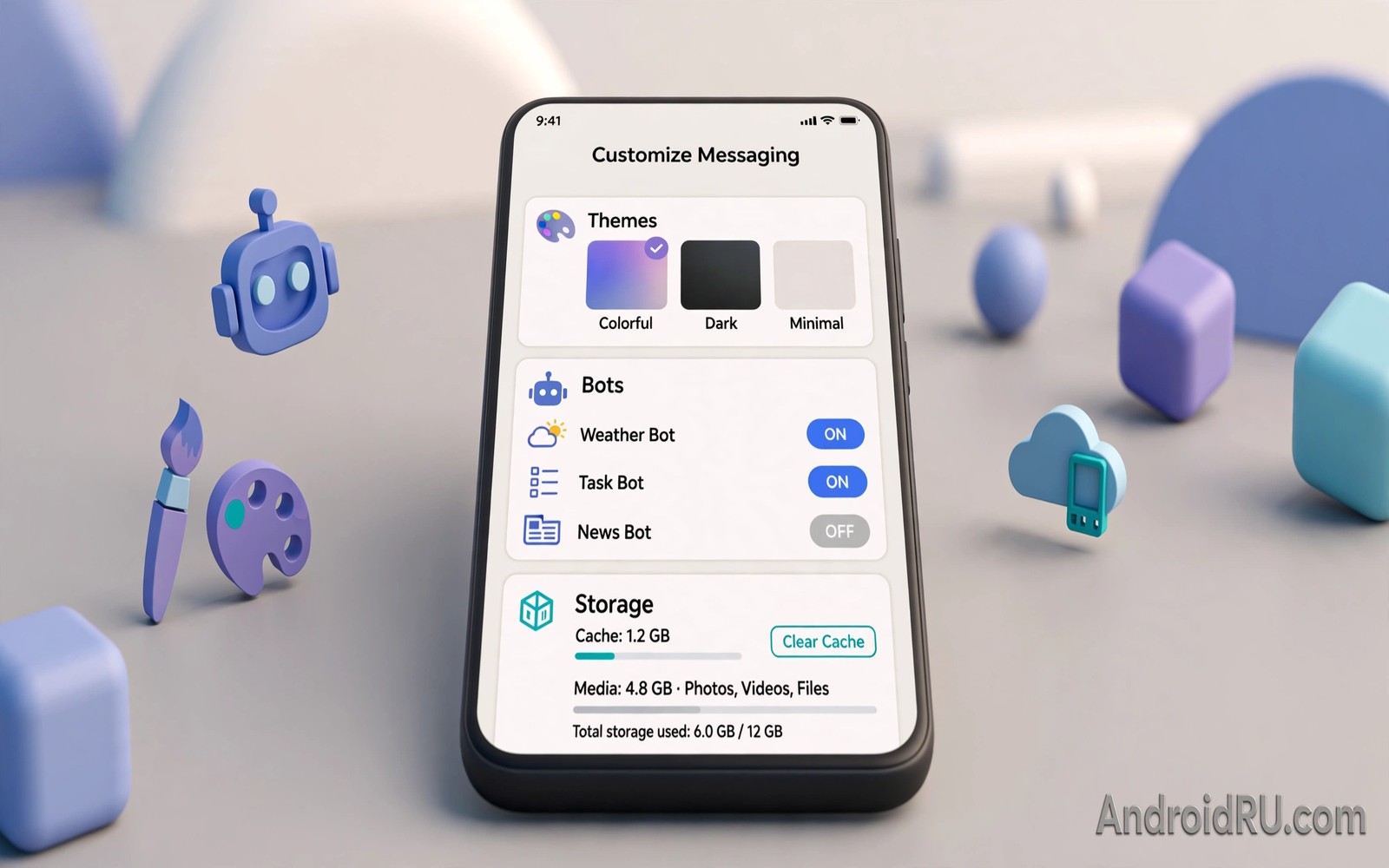
Telegram feels generic until you shape it to your habits. Themes change the look and bots add real functions. Storage controls stop huge media libraries from filling your phone. This guide covers customizing Telegram themes bots storage in practical steps. You will learn safe customisation that keeps the app fast and personal.
Start by updating Telegram and backing up important chats. Theme changes are safe but bot permissions deserve care. Also check managing notification overload from social networking apps for notification tuning alongside themes. Change one area at a time. That way a bad theme or bot is easy to spot.
Themes and appearance that stay readable
Telegram themes control colours and backgrounds and bubble shapes. Built in themes cover light and dark and several accent colours. Custom themes from the theme editor go further. You can set chat background images per chat for a personal touch. A good theme improves readability first and style second.
Test any new theme in bright sunlight and in a dark room. Low contrast themes look stylish indoors and fail outdoors. Keep message text dark on light backgrounds or light on dark backgrounds. Avoid busy background images behind long messages. A subtle pattern beats a loud photo for daily reading.
Chat folders and organisation
Chat folders sort chats into work and personal and news groups. Create folders from settings and assign chats by drag or by filter. Folders reduce scrolling through a huge chat list. They also let you mute whole categories at once. A folder for muted channels keeps news out of your main view.
Use archived chats for dormant groups. Archive does not delete history. It simply moves chats out of the main list. Combine folders with pinned chats for daily priorities. Pin no more than five chats or pinning loses its value. Review folders monthly and remove stale categories.
Bots that genuinely help daily life
Useful bots include file converters and reminder bots and feed readers. A good bot does one job well without asking for broad access. Check bot descriptions and user counts before you start one. Avoid bots that ask for your phone number or passwords. Legitimate bots never need your Telegram password.
Create your own simple bots only if you need automation. BotFather guides creation in a few steps. Keep bot tokens secret like passwords. Also read securing your messaging apps with biometric app locks to protect the app itself. A locked app plus vetted bots is a safe combination.
Advanced storage and cache control
Telegram can store gigabytes of media from groups and channels. Open storage settings to see usage by chat. Clear cache for heavy channels without deleting your own saved messages. Cache clearing removes downloaded copies only. Original messages remain on servers for cloud chats.
Set auto download rules by network type. Allow photos on mobile data but restrict videos to Wi-Fi. Set a maximum cache size so Telegram cleans old media automatically. That limit prevents surprise storage warnings. Check storage monthly on phones with small internal memory.
Privacy tweaks inside customisation
Customisation should include privacy settings alongside themes. Set who can see your phone number and last seen time. Use a username for public contact so strangers never need your number. Limit who can add you to groups. That single setting stops most spam group invites.
Review active sessions regularly. Telegram shows every device logged into your account. Terminate sessions you no longer recognise at once. Enable two step verification with a recovery email. That password layer protects your account even if a code leaks.
Performance habits for heavy users
Heavy Telegram users should restart the app after major theme changes. Theme files can cache oddly after many edits. Keep the app updated for storage improvements. Updates often fix cache bugs that waste space.
Limit autoplaying videos in busy channels. Autoplay drains battery and data fast. Use data saver mode on mobile networks. Also check how social media apps impact battery and data use for wider data habits. A lean Telegram setup feels faster on older phones too.
adb shell dumpsys package org.telegram.messenger | grep -i versionName
adb shell du -sh /sdcard/Android/media/org.telegram.messenger/ 2>/dev/null
These commands follow the standard Android developer reference pattern for checking app versions and storage. They only read data and they change nothing on the phone.
Building a Telegram setup for work teams
Start a work team setup with chat folders for projects and announcements. Create a folder for each active project. Assign relevant groups and channels to each folder. Pin the announcement channel at the top of its folder. That structure lets team members find project talk without scrolling a huge list. Set folder notification rules so only urgent folders buzz. Routine project folders can deliver silently. That rule protects focus while keeping urgent work loud. Review folders when projects close and archive stale ones promptly.
Use bots carefully for team automation. A reminder bot can post daily standup prompts at a set time. A poll bot can collect quick votes without a long thread. A file bot can convert documents between formats for sharing. Vet each bot for the team before adoption. Check what data the bot stores and where. Avoid bots that require admin rights over the whole group unless truly needed. Document approved bots in a team note. Unapproved bots should be removed by admins promptly. Automation should help the team and not leak team data.
Set storage rules for the whole team to prevent phone bloat. Recommend auto download on Wi-Fi only for videos. Recommend a cache limit that suits typical phone storage. Share a monthly cleanup reminder in the announcement channel. Team members with small phones benefit most from that reminder. Encourage exporting vital decisions to a document outside Telegram. Chat history is a poor permanent record for contracts. A decision log in a shared document preserves outcomes even if chats are cleared later.
Telegram themes that help readability and focus
Choose themes based on reading conditions rather than fashion alone. Light themes work well in bright offices. Dark themes work well at night and on OLED screens. Test a theme for a full day before judging it. A theme that looks striking for five minutes may strain eyes after hours. Check contrast between message text and bubble background carefully. Low contrast themes cause fatigue during long reading sessions. Prioritise contrast over decorative backgrounds for work chats. Personal chats can carry bolder themes safely.
Use per chat backgrounds sparingly for orientation. A distinct background for a family chat helps you recognise it instantly. A distinct background for every chat creates visual chaos. Limit custom backgrounds to three or four key chats. Use subtle patterns rather than busy photos behind text. Busy photos reduce text legibility sharply. A solid colour with a faint pattern is the safest custom background. That balance gives personality without hurting readability. Change backgrounds seasonally if you enjoy variety without daily distraction.
Combine themes with notification colours for a calmer app. Assign a gentle tone to routine channels. Assign a distinct tone to direct messages from close contacts. That audio separation lets you triage without looking at the screen. Pair theme choices with font size settings for comfortable reading. Larger text reduces eye strain for long chats. Smaller text shows more messages per screen for fast scanning. Choose based on your primary use. Reading heavy users benefit from larger text even if it shows fewer messages at once.
Your Telegram optimisation checklist
Apply this checklist to keep Telegram fast and personal. First choose a readable theme and test it in bright light and darkness. Second create chat folders for work and personal and news categories. Third pin no more than five chats that need daily attention. Fourth archive dormant groups that clutter the main list. Fifth vet every bot before starting it and reject bots asking for passwords. Sixth set auto download to Wi-Fi only for videos and large files. Seventh set a maximum cache size that suits your phone storage. Eighth limit group adds to contacts only to stop spam invites. Ninth review active sessions monthly and terminate unknown devices. Tenth enable two step verification with a recovery email stored safely. Eleventh clear cache for heavy channels without deleting saved messages. Twelfth review notification tones so urgent chats sound distinct from routine channels. A Telegram setup that passes this checklist feels fast even on older phones. Fast apps encourage daily use while bloated apps cause avoidance. Personalisation without organisation creates a pretty but chaotic app. Organisation without personalisation creates a dull app you ignore. Combine both through this checklist for a setup that lasts. Repeat the checklist quarterly because Telegram adds features that change defaults. Quarterly maintenance prevents slow decay into clutter and bloat.
Common mistakes
Installing themes from unknown sources risks malicious theme files. Stick to built in themes and trusted theme channels. Giving bots your password is never legitimate. Real bots use official approval flows. Letting cache grow unchecked fills small phones silently. Set a cache limit early.
Adding yourself to every public group through weak settings invites spam. Limit group adds to contacts only. Forgetting active session review leaves old devices logged in. Check sessions monthly. Using a loud background image hurts readability for long chats. Choose subtle backgrounds.
Pinning too many chats defeats pinning entirely. Keep pinned chats to five or fewer. Skipping two step verification leaves account recovery weak. Enable it with a recovery email today.
Frequently asked questions
Do Telegram themes affect other users?
No themes are local to your device. Other users see their own theme choices. Chat background per chat is also local. Your theme never changes how others view messages.
Does clearing cache delete my messages?
No clearing cache removes downloaded media copies only. Cloud chat messages remain available for re download. Saved messages and local secret chats need separate care. Secret chat media lives only on participating devices.
Are Telegram bots safe to use?
Vetted bots with clear purposes are generally safe. Avoid bots asking for passwords or broad permissions. Check bot age and user feedback before use. Revoke bot access by blocking the bot if behaviour changes.
Conclusion
Telegram rewards thoughtful customisation. Themes should aid reading first. Folders should cut scrolling. Bots should do one useful job each. Storage limits should prevent surprise full phone warnings. Privacy settings should sit beside every visual change.
Your concrete next step is to set a cache limit and auto download rules on Wi-Fi only for videos today. Then create two chat folders for work and news. Those changes take ten minutes and they keep Telegram fast for months.

