

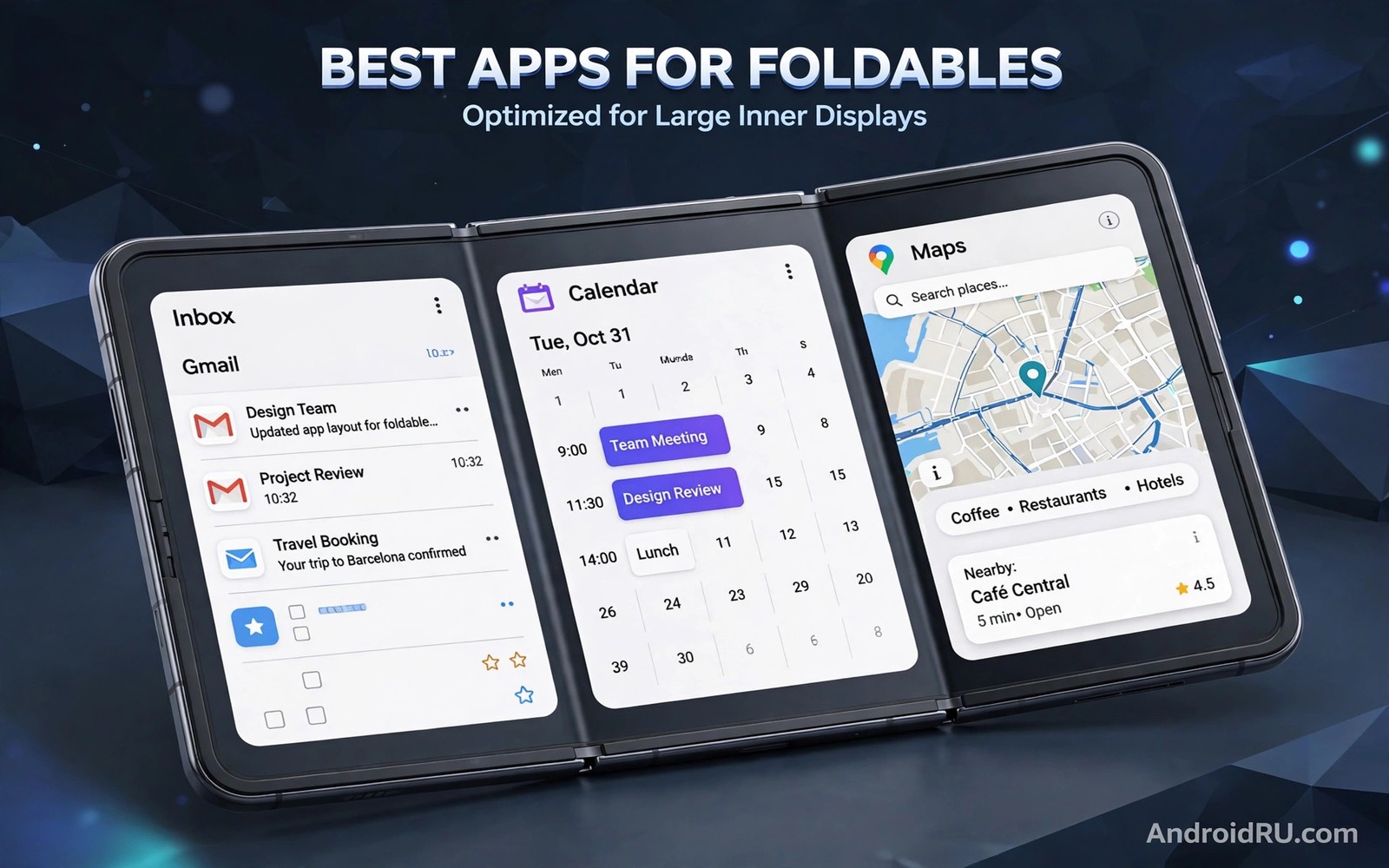
Best Apps Optimized for Large Inner Displays on Foldable Devices
Unfolding a Galaxy Z Fold 6 or a Pixel 9 Pro Fold for the first time feels like opening a small tablet that happens to fit in a pocket. The inner screen on the Fold 6 measures 7.6 inches at 2160 by 1856 pixels, while the Pixel 9 Pro Fold stretches to 8 inches. That is a lot of room, and room alone does nothing. An app that only stretches a phone layout across those inches wastes the hardware. Text lines run too long, buttons drift to the far corners, and the extra space turns into empty margin.
The apps in this guide do something different. They rearrange themselves when the screen gets wide: a second column appears, a sidebar stays visible, a timeline gets breathing room. I have spent weeks living with these apps on a foldable, moving between the cover screen on the train and the inner screen at my desk, and the gap between a stretched app and a genuinely adapted one shows up within minutes. This guide names the apps that earn their space, explains what each one does well and where it falls short, and shows you how to set up split-screen pairs that make the big screen feel like a desk rather than a blown-up phone.
What Makes an App Truly Optimized for a Large Inner Screen
An optimized app passes three tests. First, it changes layout when the window gets wide instead of simply scaling up. A mail app shows folders beside messages in a two-pane layout. A notes app keeps the notebook list beside the open page. A browser keeps tabs visible beside the page you are reading. Second, it keeps working when the screen changes shape. Fold the phone mid-email and the draft should still be there, cursor in place. Third, it supports drag and drop and resizing, so moving a photo into a message or a quote into a note takes one gesture instead of five taps through share menus.
Android gives developers a clear way to do this through window size classes. When the available width crosses into the expanded class, the app switches from a single-column phone layout to a two-pane tablet layout. The check is simple in principle: measure the window, and if it is wide enough, show list and detail side by side. Apps that skip this step are the ones that look lost on a 7.6-inch screen. The best apps in this guide all make the switch, and several go further with stylus support, tabletop mode, and saved multi-window pairs.
App Continuity: The Test Most Apps Still Fail
Continuity is the moment of truth. You start reading on the cover screen, unfold, and the article should keep flowing without a reload. When it works, you forget it exists. When it fails, the app restarts, the video jumps back to the start, or the form you were filling empties itself. I test every app in this guide by unfolding mid-task, and the ones listed here handle the handover cleanly. If you want the full picture of how the handover is supposed to work, read about app continuity when you unfold a phone before you judge an app too harshly: sometimes the fault sits in the system settings, not the app.
Window Size Classes and Two-Pane Layouts Explained
Think of window size classes as three buckets: compact, medium, and expanded. A folded phone sits in the compact bucket, a half-open foldable in medium, and a fully open inner screen in expanded. Developers design a layout for each bucket, and the system picks the right one as you fold and unfold. Two-pane layouts live in the expanded bucket, and they are the single biggest reason a foldable feels like a productivity device instead of a big phone.
Drag and Drop, Split Screen, and Tabletop Mode
Drag and drop matters more on a foldable than on any other phone, because the whole point of the big screen is keeping two things visible at once. Drag a photo from the gallery into a chat, drag a link from the browser into a note, drag a file into an email. Split screen pairs two apps; tabletop mode, with the phone half-folded like a tiny laptop, puts video on the top half and controls on the bottom. The apps below use at least one of these tricks well, and several use all three. For the system side of the setup, these multi-window multitasking tricks show how to save app pairs and launch them with one tap.
Best Foldable Apps for Email and Productivity on the Inner Screen
Email and office work gain the most from a wide screen, because they are built around lists beside content: folders beside messages, slides beside speaker notes, cells beside formulas. These three apps treat the inner display as a workspace, not a magnifier.
Microsoft Outlook: Two-Pane Email That Feels Like a Desktop Client
Outlook on a foldable shows your folder list on the left and the open message on the right, with a calendar strip you can keep visible while you triage. I use it to clear a morning inbox in half the time it takes on a regular phone, because I never lose the list while reading a long thread. Attachments open in a preview pane, and dragging a photo from the gallery straight into a draft works without leaving the app.
Who it is for: anyone who handles work email on the move and wants the inbox to feel like Outlook on a laptop rather than Outlook on a phone. Pros: stable two-pane layout that survives folding, focused inbox that cuts noise, calendar and files built in, drag and drop for attachments. Cons: the focused inbox sometimes hides messages you actually wanted, and the app can feel heavy on older foldables with 8 GB of RAM. Verdict: the best email app on a foldable right now, and the first one I install on any new folding phone.
Samsung Notes: Handwriting and PDF Markup With Room to Breathe
Samsung Notes turns the inner screen into a paper notebook with a sidebar. Notebooks stay listed on the left while the page fills the right, and with an S Pen the writing area is large enough for real paragraphs instead of cramped margin notes. I annotate PDFs for review by keeping the document on one side and my notes on the other, and the app keeps both in sync when I fold the phone shut mid-sentence. Audio bookmarking ties a recording to the exact line you were writing, which is genuinely useful in lectures.
Who it is for: students, reviewers, and anyone who takes handwritten notes or marks up PDFs. Pros: excellent S Pen support with pressure sensitivity, PDF annotation with a persistent sidebar, audio bookmarks, shapes and handwriting-to-text conversion. Cons: it is Samsung-only, so Pixel Fold and OnePlus Open owners need an alternative, and exporting to other formats can mangle complex layouts. Verdict: if you own a Galaxy Z Fold, this is the notes app the hardware was designed around.
Microsoft Excel: Spreadsheets Without Endless Sideways Scrolling
Excel on a folded phone is a chore: three columns visible, constant sideways scrolling, and formulas hidden behind taps. Unfolded, Excel shows a dozen or more columns at once, keeps the formula bar visible, and lets you freeze panes while the sheet stays readable. I built a travel budget on the inner screen during a flight and never once wished for a laptop. The ribbon collapses neatly, and switching between sheets from the tab bar at the bottom is one tap instead of a hunt through menus.
Who it is for: anyone who checks or edits spreadsheets away from a desk. Pros: wide grid with many visible columns, formula bar always in reach, freeze panes and filters work as on desktop, files sync through OneDrive. Cons: full editing needs a Microsoft 365 subscription, and very large files with thousands of rows can stutter on the inner screen. Verdict: the clearest proof that a foldable can replace a laptop for light office work.
Best Foldable Apps for Reading, News and Comics on a Big Screen
Reading is where a foldable earns its keep fastest. A 7.6-inch inner screen shows a two-page book spread the way a paperback does, and news apps can finally put headlines beside the article instead of stacking them. These three reading apps use the space properly.
Kindle: Two-Page Book Spreads That Feel Like a Paperback
Kindle switches to a two-page spread on the inner screen, with margins and line spacing you can tune until the text sits comfortably on either side of the crease. I read for an hour each night on the Fold, and the spread layout means fewer page turns and less thumb travel than a single-column phone layout. Your place, highlights, and dictionary lookups sync across devices, and the app keeps your page when you fold the phone to answer a message and unfold again.
Who it is for: heavy readers who want a tablet-sized book without carrying a tablet. Pros: true two-page layout on wide screens, adjustable fonts and margins, Whispersync keeps your place across devices, dictionary and translation built in. Cons: it is tied to the Amazon book catalogue, and PDFs and sideloaded documents get a poorer layout than bought books. Verdict: the most comfortable way to read a novel on a foldable.
Libby: Free Library Books With a Clean Wide-Screen Layout
Libby borrows ebooks and audiobooks from your local library for free, and its wide-screen layout puts your loans and holds beside the book you are reading. The reading view adjusts cleanly to the inner screen, with large tap zones for turning pages and a progress bar that stays out of the way. I borrowed a novel through Libby on a Tuesday and finished it on the foldable by Sunday without paying anything, which still feels like a small miracle every time I remember it.
Who it is for: readers with a library card who want free books on a big screen. Pros: completely free with a library card, clean two-column browsing, audiobooks and ebooks in one place, holds and loans managed in one view. Cons: popular titles often have long wait lists, and the catalogue depends entirely on what your local library licenses. Verdict: the best free reading app on a foldable, and the one I recommend first to anyone who reads a lot.
Moon+ Reader: The Customizable Reader for EPUB and Local Files
Moon+ Reader is the reader for people with their own EPUB collection. Its two-page mode, custom themes, and fine control over line spacing, padding, and screen brightness make it the most tunable reading app on Android, and on a foldable all that tuning pays off: you can set the text to split cleanly at the fold line so no sentence ever hides under the crease. It handles EPUB, MOBI, and PDF, keeps detailed reading statistics, and supports text-to-speech for hands-free chapters.
Who it is for: readers with a local ebook library who want total control over the page. Pros: deep customization of fonts, margins, and two-page mode, strong EPUB support, reading statistics and text-to-speech, no account needed. Cons: the interface looks dated next to Kindle, and the free version shows ads. Verdict: the power user’s reader, and the best choice if your books live as files rather than in a shop.
Best Foldable Apps for Video, Photos and Creative Work on the Inner Screen
Video and creative apps gain timeline room and tool space that a normal phone cannot offer. The inner screen lets an editor show the picture and the tools at the same time, which changes the work from constant menu diving into something closer to a desktop flow.
YouTube: Tabletop Mode Turns Your Foldable Into a Tiny TV
YouTube in tabletop mode is the foldable trick I show friends first. Fold the phone halfway, set it on a table, and the video plays on the top half while playback controls, comments, and the description sit on the bottom half. It works on trains, in kitchens, and on hotel nightstands without a stand. Full screen on the unfolded inner display fills the 7.6-inch panel nicely, and the comments section sits beside the video instead of underneath it.
Who it is for: anyone who watches video hands-free and wants a built-in stand. Pros: genuine tabletop mode with split controls, comments beside the video on wide screens, smooth continuity when folding, picture-in-picture works well in split screen. Cons: the inner screen aspect ratio leaves black bars on many videos, and background play needs a paid YouTube plan. Verdict: the app that best shows off what a folding phone can do that a slab phone cannot.
CapCut: Video Editing With a Timeline You Can Actually See
CapCut on the inner screen gives the timeline real length. Clips, audio tracks, and text overlays stay visible while the preview plays above them, so trimming a clip stops being a game of pinch-zooming a two-inch strip. I cut a 60-second travel video on the Fold in about twenty minutes, and the wide layout meant I could see six clips at once instead of two. Auto captions, transitions, and filters all sit in a side panel rather than covering the preview.
Who it is for: creators who edit short video on their phone. Pros: long visible timeline on the inner screen, tools in a side panel instead of over the preview, auto captions and templates, free tier covers most casual editing. Cons: some effects and templates sit behind a paid subscription, and exported projects can carry a watermark unless you change the settings. Verdict: the most capable free video editor on a foldable, and the one that benefits most from the extra width.
Adobe Lightroom: Photo Editing With Tools Beside the Image
Lightroom on a foldable keeps the photo large on one side and the editing sliders on the other, which is exactly how the desktop version works. On a regular phone the sliders cover the photo you are trying to judge; on the inner screen you see both at once. I edited a batch of holiday photos on the Fold and the wider layout cut my per-photo time noticeably, because I stopped toggling panels on and off to check the result. Presets, healing, and selective edits all reach easily with two thumbs.
Who it is for: photographers who edit on the go and want desktop-style layout. Pros: tools beside the image instead of over it, precise sliders on a large canvas, cloud sync with desktop Lightroom, strong preset system. Cons: the best features need a Creative Cloud subscription, and raw files from a 50-megapixel camera can slow the app down. Verdict: the closest thing to desktop photo editing you can carry in a pocket.
Best Foldable Apps for Messaging and Social on a Wide Screen
Messaging apps vary more than any other category. The good ones keep the conversation list beside the chat; the bad ones stretch one column across seven inches and leave half the screen empty. These two handle the width properly.
WhatsApp: Chats and Contacts Side by Side
WhatsApp on the inner screen shows the chat list on the left and the open conversation on the right, which turns group-chat triage from endless back-and-forth into a single glance. Photos and videos open in a large preview pane, and dragging a photo from the gallery into a chat works in split screen without opening a share sheet. Voice messages record cleanly while the chat stays visible, and video calls use the wider frame well in tabletop mode.
Who it is for: anyone whose daily life runs through WhatsApp groups and calls. Pros: true two-pane chat layout, large media previews, drag and drop from the gallery, reliable video calls in tabletop mode. Cons: the layout only appears in the tablet interface and can take a moment to settle after unfolding, and status updates still feel designed for a narrow phone. Verdict: the messaging app most foldable owners will use daily, and it finally feels at home on the big screen.
Telegram: Folders, Channels and Chats in One Wide View
Telegram makes better use of width than almost any messaging app, because its folders, channels, and saved messages were already designed as parallel columns. On the inner screen you can keep a channel list, a chat, and a media panel visible at once, and the app lets you open a chat in a floating window while you keep reading. I follow three news channels and two group chats in Telegram, and the foldable layout is the first phone layout that lets me watch all of them without constant switching.
Who it is for: heavy Telegram users who juggle channels, groups, and saved messages. Pros: folders and channels laid out in parallel columns, floating chat windows, saved messages work as a personal clipboard, fast media loading. Cons: the density of columns can overwhelm new users, and some bots and mini apps still render in a narrow phone layout. Verdict: the most information-dense messaging app on a foldable, and the best choice if you live in channels and groups.
Best Foldable Apps at a Glance: Comparison Table
This table lines up every app in this guide so you can compare them in one place. The layout column tells you what the app does with the width, and the best-for column tells you who should install it first.
| App | Category | Wide-screen layout | Best for | Price |
|---|---|---|---|---|
| Microsoft Outlook | Folders beside messages | Work inbox triage | Free, some features need Microsoft 365 | |
| Samsung Notes | Notes | Notebooks beside the page | Handwriting and PDF markup | Free on Samsung devices |
| Microsoft Excel | Office | Wide grid, visible formula bar | Spreadsheet editing | Free to view, editing needs Microsoft 365 |
| Kindle | Reading | Two-page book spread | Novel readers | Free app, books priced individually |
| Libby | Reading | Loans beside the book | Free library books | Free with a library card |
| Moon+ Reader | Reading | Tunable two-page mode | Local EPUB libraries | Free with ads, paid version available |
| YouTube | Video | Tabletop mode, comments beside video | Hands-free watching | Free, background play needs a paid plan |
| CapCut | Video editing | Long timeline, side tool panel | Short video creators | Free, some effects paid |
| Adobe Lightroom | Photo editing | Tools beside the image | On-the-go photographers | Free basic, full features need subscription |
| Messaging | Chat list beside conversation | Daily chats and calls | Free | |
| Telegram | Messaging | Parallel columns and folders | Channels and group power users | Free |
One pattern runs through the table: the strongest apps keep a list visible beside the content. If an app you love is missing from this guide, check whether it shows two panes on the inner screen. If it only stretches, it is not optimized yet, no matter how good it is on a regular phone. The hardware side matters too: a weak hinge or poor dust sealing will ruin the experience faster than any app choice, so read about hinge design and dust resistance before you buy your next folding phone.
How to Set Up Split Screen and App Pairs on Galaxy Z Fold and Pixel Fold
The apps above get even better in pairs. A browser beside a notes app is a research desk; a gallery beside a chat is a photo-sharing station. Setting up pairs takes a minute, and saving them means one tap restores the whole layout later.
Open Two Apps in Split Screen in Under a Minute
Open the first app, then swipe up and hold to open the recent apps view, tap the app icon at the top of its card, and choose Split screen. Then pick the second app from the list. On a Galaxy Z Fold you can also drag an app from the Edge panel straight onto one half of the screen. Drag the divider to give one app more room: give the browser two thirds and the notes app one third, or split them evenly for chat and maps. The divider position is remembered per pair on Samsung devices, which saves fiddling each time.
Save an App Pair on Galaxy Z Fold 6
With the pair open, tap the three dots on the divider, choose Add app pair to, and save it to the Edge panel or the home screen. I keep four pairs saved: browser plus Samsung Notes for research, gallery plus WhatsApp for sharing photos, YouTube plus a notes app for video study, and Outlook plus calendar for morning planning. One tap opens both apps in the same layout every time.
Save an App Pair on Pixel Fold
On the Pixel Fold, open the pair, swipe up to the recent apps view, and tap Save app pair on the paired cards. The pair appears in the recent apps list and on the home screen if you pin it. Pixel’s implementation is simpler than Samsung’s but covers the same ground, and the pair restores both apps in the same left-right order you saved them.
Common Split Screen Problems and Quick Fixes
If an app refuses split screen, it usually declares itself non-resizable in its manifest, and no setting will force it cleanly. Try the app in a floating window instead, or check for an update: many developers add resizable support quietly in a later release. If an app restarts when you unfold it, turn off battery optimization for that app in Settings, because aggressive power saving kills background apps during the fold transition. If text lands under the crease, open the app’s own margin or layout settings rather than the system font size, since the app controls where its text column sits.
Frequently Asked Questions About Apps for Foldable Inner Displays
What makes an app optimized for a foldable inner display?
An optimized app changes its layout when the screen gets wide, keeps your place when you fold or unfold, and supports drag and drop and resizing. The visible sign is a two-pane layout: a list beside the content, tools beside the image, or a timeline with room to breathe. An app that only stretches a single phone column across seven inches is not optimized, even if it runs without crashing.
Do all Android apps work on foldable phones?
Almost all Android apps run on a foldable, but running is not the same as fitting. Most apps open and work, yet many show a stretched phone layout with wasted space or awkward button placement. Apps built with adaptive layouts, like the ones in this guide, rearrange themselves for the wide screen. Check an app’s recent update notes for tablet or large-screen support before you assume it will use the space well.
Which foldable phone has the best app support right now?
The Galaxy Z Fold 6 has the widest app support, because Samsung has spent five generations tuning its multi-window system, Edge panel, and app-pair saving, and most developers test on Galaxy hardware first. The Pixel 9 Pro Fold has a larger 8-inch inner screen and cleaner Android, but fewer Samsung-style extras. The OnePlus Open sits between them with a bright 7.82-inch display and a good multitasking canvas. Your choice depends on whether you value Samsung’s extras, Google’s clean software, or OnePlus’s display.
How do I stop apps from restarting when I unfold my phone?
First, update the app: restart-on-resize bugs are usually fixed in later releases. Second, turn off battery optimization for that app, because power saving can kill it during the fold transition. Third, check the developer settings for a per-app aspect ratio override on Samsung devices, which forces the app to keep its state across the fold. If the app still restarts after all three steps, it likely lacks proper resize support, and the only real fix is a developer update.
Can I use a stylus on a foldable inner display?
Yes, on the Galaxy Z Fold 6 the S Pen works on the inner display, and Samsung Notes, Lightroom, and several drawing apps support pressure sensitivity and palm rejection. The Pixel Fold and OnePlus Open do not have an official active stylus, though capacitive styluses work as basic pointers without pressure levels. Check your app’s stylus settings before a big project, and test brush strokes near the fold line, since pressure can behave differently there.
The Bottom Line on Foldable Apps for Large Inner Displays
A foldable phone is only as good as the apps on its inner screen. Outlook, Samsung Notes, and Excel turn it into a pocket office. Kindle, Libby, and Moon+ Reader turn it into a paperback that never runs out of pages. YouTube, CapCut, and Lightroom turn it into a tiny studio, and WhatsApp and Telegram keep your conversations in view instead of buried behind taps. The common thread is simple: the best apps add a second pane instead of stretching one.
Your next step is concrete and takes ten minutes. Open your five most-used apps on the inner screen, unfold mid-task in each one, and note which ones show two panes and which ones stretch. Replace the stretchers with the alternatives in this guide, save two app pairs that match your daily routine, and test them tomorrow morning. Within a week the big screen will stop feeling like a novelty and start feeling like the reason you bought the phone.

