

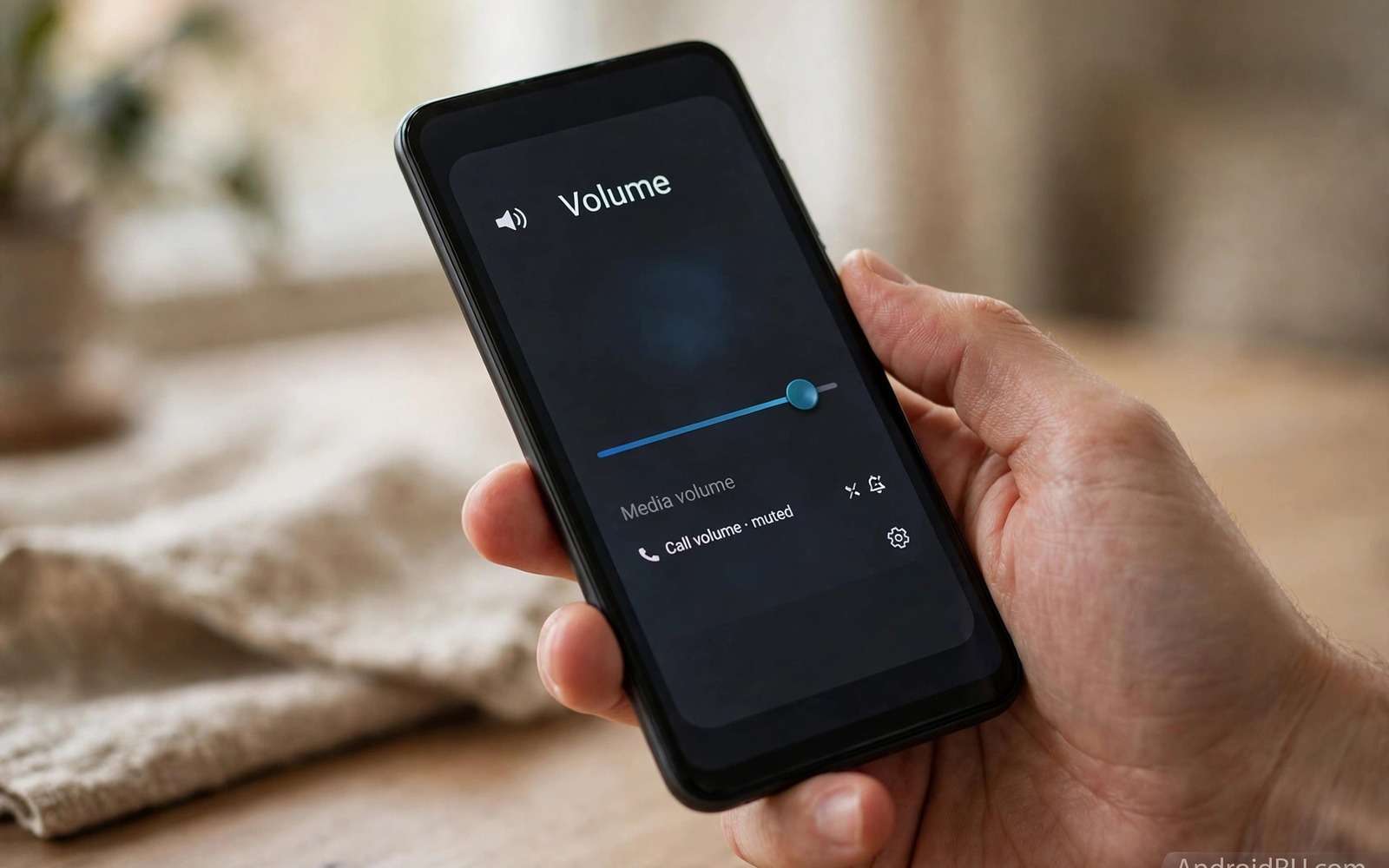
Volume buttons are helpful until they betray you at the worst moment. A phone in a pocket can turn a quiet podcast into a loud blast. A child holding a phone can mute a call without warning. A case pressing a button can slowly drain a listening session of its balance. Locking media volume stops those accidents. It keeps playback at the level you chose until you decide to change it. That single control makes listening calmer and more predictable.
Android treats several volume streams separately. Media volume controls music and video and games. Ring volume controls incoming calls. Alarm volume controls wake up sounds. Notification volume controls alerts. The buttons on the side usually adjust the stream that is active. When no media plays they may adjust ring volume instead. That switch confuses many users. Locking media volume removes one source of surprise. It does not lock every stream unless you set each one.
This guide shows safe ways to lock media volume without root. You will learn built in options and app based locks and routine tricks. You will also learn when a lock causes trouble and how to undo it fast. No method here hides volume controls forever. Each method leaves a clear path back to normal control. Choose the lightest method that solves your actual problem.
Understand what the volume buttons really control
Press a volume button while music plays and media volume changes. Press it on the home screen and ring volume often changes instead. That context switch is by design. It helps people silence calls quickly. It hurts people who want one stable media level. Open the full volume panel by tapping the small control beside the slider. That panel shows each stream separately. You can set media exactly where you want it before you lock it.
Bluetooth devices add another layer of control. Some headphones send absolute volume commands to the phone. Others keep their own volume separate from the phone. Absolute volume links the two controls into one. Turning down the headphone also turns down the phone. Disabling absolute volume in developer options separates them. That separation helps when a headphone wheel is too easy to bump. Test the change with your own headphones because results vary by brand.
Some apps override button behaviour while they run. A video app may map buttons to brightness or seek. A game may use buttons for in game actions. Those overrides end when the app closes. A system level lock is more reliable than an app setting alone. Start with the system panel and test in your most used apps. Note any app that still changes volume after the lock. That app may need its own setting.
Lock media volume with built in controls
Some Android brands include a volume lock or a media volume limit. Search Settings for volume limit or media volume lock. If the option exists then turn it on and set a maximum level. A maximum limit still allows small changes below the cap. A full lock prevents changes entirely until you unlock it. Choose the cap version for shared family phones. Choose the full lock version for pocket listening and workouts.
Screen pinning and lock screen controls offer a simpler partial fix. Lock the screen during playback to stop pocket presses. Most music apps show controls on the lock screen anyway. You can pause and skip without unlocking the phone. Pocket presses on a locked screen rarely reach volume buttons though. Buttons still work when the screen is off on many phones. That is why a software lock matters more than a locked screen alone.
Do not disturb mode can also reduce surprise volume changes. It silences calls and alerts while media keeps playing. It does not lock media volume by itself. Pair it with a volume limit for a calm listening session. Create a routine that turns on do not disturb when headphones connect. Turn it off when headphones disconnect. Routines remove the need to remember settings every time. If your listening changes through the day then setting up custom audio profiles by listening time pairs well with a volume lock.
Use a button remapper or volume locker app carefully
A volume locker app intercepts button presses and blocks changes. It usually runs as an accessibility service or a device admin helper. Read its permissions before you install it. A trustworthy locker needs only the permission to observe button events. It does not need contacts or location or full storage access. Avoid any locker that asks for broad permissions without a clear reason. Check reviews for reports of battery drain or lock screen problems.
Set the locker to protect media volume only at first. Leave ring and alarm volumes free so urgent sounds still work. Test the locker with music playing and the screen off. Press both volume buttons several times. Playback should stay at the same level. Unlock the volume from the app or its notification when you want a change. Learn the unlock gesture before you need it in a hurry. A locker you cannot unlock quickly becomes a frustration.
Some launchers and automation apps can also block volume changes during specific activities. A routine can set media volume to a fixed value when a workout starts. Another routine can restore normal control when the workout ends. That approach is gentler than a permanent lock. It adapts to context instead of fighting you all day. Keep routines simple and test each trigger once. A routine that fires at the wrong time is worse than no routine.
Protect volume during workouts and travel
Workouts cause the most accidental presses. A phone in an armband presses against skin and fabric. A phone in a pocket presses against keys and coins. A lock plus a firm case solves most of that. Place the phone with buttons facing away from your body. Use a case with stiff button covers that resist light pressure. Start music before you put the phone away. Then lock volume and lock the screen in that order.
Travel adds Bluetooth and car audio complications. A car system may send volume commands when it connects. A hotel television remote is not the issue but a shared speaker is. Set media volume before you connect to a shared speaker. Lock it so a stray button press does not blast the room. Tell other listeners how to unlock it if they need a change. A short explanation prevents awkward fumbling later.
Children and shared phones need a different balance. A full lock protects hearing and prevents sudden loud sounds. It also stops a child from muting an important call. Keep alarm volume unlocked so morning alarms still sound. Test the setup with the child present. Show them how to pause music without changing volume. Clear rules plus a lock work better than a lock alone.
adb shell settings put system volume_music 7
adb shell settings put system volume_music_speaker 7
adb shell settings get system volume_music
The snippet above is an original example written for this guide. It shows how a fixed media volume value can be set and read back on a connected Android device. It does not lock the buttons by itself on every phone. Use it only if you understand developer tools and you can restore the previous value. Keep a note of the original number before you change anything.
Keep volume steady in cars and shared rooms
Car audio adds a second volume control that can surprise drivers. The car system may remember a loud level from a previous trip. Set phone media volume before you start the engine. Lock it once music begins. That order prevents a loud blast when Bluetooth connects. Tell passengers where the unlock control lives. A passenger who knows the unlock path will not fumble with settings while you drive. Safety improves when volume decisions happen before motion.
Shared rooms need a similar routine. A speaker in a living room serves several listeners at once. One person may raise volume for a favourite song. Another person may lower it for a phone call. A locked level agreed in advance avoids that tug of war. Set the level together and lock it for the session. Unlock it only when the group agrees on a change. That social rule matters as much as the technical lock. It turns volume from a contest into a shared choice.
Common mistakes
The biggest mistake is locking every volume stream at once. A locked alarm can make you miss a wake up call. A locked ring can make you miss an urgent call. Lock media first and test for a full day. Add other streams only if you have a clear reason. Always leave a fast unlock path that you can use half asleep.
Another mistake is installing the first locker app without checking permissions. Some apps collect data far beyond volume control. Others drain battery by running constant background checks. Read the permission list and the privacy note before install. Remove any locker that causes crashes or lock screen delays. A simple built in limit beats a risky app every time.
People also forget they enabled a lock and blame the phone later. A locked volume that will not change feels like broken buttons. Write a reminder in the locker app note or on your home screen. Tell family members when a shared phone uses a lock. When playback sounds uneven after a lock then fixing uneven earbud sound may matter more than volume level. For a fuller system view then the master guide to Android sound engineering explains how streams and effects interact.
Frequently asked questions
Can I lock media volume without root?
Yes in most cases. Built in limits and locker apps and routines work without root. Results vary by phone brand because settings names differ. Start with the built in volume panel and a routine. Add a locker app only if those tools fall short. Root is not needed for a practical everyday lock.
Will a volume lock affect alarms?
It should not if you lock media only. Alarms use a separate stream on Android. Check alarm volume after you set a media lock. Test an alarm once with the lock active. If an app locks all streams then change its settings to protect media only. Keep that test habit after every update.
How do I unlock volume quickly in an emergency?
Use the unlock control inside the locker app or its notification. Some lockers offer a long press gesture on a volume button. Learn that gesture before you rely on the lock. If the app fails then uninstalling it or restarting the phone usually restores control. Keep the unlock steps written down for shared phones.
Conclusion
A locked media volume turns listening from fragile to steady. You choose a level once and it stays there through pockets and workouts and travel. Built in limits solve many cases. A careful locker app or routine solves the rest. Keep alarms and calls free so safety never suffers for convenience.
Your concrete next step is to set your ideal media level tonight and lock it for one full day. Test music and video and a workout with the lock active. Note any moment when you wanted a change and why. Adjust the lock scope based on that single day of real use.

