

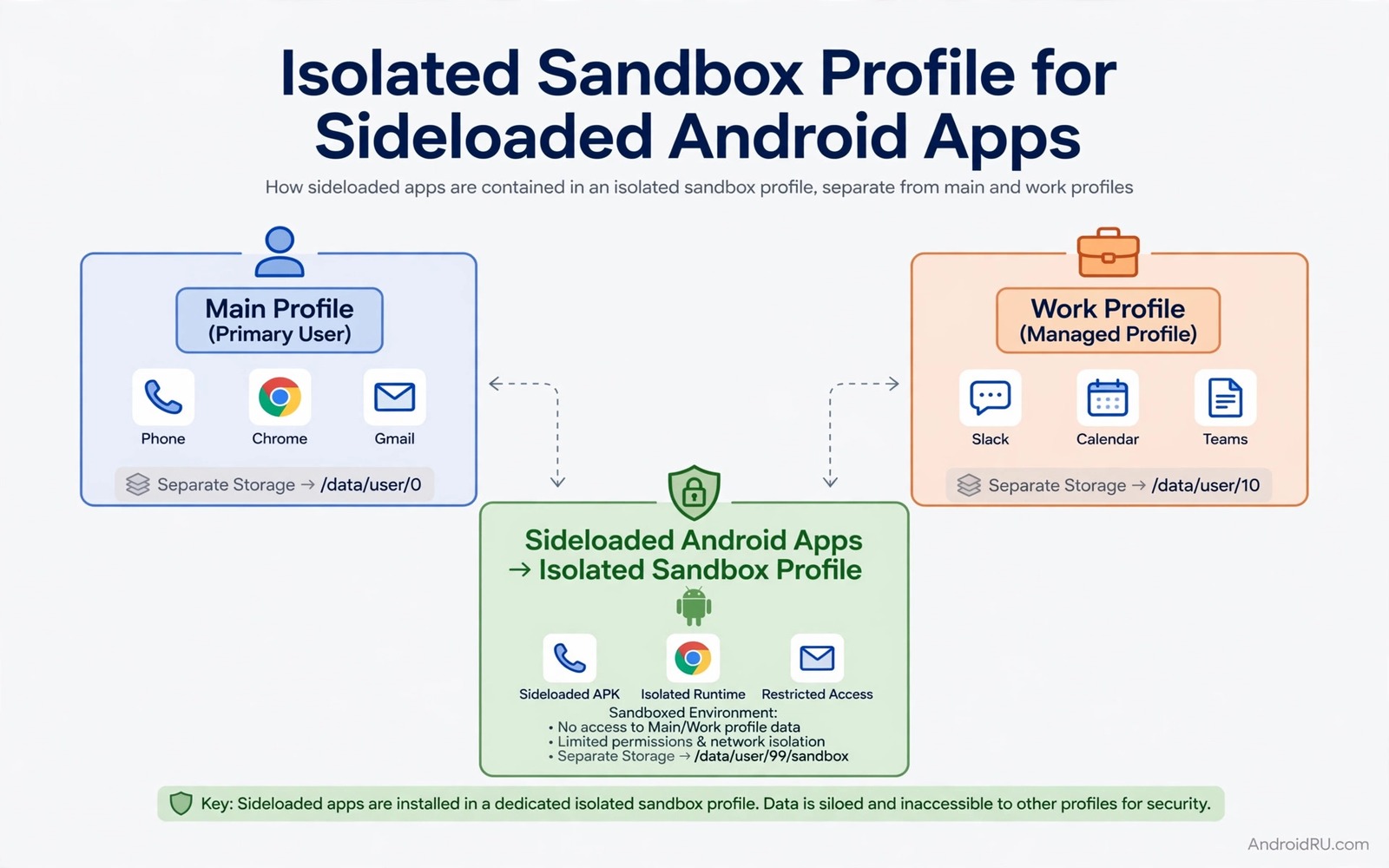
Testing a new sideloaded app on your main profile is like inviting a stranger into your house. The app can see your contacts and your photos and your files if you grant access. It can also learn from other apps on the same profile. A sandbox profile changes that picture. It gives the app a separate room with its own storage and its own accounts. The app cannot easily reach your main data. If the app misbehaves you can delete the whole room without touching your daily apps.
Android supports this idea through work profiles and secondary users and app sandbox tools. A work profile is a separate container managed on the same phone. It has its own apps and its own storage. A secondary user is even more separate. It has its own home screen and its own settings. Sandbox tools build on those system features to isolate an app with less manual setup. The right choice depends on how much separation you need. If you are new to outside installs then first learn how to sideload apps safely so your sandbox test starts from a clean file.
What Isolation Actually Protects
Isolation protects your main data from a test app. A sandboxed app cannot read files from your main profile by default. It cannot read contacts from your main profile. It cannot use accounts from your main profile unless you add them to the sandbox too. That separation is powerful for testing an unknown app. It lets you watch its behaviour without risking your real data.
Isolation does not make a malicious app harmless. A sandboxed app can still use network access if you grant it. It can still send data that you type into it. It can still show ads and track usage inside its own room. Isolation limits damage. It does not remove the need to check permissions and sources. Treat a sandbox as a safety room and not as a magic shield.
Choose The Right Sandbox Type
A work profile suits daily testing of a few apps. It is easy to switch between main and work profiles. It keeps test apps visible but separate. A secondary user suits a deeper test where you want a clean phone state. It takes longer to switch but it offers stronger separation. A dedicated sandbox app can automate work profile setup and add extra controls such as freezing an app when you are not using it.
Pick the lightest option that meets your need. A work profile is enough for most sideload tests. A secondary user is better for a long term test of a suspicious app. A sandbox app is useful when you test many apps and want quick freeze and clone controls. Do not overbuild your setup. A complex sandbox that you avoid using is worse than a simple profile that you use every time.
Set Up A Test Profile Step By Step
Start by creating the profile through system settings or through your chosen sandbox tool. Give the profile a clear name such as Test. Do not add your main Google account to the test profile unless the app truly needs an account. Use a separate test account or no account at all for the first test. That choice keeps your main account data out of the test room.
- Create a work profile or secondary user named Test.
- Do not add your main account to the test profile at first.
- Install the sideloaded app only inside the test profile.
- Grant only the permissions that the core feature needs.
- Use the app for its main job and watch for strange requests.
- Delete the profile or the app if the test reveals a problem.
After install open the app and test its main feature without personal data. Use dummy text and sample files if possible. Watch for permission requests that do not fit the app purpose. A simple tool should not ask for contacts or call logs. If it does then stop the test and remove the app. A sandbox makes that removal clean and fast.
Move A Trusted App To Your Main Profile
A sandbox test that passes does not automatically mean that the app belongs on your main profile. Decide based on need and trust. If you will use the app daily and it needs your real data then move it to the main profile with care. Install it fresh on the main profile from the same trusted source. Grant permissions one by one and test each feature. Do not copy a sandbox configuration blindly to the main profile.
If the app is only for occasional use then keep it in the sandbox. Occasional apps do not need main profile access. Keeping them sandboxed reduces risk for no real cost. You can still open them when needed. That habit keeps your main profile lean and your test room busy. Over time your main profile will contain only apps you truly trust.
Manage Storage And Updates In A Sandbox
A sandbox profile uses extra storage because it holds its own copy of each app. That cost is the price of separation. Check storage for the test profile regularly and delete apps you no longer test. A test profile full of old apps wastes space and confuses future tests. Keep only active test apps in the sandbox.
Updates inside a sandbox need attention too. An app in a work profile may not update through the same channel as a main profile app. Check for updates manually inside the test profile. If an update is available then test it in the sandbox first. A sandbox update test is a perfect use of isolation. It lets you verify a new version before it touches your main apps.
Check Sandbox Installs With Simple Commands
The commands below list installed packages and show details for one app. They help you confirm which version installed in a test session. They do not create a profile by themselves. They are checks for your own device.
adb shell pm list packages -f
adb shell dumpsys package com.example.app
adb shell pm path com.example.app
adb shell cmd package list packages
The commands above are original examples written for this guide. They show safe checks you can run on your own device. They do not come from any outside publication.
Use Sandboxes For Family And Work Phones
Sandboxes help on shared phones too. A child profile can hold games without access to work files. A work profile can hold office apps without access to personal photos. That separation is built into Android for a reason. Use it instead of relying on app locks alone. An app lock hides an app but it does not isolate its data. A profile isolates both the app and its data.
For a family phone set up a test profile for new games before they reach a child profile. Test the game yourself and check its ads and purchases. If the game passes then move it to the child profile. If it fails then delete it from the test profile. That workflow gives children a safer app list without constant supervision. It also teaches them that new apps go through a check first.
For a work phone keep work apps in a work profile and personal apps in the main profile. That split protects both sides. Work data stays out of personal apps and personal data stays out of work apps. When you leave a job the work profile can be removed cleanly. Your personal profile remains untouched. That clean removal is a major benefit of profile separation.
Freeze Apps You Test Rarely
Freezing an app stops it from running until you unfreeze it. That control is useful for test apps that you open rarely. A frozen app uses storage but it does not use RAM or background time. Some sandbox tools offer a freeze button for this purpose. Use it for apps that you test once a month. Unfreeze the app only when you need it again. That habit keeps your phone fast without deleting test apps you may still need.
Freezing also helps with battery life on a phone with many test apps. Each unfrozen app may wake for notifications or sync. A frozen app stays quiet. The battery saving from freezing ten test apps can be noticeable over a day. It is not a substitute for uninstalling apps you will never use again. It is a middle step for apps that are on probation.
When you freeze an app note the date and the reason. A frozen app that stays frozen for months is probably not needed at all. Delete it and free the storage. A frozen app that you unfreeze often is probably ready for your main profile. That pattern tells you more than a guess. Let usage data decide whether an app graduates or disappears.
One more benefit of a sandbox is a clean uninstall story. When you delete a sandbox profile you remove every app and file inside it at once. You do not need to hunt for leftover folders or cached data from each test app. That clean removal is satisfying and it is also practical. It frees storage in one action and it removes any tracking data the test apps stored. A clean exit is a good reason to test in a sandbox in the first place.
Common Mistakes
The most common mistake is adding your main account to a test profile at once. That move defeats much of the isolation. Use a test account or no account for the first test. Another mistake is treating a sandbox as proof of safety. A sandboxed app can still be harmful inside its own room. Check permissions and sources even in a sandbox.
- Adding your main account to a test profile before testing.
- Treating sandbox isolation as proof that an app is safe.
- Keeping old test apps in the sandbox until storage fills up.
- Moving a test app to the main profile without a fresh install.
- Ignoring sandbox updates and letting test apps grow stale.
People also forget that a sandbox app can still access the network. Network access can leak data that you type into the app. Do not type real passwords or private notes into a test app. Use dummy data until the app earns trust. That rule applies in a sandbox just as it applies on a main profile.
Frequently Asked Questions
Does a work profile slow down my phone?
It can use extra storage and some RAM for its own apps. The impact is small when the profile holds only a few test apps. Delete old test apps to keep the impact low.
Can a sandboxed app read my main profile photos?
Not by default. A work profile has separate storage. The app would need a specific sharing action from you to access a main profile file. Do not share main files into a test profile casually.
Should every sideloaded app stay in a sandbox forever?
No. Daily apps that you trust and that need your real data belong on the main profile. Keep occasional and untrusted apps in the sandbox. Move an app only after a clean test.
Conclusion
Isolated profiles turn risky sideload tests into controlled experiments. You get a separate room with separate storage and separate accounts. You can watch an app without risking your main data. You can delete the room when the test ends. That workflow is simple and it scales from one app to many. Your concrete next step is to create a test profile today and install your next sideloaded app only inside it. For a wider safety base read how to sideload apps safely and for permission checks explore how to audit third party store installs before you trust any app. As a related next step, explore sideloading app updates before official regional rollouts to extend what you set up here.

