

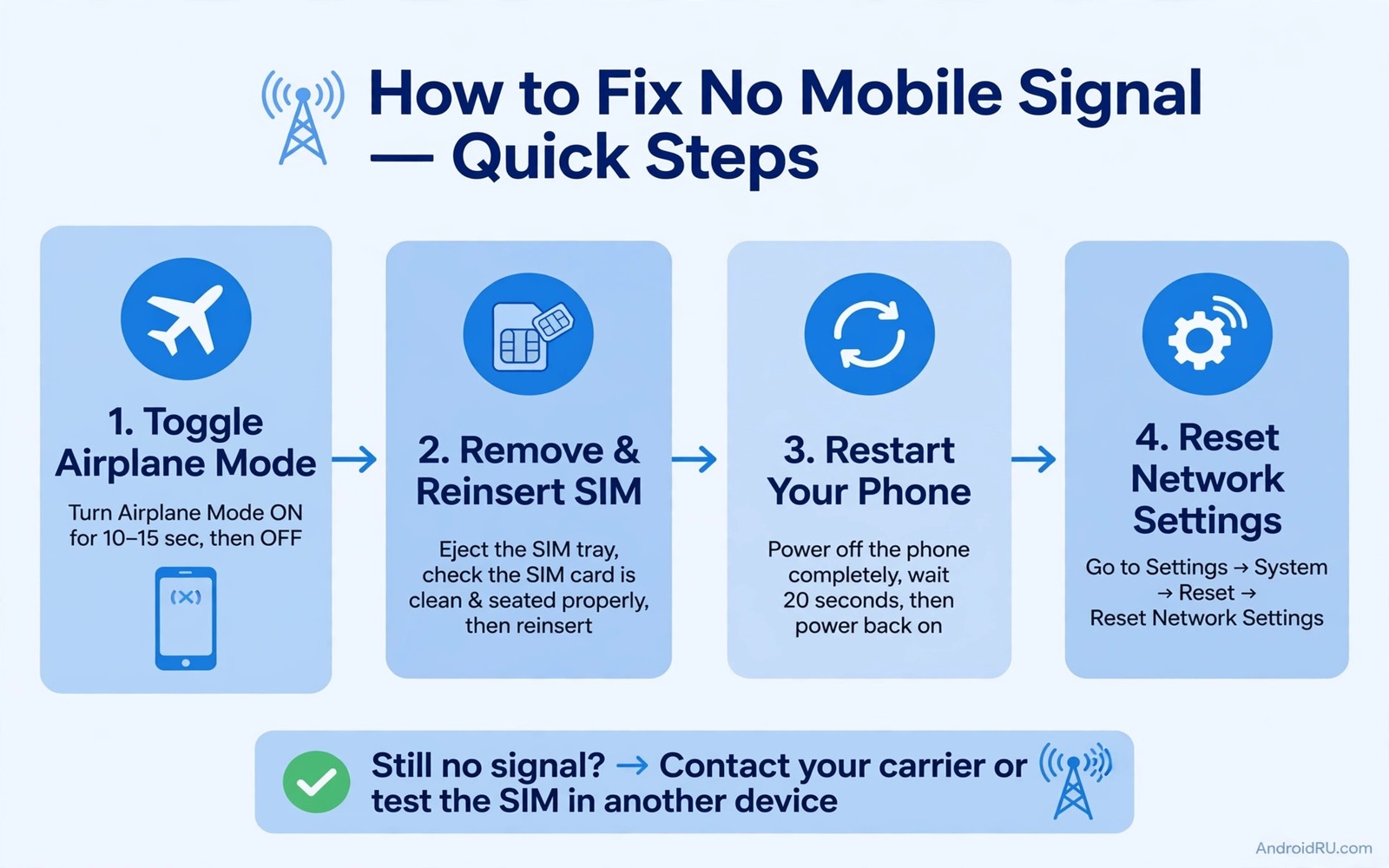
No signal turns a smartphone into a small tablet. Calls fail and mobile data vanishes and messages wait in a queue. The phone may show no SIM or emergency calls only or a signal icon with a cross through it. Each message points to a slightly different fault. A missing SIM message suggests the phone cannot read the card at all. An emergency calls only message suggests the card is read but the network rejects it. A crossed signal icon suggests the radio cannot find a usable tower. Reading the exact message saves time because it tells you where to start.
The SIM card is a tiny computer that stores your subscriber identity. The phone reads that identity through gold contacts in the tray. Dust or a bent contact or a loose tray can break that reading. Software can also block the connection through a wrong network mode or a stale carrier profile. The seven methods below move from physical checks to software resets. They stay in a safe order so you never erase data before a simple tray fix has had a chance to work. A faulty tray can affect more than calls, and contactless payment failures at terminals sometimes appear on the same phone.
Before you start note whether the fault began after a drop or after a software update or after travel. A drop points toward tray damage. An update points toward carrier settings. Travel points toward roaming settings or a network selection problem. That history helps you pick the most likely method first while still working through the full list if needed.
Method one and two: reseat the tray and inspect the card
Power off the phone completely before you touch the tray. Use the eject tool that came with the phone or a straight paperclip that fits cleanly. Pull the tray out slowly and look at the card orientation. The notched corner should match the tray shape exactly. A card forced in backwards can bend contacts and it can jam the tray. Remove the card and inspect the gold contacts for scratches or dirt. Wipe the contacts gently with a dry soft cloth and never use water or a metal tool.
Inspect the tray itself for cracks or bent edges. A cracked tray may sit slightly high and prevent full contact. Try the card in the second slot if your phone has dual SIM slots. A card that works in slot two but not slot one points to a slot fault rather than a card fault. Also try a different SIM in your phone if a friend can lend one for a minute. A different card that works proves your card is faulty. A different card that fails the same way proves the phone or its settings need attention. If contacts vanish after the same fault, restoring lost contacts after a software upgrade can recover them without a reset.
Method three and four: restart the radio and check network settings
Toggle airplane mode on for thirty seconds and then off again. This action forces the radio to release its old tower connection and search fresh. Many no signal faults clear at this step because the radio had locked onto a dead tower. If airplane mode does not help then restart the phone fully. A full restart reloads the modem software and rereads the SIM identity from scratch.
Open Settings then Mobile network and confirm that the correct SIM is selected for calls and data on a dual SIM phone. Check the preferred network type and set it to automatic if it was forced to a single mode. A phone forced to a mode that your area no longer supports will show no signal even with a perfect SIM. Also confirm that data roaming is set correctly for your location. Roaming off at home is normal while roaming off abroad can block service entirely.
Method five: update carrier settings and reset network settings
Carrier settings arrive as small updates that teach the phone how to connect to your provider. Check for a system update and for a carrier update in Settings. Install any pending update over WiFi and restart the phone after installation. If no update appears then reset network settings through Settings then System then Reset options. This reset clears WiFi passwords and Bluetooth pairings and mobile settings while keeping photos and apps intact. Reconnect to your home WiFi after the reset and test mobile signal again. Signal faults that follow an update may trace back to a stuck system update rather than the SIM itself.
Do not confuse a network reset with a factory reset. A network reset only touches connectivity settings. A factory reset erases everything and it should stay as a last resort. After a network reset the phone may take a few minutes to register on the network for the first time. Give it time on the home screen before you repeat other steps. If signal returns and then drops again then note the location because a weak tower area can mimic a phone fault.
Method six and seven: test the card elsewhere and seek carrier help
Insert your SIM into another phone to test the card itself. If the card works in another phone then your phone needs deeper inspection. If the card fails in another phone then ask your carrier for a replacement card. Carriers replace damaged cards quickly and the replacement keeps your number. Bring identification if your carrier requires it and ask them to confirm that the line is active and not suspended.
Ask the carrier to check for an account block or a provisioning fault. A line suspended for billing or a line moved to a new plan can lose network access even with a healthy card. The carrier can also reprovision the line from their side. That remote refresh sometimes restores service within minutes. When the phone also struggles with other wireless features the steps for contactless payment failures at terminals show how a different radio fault can follow a similar isolation pattern.
Check radio state with a diagnostic command
A diagnostic command can confirm whether the modem sees the SIM and the network. Connect the phone with debugging enabled and query telephony state. The output shows SIM state and service state in plain terms. A SIM state of absent after reseating points to hardware. A service state of out of service with a present SIM points to network or provisioning trouble.
adb shell dumpsys telephony.registry
adb shell getprop gsm.sim.state
The commands above are part of the standard platform tooling used to inspect telephony state on Android devices. They only read state and they do not change system files. Use the output to confirm the exact SIM state before you request a replacement card. A state that changes after reseating the tray proves that contact was the problem.
Related faults that can mask a SIM problem
A system update can break carrier registration even when the SIM card itself is healthy. The update may change modem settings or carrier profiles. The steps for a system update that gets stuck help you judge whether an update completed cleanly. Check the update date against the date signal failed. A failure that follows an update deserves a carrier settings update before a card replacement.
Contacts stored on the SIM can also disappear when the phone cannot read the card. The guide on restoring lost contacts after a software upgrade checks which account the contacts app displays. Compare SIM contacts with cloud contacts after signal returns. A phone that reads the SIM for calls but shows no SIM contacts may have a display filter fault. A phone that shows no signal at all has a deeper registration fault.
Test the card in a second phone before you visit a carrier store. A working card in a second phone proves the card is healthy. A failing card in a second phone proves the card needs replacement. Bring the exact on screen message to the carrier. Emergency calls only and no SIM and no service each point to a different carrier action.
What to do when signal stays missing after reseating the SIM
A signal fault that survives reseating may involve a carrier profile that needs refreshing. Ask the carrier to reprovision the line from their side. Reprovisioning refreshes the network registration without changing your number. The refresh can take a few minutes to reach the phone. Restart the phone after the carrier confirms the refresh and test signal outdoors.
Check whether the phone is locked to a different carrier. A carrier locked phone rejects SIM cards from other networks with a no service message. Insert a SIM from the original carrier if you can borrow one for a test. A working original carrier SIM proves a lock issue. A failing original carrier SIM proves a phone or account fault instead.
Test signal in several locations before you conclude that hardware has failed. A single weak tower area can mimic a phone fault for hours. Move to an open area near a main road and test again. A phone that finds signal outdoors has a coverage problem rather than a hardware problem. A phone that finds no signal anywhere needs carrier or hardware help.
- Ask the carrier to reprovision the line and restart the phone after confirmation.
- Test a SIM from the original carrier to rule out a carrier lock.
- Test signal outdoors in an open area away from thick walls.
- Check the preferred network type and set it to automatic if it was forced.
- Note the exact message on screen because each message points to a different fix.
When SIM card not detected becomes a daily frustration the systematic checks in this guide matter more than random fixes. Work through settings and sensor tests and storage checks in order. A fault that survives those checks with clear notes deserves professional attention rather than repeated resets.
Common mistakes
- Forcing the tray with the wrong tool. A thick pin can damage the eject mechanism and bend internal contacts.
- Cleaning contacts with water or a sharp object. Moisture and scratches both damage the gold surface and make reading less reliable.
- Factory resetting before testing the card in another phone. A reset cannot fix a dead card and it erases data for no benefit.
- Forcing a single network mode in a weak area. Automatic mode lets the phone fall back to an older network when the newest network is unavailable.
- Ignoring a carrier suspension. Account faults look exactly like hardware faults until the carrier confirms the line status.
Frequently asked questions
Why does my phone show emergency calls only?
Emergency calls only means the phone found a tower but your SIM is not accepted on that network. The card may be damaged or the line may be suspended or the phone may be locked to another carrier. Test the card in another phone and ask your carrier to check the line.
Can a software update cause no signal?
An update can change carrier settings or modem software and break registration temporarily. A network reset and a carrier update often restore service. If signal fails only after an update then note the version and check for a follow up patch.
Should I buy a new SIM tray first?
Buy a tray only after you confirm that the card works in another phone and that a known good card fails in your slot. A tray replacement helps only when the tray itself is cracked or bent. A damaged card needs a carrier replacement instead.
Conclusion
No signal faults divide cleanly into card faults and phone faults and network faults. The tray test and the other phone test separate those groups quickly. Airplane mode and network reset handle most software faults. Carrier provisioning handles the rest. Work through the seven methods in order and keep the exact on screen message in mind at each step.
Your concrete next step is to power off the phone and reseat the SIM after wiping its contacts with a dry cloth. Then power on and toggle airplane mode for thirty seconds. If signal does not return then test the card in another phone before you reset anything else.

