

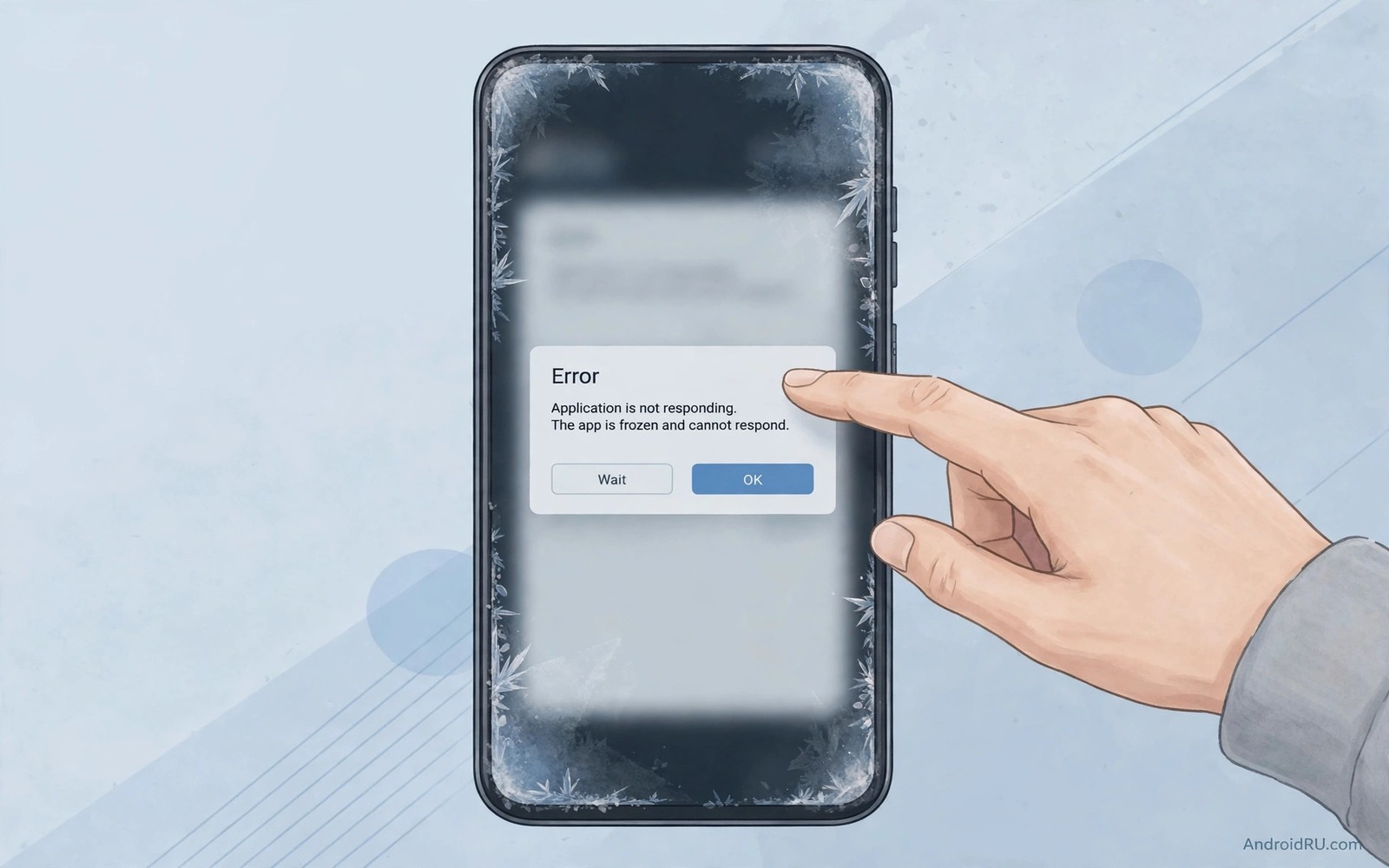
The popup appears at the worst possible moment. You tap an app and the screen freezes. A small dialog warns that System UI is not responding and offers to wait or close the app. System UI is the layer that draws your status bar and navigation bar and home screen controls. When that layer stalls the whole phone feels frozen even though the processor may still be working in the background. The fault is frightening because it looks like a total failure while the cause is often a single overloaded process.
Think of System UI as a stage manager. It keeps the top bar and bottom controls ready while apps perform on the main stage. If the stage manager gets stuck then taps seem to vanish and the picture stops updating. A full restart usually clears the stall because the stage manager reloads from scratch. Repeated popups after restarts point to a deeper cause such as a faulty theme or a launcher conflict or a system update that left stale data behind. If icons vanish while the status bar still works, apps missing from the home screen may be the real fault.
Do not panic and do not factory reset at the first popup. A reset is the last resort and it destroys data that a careful fix would have preserved. The steps below start with safe actions that take seconds. They move toward targeted cache clearing only when the simple steps fail. Each step tells you what to observe so you can stop as soon as the phone behaves normally again.
Respond to the popup in the right order
When the dialog appears tap Wait first and give the phone thirty seconds. System UI sometimes recovers on its own once a heavy task finishes. Tapping Close app immediately can kill the interface layer and leave you staring at a blank screen. If the phone recovers after waiting then note what you were doing just before the freeze. A specific app or a specific gesture often triggers the stall and that clue matters for the later steps.
If waiting does not help then press and hold the power button until the power menu appears. Choose Restart rather than Power off when the menu responds. A restart reloads System UI and clears temporary memory pressure. After the phone boots avoid opening the same heavy app right away. Open Settings first and confirm that the interface feels smooth. A smooth Settings screen after a restart suggests a temporary overload rather than permanent damage. Freezes that start right after an update can also trace back to a stuck system update rather than a theme.
Find the trigger behind repeated freezes
Repeated freezes usually follow a pattern. Ask yourself whether the popup appears when you pull down notifications or when you switch apps or when you unlock the phone. Notification shade freezes often involve a widget or a notification listener. App switch freezes often involve the launcher or recent apps view. Unlock freezes often involve a lock screen theme or a third party lock screen app. Narrowing the trigger lets you remove one suspect at a time instead of changing everything at once.
Boot into safe mode for one clean test if the popup keeps returning. Safe mode disables third party apps while keeping system apps running. If System UI behaves normally in safe mode then a third party app is the likely culprit. Restart normally and uninstall the most recently installed apps one by one. Test the phone after each removal so you can identify the exact app. A theme app or a custom launcher deserves early suspicion because both replace parts of the interface layer.
Clear stale interface data without losing personal files
Clear the cache of the system launcher through Settings then Apps. Use the storage screen and choose Clear cache only. This action removes temporary interface data while keeping your home screen layout and personal files intact. If your phone uses a separate System UI app entry then clear its cache as well. Avoid the Clear data button at this stage because it can reset interface preferences and remove stored settings that you actually want to keep. Sensor trouble can mimic an interface freeze, so slow or unresponsive screen rotation is worth ruling out early.
Check storage space next because a nearly full phone can stall System UI. The interface layer needs free space to write temporary files and to manage recent apps. Free at least a few gigabytes by removing large videos or unused apps. After freeing space restart the phone and test notification shade and app switching again. Storage pressure is an easy cause to miss because the phone may still open individual apps while the interface layer struggles. When storage keeps shrinking day after day the method in recovering storage that disappears every day helps you find the process that keeps eating free space.
Inspect system load with a diagnostic command
A diagnostic dump can show whether System UI is waiting on another process. Connect the phone with debugging enabled and capture the activity manager state. Look for System UI in the output and note whether it appears blocked or waiting. A blocked entry combined with a heavy third party process supports the safe mode result. A clean entry after a restart supports a temporary overload rather than a permanent fault.
adb shell dumpsys activity processes
adb shell dumpsys activity top
The commands above are part of the standard platform tooling used to inspect running processes on Android devices. They only read state and they do not modify system files. Use the output to confirm which process was active during a freeze. If a third party app dominates the list during every freeze then remove that app before you consider deeper system repairs.
Related interface faults that can mask a System UI freeze
The launcher draws the home screen while System UI draws the status bar and navigation controls. A launcher fault can look like a System UI fault because both affect the visible interface. The guide on apps missing from the home screen drawer checks hidden apps and disabled apps in the launcher. Test the notification shade separately from the home screen. A shade that works while the home screen fails points to the launcher. A shade that fails too points to System UI itself.
A system update can also leave System UI unstable. An update that sticks halfway can leave interface files in a mixed state. The steps for a system update installation that gets stuck separate a download stall from an installation stall. Check whether freezes began right after an update. A freeze that follows an update deserves a patch check before any app removal. A freeze that predates any update deserves a third party app hunt.
Keep a freeze diary for three days. Note the time and the app on screen and the gesture you used. A diary reveals patterns that memory hides. Notification shade freezes point to widgets. App switch freezes point to the launcher. Unlock freezes point to a lock screen theme. That pattern lets you remove one suspect at a time.
What to do when System UI keeps freezing after a restart
A System UI fault that returns after every restart may involve a corrupt theme or a faulty launcher update. Switch to the default theme for a full day. A default theme removes custom interface elements that can stall the interface layer. Test notification shade and app switching throughout the day. A stable day on the default theme proves the custom theme was the trigger. A freeze on the default theme proves a deeper system or app fault.
Check recent app updates for interface apps such as launchers and widget packs. An update to a widget can stall the interface when the widget refreshes. Remove widgets one by one from the home screen and test after each removal. A widget that triggers a freeze on refresh is easy to identify with this method. Keep widgets minimal until stability returns.
Monitor storage and memory during freeze periods. A phone with very little free space can stall interface services repeatedly. Free space and close heavy background apps before you judge a freeze pattern. A pattern that improves after freeing space points to resource pressure rather than a single faulty app.
- Switch to the default theme for a full day and test the notification shade repeatedly.
- Remove home screen widgets one by one and test app switching after each removal.
- Check for launcher and theme updates that arrived just before freezes began.
- Free several gigabytes of storage and close heavy background apps before testing.
- Note the exact gesture that triggers each freeze for a clear pattern.
When System UI isn’t responding becomes a daily frustration the systematic checks in this guide matter more than random fixes. Work through settings and sensor tests and storage checks in order. A fault that survives those checks with clear notes deserves professional attention rather than repeated resets.
Common mistakes
- Tapping Close app on every popup without ever tapping Wait. Waiting gives System UI a chance to recover and it reveals whether the stall is brief or persistent.
- Factory resetting after a single freeze. A single stall often follows a memory spike and a restart resolves it without any data loss.
- Clearing data for System UI as a first step. Clearing data resets interface settings and can create new problems while cache clearing would have sufficed.
- Installing a booster app to fix the interface. Booster apps add background load and they often make System UI stalls more frequent rather than less frequent.
- Ignoring storage pressure. A full phone starves the interface layer and no amount of cache clearing will help until free space returns.
Frequently asked questions
Will clearing launcher cache delete my home screen?
Clearing cache only removes temporary files. Your icons and folders and widgets remain in place. Clearing data is the action that resets the launcher layout so avoid that button unless you accept a full home screen rebuild.
Does safe mode delete my apps?
Safe mode only disables third party apps temporarily. Your apps and data stay on the phone and they return after a normal restart. Use safe mode as a diagnostic test rather than a permanent mode.
Should I update the system while System UI keeps freezing?
Install a pending update only after a clean restart and only when the phone feels stable for a few minutes. An update during an active freeze can interrupt installation. If the phone freezes during update checks then free storage and restart first.
Conclusion
A System UI popup signals a stalled interface layer rather than a dead phone. Wait first and restart second. Then hunt for the trigger with safe mode and cache clearing. Storage pressure and third party interface apps deserve attention before any drastic reset. Keep a short note of when each freeze happens because the pattern often names the culprit faster than any tool.
Your concrete next step is to restart the phone and then test the notification shade and app switching for ten minutes without opening the app that froze last time. If the popup returns during that clean window then boot into safe mode and test again. That comparison separates a third party trigger from a system fault.

