

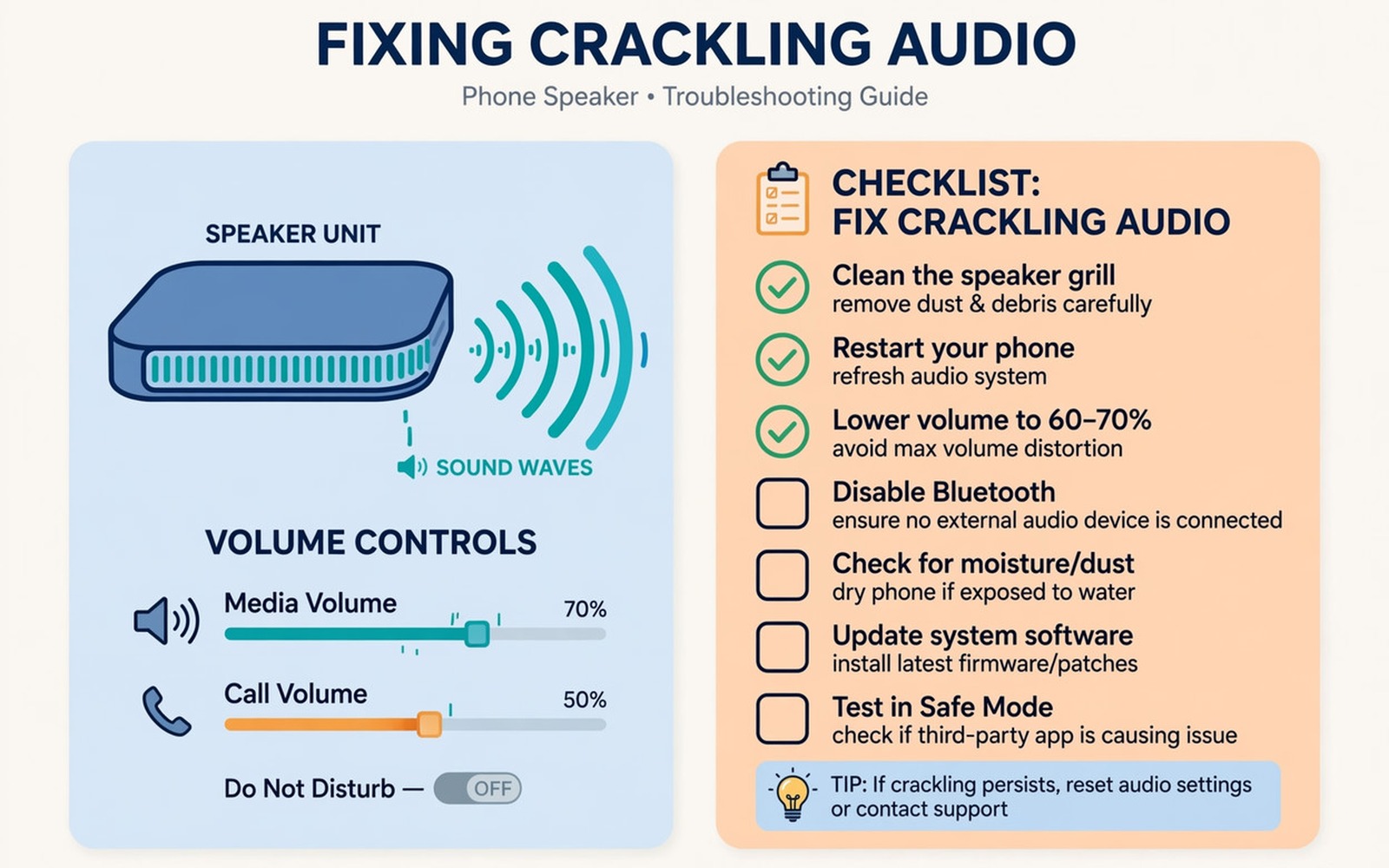
You play a song and the speaker crackles on loud notes and the volume feels far lower than before. You raise the volume to maximum and the sound gets worse instead of louder. That pattern suggests the speaker itself or its path is struggling.
Crackling happens when the speaker cone cannot move freely or when the audio signal clips at high volume. Dust in the grille can block sound and create distortion. Water damage can also stiffen the speaker and reduce volume. Software limits can lower volume after an update as well. Speaker faults are easy to confuse with accessory faults, because earbuds sounding louder on one side can make a healthy phone speaker seem unbalanced by comparison.
This guide helps you separate a dirty grille from a software fault and from a damaged speaker. Test with different audio types and volumes so you can describe the fault clearly if repair becomes necessary.
Clean the speaker grille safely
Look at the speaker grille with a torch and check for dust or lint packed into the holes. Dust blocks sound and it can make the speaker sound muffled and quiet. Use a soft brush to clear the grille gently.
Use short bursts of compressed air from a safe distance if brushing does not help. Do not blow hard directly into the grille because pressure can damage the speaker. Test audio after each cleaning step so you know what helped.
Remove a case that covers the speaker grille partially. A case with a poor cutout can muffle sound and create a buzzing effect. Test without the case and compare volume at the same setting.
Test volume across apps and modes
Play the same song in a music app and then in a video app and compare volume. If one app sounds quiet and the other sounds normal then the app volume or equaliser is at fault. Check in-app volume and equaliser settings for the quiet app.
Test with headphones and then with the speaker. If headphones sound clear and loud then the fault sits in the speaker path. If headphones also crackle then the audio file or the system audio path is suspect.
Turn off equaliser and sound enhancement features for a test. Those features can clip audio at high volume and create crackling on loud notes. If crackling stops without enhancement then lower the enhancement level instead of using maximum volume.
Check software limits and updates
Open Settings and then open Sound and check media volume and any absolute volume or hearing protection limit. A limit can cap volume after an update without a clear warning. Raise the limit carefully and test at a moderate volume first.
Restart the phone in safe mode and test the speaker there. Safe mode disables third-party audio apps that might alter sound. If the speaker sounds clear in safe mode then a third-party app is altering audio.
Check for a system update that fixes audio driver bugs. Audio fixes often arrive in small updates. Install the update and test the same song at the same volume for a fair comparison. If calls also sound muffled then the steps for fixing a phone microphone that does not work on calls can help you separate speaker faults from call audio routing.
Handle water and physical damage
Use a speaker cleaning tone at a moderate volume if the phone recently got wet. A cleaning tone can help push water out of the grille through vibration. Do not use maximum volume for cleaning because that can damage a wet speaker further.
Let the phone dry fully before you test at high volume after water exposure. A wet speaker sounds distorted until it dries. Charging a wet phone can also cause damage so follow your phone maker drying guidance.
Seek repair if crackling persists after cleaning and software tests and at all volumes. A torn speaker cone cannot be fixed by settings. A repair shop can replace the speaker module and restore normal volume.
adb shell dumpsys audio
adb shell service call audio 3
adb shell settings get system volume_music_speaker
The commands above were prepared for this guide and they use only standard tools that ship with Android developer tools. They show audio service state for advanced users who want to confirm volume settings before changing them.
While you work through these steps it helps to compare symptoms with other fixes in the same area. For example the steps for microphone problems on calls show how a related fault behaves differently and the steps for Bluetooth pairing problems help you rule out a second fault that shares early symptoms.
Common mistakes
One common mistake is pushing a pin into the speaker grille to clear dust. A pin can puncture the speaker cone and make crackling permanent. Use a soft brush only. Another mistake is testing only at maximum volume where clipping hides the real fault.
Another mistake is blaming the speaker when one app has a low volume setting. Test the same audio in two apps before any repair decision. A single app fault is far cheaper to fix.
A third mistake is using maximum volume to dry a wet speaker. High volume on a wet speaker can tear the cone. Use a moderate cleaning tone and let the phone dry first.
A week-long speaker test that proves the fix
Play the same song at the same volume each day for a week and rate crackling from one to five. A steady rating after cleaning shows whether cleaning helped or whether the fault is deeper. A rating that worsens after water exposure points to a speaker that still needs drying time.
Test a spoken podcast on day three and a bass heavy song on day four. Speech reveals muffling while bass reveals cone distortion. Different audio types give different clues about grille blockage versus cone damage.
Test with a second speaker output such as a Bluetooth speaker on day five. A Bluetooth speaker that sounds clear while the phone speaker crackles isolates the fault to the phone speaker. A Bluetooth speaker that also crackles points to the audio file or the system path.
Long-term habits that protect speaker clarity
Brush the speaker grille gently once a month if you carry the phone in a pocket. Pocket dust builds slowly and it muffles sound long before you notice a sudden change. Monthly brushing prevents that gradual decline.
Avoid maximum volume for long periods because clipping at maximum volume stresses the speaker cone. Seventy to eighty percent volume is loud enough for most rooms and it preserves speaker life. Save maximum volume for short noisy moments.
Keep the phone dry and let it dry fully after any water exposure before playing loud audio. A wet speaker played loudly can tear more easily than a dry speaker. Patience after water exposure protects the speaker.
What to do when the speaker still crackles after cleaning
Test the speaker at a low volume for a long period and note whether crackling appears only at high volume. High-volume-only crackling points to clipping or cone limits. All-volume crackling points to cone damage or a loose connection.
Check whether the speaker grille has a dent or a puncture from a previous cleaning attempt. A punctured grille can expose the cone to dust and damage. A repair shop can assess grille damage without opening the whole phone in some cases.
Test audio through a wired headset to confirm the system audio path is clean. A clean headset output with a crackling speaker isolates the fault to the speaker module. That isolation helps you authorise a speaker replacement confidently.
Keep volume moderate while you wait for repair to avoid worsening cone damage. A damaged cone played loudly can tear further. Moderate volume preserves the speaker for basic use until repair.
Testing speaker audio with a second file and a second volume
Test the speaker with a high quality audio file and a low quality file on separate days. A low quality file can crackle even on a healthy speaker. A high quality file test removes file quality from the diagnosis. Crackling on both files points to the speaker or system.
Test the speaker at twenty percent volume and at fifty percent volume for a long period. A low volume test reveals muffling without clipping. A medium volume test reveals distortion that low volume hides. Comparing those two levels helps separate muffling from clipping.
Test the speaker after a restart and after a full day of use. A restart test removes stuck audio processes from the results. A speaker that sounds clear after a restart but crackles later points to a process that degrades audio over time.
Test the speaker with the phone lying flat and held in your hand. A hand test can block the speaker grille partially and change the sound. A flat test gives the speaker a clear path for sound. A large difference between those tests points to handling or case blocking.
Test the speaker in a quiet room and in a noisy room to check perception versus reality. A noisy room can make a healthy speaker sound quiet and distorted. A quiet room test gives a fair assessment of true volume and clarity.
Record a short audio sample of the speaker with another device for comparison. A recording lets you hear the crackling objectively later. It also gives a repair shop evidence of the fault pattern.
Test the speaker one final time with a voice call on speakerphone after music tests. A call test uses a different audio path from music and it can reveal a call-specific fault. If music sounds clear but speakerphone calls crackle then call audio processing deserves attention. That final test completes a thorough speaker diagnosis.
Frequently asked questions
Why does my speaker crackle only on bass notes?
Bass notes move the speaker cone the most and they reveal dust or damage first. A blocked grille or a stiff cone distorts bass before it distorts speech. Cleaning often improves bass first.
Why is speaker volume lower after an update?
Updates can reset volume limits or sound enhancement settings. Check media volume and any hearing protection limit after an update. Restoring those settings often returns normal volume.
Can I replace a phone speaker myself?
Speaker replacement needs opening the phone and it can break waterproof seals. A professional repair protects seals and tests the new speaker properly. Do not open a sealed phone without proper tools.
Conclusion
Speaker crackling and low volume usually start with a dirty grille or a software limit rather than a dead speaker. Clean gently and test across apps and turn off enhancement for a clean test. Check volume limits after updates and test in safe mode if needed. If crackling persists at all volumes after those tests then book a speaker replacement. Start today by brushing the grille and playing the same song at seventy percent volume without enhancement.

