

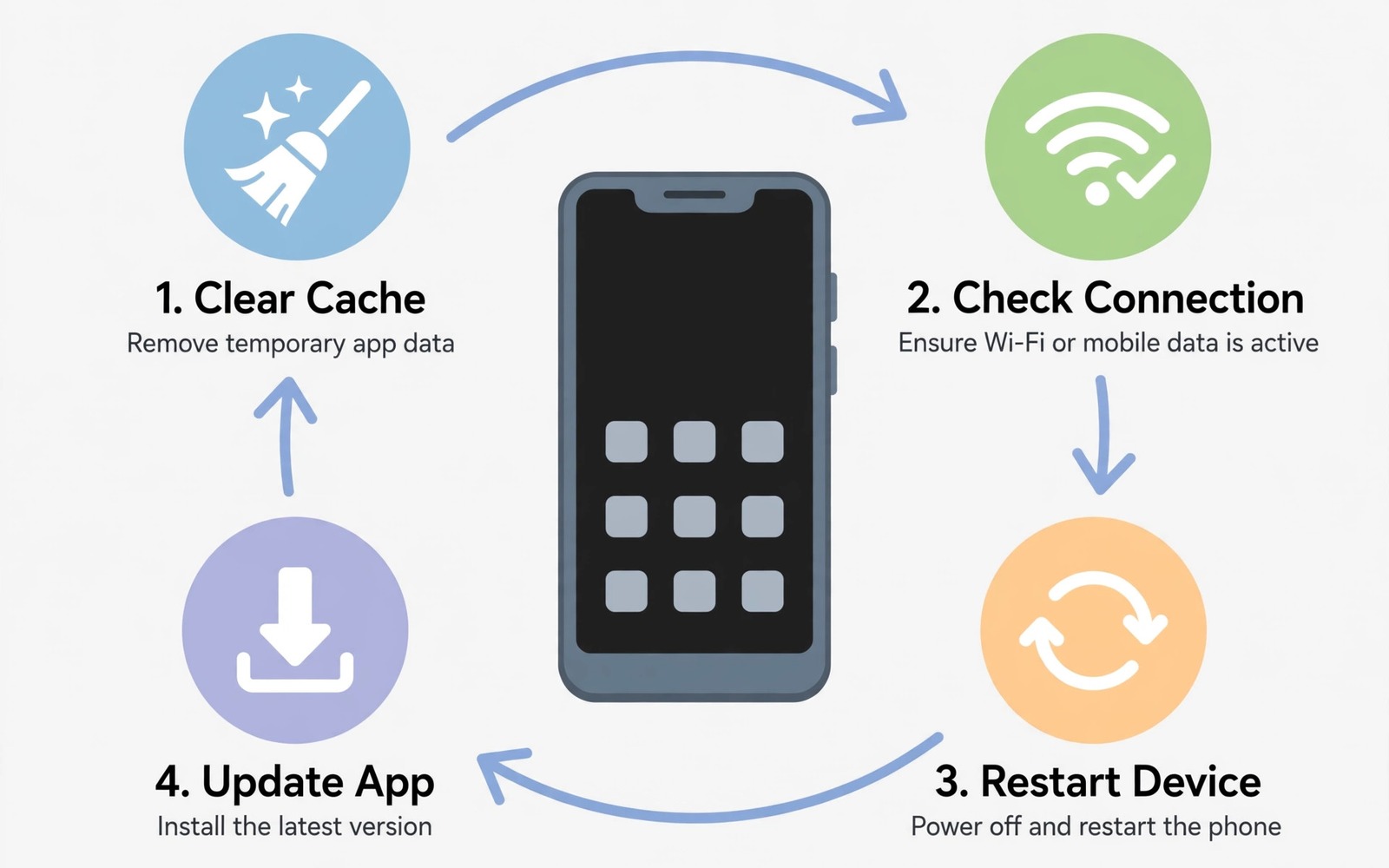
The Play Store crash message appears at the worst moment. You try to update an app and the store closes at once. You try to install a new app and the error returns. Updates stall and new apps wait. Most Play Store crashes come from corrupted cache or a stuck service or a bad account sync. Seven fast fixes cover nearly all of those causes. Work through them in order and test the store after each fix.
Start with the quickest fixes first. A simple restart clears temporary faults that look serious. A cache clear removes corrupted temporary files without touching your apps or purchases. A data clear resets the store app itself but keeps your account purchases safe in the cloud. Only the later fixes touch accounts or system settings. That order protects your data while solving the problem fast.
Check your connection before you blame the store. A weak mobile signal or a faulty Wi-Fi network can make the store crash during loading. Switch between Wi-Fi and mobile data for one test. If the store works on one connection but not the other then the network is the fault. Fixing the store app will not help a broken network. Test the connection early to avoid wasted effort.
Fix One And Two: Restart And Clear Cache
Restart the phone fully rather than just locking the screen. A full restart clears stuck processes and frees memory. After restart open the Play Store and try a small app update. If the crash returns then move to cache clearing. Open Settings and then Apps and then find Google Play Store. Tap Storage and then Clear cache. Do not tap Clear data yet. Cache clearing removes temporary files only. Your apps and account stay untouched.
Also clear cache for Google Play Services in the same Apps menu. Play Services powers much of the store behaviour behind the scenes. A corrupted Services cache can crash the store even when the store cache looks fine. Clear its cache as well and restart the phone again. Test the store after this second restart. Many crashes vanish at this stage because both caches refresh together.
If the store still crashes then check storage space. A phone with almost no free space cannot update the store or download apps. Free at least one gigabyte by deleting large videos or unused apps. The store needs working room for temporary download files. Low storage crashes look like store bugs but they are really space faults. Freeing space fixes them at once.
Fix Three And Four: Clear Data And Update Services
Clearing Play Store data resets the store app to a fresh state. Open Settings and then Apps and then Google Play Store and then Storage and then Clear data. This step removes local store settings and search history. It does not remove your purchased apps or your Google account. After clearing data open the store and accept the setup prompts again. The store will rebuild its local data on first launch. That rebuild takes a minute on a good connection.
Next update Google Play Services itself if an update is available. Open the store web page for Play Services through your browser if the app store will not open. Alternatively check system updates in Settings. An outdated Services version can clash with a newer store version. That clash causes repeated crashes after every launch. Keeping Services current prevents many store faults before they start. Restart after any Services update and test again.
Also check the system date and time. A wrong date breaks secure connections to Google servers. The store may crash rather than show a clear certificate error. Set date and time to automatic in Settings. A phone that travelled across time zones or suffered a dead battery can drift badly. Automatic time fixes the drift and restores secure connections at once. This tiny setting solves a surprising number of store crashes.
Fix Five And Six: Account Sync And Network Reset
Remove and re-add your Google account only after the earlier fixes fail. Open Settings and then Accounts and then Google and then remove the account. Restart the phone. Add the same account back with your password and verification step. Re-adding forces a fresh sync of purchases and licences. It fixes account corruption that cache clearing cannot touch. Note that removing an account also removes synced contacts and mail from the device until you add it back. Your cloud data stays safe throughout.
Reset network settings if the store crashes only on one network type. Open Settings and then System and then Reset options and then Reset Wi-Fi mobile and Bluetooth. This step forgets saved Wi-Fi networks and Bluetooth pairings. It does not erase apps or photos. Reconnect to your Wi-Fi network with its password after the reset. A corrupted network configuration can stall store connections and trigger crashes during downloads. A clean network slate often restores stable store behaviour.
Test downloads on mobile data after a network reset if Wi-Fi still fails. A router fault can mimic a store fault perfectly. Restart your router and test the store on another Wi-Fi network if possible. A café or office network gives a useful comparison. If the store works elsewhere then your home network needs attention rather than your phone. That distinction saves you from unnecessary account changes.
Fix Seven: System Update And Final Checks
Check for a system update in Settings. A buggy system version can crash the store through a framework fault. Makers often fix such faults in the next patch. Install any available update on Wi-Fi with a good battery level. After updating restart and test the store again. Also check whether a recent app update coincided with the crashes. Uninstalling a recently updated system WebView component in some cases restores store stability. Use that step cautiously and only if crashes began right after an update.
Boot into safe mode as a final diagnostic if crashes persist. Safe mode disables third party apps temporarily. If the store works in safe mode then a third party app interferes with it. Restart normally and uninstall recently installed apps one by one. Test the store after each removal. A VPN app or a cleaner app or an aggressive battery app often causes the interference. Removing the culprit restores normal store behaviour without a factory reset.
Factory reset remains a last resort only. It erases all local data and takes hours to restore. Try every fix above first. Back up photos and messages before any reset. Most users never need a reset for a store crash. The seven fixes above solve the vast majority of cases when applied in order. For download specific stalls also read how to resolve the download pending error in Play downloads and for broader app instability read five steps to fix apps crashing on launch.
fix_1 = restart_phone
fix_2 = clear_play_store_cache
fix_3 = clear_play_store_data
fix_4 = update_play_services
fix_5 = readd_google_account
# test store after each fix
# never factory reset before safe mode test
The snippet above is an original example written for this guide. It shows a generic fix order you can adapt to your own phone. It does not copy code from any outside source.
Follow the order strictly and test after each step. Skipping to account removal wastes time when a simple cache clear would have worked. Testing after each step also tells you which fix solved the problem. That knowledge helps you fix a repeat crash faster next time.
System WebView updates can also affect store behaviour indirectly. WebView renders web content inside many apps including parts of the store flow. A faulty WebView update can cause crashes in apps that depend on it. If store crashes began right after a WebView update then uninstalling WebView updates through system app settings sometimes restores stability. The system will reinstall a corrected WebView version later through normal updates. Use this step only when timing points clearly at WebView. Randomly removing system components creates new faults.
Multiple Google accounts on one phone can confuse store licensing in rare cases. An app purchased under one account may fail to update when another account sits active. Check which account the store uses for the failing app. Switch to the purchasing account and retry the update. Remove old unused accounts that no longer belong on the phone. A clean account list reduces licensing confusion and speeds store sync. Keep only accounts you actively use on that device.
Common Mistakes
Many users clear data before clearing cache and lose store settings unnecessarily. A second mistake is factory resetting for a store crash before trying safe mode. A third mistake is ignoring storage space. A fourth mistake is removing an account without noting the password and verification method.
A fifth mistake is blaming the store for a home network fault. A sixth mistake is installing a third party store fix app that adds malware risk. Use only built in settings for store repairs. A seventh mistake is forgetting to check date and time after travel or battery drain.
Frequently Asked Questions
Question: Will clearing Play Store data delete my purchased apps?
Answer: No. Purchases stay tied to your Google account in the cloud. Clearing data only removes local store settings. You can reinstall purchased apps after signing in again.
Question: Why does the store crash only on Wi-Fi?
Answer: A router fault or a corrupted Wi-Fi configuration often causes that pattern. Test on mobile data and on another Wi-Fi network. Reset network settings if the fault follows your home network only.
Question: Should I disable Play Services to stop crashes?
Answer: No. Disabling Play Services breaks many apps and system features. Update Services instead. Disabling it creates far more problems than it solves.
Conclusion
Play Store crashes usually yield to a calm ordered sequence. Restart and clear cache and clear data and update Services and check time and re-add the account and reset the network. Test after each step. Your concrete next step is to restart your phone now and clear Play Store cache and Play Services cache. Open the store and try one small update. If it works then you are done in minutes. If it still crashes then continue down the list without jumping to a factory reset. For related download faults read how to fix a phone that will not turn on or charge only if power issues join the store fault and how to fix a boot logo loop if the phone stalls during restart.

