

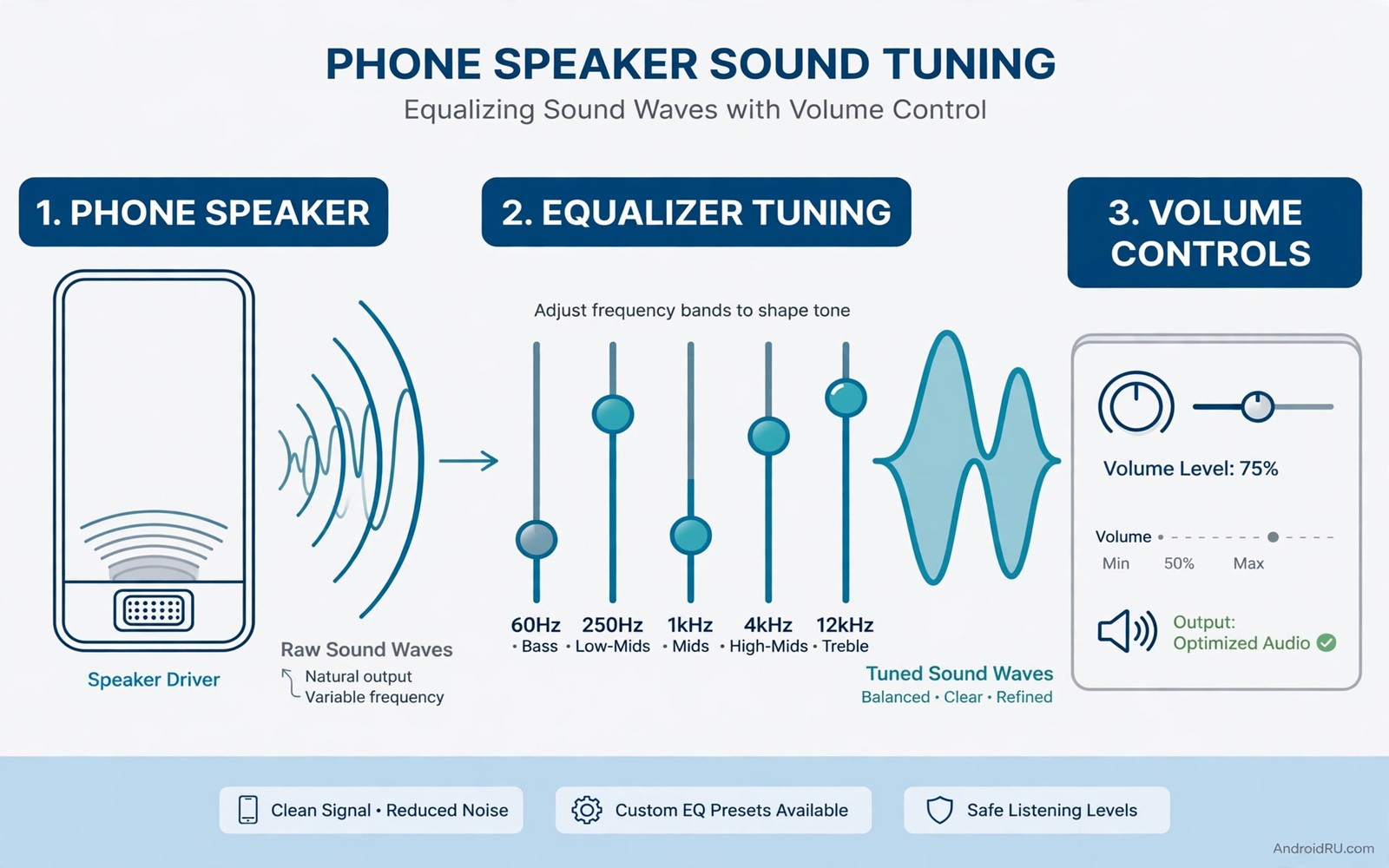
A phone speaker can ruin an otherwise good video or call. Sound may come out thin and harsh at high volume. Bass may vanish completely on a small speaker. Voices may sound distant in a noisy room. An audio app can improve that experience with equaliser and volume tools. This guide shows what such an app can fix and what it cannot fix on hardware alone.
Start by describing the exact sound problem you hear. Thin sound usually means weak bass and strong treble. Muddy sound usually means too much low midrange and poor clarity. Quiet sound usually means a low maximum volume or a blocked speaker grille. Each problem needs a different fix. An equaliser preset that boosts bass will not help a blocked grille. Cleaning the grille may help more than any software preset.
A good audio app offers an equaliser with bands you can adjust by hand. Presets help as a starting point but hand tuning matches your speaker and your ears. A bass boost should add warmth without distortion. A treble cut should remove harshness without making voices dull. Adjust one band at a time and listen to a familiar song after each change. Familiar audio makes small changes easy to hear.
Volume tools need care because pushing a small speaker too hard causes distortion. A volume booster that drives the speaker beyond its design can damage it over time. A loudness tool that compresses dynamics can make quiet parts audible without peak distortion. Prefer compression and clarity over raw maximum volume. A clear sound at a safe level beats a loud distorted sound every time.
How an audio app improves phone sound
An equaliser reshapes frequency balance to suit a small speaker. Small speakers struggle with deep bass so a smart preset lifts the upper bass rather than the deepest bass. That lift adds warmth without asking the speaker to do the impossible. It also keeps the sound clean at higher volumes. A preset that boosts deep bass on a tiny speaker only adds rumble and distortion.
A compressor evens out volume differences within a song or a video. Quiet dialogue becomes audible without making loud effects painful. That benefit matters most for movies watched on a phone speaker. It also helps podcasts recorded at uneven levels. Set compression lightly at first because heavy compression can make music feel flat and lifeless.
A spatial tool can widen the sound image on a stereo phone. It uses phase tricks to make two close speakers feel wider. That effect can improve music on a phone held in landscape. It can also harm dialogue clarity if pushed too far. Test spatial tools with speech as well as music before you leave them on for everything.
Testing an audio app on real content
Test with a song you know well and a podcast episode and a video call. A song tests bass and treble balance across a full range. A podcast tests voice clarity at a normal listening level. A video call tests whether the app affects microphone or call audio at all. Many audio apps affect media only and leave call audio untouched. Knowing that limit prevents disappointment during an important call.
Test at three volume levels rather than only at maximum. Low volume tests whether quiet dialogue stays clear. Medium volume tests everyday listening comfort. High volume tests distortion and harshness at the limit. An app that sounds good only at one level will disappoint in daily use. A balanced preset should work across all three levels with small tweaks.
Test with and without headphones to separate speaker fixes from general fixes. A preset tuned for a speaker may sound wrong on headphones. A preset tuned for headphones may sound thin on a speaker. Keep separate presets for speaker and headphones and switch automatically if the app offers that feature. Separate presets prevent a good headphone tune from ruining speaker sound.
adb shell dumpsys audio 2>/dev/null | head -40This brief command was written to show audio service details on a connected device. It shows a simple command that prints audio service details on a connected device. You can use the output to check audio routing before you blame an app for a speaker problem.
Audio quality also depends on the source file and the player behind it. A low bitrate stream will sound poor no matter how strong the equaliser. A good player with a clean output gives an audio app a better starting point. That is why a broader look at must-have Android apps can help you pair a player with an audio tool. Test the audio app with a high quality local file first to judge its true effect.
Tuning sound for different rooms and situations
A quiet room needs a different preset from a noisy street because background noise masks quiet details. A quiet room preset can favour clarity and gentle bass without pushing volume. A noisy street preset can lift midrange voices so speech stays intelligible over traffic. Switching presets by situation beats a single preset that compromises everywhere. Keep two presets and switch manually until an app learns your routine.
A small room with hard surfaces reflects sound differently from a large soft furnished room. Hard surfaces can make treble sound harsh at higher volumes. A slight treble cut in a hard room restores warmth without losing clarity. Soft furnishings absorb treble so a slight treble lift may help in a carpeted room. Room tuning sounds fussy but a small adjustment makes a noticeable difference on a phone speaker.
Outdoor listening needs volume and clarity more than bass depth because wind and traffic compete with the speaker. A preset that lifts voices and reduces deep bass attempts will sound clearer outdoors. Deep bass attempts outdoors only add distortion that wind already masks. Save bass heavy presets for indoor listening where the speaker can breathe. Situation aware presets turn a mediocre speaker into a more versatile tool.
Protecting a small speaker while improving sound
Distortion is the clearest warning that a preset pushes a speaker too hard. A crackling sound on bass notes means the speaker cone reaches its limit. Reduce bass boost and overall volume as soon as distortion appears. Continuing to push a distorting speaker can cause permanent damage over time. A safe preset sounds clean at maximum comfortable volume rather than loud at the cost of clarity.
Heat also affects a small speaker during long loud sessions. A phone that grows hot during a long video may throttle audio output to protect itself. Let the phone cool before judging a preset that sounded worse after an hour. A preset that sounds good in a cool test may sound different when the device heats up. Thermal limits are part of phone audio reality rather than a fault in the app.
Source quality limits any audio improvement because a poor stream cannot gain detail from equalisation. A high quality local file gives an audio app a clean starting point for tuning. That pairing of player and tuner appears in must-have Android apps where media tools complement each other. Test audio tuning with a high quality file first so you judge the app rather than the stream.
Audio for podcasts and calls
Podcasts benefit from audio tuning differently from music because voices occupy a narrow frequency range. A preset that lifts midrange clarity makes podcast voices easier to follow in a noisy room. A preset that boosts bass for music can make podcast voices sound boomy and unclear. Keep separate presets for podcasts and music and switch between them manually. Separate presets respect the different sound goals of speech and music.
Calls use a separate audio path on most phones so media tuning rarely affects call clarity. A call that sounds poor may stem from network quality or microphone placement rather than an equaliser setting. Test call quality in different locations before blaming an audio app. A call improvement claim should be verified with real calls rather than with media playback alone. Knowing the separate path prevents disappointment when media tuning does not change calls.
Media tools work best as a set because a player and an editor and an organiser each handle a different job. A photo editor handles images while an audio app handles sound and both benefit from a clean export habit. That general principle is illustrated by a free photo editor that does everything which judges a tool by its exported result. Judge an audio app the same way by its sound at your normal volume rather than by its screen alone.
Monitoring battery use during long listening sessions shows whether an audio app drains power excessively. That is why system monitor apps for hardware health belongs in an audio test after a week of daily listening.
Common mistakes
The biggest mistake is boosting every band to maximum and expecting better sound. A flat boost at all frequencies only raises volume and distortion together. It does not improve balance or clarity. Start from a flat preset and adjust one band by a small amount. Small targeted changes beat a dramatic all band boost every time.
Another mistake is ignoring a blocked speaker grille or a damaged speaker. Dust and lint in a grille muffle sound in a way software cannot fix. Clean the grille gently with a soft brush and test again before you buy or install anything. A physical problem needs a physical check before a software solution.
Frequently asked questions
Can an app make a phone speaker sound like a large speaker?
No. Physics limits how much bass a small speaker can produce. An app can improve balance and clarity within those limits. It cannot create deep bass that the hardware cannot move air to produce.
Will a volume booster damage my speaker?
It can if it drives the speaker beyond safe limits for long periods. Use modest boosts and listen for distortion as a warning. Stop increasing volume as soon as distortion appears.
Does an audio app work for calls as well as media?
Most audio apps affect media playback only. Call audio often uses a separate path that apps cannot reshape. Check the app description for call support before you expect a call improvement.
Conclusion
Clean your speaker grille today and test a familiar song at medium volume. Install one audio app and tune a single preset for speaker use only. Keep it only if voices sound clearer and music sounds warmer without distortion at your normal volume.

