

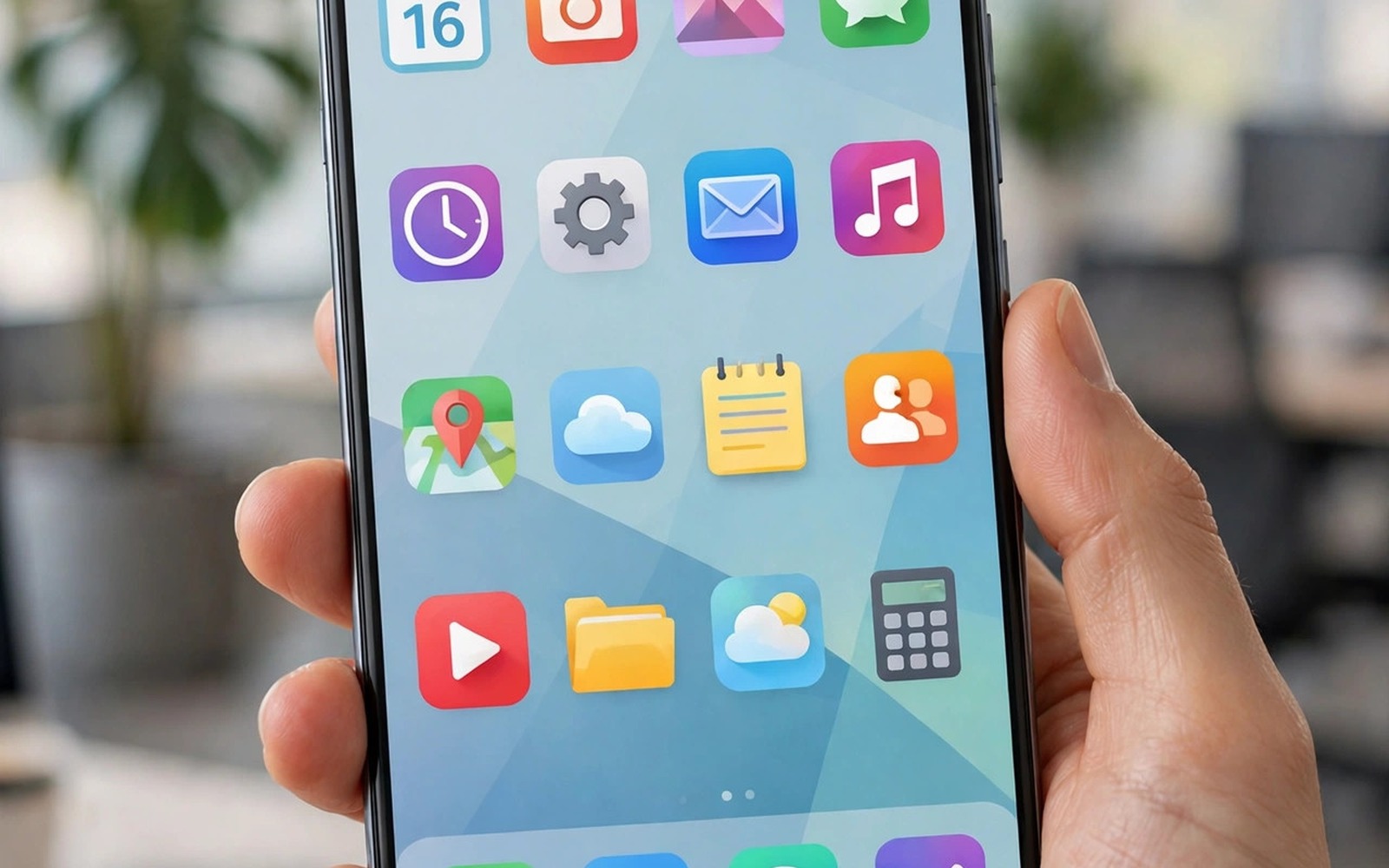
7 Essential Apps Every Android Power User Installs First
Setting up a new phone feels exciting until the same setup takes hours again. Power users avoid that waste by installing a small core set first. Those seven apps cover files, automation, monitoring, and search, and they also set the habits that make later installs easier to judge. This guide explains that core set in the order a power user actually installs it, names the apps that earn each slot, and shows how to configure them so the whole setup becomes invisible in daily use.
A power user setup starts with control rather than entertainment. Control apps show what the phone does and let you change it. Entertainment apps can wait until the core works smoothly, because that order prevents a new phone from filling with games before basic tools exist. It also makes troubleshooting easier, since the core set is small and known. Each core app should earn its place by solving a daily problem — and if an app does not solve a daily problem, it does not belong in the core set, no matter how popular it sounds.
Why Power Users Start With Control, Not Entertainment
A file manager solves finding and moving files. An automation app solves repeated settings changes. A monitor solves mystery battery drain. A search app solves finding anything instantly. Install the core set one app at a time and configure it fully before moving on, because a half-configured automation app creates confusing behaviour later, and a half-configured file manager leaves folders in two places. A fully configured core app becomes invisible in daily use, and invisibility is the goal, because it means the tool works without constant attention.
The order matters as much as the choice. Files come first because every other tool depends on finding things quickly. The launcher comes second because it is the front door to everything else. Automation comes third because it needs the file and launcher habits to already exist. The monitor, the search, the notes, and the backup follow in that order, each one building on the habits the previous apps created.
The 7 Essential Apps, in Install Order
Install these in order, configure each one fully, and live with it for a day before adding the next. Each entry tells you what the app does, who it suits, what it costs, and where it falls short.
1. Solid Explorer — The File Manager
What it does: Solid Explorer is a two-panel file manager with strong search, batch tools, cloud storage support, and network shares. It becomes the home base for downloads, documents, and media, and its dual-panel layout makes copying between folders genuinely quick. Configure favourite folders for work and personal files on day one, and set a simple naming habit for new downloads. Who it is for: anyone who moves files between phone, cloud, and computer, and anyone whose downloads folder has become a junk drawer. Pros: fast, powerful, and the best batch tools on Android, with a layout that survives years of use. Cons: it is a paid app after the trial, and its power can confuse casual users. Verdict: the first install on every new phone, because a good file base prevents the chaos that makes later tools feel slow.
2. Nova Launcher — The Launcher
What it does: Nova Launcher lets you shape the home screen for speed, placing the core apps on the first screen and grouping the rest by job. It offers gesture controls, custom grids, and a layout backup that restores your whole home screen on a new phone in minutes. Who it is for: anyone who wants the home screen to reflect their habits instead of the manufacturer’s defaults. Pros: fast, deeply customisable, and fully reversible, with a backup that turns a new phone setup into a ten-minute restore. Cons: the best gestures hide behind the paid Prime version, and a launcher that forces a new layout on every update would annoy you within a month — Nova does not, but cheaper launchers often do. Verdict: the second install, because a launcher that respects your layout choices will survive many app changes. Disable animations that slow an older phone, and keep the first screen to the core apps only.
3. MacroDroid — The Automation App
What it does: MacroDroid automates repeated settings changes with triggers such as time, charger connection, location, and Wi-Fi network. Build one quiet profile rule first, such as silencing notifications during meetings, and one backup rule, such as turning on Wi-Fi backup when the phone charges overnight. Who it is for: anyone who changes the same settings every day and wants the phone to do it itself. Pros: far easier to learn than Tasker, with templates that cover the common cases, and a free tier that handles a small rule set. Cons: complex rules still need care, and a large untested set of rules creates confusing behaviour. Verdict: the third install, because automation should feel like a quiet helper rather than a clever demo. Test both rules for a week before adding more — a small proven set beats a large untested set every time.
4. AccuBattery — The System Monitor
What it does: AccuBattery tracks battery health, charge cycles, and per-app drain, and it shows which app or update changed your battery behaviour. Record a baseline during the first week on the new phone, because that baseline helps you spot a bad app or a bad update later. Who it is for: anyone who has ever wondered why the battery suddenly drains faster, and anyone who wants to know their battery’s real health. Pros: clear battery health estimates, per-app drain history, and charge alarms that protect long-term battery life. Cons: the most useful history features need the paid version, and it takes a week of data before its estimates become accurate. Verdict: the fourth install, because a monitor without a baseline only shows numbers without context, and context turns a number into a decision.
5. Sesame — The Universal Search App
What it does: Sesame is a universal search app that finds files, apps, settings, contacts, and shortcuts instantly, from a single search bar. A search-first habit reduces taps across the whole phone: type a few letters instead of hunting through folders and drawers. Who it is for: anyone with more than a hundred apps, and anyone who wastes time hunting for a setting they used once. Pros: blazingly fast, learns your habits, and works as a front door to every other core app. Cons: it is a paid app, and it needs accessibility permission to search inside some apps. Verdict: the fifth install, because speed from search compounds faster than speed from any single app feature, and it changes how you reach files and settings across the whole phone.
6. Joplin — The Notes App
What it does: Joplin is a notes app that opens to a blank page in one tap, syncs across devices, and exports everything as plain text, so your ideas stay portable for years. Capture ideas before they fade and organise them later, because capture speed matters more than a long template library. Who it is for: anyone who takes notes daily, and anyone who has lost notes to an app that shut down or changed its format. Pros: open source, plain-text export, and sync that works with your own cloud storage. Cons: the interface is plain, and it lacks the polish of commercial notes apps. Verdict: the sixth install, because a notes app with plain-text export keeps ideas portable for years, and you should test it with real notes during a busy day before you trust it with important thoughts.
7. Swift Backup — The Backup App
What it does: Swift Backup protects the whole core setup, backing up apps, app data, call logs, messages, and settings on a schedule you trust. That final core app protects the other six from loss, because a backup that covers only photos leaves the setup work to be redone by hand. Who it is for: anyone who has ever lost a phone, and anyone who dreads setting up a new phone from scratch. Pros: backs up app data as well as files, restores quickly, and covers launcher layout and automation rules. Cons: full app-data backup needs root on some devices, and scheduled backups need a storage location you maintain. Verdict: the seventh install, and the one that makes the other six safe. Test a restore on a spare device or a test folder before you need it in a crisis, because a backup you never tested is a hope rather than a safety net.
Configuring the Core Set as One System
Link the core apps through shared folders and shared habits. Save notes to a folder the file manager can find easily. Save automation logs where the monitor can show them if needed. Use search as the front door to all of them rather than memorising locations. A connected core feels like one system rather than seven separate tools, and that feeling is what makes the setup stick for years.
You can measure how far your install has grown beyond the core set with a simple command from a computer. It counts third-party packages on a connected device, and you can use the output to track whether the phone is staying lean or filling up again.
adb shell pm list packages -3 | wc -l
Linking the Core Through Shared Folders
Pick one folder as the shared home for the core set, such as a folder called Core in your main storage. Point the notes app, the backup app, and the automation logs at that folder, and add it as a favourite in the file manager. When every core app reads and writes in one place, finding anything takes seconds, and moving to a new phone means copying one folder instead of hunting through the whole device.
The Same Core on a Second Device
A second device, such as a tablet or an old phone, benefits from the same core set with a few adjustments. A file manager remains essential because files move between devices constantly. A notes app remains essential because ideas arrive on whichever device sits nearby. A launcher may differ because a tablet screen rewards a two-pane layout, so adapt the core to the screen rather than copying it blindly. Adaptation keeps the core useful across different hardware.
Sync Rules That Prevent Conflicts
Sync choices matter more on a second device, because conflicts appear when the same file changes in two places. Choose one device as the primary editor for notes and documents, and use the second device mainly for reading and capture rather than heavy editing. That division prevents version conflicts that waste time, and a clear primary device rule simplifies sync far better than any automatic merge tool. Backup for a second device should cover the core setup itself rather than only media files: back up launcher layout, automation rules, and file manager favourites, because restoring those settings on a replacement device saves hours of reconfiguration.
Work Phone vs Personal Phone
A work phone core set prioritises security and reliability over novelty. A file manager on a work phone should respect profile boundaries and company policies. An automation app on a work phone should avoid rules that send company data outside approved channels. A notes app on a work phone should support a backup that the company can audit. Judge work core apps by policy fit first and by speed second, because those priorities differ from a personal phone, where experimentation costs little.
A personal phone core set can experiment more freely, because the risk stays personal. A new launcher or a new automation rule that fails only inconveniences one person, and that freedom lets a personal phone test tools that a work phone cannot risk. Keep the two setups separate in your mind even if you carry only one device: a personal experiment should never become a work tool without a policy check. Automation bridges both worlds when rules respect boundaries and save time in both contexts, so build one rule at a time and test it in both contexts before adding another.
Evolving the Core Set Over a Year
The One-Week Test for a New Core App
Before any core app earns its place permanently, give it one week of real use. If it saves time every day, keep it. If you forget it exists, remove it. A week of honest use beats a month of good intentions, and the test costs nothing but attention.
Review the core set every six months and ask whether each app still solves a daily problem. A file manager that once excelled may have grown bloated through updates. An automation app that once felt essential may duplicate a new system feature. Replace a core app only when a rival clearly beats it on a real task, because core stability matters: constant switching breaks muscle memory and habits.
New Android versions often add features that duplicate a core app. A system search improvement may replace a third-party search app, and a system file tool improvement may replace a manager feature. Test the new system feature before you drop the third-party tool. A system feature that matches the core app on your real tasks earns the replacement, while a system feature that only matches on a demo should not displace a proven tool. Universal search often becomes the most used core app over time, because it fronts every other tool — and that is why universal search deserves a place in the core discussion from day one.
When to Replace a Core App
Replace a core app only on evidence from your own use: a rival that is measurably faster on a task you do daily, a feature the current app cannot do at all, or a price or privacy change that breaks your trust. Never replace a core app because a new app looked exciting in a video. The core set is infrastructure, and infrastructure should change slowly and deliberately.
Common Mistakes
The biggest mistake is installing the core set and then adding twenty more apps the same day. A bloated phone hides the benefit of a lean core, so wait a week with only the core set installed, and add new apps one at a time only when a real need appears. That patience keeps the core visible and useful.
Another mistake is skipping configuration and assuming default settings suit you. Defaults suit an average user rather than your specific habits, so spend ten minutes per core app setting folders, triggers, and limits. Those ten minutes save hours of friction over the life of the phone, and they are the difference between a core set that feels invisible and one that feels like seven random apps.
The Configuration Checklist
For each core app, set its folders, its defaults, and its backup on day one. File manager favourites, launcher layout backup, automation triggers, monitor baseline, search indexing, notes sync folder, and backup schedule — seven small configurations, one hour of work, and a setup that lasts for years.
Frequently Asked Questions
Do I need all seven apps on a new phone?
Not necessarily. Start with the file manager, the launcher, and the notes app if time is short. Add automation, monitor, and search as your habits grow. A smaller core that you configure fully beats a larger core you never set up, and you can add the rest over the first month.
Can a casual user benefit from this core set?
Yes. The core apps solve common problems like finding files and saving battery, and a casual user can install them in the same order and skip advanced features. The benefit comes from the habits rather than the expertise label: a casual user who searches instead of hunting still saves minutes every day.
How long should the first setup take?
Plan about an hour for install and basic configuration, and spend the rest of the week testing each app with real tasks. A rushed setup creates problems that take longer to fix than the setup itself, so use only the small core for three days before adding anything else, and add automation and search next only after the core feels invisible in daily use.
What if a core app stops being maintained?
That is exactly why the notes app and the file manager matter: plain-text notes and standard folders survive any app. If a core app is abandoned, export your data first, then replace it with the rival that best matches your real tasks, and keep the same folders and habits so the switch costs you an evening instead of a week.
What to Do Today
Install the file manager, the launcher, and the notes app today, and configure each one fully. Use only that small core for three days before adding anything else. Add automation and search next only after the core feels invisible in daily use. A power user is not someone with two hundred apps. A power user is someone whose seven core apps work so well they never think about them — and that is a setup worth an hour of your evening.

