

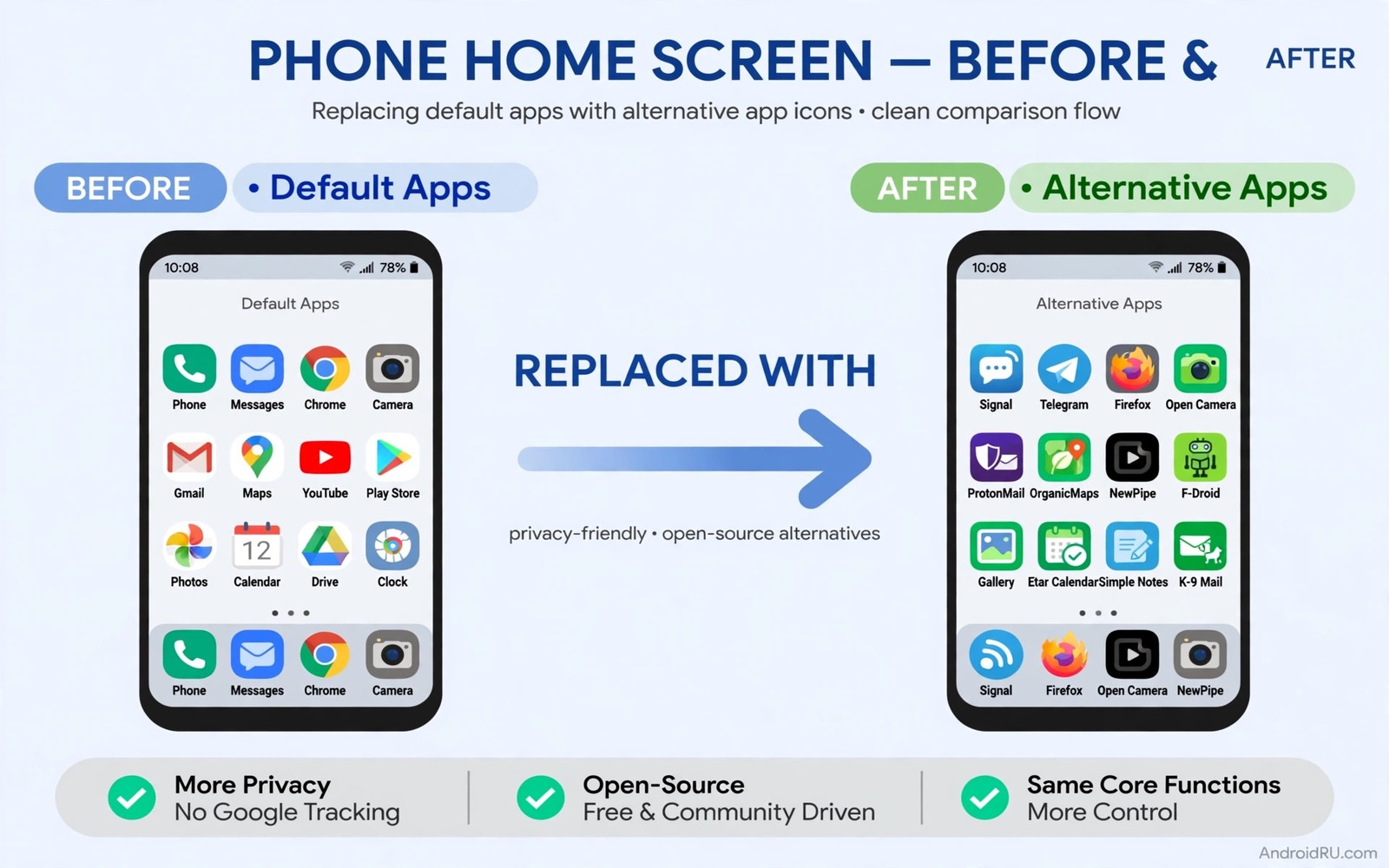
Every phone ships with a set of apps you did not choose. Some are useful and some duplicate tools you already prefer. Replacing them one by one gives you a phone that matches your habits. It also removes quiet data flows you never agreed to in a meaningful way. This guide walks through a safe replacement plan without root and without breaking core functions.
Start with an inventory of what you actually use. Open your app list and mark each preinstalled app as daily or weekly or never. Daily apps deserve a careful replacement test. Weekly apps deserve a replacement only if the new tool is clearly better. Never apps deserve removal or disabling first because they cost nothing to lose. That inventory prevents a rushed swap that breaks a tool you relied on.
Disable before you delete wherever the system allows it. Disabling stops an app from running and hides it from the drawer. It also lets you restore it quickly if a replacement fails. Deleting a system app can break a linked feature like sharing or dialling. A cautious order of disable then test then delete protects you from a sudden loss.
Replace by job rather than by brand loyalty. A browser replacement should match your privacy needs. A gallery replacement should match your sorting habits. A keyboard replacement should match your typing speed and language needs. A job based plan keeps each swap independent. If one replacement fails then only that job suffers while the rest of the phone keeps working.
A safe order for replacements
Begin with low risk apps like gallery and music and notes. Those apps hold data you can export and they rarely affect calls or messages. Test the replacement with real photos and real playlists for a week. Export your data from the old app before you disable it. A low risk start builds confidence for harder swaps later.
Move next to browser and file manager and launcher. Those tools shape daily navigation and file handling. A browser swap affects logins and bookmarks so export bookmarks first. A file manager swap affects how you find documents so test search early. A launcher swap affects the whole home screen so back up your layout before you change it.
Leave messaging and dialler and keyboard for last. Those tools touch sensitive communication and input. A messaging swap can affect message history and group chats. A dialler swap can affect call recording rules in your region. A keyboard swap deserves a full week of typing tests before you trust it with passwords. Patience here prevents a costly mistake.
Finding open replacements that last
Look for projects with a clear purpose and recent updates. A replacement that receives fixes for new Android versions will survive the next system update. A replacement that sat untouched for two years may break on a new phone. Check the changelog for real fixes rather than vague notes. A healthy project answers user questions in plain language.
Prefer replacements that store data in standard formats. Notes should export as plain text. Photos should stay as standard image files. Playlists should export as a common playlist format. Standard formats let you switch again later without losing work. A replacement that locks your data into a private format trades one cage for another.
Test offline behaviour before you commit. An open replacement should work without a constant connection for its core job. A gallery should show photos offline. A notes app should edit notes offline. A music player should play local files offline. Offline strength is a strong sign that the app respects your device rather than a distant server.
adb shell pm disable-user --user 0 com.example.preinstalledThis brief command was written to illustrate disabling a package for the current user. It shows a simple command that disables a package for the current user. You can use the pattern only for a package you have identified as safe to disable after a backup.
Browser choice deserves special care in this plan because it touches every site you visit. A privacy focused option can reduce tracking across the whole web. The comparison of privacy-focused browsers helps you pick a browser that matches your tolerance for breakage. Test the new browser beside the old one for a week before you set it as default.
A replacement calendar that keeps you honest
Plan one replacement per week for eight weeks rather than a single weekend overhaul. Week one can cover gallery and music because those swaps carry low risk. Week two can cover browser and file manager because those swaps shape daily navigation. Later weeks can cover keyboard and messaging because those swaps touch sensitive input. A slow calendar keeps each problem isolated. Isolation makes troubleshooting fast because you always know which change happened last.
Write a short note after each swap with the date and the old app and the new app. Note any data you exported and where you stored the backup. That note becomes a rescue plan if a replacement fails months later. It also helps you remember why you chose a particular tool when a friend asks for a recommendation. A written record turns a series of swaps into a coherent setup story.
Test each replacement against a checklist that matches its job. A gallery replacement should sort by date and hide nothing behind a subscription. A browser replacement should load your daily sites without broken logins. A keyboard replacement should type your common phrases accurately after three days. A checklist prevents a pretty interface from hiding a missing core feature. Checklists also make comparisons fair across different tools.
Handling apps that cannot be replaced safely
Some preinstalled apps link deeply into system features that a replacement cannot replicate. A dialler may integrate with carrier services for video calls. A camera app may use hardware features that a third party app cannot reach. A messaging app may handle carrier messages that a replacement cannot send. In those cases keep the system app for that specific feature and use the replacement for everything else. Partial replacement still improves daily life without breaking a core function.
Some apps resist disabling because the manufacturer locked them to the system image. A locked app cannot be removed without deeper access that carries warranty and security risks. Disabling may also fail if the app restarts itself after an update. In that case restrict its permissions and its background activity instead of fighting the lock. Restriction reduces its impact without risking system stability.
Open replacements deserve the same careful ordering as any other swap. A gallery replacement comes before a keyboard replacement because the risk differs so much. That is why a survey of the best open-source apps helps you find maintained projects before you commit to a swap. Choose projects with recent activity and standard export formats for every replacement you plan.
Replacements for work phones
A work phone carries stricter rules than a personal phone because company data must stay protected. A replacement app on a work phone should support the same security policies as the original. Check whether the replacement respects device management rules before you install it. A replacement that bypasses a work policy can create a compliance problem even if it works better. Always check work rules first and personal preference second on a managed device.
Data separation matters on a work phone because personal and work files should not mix casually. A replacement gallery or file manager should respect work profile boundaries. Test whether the replacement can see work files when it should not. If it crosses a profile boundary then it fails the work test regardless of its features. A work phone replacement must prove boundary respect before it proves speed or beauty.
Keyboard choice deserves extra care on a work phone because typing includes passwords and client messages. A keyboard with a clear offline mode and a short permission list suits work use best. That is why feature-packed keyboard alternatives should be read with work rules in mind rather than personal taste alone. Choose a keyboard that your work policy allows and that you can explain to an IT reviewer without hesitation.
Replacements that respect battery life
A replacement app should not drain battery faster than the app it replaces. A gallery replacement that constantly scans media in the background can use more power than the original. A launcher replacement with heavy animations can keep the processor busy all day. Check battery usage after a week with each replacement and compare it with the old app. A replacement that doubles battery drain for a minor feature gain fails the swap test.
Background restrictions help a replacement stay lean without losing its main job. Restrict background activity for a gallery or a file manager that does not need constant sync. Keep background access only for messaging and email tools that must deliver promptly. That split keeps useful replacements fast while preventing quiet drain. Battery discipline is part of a replacement plan rather than an afterthought.
Common mistakes
The biggest mistake is replacing everything in one evening and losing track of what broke. A single swap per week keeps problems easy to trace. Write down each swap and the date you made it. If a problem appears then you know which change to reverse first. A slow plan beats a fast mess every time.
Another mistake is deleting a preinstalled app that another app depends on. A gallery app may rely on a system media service. A dialler may rely on a contacts service. Disable the app first and test the dependent features for a few days. Delete only after the test shows no breakage in daily use.
Frequently asked questions
Can I replace preinstalled apps without root?
Yes. Most replacements install as normal apps and you can disable many preinstalled apps in settings. Root opens deeper removal options but it is not required for a useful swap.
Will I lose my data when I switch apps?
Not if you export first. Export notes and photos and playlists before you disable the old app. Check the export on another device or in another app before you delete anything.
What if a replacement app stops working after an update?
Keep the old app disabled rather than deleted until the replacement proves stable. Re-enable the old app as a fallback while you find another replacement. A fallback plan turns an update problem into a minor delay.
Conclusion
Inventory your preinstalled apps today and pick one low risk app to replace this week. Export its data and test the replacement with real files for seven days. Repeat that cycle weekly until your phone reflects your habits rather than factory defaults.

