

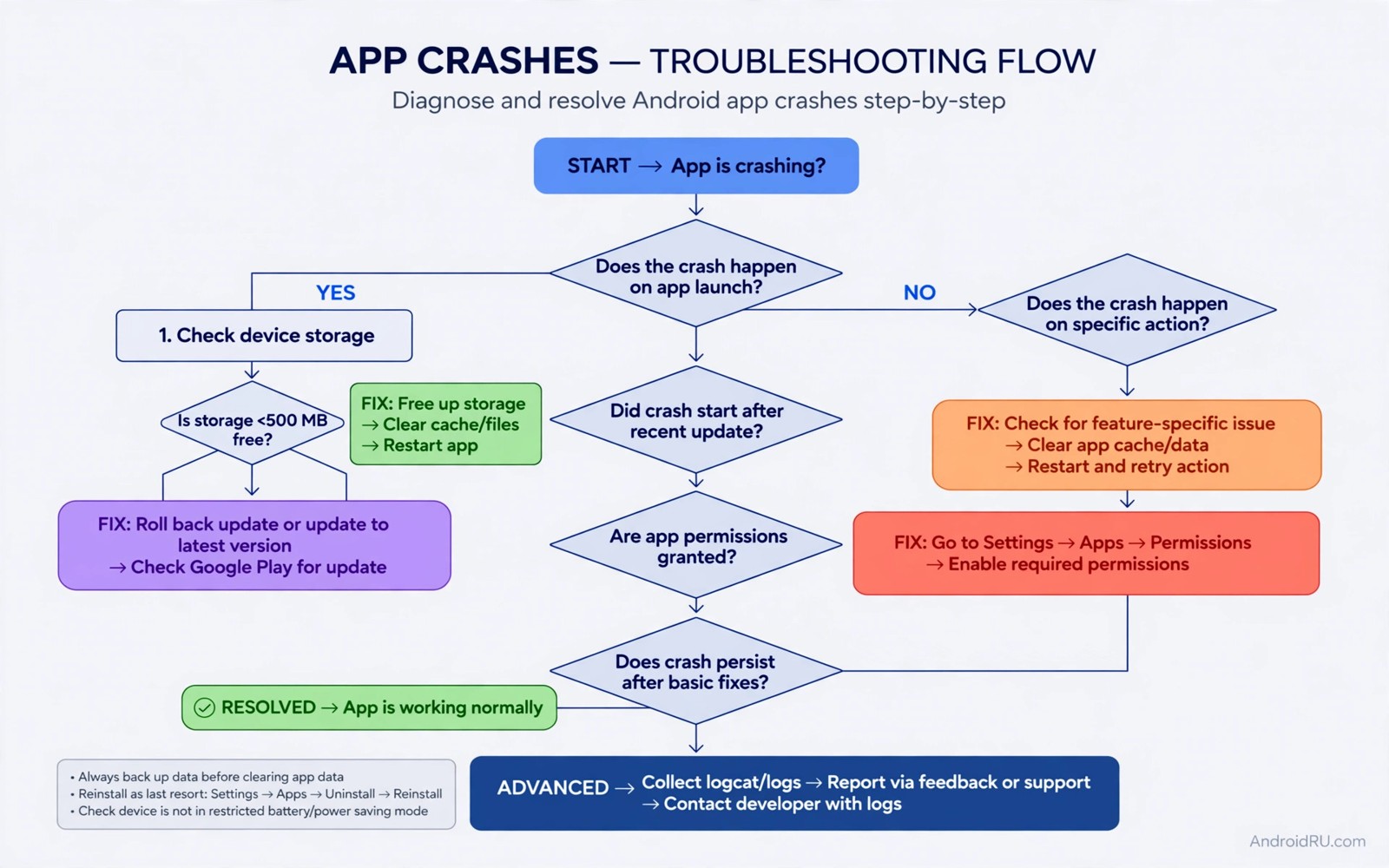
A Zygisk framework injects code into app processes. That injection powers powerful modules. It also creates a new crash surface. An app that ran fine yesterday may crash on launch today. The crash may happen only in one app. It may happen in many apps. It may happen only after an update. Isolating the cause beats reinstalling everything.
Zygisk works by loading modules into the Zygote process. Zygote spawns app processes. A module loaded into Zygote therefore enters every app process unless excluded. A faulty module can crash any app it enters. A module that hooks a common method can crash apps that use that method differently. That broad reach explains why one module can break many apps.
This guide gives a systematic isolation method. It starts with safe mode and deny lists. It moves to module-by-module testing. It covers log reading at a basic level. It explains the difference between a framework fault and a module fault. That distinction decides the fix.
Start by noting the pattern. Which apps crash. When did crashes start. Did a module update precede them. Did a system update precede them. A pattern points to the trigger. A random crash list points to a framework problem. A single app crash points to a module scope problem.
First check: disable Zygisk safely
Disable Zygisk in the manager and reboot. Test the crashing app. If it works then Zygisk or a Zygisk module caused the crash. If it still crashes then the cause lies elsewhere. That elsewhere could be an app update or a system issue. A clean disable test saves hours of module guessing.
Do not delete modules during this test. Disabling Zygisk keeps modules installed but inactive. That state lets you re-enable quickly. Deleting modules loses settings and versions. Keep modules intact until isolation identifies the faulty one.
Test with a second app as well. A single app recovery after disabling Zygisk is strong evidence. Two apps recovering is stronger. A system app that recovers too confirms a broad injection issue. Record which apps recovered. That record guides the next step.
Re-enable Zygisk without modules next. Most managers allow Zygisk with an empty module set. Test the app again. If it crashes with no modules then the framework itself has a problem. If it works then a module causes the crash. That split is the most important diagnostic in this guide.
Isolate the faulty module
Enable modules one at a time. Reboot after each enable if the module requires it. Test the crashing app after each enable. Stop when the crash returns. The last enabled module is the likely culprit. That method is slow. It is also reliable. Bulk enabling hides the culprit among many suspects.
Start with modules that hook app processes. Ad modules and audio modules hook deeply. Interface modules hook broadly. Simple setting modules hook lightly. Deep hooks crash more often than light hooks. Test deep hooks first to save time.
Check module compatibility with your Android version. A module built for an older version may hook a method that changed. That changed method can crash on launch. The module page should list supported versions. A module without a version note deserves extra caution on a new system.
Update the suspect module before removing it permanently. An update may fix the crash. Test the update with the same app. If the crash persists after the update then remove the module. Keep a note of the version that crashed. That note prevents reinstalling the same bad version later.
Deny lists and scope control
A deny list excludes apps from Zygisk injection. Add the crashing app to the deny list. Reboot and test. If the app works then injection caused the crash. The module remains active for other apps. That scoped fix preserves most of your setup. It sacrifices the module only for that app.
Some apps need deny list enforcement enabled in the manager. Check that setting. A deny list entry without enforcement may do nothing. Enforcement adds a check at process start. That check costs a little startup time. It buys stability for sensitive apps.
Scope control inside LSPosed works similarly. A module scoped to one app cannot crash another app. Review scope for each module after a crash. A module scoped to every app is a broad suspect. Narrow its scope to the apps that truly need it. Narrow scope reduces crash surface dramatically.
Ad modules benefit from narrow scope especially. The guide on blocking ads inside native apps with LSPosed explains ad scope. Apply the same narrow scope idea to every Zygisk module. Broad scope is convenient. Narrow scope is stable.
Logs and crash patterns
Read a crash log only for the crashing app package. A full system log contains too much noise. Filter by package name. Look for the last lines before the crash. Those lines often name the module or the method that failed. A stack trace with a module name is direct evidence.
Look for repeated patterns across crashes. A crash at launch differs from a crash during a feature. A launch crash points to injection or a startup hook. A feature crash points to a hook on that feature. That timing narrows the suspect method. Note the exact action that triggers the crash.
Clear app data only after isolation. Clearing data can fix a stale cache crash. It can also hide a module crash temporarily. Isolate first. Clear data second. That order keeps the cause visible. A hidden cause returns after the next update.
Attestation failures can look like crashes. An app may close immediately when it detects a modified environment. That close looks like a crash but has no stack trace for a module. The guide on passing hardware attestation checks covers that pattern. Check attestation if logs show no module fault.
When to suspect a framework update instead of a module
Suspect the framework when many unrelated apps crash together. A single module rarely breaks every app. A framework change can. A framework update that changes injection behaviour affects all injected apps. Broad crashes point upward to the framework. Narrow crashes point to a module.
Suspect the framework when crashes start right after a framework update. Note the update date. Compare it with the crash start date. A close match is strong evidence. A module update on the same day complicates the picture. Check both update dates carefully.
Suspect the framework when a clean module set still crashes. An empty module set removes module suspects. Remaining crashes must come from the framework or from the app itself. Test a stock app version to separate those two. A stock app crash points to the framework or system.
Check framework release notes for known issues. Release notes may list a crash regression. They may suggest a workaround. They may announce a fix in progress. Reading notes saves duplicate troubleshooting. It also tells you whether to wait or to roll back.
Roll back the framework only with a backup ready. A framework rollback changes boot behaviour. It can affect all modules. Back up before rolling back. Test the rollback with the previously crashing app. Confirm recovery before reinstalling modules.
Audio module crashes deserve framework attention too. The guide on intercepting audio output streams with deep hooks explains audio hook risks. An audio crash after a framework update may need a framework fix rather than an audio module fix. Separate those layers before changing audio settings.
Test the crashing app in safe mode with modules disabled if the manager supports it. Safe mode gives a clean baseline without uninstalling anything. A safe-mode pass confirms a module cause quickly. A safe-mode failure points to the app or system instead.
Check app version history after a crash. An app update on the same day as a module update creates two suspects. Compare crash start time with both update times. The closer update is the likelier trigger. That timeline check saves wasted module removals.
Document the faulty module version and the app version that crashed together. A paired version note helps when either updates. It lets you test whether a new version fixed the crash. It also prevents reinstalling a known bad combination. Version pairing is a simple diagnostic habit that pays off repeatedly.
Keep a crash diary for a week after fixing a Zygisk issue. Note each app launch that fails and each that succeeds. A diary reveals whether the fix held or only seemed to hold for a day. A held fix shows a clean week. A partial fix shows occasional crashes that need further isolation.
Common mistakes
- Deleting all modules at once instead of isolating the faulty one systematically.
- Testing a deny list entry without enabling enforcement in the manager.
- Scoping every module to every app and then wondering why many apps crash.
- Clearing app data before isolation and hiding the true crash cause.
- Reinstalling the same crashing module version after removing it in frustration.
Frequently asked questions
Why does only one app crash while others work?
That app may use a method that the module hooks differently. It may have stricter integrity checks. It may load a library that conflicts with injection. Scope the module away from that app first.
Should I disable Zygisk permanently after a crash?
No disable it only for diagnosis. A permanent disable loses all Zygisk modules. Isolate the faulty module instead. Keep Zygisk enabled with a clean module set.
Can a system update cause Zygisk crashes?
Yes a system update can change hooked methods. Modules built for the old system may crash on the new system. Update modules after a system update. Disable outdated modules until their authors update them.
adb logcat -d | grep -i "com.example.app" | tail -30
# Show recent log lines for one app package on your own device.
# Replace com.example.app with the real crashing package name.
The commands above are generic log examples written for this guide. They filter log output for a single package. They do not modify the device. They do not share logs anywhere.
Conclusion
Zygisk crashes yield to isolation. Disable Zygisk to confirm injection as the cause. Re-enable with no modules to separate framework from module faults. Enable modules one by one. Use deny lists and narrow scope for the surviving setup. Read filtered logs for confirmation.
Your concrete next step is to disable Zygisk and reboot today if an app crashes. Test that app once. That single test tells you whether to chase a module or a different cause.

