

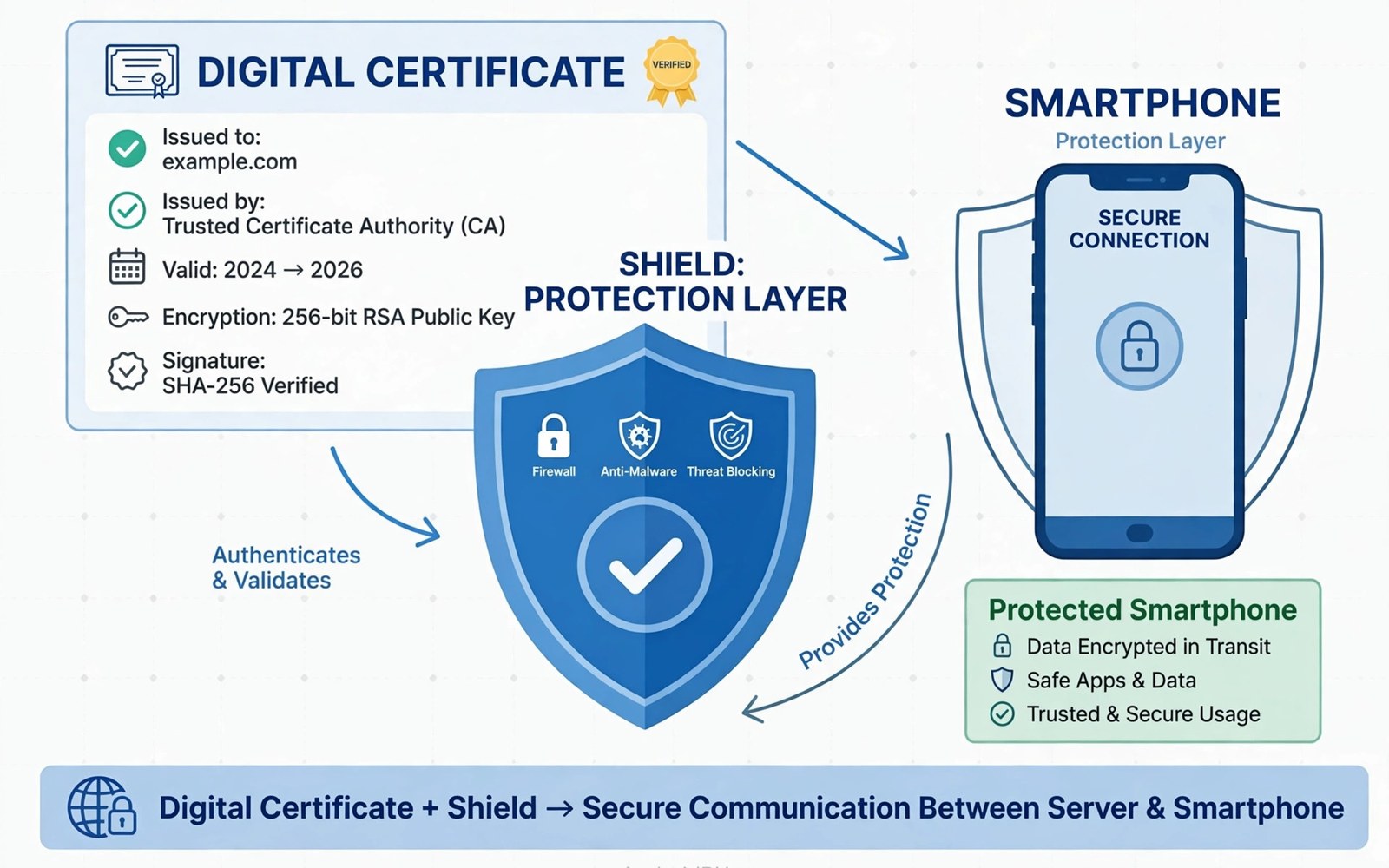
APK signing is the process that links an app to a key held by its developer. The developer signs the APK file with a private key. The APK file carries the matching public certificate. A device checks that certificate when the app installs. A device checks it again when the app updates. If the signature fails then the install stops. That check protects users from tampered files. It also protects users from fake copies of a known app. Signing does not prove that an app is safe. It proves that the file matches the signer. That distinction matters for security thinking. A signed app can still contain bugs. A signed app can still ask for risky permissions. For related study see application signature verification checks.
A keystore is a file that holds signing keys and certificates. It protects private keys with a password. It can hold more than one key for different apps. A developer must guard the keystore file with care. Loss of a keystore can block future updates for an app. Theft of a keystore can let an attacker sign fake updates. That risk makes keystore handling a serious task. Developers keep keystores offline and backed up in a safe place. They never share a keystore in a public folder. They never put a keystore password in source code.
How Signing Works In Practice
Signing works in a few clear steps. The build tool packs code and resources into an APK file. The signing tool hashes the contents of that file. The tool then signs those hashes with the private key. The result goes into signature files inside the APK file. The public certificate also goes into the APK file. A device reads the certificate and the signature files. It recomputes the hashes from the file contents. It compares its result with the signed hashes. A match means the file has not changed since signing. A mismatch means the file changed after signing. That mismatch blocks the install.
Modern Android uses a signing scheme that covers the whole file. Older schemes covered only parts of the file. The newer scheme is stronger because it protects the full package. It also allows faster verification on install. Developers should use the current scheme for new releases. They should keep older schemes only when an old device needs them. A signing tool can apply several schemes at once. That choice keeps compatibility without losing protection. Check the scheme used for each release build.
Certificates And Identity
A certificate links a public key to a name chosen by the developer. It holds the key and the owner name and validity dates. It does not prove real world identity on its own. Android apps often use self signed certificates. A self signed certificate is created by the developer without an outside authority. The system trusts it for update checks rather than for real identity. An update must carry the same certificate as the installed app. That rule stops a different signer from replacing an app. It also stops a tampered file from passing as an update. Users rarely see certificate details directly. The system handles the check in the background.
Certificate details matter when a key changes. A developer who loses a key cannot update the old app. Users must uninstall the old app and install a new one. That process loses app data in many cases. A key rotation scheme can help in some newer cases. It lets a developer move to a new key with proof of the old key. That proof must be planned before the old key is lost. Planning matters because recovery after loss is hard. Developers should document key details in a safe internal record. That record should not hold the private key itself.
Integrity Checks On The Device
A device performs integrity checks at install time. It checks the signature files against the file contents. It checks the certificate against the installed app for updates. It checks that the package name matches the installed app. A failure at any step stops the install. The user sees a generic install error in many cases. A detailed error appears in system logs for a developer. Those logs help diagnose a signing problem. A common cause is a file changed after signing. A common cause is a wrong key used for an update. A common cause is a corrupted download. In each case a fresh signed file from the developer fixes the issue.
Integrity checks also run in some apps at run time. An app can check its own signature when it starts. It can compare the current signature with an expected value. A mismatch can trigger a warning or a safe exit. That self check adds a layer beyond install checks. It can catch a tampered file that bypassed install checks. It can also cause false alarms after a legitimate key change. Developers must update expected values when keys rotate. They must test the self check after each release. A broken self check can lock out real users.
Protecting Keys And Keystores
Key protection starts with access control. Only a few trusted people should reach the keystore. The keystore should live on a secured build machine. Backups should live in a separate secured location. Passwords should live in a secrets store rather than in plain files. Build scripts should read passwords from that store. Logs should never print a password or a key. A leaked password should trigger an immediate key review. A leaked keystore should trigger a rotation plan. These steps sound strict but they match the risk. A signing key is the identity of an app in the update system.
Teams should also separate test keys from release keys. A debug key can sign test builds for daily work. A release key should sign only finished builds. That separation limits damage from a test leak. A test key leak does not affect release updates. A release key leak affects every user of the app. Teams should rotate test keys freely. They should rotate release keys only with a careful plan. They should record which key signed each release. That record helps trace a problem to a specific build.
keytool -genkeypair -alias release -keystore release.keystore
apksigner sign --ks release.keystore app.apk
apksigner verify --verbose app.apk
keytool -list -v -keystore release.keystore
Troubleshooting Signing Problems
Signing problems often show as install errors. An unsigned file fails with a signature error. A file signed with the wrong key fails as an update. A file with a broken signature block fails at once. Check the signing step in the build log first. Check the key alias and the keystore path next. Check the file for changes after signing last. A common mistake is editing a file after signing it. Any edit after signing breaks the signature. The fix is to sign again after the edit. Another common mistake is using a debug key for a release. That key cannot update a release build later. Keep test and release keys clearly labelled. For code changes that affect signing see anti-tampering protections at runtime.
Verification tools help confirm a signed file before release. A verify command checks the signature and the schemes used. Run that command on every release candidate. Check the output for warnings about old schemes. Check the certificate dates for expiry. An expired certificate can block new installs in some cases. Plan renewal or rotation before expiry arrives. That planning avoids a last minute release crisis. It also keeps users on a smooth update path.
Key Management For Small Teams
Small teams face the same key risks as large teams. A keystore on one laptop is a single point of failure. A password known by one person is a single point of loss. Teams should plan for absence and for staff changes. Store a backup keystore in a secured shared vault. Store the password in a separate secrets store. Give access to only two trusted people at most. Document the recovery steps in a safe internal note. Test recovery once a year on a test app. That test proves the plan works before a crisis. A plan that was never tested may fail when it matters most.
Build machines need the same care as keystores. A build machine should have limited network access. It should have updated security patches. It should have no unrelated personal apps. It should log who signed each release. Those logs help trace a problem to a specific build. They also help prove that a release came from the team. Keep build logs for at least a year. Store them in a place that survives a machine failure. A lost log can turn a small issue into a long investigation. Good logs are cheap insurance for a team.
Release checklists prevent signing mistakes. A checklist should name the key alias. It should name the keystore path. It should name the signing scheme to use. It should name the verify command to run. It should name the person who checks the output. Each release should follow the same checklist. A checklist that changes each time invites errors. A stable checklist makes errors easy to spot. Review the checklist after any tool update. Update it only after a test release proves the change. That stability protects users from a bad release.
Incident response for a key leak needs a written plan. The plan should state who decides on rotation. It should state how users will be told. It should state how a new release will be built. It should state how old data will be handled. Write that plan before a leak happens. A plan written during a crisis will miss steps. A plan written in calm times will be clearer. Test the plan with a tabletop exercise once a year. That exercise reveals gaps without real risk. It also trains the team to act fast and calmly.
User communication after a key change needs plain words. Tell users what changed and why it changed. Tell users what action they must take. Tell users what will happen to their data. Avoid technical jargon in the user message. Avoid blaming a person or a team in public. A clear message keeps user trust during a hard change. A vague message creates rumours and confusion. Prepare a draft message before a crisis. That draft can be adapted fast when needed. Good communication is part of good key management.
- Store keystore backups in a secured vault.
- Keep passwords in a secrets store only.
- Limit key access to trusted people.
- Follow the same release checklist each time.
- Test key recovery once a year.
- Prepare a user message before a crisis.
Planning For Key Rotation
Key rotation planning starts long before a key is lost. A team should know which key signed each release. A team should know where the keystore backup lives. A team should know who can access that backup. A team should know the steps to build with a new key. Write those facts in a safe internal document. Test the rotation steps on a test app once a year. That test reveals gaps in the plan. It also trains the team to act calmly. A rotation plan that was never tested may fail in a crisis. A tested plan gives users a smooth path.
Users need a clear message during a key rotation. Tell users that an update will require a fresh install in some cases. Tell users how to back up their data before the change. Tell users where to get the new build safely. Avoid technical detail in the user message. Use plain words and short steps. A clear message reduces support requests. A vague message creates confusion and rumours. Prepare a draft message before a crisis. That draft can be adapted fast when needed. Good planning turns a hard change into a manageable one.
- Record which key signed each release.
- Test rotation steps on a test app yearly.
- Prepare a clear user message in advance.
- Keep rotation facts in a safe document.
Checking A Signature Before Release
Checking a signature before release is a final safety step. Run a verify command on the release candidate. Read the output for the schemes used. Check that the current scheme is present. Check that the certificate matches the expected certificate. Check that the certificate has not expired. A warning at this stage is easier to fix than a warning after release. Fix warnings before sharing the build. That discipline protects users from a bad update. It also protects the team from a release rollback.
Signature checking also covers the build pipeline. Confirm that the build used the release key. Confirm that no test key signed the candidate. Confirm that the file was not edited after signing. Any edit after signing breaks the signature. If a file was edited then sign it again. Then verify it again. That loop sounds tedious but it is essential. A release with a broken signature fails for every user. A release with a test key cannot update the real app. Both errors are preventable with a check.
Record the verification result for each release. State the file name and the verify output. State the certificate details in short form. State the person who performed the check. That record helps trace a problem later. It also proves that the check happened. A release without a record invites doubt when a problem appears. A release with a record gives a clear starting point. Keep records for at least a year in a safe folder.
Automate the check when the pipeline allows it. A build script can run verification after signing. It can stop the pipeline when verification fails. That automation removes human forgetfulness. It also makes the check consistent for every release. Test the automation on a bad file first. Confirm that it stops the pipeline as expected. An automation that never fails may be checking nothing. A tested automation earns trust.
Readers who want a related topic can explore analyzing in-app security controls next in this series.
Conclusion
APK signing and keystore certificates form a trust system for updates. Signing links a file to a key. The certificate carries the public part of that key. Devices check signatures at install and at update. Developers must guard private keys with strong habits. Users benefit when that system works quietly in the background. Understanding signing helps analysts explain install failures. It also helps developers avoid update disasters. Keep keys safe and verify every release build.
The steps above follow the approach described in the official developer documentation for Android applications and in widely used testing guidance for mobile software.

