

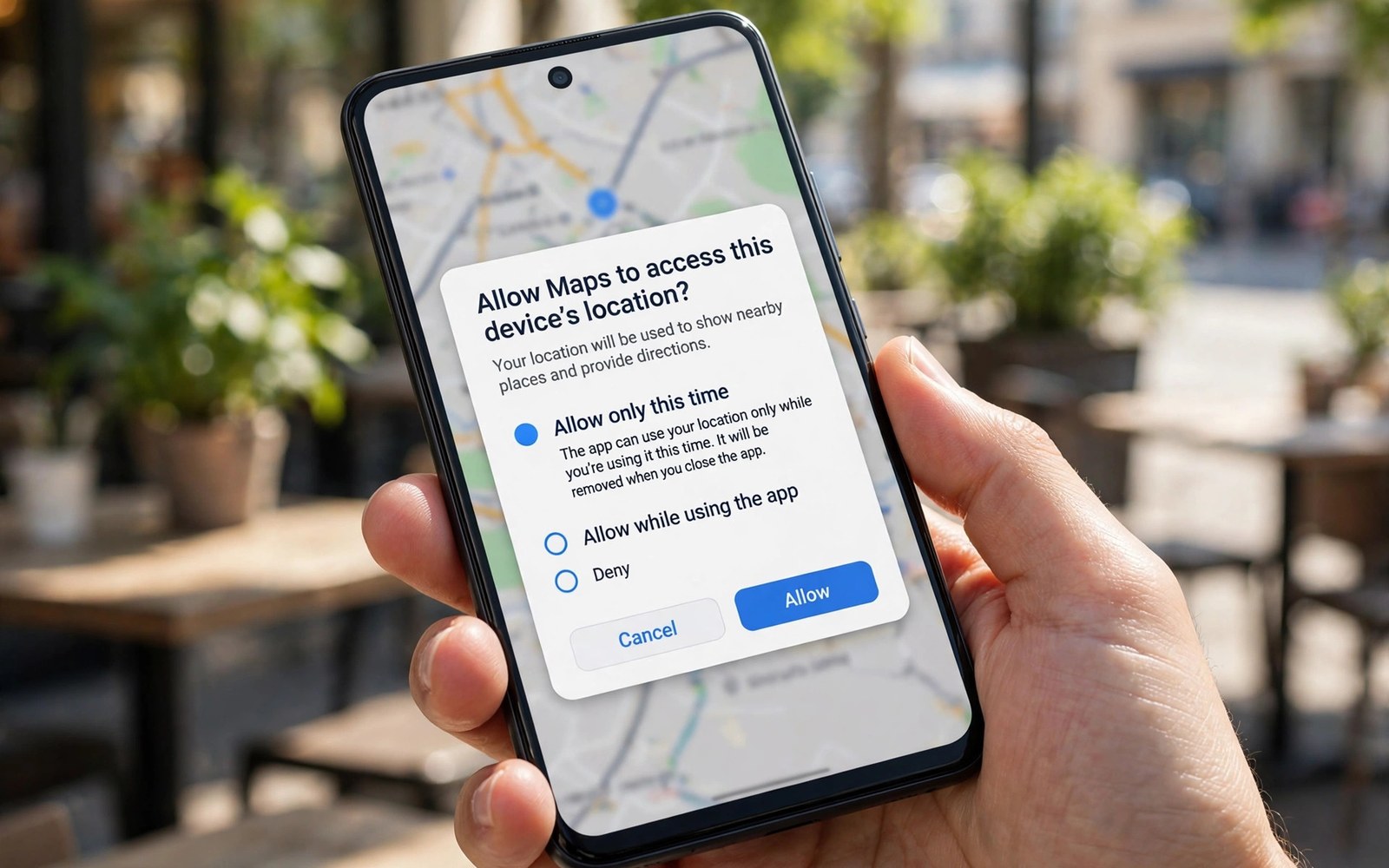
One-time permission is a simple idea with a big privacy payoff. You grant access for a single session only. The system revokes it as soon as you leave the app. The next session starts with a fresh prompt. You never need to remember to clean up later.
This option suits apps you use rarely or trust only partly. A delivery app may need location once for an order. A social app may need the camera once for a photo. A scanner may need files once for a document. One-time access fits all of those cases well.
Where the One-Time Option Appears
The option appears inside the standard permission prompt. You will see choices such as allow while using the app and allow only this time. The exact wording varies by phone brand. The meaning stays the same across devices. One-time means the grant ends when the session ends.
The option appears for location and camera and microphone on modern Android. It does not appear for every permission type. Contacts and files use different controls. If you do not see the option then your phone may run an older version. Update the system or use manual revocation instead.
How the Session Limit Works
The grant lasts while the app stays in use. Switching to another app can end the session. Closing the app always ends the session. The system then removes the permission silently. The app must ask again before it can use that sensor.
This design removes the most common privacy leak. Many users grant access and then forget it. Months later the app still holds that access. One-time grants break that chain by default. You trade one extra tap later for lasting peace of mind.
When One-Time Access Is the Best Choice
Choose one-time access for apps outside your daily routine. Choose it for apps with a single task to complete. Choose it for apps that ask for a sensor they rarely need. Choose it when a friend asks you to try a new tool once. The cost is tiny and the protection is real.
Avoid one-time access for tools you use every hour. A navigation app would prompt you on every trip. A camera app would prompt you on every photo. For those tools choose allow while using the app instead. That level still blocks background use. It keeps daily work smooth without giving always-on access.
Grant one-time access
When prompted choose:
Allow only this time

Verify revocation
Settings > Privacy > Permission manager
Confirm the app shows no access
How to Check and Change Past Grants
Open the Permission Manager to review recent grants. Apps with one-time grants will show no lasting access. Apps with wider grants will show their level clearly. Change any grant that looks too wide for the app purpose. The change takes effect at once without a restart.
You can also change access from the app info screen. That screen shows every permission for one app. It is the fastest path when you already know the app name. Use the manager view when you want a full sweep. Both paths lead to the same controls.
Teaching Family Members the Habit
One-time access is easy to teach because the choice is visible. Show a family member the prompt on their own phone. Explain that only this time means just this once. Let them try it with a camera app first. The next prompt will prove that the system kept its promise.
Children and older users benefit most from this habit. They often tap allow without reading the full prompt. One-time access limits the cost of a hasty tap. Pair the lesson with a monthly review. The review catches any wider grants that slipped through.
Good Moments to Pick Only This Time
One-Time Access for Location Versus Camera
Location and camera behave differently under one-time grants. A one-time location grant covers a single session of use. A delivery app can pin your address for that order. A map app can centre on you for that trip. The grant ends when you leave the app. The next trip starts with a fresh prompt. That rhythm suits occasional location needs well. Daily navigation may feel tedious with repeated prompts. For daily driving choose allow while using the app instead. That level still blocks background tracking between trips.
Camera one-time grants suit single photo tasks. A social app can capture one profile photo. A scanner can capture one document page. The grant ends when the capture session closes. The app cannot reopen the camera later without asking. That limit matters because cameras capture surroundings. A single photo reveals far less than ongoing access. One-time camera grants keep casual apps honest. They also protect you when an app updates later. Old grants cannot power new camera features silently.
One-Time Grants and Background Behaviour
One-time grants never include background access. That rule is the core of their protection. An app cannot collect data after you switch away. It cannot collect data after you lock the screen. It must return to the foreground and ask again. Background collection needs a wider grant by design. Users who fear silent tracking should prefer one-time grants. The trade is an extra prompt on each return visit. Most occasional apps earn that trade easily. Daily tools may deserve a wider but still foreground-only grant.
Some apps try to work around the one-time limit. They may ask for the permission again at every open. That behaviour is allowed but annoying. It reveals an app that wants constant access. You can switch that app to a permanent denial. You can also replace it with a quieter alternative. A respectful app asks once and accepts the session limit. A pushy app treats your choice as an obstacle. Judge the app by how it handles refusal. Refusal handling is a strong trust signal.
One-Time Access in Work and Shared Phones
Work phones benefit greatly from one-time grants. Employees use many tools for single tasks. A visitor app may need the camera once for a badge. A survey app may need location once for a site visit. One-time grants prevent those tools from lingering with access. IT teams can also enforce narrow grants by policy. Employees keep working without complex settings. The system handles cleanup automatically after each session. That automation reduces support tickets about privacy. It also reduces risk when a device changes hands.
Shared family phones gain a similar benefit. A guest can use the camera once without lasting access. A child can try a new app without a permanent grant. Parents avoid a later cleanup sweep for guest grants. The system revokes access when the session ends. Family members still need basic prompt literacy. Teach them to read the only this time option. Show them the difference from the wider options. One short lesson protects every future guest session.
Limits of One-Time Permissions
One-time grants do not cover every permission type. Contacts and files use separate selection systems. Calendar access uses a standard grant model. Notifications use their own toggle system. Do not assume every prompt offers a one-time choice. When the choice is absent, use manual revocation instead. Open app info after the task and remove the grant. That manual step mimics the one-time effect. It takes seconds and delivers similar protection. Combine both methods for full coverage across permission types.
One-time grants also do not erase data already captured. A photo taken during a session stays with the app. A location point used during a session may reach a server. The grant limits future capture rather than past sharing. Review app data controls when past sharing worries you. Delete activity inside the app when that option exists. Prevention through narrow grants beats cleanup after capture. Use one-time grants as prevention first. Use deletion as a second step when needed.
One-Time Grants for Sensitive Work Tasks
Sensitive work tasks suit one-time grants perfectly. A contractor may need the camera once to photograph a site issue. A courier may need location once to confirm a delivery point. A surveyor may need the microphone once for a voice note. Each task ends quickly and needs no lasting access. One-time grants fit that rhythm without extra cleanup. Workers keep moving without permission chores. Employers keep exposure limited to task windows. The system handles revocation automatically after each task. That automation is ideal for high turnover task work.
Work devices with many short tasks benefit most from this model. A shared work phone may serve dozens of staff per week. Each staff member triggers fresh prompts for their tasks. No staff member leaves lasting access behind. The next user starts from a clean permission state. IT teams can audit grants without untangling old decisions. The model scales well because cleanup is automatic. Manual revocation would collapse under that volume. One-time grants turn scale from a risk into a routine.
When One-Time Prompts Become Annoying
Repeated prompts can frustrate users of daily tools. A delivery driver may face a location prompt on every stop. A field technician may face a camera prompt on every job. That friction can push users toward wider grants. Wider grants solve friction but restore tracking risk. A middle path exists for such heavy users. Grant allow while using the app for daily tools. That level avoids prompts during the workday. It still blocks background collection after hours. Reserve one-time grants for occasional tools instead. Matching grant type to usage frequency balances safety and sanity.
App developers can reduce prompt annoyance through better design. They can batch permission needs into fewer sessions. They can explain each need before the system prompt appears. Clear in-app explanations reduce surprise and refusal. Users grant more willingly when purpose is obvious. Developers who respect that pattern earn smoother adoption. Users should reward such developers with continued use. Friction often signals poor design rather than strict privacy. Judge the app design alongside the grant choice.
- Granting location once for a single delivery order.
- Granting camera once for a single photo upload.
- Granting microphone once for a single voice note.
- Trying a new app you may never open again.
- Helping a friend test an app on your phone.
One-time grants pair well with auto-reset of permissions for apps you stop using and the Permission Manager overview. For background risks, see how to disable background location tracking.
The steps above follow the approach described in the official developer documentation for modern Android privacy controls. That documentation explains each permission group in plain terms. It also describes how the system limits background access. Use it as a general reference when a menu name differs on your phone.

