

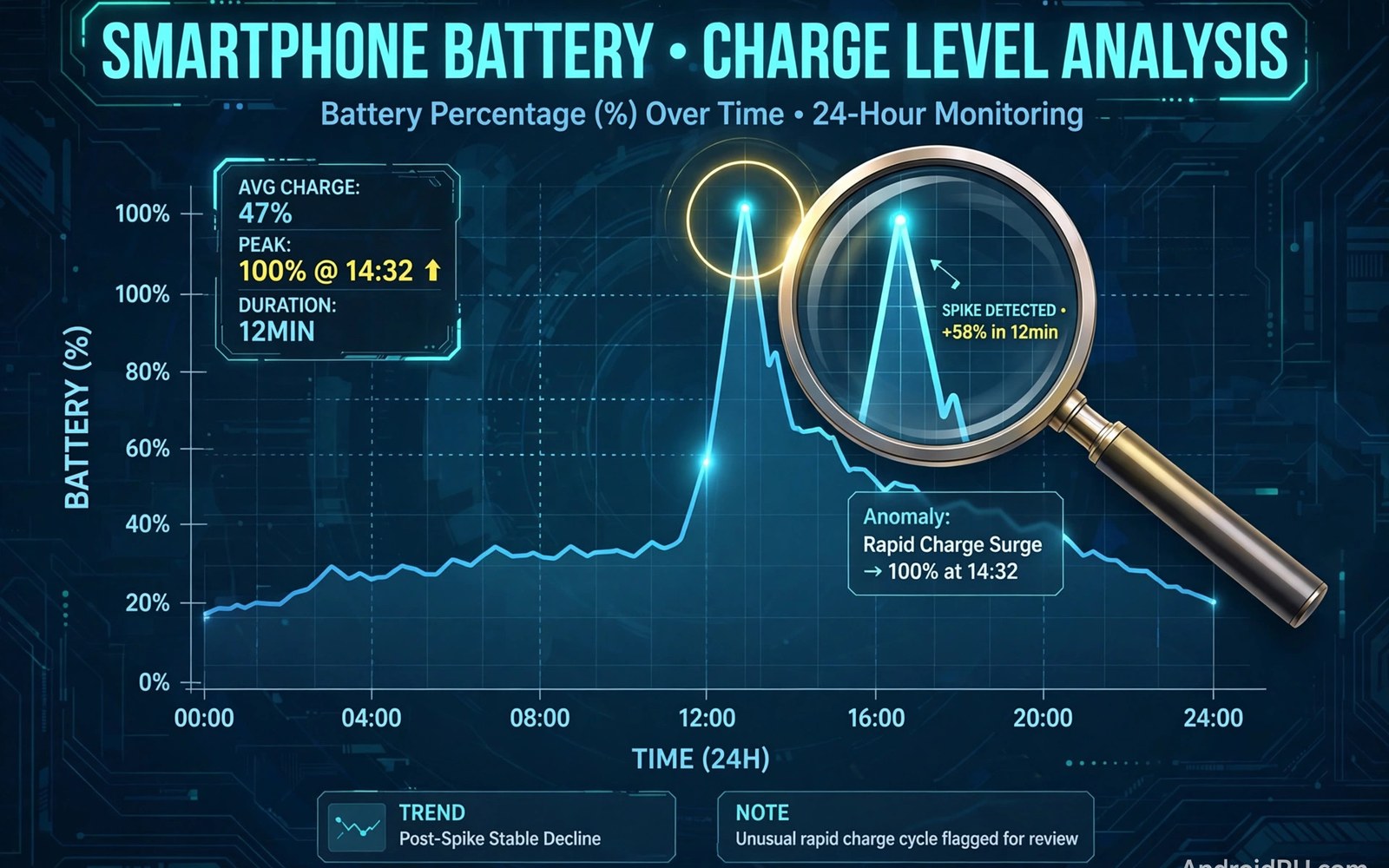
Battery and data spikes are the footprints of hidden malware. A quiet app leaves no footprint. A busy malware app leaves many. It runs code in the background. It contacts a server often. It wakes the phone at night. Those actions cost power and data. The battery screen and the data screen record them. Learning to read those screens turns a vague worry into a named suspect. This guide shows how to track spikes step by step.
Start with a baseline before you hunt for spikes. Note your normal battery life on a typical day. Note your normal data use in a typical week. A baseline makes a spike visible. Without a baseline every number looks suspicious. With a baseline a jump stands out. Write the baseline down. Check it again after a system update. Updates can shift the baseline for a few days. After that shift the baseline should settle again. A spike that persists past an update deserves investigation.
Read the battery screen correctly
Open battery settings and view usage by app. The list ranks apps by power use since the last full charge. Look at the top of the list first. A chat app or a video app at the top is normal. A simple tool at the top is not normal. Tap the top app and view its background time. Background time shows how long it ran while you did not use it. High background time with low screen time is a warning. It means the app worked while you slept or worked elsewhere.
Compare screen time and background time for each suspect. A navigation app has high screen time during a trip. That is normal. A flashlight app has high background time with no screen time. That is not normal. A game has high screen time during play. That is normal. A wallpaper app has high background time at night. That is not normal. This comparison separates legit heavy apps from hidden workers. Use it before you delete anything.
Check battery use over several days not just one day. One bad day can follow a long call or a weak signal. A weak signal forces the radio to work harder. That extra work drains power fast. It is not malware. A pattern across three days is stronger evidence. A suspect that tops the list every day is worth removing. A suspect that tops it once after an update is worth watching only. Patience improves accuracy.
Read the data screen correctly
Open data settings and view usage by app. The list shows mobile data and Wi-Fi data per app. Look for background data in particular. Background data means the app used the network while you did not open it. A mail app syncs in the background and that is normal. A chat app syncs too. A simple tool should not sync at all. High background data from a tool is a strong warning. It may upload contacts or location or recorded files.
Check data use by time as well as by app. Some phones show a daily chart. Look for spikes at night or during work hours when you did not use the phone. A spike at 3 am from a tool app is suspicious. A spike during a video call is normal. Match the spike time to your activity. A mismatch points to hidden work. Note the date and time of each spike. That note helps you match it to an install or an update.
Set a data warning as a tripwire. Choose a limit near your normal monthly use. The phone will warn you when use approaches that limit. A warning in the first week of a cycle signals a spike. Investigate at once when the warning appears early. Do not wait until the end of the month. Early investigation catches malware before it uploads much data. It also limits extra charges on a limited plan.
Build a timeline of spikes
A timeline links a spike to a cause. Write the date of each spike. Write the app at the top of the battery list on that date. Write the app at the top of the data list on that date. Write any new install from that week. After a few entries a pattern appears. The same app may top both lists on spike days. That app is your prime suspect. A different app each day points to a system cause instead. A timeline turns scattered numbers into a story.
Include system events in the timeline. Note system updates and app updates. Note travel days with weak signal. Note long video calls and gaming sessions. Those events explain many spikes honestly. A spike on a travel day may reflect weak signal. A spike after an update may reflect a new sync task. A spike with no event and no heavy use is the one to chase. That spike has no innocent explanation. Focus your removal effort there.
- Record battery top apps and data top apps each evening.
- Note new installs and updates beside each spike date.
- Compare screen time with background time for every suspect.
- Investigate a spike that repeats for three days in a row.
- Remove one suspect at a time and watch the next day charts.
Test a suspect with removal and observation
Remove the prime suspect and watch the charts for two days. Battery life should improve if the suspect was the cause. Data use should fall too. A clear improvement confirms the diagnosis. No improvement means another cause remains. Restore a good app if you removed it by mistake. Then test the next suspect. This one by one method is slow. It is also reliable. Bulk removal hides the true cause.
Use safe mode as a control test. Enter safe mode for a few hours and watch battery drain. In safe mode third party apps do not run. Drain should slow a lot if a third party app caused it. If drain stays high then a system app or hardware may be the cause. An old battery drains fast regardless of apps. A swollen battery needs replacement not app removal. Do not ignore hardware signs. Heat and swelling and sudden shutdowns point to battery health.
Check for a partner app after removal. Some malware uses two apps that protect each other. Removing one may leave the other to reinstall it. Watch the app list after each removal. If the suspect returns then look for a partner with a similar install date. Remove both in safe mode in one session. For a safe removal order see removing spyware and adware step by step and follow it after tracking.
Separate malware spikes from normal spikes
Normal spikes have a clear trigger you can name. A cloud backup after a holiday creates a data spike. A long navigation trip creates a battery spike. A system update creates both for a day. Malware spikes lack a trigger you can name. They happen at night with no backup and no trip. They repeat daily with no change in use. That lack of a trigger is itself evidence. Keep asking what innocent event explains the spike. If no event fits then treat it as suspicious.
Signal strength deserves special attention. A phone in a weak signal area works harder to stay connected. That work drains battery fast. It can mimic malware drain. Check signal bars on spike days. A day in a basement or a rural area explains a drain spike. A day at home with full signal does not explain it. Note signal conditions in your timeline. That note prevents false accusations against good apps. For battery focused analysis see analyzing battery drain to find spyware and use it alongside data checks.
Prevent future hidden spikes
Restrict background activity for apps that do not need it. Open battery settings and set a tool app to restricted background use. That setting stops it from running freely at night. A messaging app may need background access. A simple tool does not need it. Restrict first and grant later only if a feature breaks. This habit limits hidden work for all apps. It also extends battery life in general.
Turn off background data for apps that do not need sync. Open data settings per app and block background data. A news app may need it for headlines. A flashlight never needs it. Blocking background data stops silent uploads. It does not stop the app from working when you open it. That balance is ideal. The app works on demand and stays quiet otherwise. For a broader infection check see how to know if your phone is infected and complete it monthly.
Use system tools instead of tracker apps
Some users install a third party tracker app to monitor battery and data. That app itself can drain power and collect data. Use system screens instead. The system battery screen and data screen give all the numbers you need. They add no extra drain. They add no extra permissions. A tracker app that promises deep insight often delivers ads instead. Trust the built in screens for a clean measurement. If you need charts then export system numbers to a notes app by hand. Manual notes beat a noisy tracker app.
Also avoid battery saver apps that claim to track malware. A battery saver that kills apps constantly can hide the real drain pattern. It changes the numbers you are trying to read. Turn off such apps during a tracking week. Let the phone run normally with only system tools active. Clean numbers lead to a clean diagnosis. Noisy tools lead to noisy numbers and false suspects. Keep the tracking week simple and system only.
Check for silent sync and backup spikes
Silent sync tasks can mimic malware spikes and they deserve a check before you blame an app. Cloud backup apps may upload a large photo set after a holiday. That upload creates a data spike and a battery drain for one day. A mail app may resync a large mailbox after a password change. That resync also creates a spike. Check backup and sync settings on spike days. A spike that matches a backup window has an innocent cause. A spike with no backup window and no sync event is suspicious. Note sync windows in your timeline to separate the two cases clearly.
Daily tracking:
Battery > Top app > Screen time vs Background time
Data > Top app > Background data > Night spikes
Timeline: spike date + top app + new install + event
Act: Restrict background > Remove suspect > Watch 2 days
The steps above follow the approach described in the official developer documentation for Android security and app permissions. That guidance stresses background limits and user control over data use. It also stresses least privilege for apps that handle sensitive data. Use those controls as a weekly habit.
Battery and data charts tell the truth about hidden apps. A quiet app leaves a flat chart. A busy malware app leaves spikes. Read the charts with a baseline and a timeline. Test suspects one by one. Restrict background work for tools that do not need it. Those habits turn your phone from a mystery into a monitored device that you control.

