

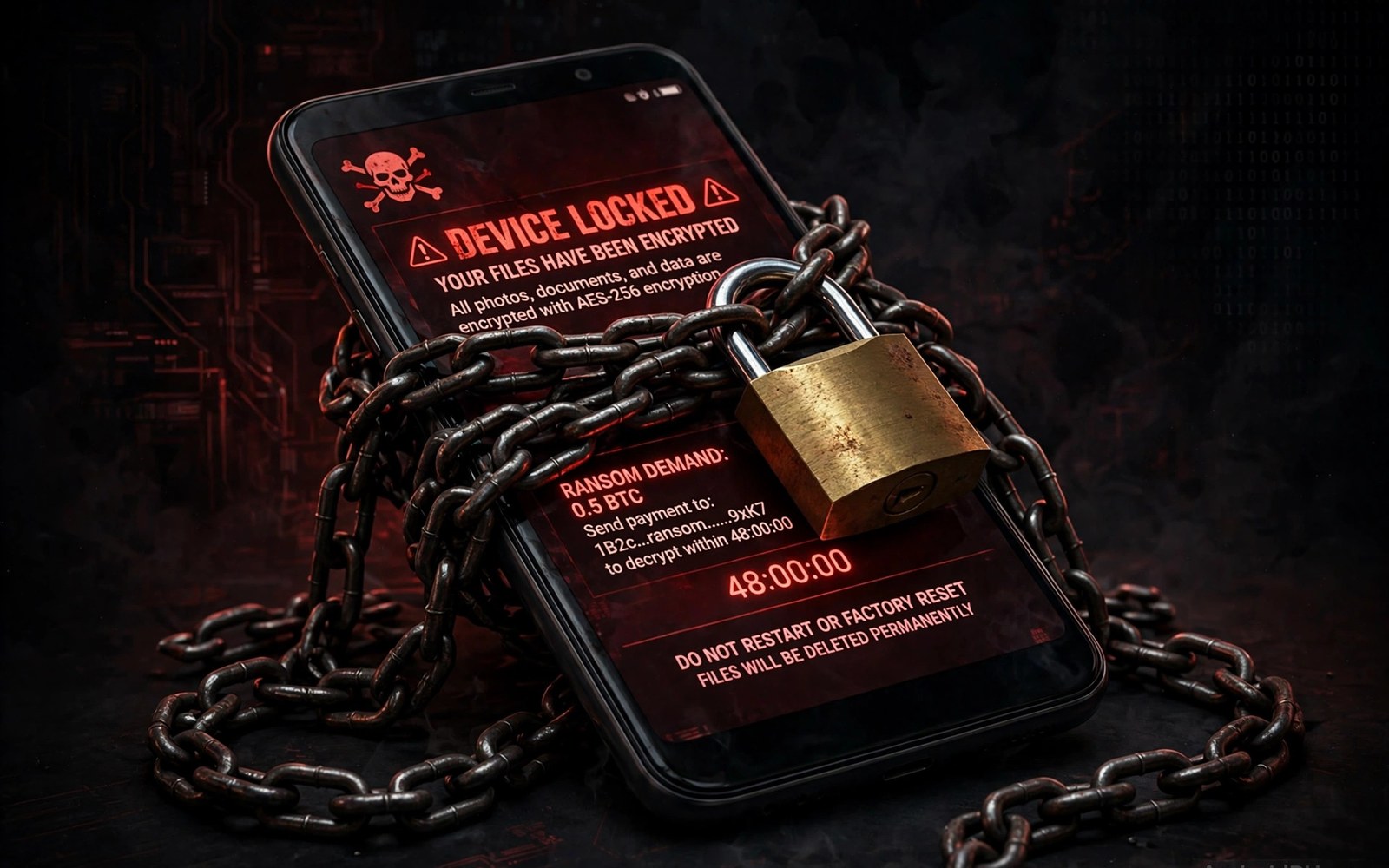
Ransomware on a phone tries to force a payment by blocking your access. It may lock the screen with a fake warning. It may encrypt files and demand money for a key. It may threaten to delete photos if you do not pay fast. These attacks exploit fear and urgency. The attacker wants you to act before you think. Understanding how mobile ransomware works removes much of that fear. Most phone ransomware can be beaten without paying. Backups and safe mode and calm steps defeat it.
Mobile ransomware differs from desktop ransomware in important ways. Phones sandbox apps and limit file access. A phone app cannot easily encrypt the whole system. It can lock the screen with an overlay. It can encrypt files inside its own storage area. It can block access to photos it can reach. These limits make phone ransomware less total than desktop ransomware. They do not make it harmless. A locked screen still blocks calls and messages. Encrypted photos still hurt even if the system survives. Treat any lock or encryption demand as serious.
Locker ransomware and how it works
Locker ransomware blocks the screen with a full screen window. It may show a fake police warning or a fake system error. It demands payment through gift cards or crypto. It may count down to a fake deadline. The lock often uses device admin rights or an overlay. The app draws over everything and blocks the back button. The user feels trapped. The trap is weaker than it looks. Safe mode blocks third party overlays. A restart into safe mode can reveal the lock app. Removal in safe mode often ends the attack at once.
Some lockers use a PIN change trick. They set a new lock screen PIN through device admin rights. The user cannot unlock the phone with the old PIN. This variant is harder than a simple overlay. It still has limits. A factory reset through recovery can clear it. A reset costs data if no backup exists. That cost is why backups matter so much. A recent backup turns a scary lock into a minor inconvenience. Without a backup the same lock becomes a data loss event. Back up photos and documents before any attack happens.
Fake warnings deserve a calm reading. Real police do not lock phones and demand gift cards. Real system errors do not ask for crypto payment. A warning with spelling errors and threats is almost always fake. Do not tap payment links in a lock screen. Do not call numbers shown on a lock screen. Those numbers reach the attacker not a help desk. Note the exact wording of the warning. That wording helps support teams identify the variant later.
Encryptor ransomware and its limits on phones
Encryptor ransomware scrambles files and demands a key. On a phone it targets files the app can access. It may target photos and documents in shared storage. It may target files inside its own folder. It cannot easily reach system files due to sandboxing. It cannot easily reach other app private data. This limit reduces the blast radius. It does not reduce the pain of lost photos. Photos often matter more than system files to a user. Protect photos with automatic backup to trusted storage.
Some encryptors use weak encryption that researchers can break. Others use strong encryption with a key held by the attacker. Paying does not guarantee a working key. Attackers may take payment and vanish. They may send a broken key. They may demand a second payment. Payment also marks you as a willing payer. That mark can attract more attacks. Security guidance is clear on this point. Do not pay if you can avoid it. Try safe mode removal and backup restore first. Those steps work for most mobile variants.
Check file extensions and file sizes after an attack. Encrypted files often gain a new extension. They may also change size slightly. Note which folders were hit and which were spared. That pattern tells you how far the attack spread. A spared folder may hold clean copies. Do not open encrypted files with random tools. Random tools can damage them further. Copy them to safe storage first if you hope for a future decryptor. Then restore clean copies from backup.
How ransomware reaches a phone
Most mobile ransomware arrives inside a bad app. It may pose as a game or a video player or a system tool. It may arrive through a link in a message. It may arrive as an update to a previously clean app. The install moment is the key defence point. Check permissions before install. A video player does not need device admin rights. A game does not need accessibility service. Those requests are warnings. Deny them or skip the app entirely.
Smishing links are a common delivery route. A message claims a package delivery failed or an account needs verification. The link leads to a fake store page or a direct download. The download installs a locker app. Do not tap links from unknown senders. Do not install apps from links in messages. Use a trusted store and search for the app by name. That extra step blocks most smishing delivery. For the smishing pattern in detail see how malicious SMS links target users and learn its red flags.
- Never pay a lock screen demand through gift cards or crypto.
- Enter safe mode to block overlays and remove the locker app.
- Restore photos and documents from a trusted backup only.
- Turn off unknown installs to block side channel delivery.
- Report the locker app through the store after removal.
Step by step response to a lock
Stay calm and do not pay at once. Try a normal restart first. Some lockers fail after a reboot. If the lock returns then enter safe mode. Use the power menu method for your brand. In safe mode open settings and find the locker app. Remove its device admin rights first. Then uninstall it. Restart in normal mode and test the phone. This sequence defeats most locker variants. It costs nothing and it preserves your data.
If safe mode fails then try recovery options with care. Recovery mode can wipe the phone. Use it only after you accept data loss or after you confirm a backup. Back up through a computer connection only if the phone allows it. Do not connect an infected phone to a computer with sensitive files without care. Use a clean folder for any rescue copy. Scan that copy before you open it elsewhere. A cautious rescue beats a rushed rescue that spreads the threat.
After removal change passwords for key accounts. Start with email and banking accounts. Use a clean device for those changes. Enable two factor authentication where it is offered. Check for unknown charges or logins. A locker app may have stolen data before it locked the screen. Password changes limit that damage. For a broader infection audit see how to know if your phone is infected and complete it after the lock clears.
Backups as the real antidote
Automatic backup turns ransomware from a crisis into a chore. Set photos to back up automatically to trusted storage. Set documents to back up as well. Test a restore once to confirm that backups work. A backup you never tested may fail when you need it. Check backup dates each month. A backup from last year helps little after a new attack. A backup from yesterday helps a lot. Keep at least one backup outside the phone itself.
Separate backups from the phone account when you can. A backup tied to the same account can be at risk if that account is compromised. Use a second trusted storage location for key photos. Copy them to a computer or an external drive each month. That offline copy cannot be encrypted by phone ransomware. It also protects against phone loss and theft. Two copies in two places beat one copy in one place. This rule applies to photos and to documents and to contacts.
Teach family members the backup habit too. Ransomware often hits the least prepared device in a household. A shared backup plan protects everyone. Help relatives turn on automatic photo backup. Show them how to check the last backup date. A five minute setup prevents a painful loss later. For cases where a lock survives safe mode see whether a factory reset erases advanced malware before you reset.
After recovery check every account
Recovery does not end when the lock clears. A locker app may have read messages and contacts before it locked the screen. It may have tried to reset passwords through email. Check email for password reset messages you did not request. Check social accounts for posts you did not write. Check the bank for small test transfers that attackers use before a large theft. Small transfers are easy to miss in a busy statement. Review a full month of activity after any ransomware event. Report anything strange at once and change passwords on a clean device.
Also review which apps still hold device admin rights after cleanup. A clean admin list should show only system tools or a trusted security app. Remove any entry you do not recognise. Review accessibility services in the same pass. Remove any service tied to the locker app. These checks close the doors that the locker used. Repeat them a week later to catch a delayed return. A second clean check gives you confidence that recovery truly held.
Keep a recovery kit ready
A recovery kit is a short note with the steps you will take if a lock ever appears. Write the safe mode method for your brand. Write the location of your photo backup. Write the bank phone number from a known source. Keep that note outside the phone so a lock cannot hide it. A paper note in a drawer works well. When panic hits you will follow the note instead of a payment demand. Preparation turns a crisis into a checklist. Make the kit today while the phone is healthy.
Locked? Do NOT pay > Restart > Safe mode
Safe mode: Settings > Apps > locker > Remove admin > Uninstall
Recover: Restore photos from trusted backup only
Prevent: Auto backup on > Unknown installs off
The steps above follow the approach described in the official developer documentation for Android security and app permissions. That guidance stresses safe mode diagnosis and least privilege for powerful permissions. It also stresses backups as a recovery control. Use those controls before an attack and not only after one.
Ransomware wants panic and payment. Calm steps deny it both. Safe mode removes most lockers. Backups restore what encryptors damage. Permission checks block the next install. Keep backups current and installs careful and admin rights tight. Then a ransomware attack becomes a story you tell later not a loss you regret.

