

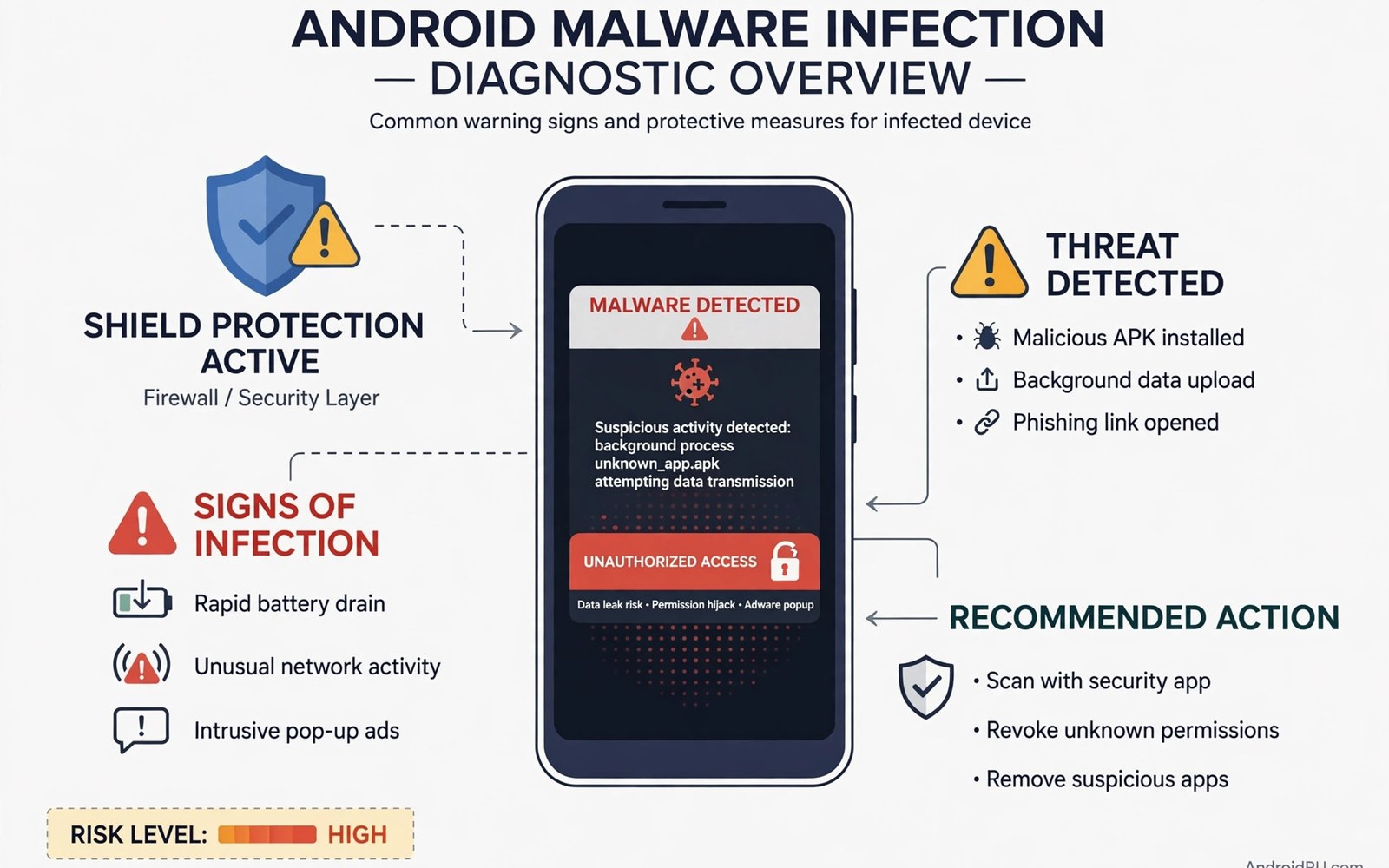
How to Know If Your Android Smartphone Is Infected with Malware
Most infected phones never show a flashing warning. The malware hides inside an app that looks ordinary, runs quietly in the background, and leaves only small clues: a battery that drains a little faster, a phone that feels warm while it sits on the desk, an ad that appears where no ad belongs. I have cleaned up friends’ phones where the owner swore the device was fine, and the culprit turned out to be a flashlight app installed three weeks earlier that had been sending data every hour.
One symptom on its own proves nothing. A system update can eat battery for a few days, a weak signal can heat a phone, and a careless tap can turn on browser notifications that look like pop-ups. The trick is to read the signs together, check the numbers your phone already records, and then confirm the suspicion with a scan and a safe-mode test. This guide walks you through that exact order: what to watch for, how to check each sign in settings, and how to clean the phone up without losing your photos.
The Warning Signs of an Android Malware Infection
Malware on Android usually wants one of three things: your money, your data, or your screen time for ads. Each goal leaves a different trail. Adware floods you with ads. Spyware quietly reads messages, contacts and location. Trojans that sign you up for paid services show up on your bill. Knowing which trail to look for makes the diagnosis much faster, because you stop chasing every slowdown and start checking the evidence that matches the crime.
Start by building a baseline in your head. How did this phone behave a month ago? A sudden change matters far more than a slow drift, and a sudden change that lines up with a new app install matters most of all. If the battery started dying at 4 p.m. the same week you installed a “free cleaner” app, that timing is evidence, not coincidence.
Signs that deserve a closer look right away
- Ads outside apps. Full-screen ads on your home screen, over Settings, or over your messages are not normal. Ads inside a free game are normal; ads that follow you everywhere are not.
- Apps you never installed. A new icon appears after an update, or an app with a blank icon and a generic name sits in your app list.
- Messages you did not send. Friends report strange links from your number, or your sent folder holds texts you never wrote.
- Charges you did not approve. Small charges on your carrier bill, or a subscription you never signed up for, often point to a trojan abusing SMS permissions.
- Settings that change themselves. Your browser home page switches, your search engine changes, or a new toolbar appears without your say-so.
One item from that list is a reason to investigate. Two or three together, starting at the same time, is a strong case for infection. Write down when each symptom started and which app you installed just before it. That short log turns vague worry into testable evidence, and it helps enormously if you later ask someone for a second opinion.
Signs that usually mean something else
Not every annoyance is malware. A phone that slows down after a major Android update is usually re-indexing files and optimising apps, a job that settles within a day or two. A battery that drops fast in a basement car park is fighting a weak signal, not an infection. A data spike on the first of the month is often a cloud backup or a large app update. Rule these out first, because deleting good apps in a panic does not fix anything and can cost you data you wanted to keep.
Pop-Ups, Redirects and Browser Hijacks on Android
Adware is the loudest kind of malware, and that makes it the easiest to spot. It needs your attention to earn money, so it pushes ads into places where ads do not belong. The classic pattern is a full-screen ad that appears while you are on the home screen, or an ad that pops up the moment you unlock the phone. If you close the ad and another one appears within a minute, an app on your phone is generating them, not a website.
Note which app was open when the ad appeared, and whether the ad appears even when no app is open. That detail is the fastest way to trace the source. An ad that shows while you are reading a news site is probably that site. An ad that shows while you are staring at your wallpaper is an app misbehaving, and the app that was installed most recently is the first suspect.
How to tell a hijacked browser from a noisy website
Open Chrome and check three things: the home page, the default search engine, and the notification permission. A hijack usually changes at least one of them. Go to Chrome, tap the three dots, then Settings, then Search engine, and confirm it is the one you chose. Then check Settings, then Site settings, then Notifications, and look for unfamiliar sites allowed to send notifications. Rogue sites abuse that permission to push fake virus warnings that look like system alerts. They are not system alerts. Android does not warn you about viruses through browser notifications.
If your searches redirect to a strange search page, or every tap opens a new tab full of ads, clear the browser data only after you have written down the symptoms. A reset of Chrome settings often removes a hijack on its own. If the redirects return after the reset, an app is reinstalling the change each time, and the browser is not the real problem. At that point the hunt moves to your installed apps.
What a fake virus warning looks like
The fake warning usually says your phone has a specific number of viruses, counts down a timer, and offers a button to “clean now”. Real Android security warnings never look like that, never count down, and never appear inside a web page. Close the tab, do not tap the button, and do not install whatever it offers. The app it pushes is often the malware itself, dressed up as the cure.
Battery Drain, Overheating and Data Spikes: Reading the Numbers
Your phone already keeps the records that expose hidden malware. Battery use, mobile data use and background activity are all logged per app, and a malicious app cannot hide from those logs the way it hides its icon. I tested this on a spare phone with a known adware sample years ago: the app used almost no screen time, yet it sat at the top of the battery list with hours of background activity. The numbers gave it away in seconds.
Open Settings, then Battery, then Battery usage. Look at the list sorted by use. A chat app or a navigation app at the top is normal. A calculator, a wallpaper app or a flashlight at the top is not. Tap the suspicious app and look at its background time. An app that ran in the background for six hours while you barely opened it is doing work you did not ask for.
| What you check | Normal pattern | Suspicious pattern |
|---|---|---|
| Battery usage by app | Top apps match what you actually used | A simple tool app drains more than your browser |
| Background time | Minutes for tools, hours only for music or maps | Hours of background time with almost no screen time |
| Mobile data by app | Data matches the app’s job | A flashlight or calculator sending data every hour |
| Phone temperature | Warm during games, cool when idle | Warm overnight while the phone sat untouched |
| Storage growth | Slow growth from photos and updates | Rapid growth from an app you barely use |
Check data use the same way: Settings, then Network and internet, then Mobile network, then App data usage. Look for an app with high background data and no clear reason for it. A messaging app uses data often. A QR scanner should not. That mismatch is worth investigating, and it is one of the most reliable signs of spyware, which has to send what it collects somewhere.
Overheating: when warmth means work you did not ask for
A phone warms up during games, video calls and charging. It should cool down when idle. A phone that stays warm overnight, while it sat on a nightstand doing nothing, is running hidden code or a stuck sync task. Rule out the innocent causes first: an update downloading in the background, a cloud backup running, or a stuck email sync. If the warmth survives a restart and the battery screen blames one app, you have a suspect worth removing.
How to log symptoms for one week
When the picture is unclear, keep a simple note for a week: time, symptom, and which app was open. After a few days you can see whether symptoms cluster around one app or one time of day, and whether they stop when you avoid that app. Share the note with a trusted helper if you need a second view, but keep passwords and account details out of it. App names, times and symptoms are enough.
How to Audit Your Installed Apps and Permissions Step by Step
The app list in Settings shows every app on the phone, including ones that hide their icon from the launcher. That makes it the single most useful screen in this whole investigation. Open Settings, then Apps, then See all apps, and read every name slowly. You are looking for apps you do not remember installing, apps with blank icons, and apps with vague names like “System Update”, “Phone Booster” or “Super Cleaner” that you never chose.
Tap any app you do not recognise and check three details on its App info page: the install date, the version, and the developer name if it is shown. An app installed at 3 a.m. while you were asleep did not get there by accident. An app with no developer information and a generic name deserves removal unless you can prove it belongs to your phone maker or your carrier.
- List recent installs first. In the Play Store, tap your profile icon, then Manage apps and device, then Manage, then sort by Recently added. Any app from the last month that you do not remember is suspect number one.
- Check each suspect’s source. An app installed from outside the Play Store, shown as installed from an unknown source, needs a much stronger reason to stay.
- Review permissions one app at a time. On the App info page, tap Permissions. A wallpaper app does not need SMS access. A calculator does not need location. A photo editor needs media access, not call access.
- Revoke what does not fit the job. If an app breaks after you revoke a permission, you can grant it again with care. A broken feature is a small price for closing a hole.
- Check device admin rights. Go to Settings, then Security, then Device admin apps. Malware often grants itself admin rights so the uninstall button greys out. Remove admin rights from any app you do not fully trust, then try uninstalling again.
- Restart and watch. After removing a suspect, restart the phone and watch for repeat installs. If the app comes back on its own, a second app is reinstalling it, and you have more hunting to do.
Permissions that should worry you most
Some permissions are far more dangerous than others. SMS permission lets an app read your two-factor codes and send premium-rate texts. Accessibility permission lets an app watch your screen and tap buttons for you. Device admin rights block uninstallation. Overlay permission, listed as “Display over other apps”, lets an app draw ads on top of everything else. An app that asks for two or three of these at once, while its job is something simple like a flashlight, is not a tool. It is a risk wearing a tool’s name.
How to spot a fake system app
Malware loves names that sound official: “Android System”, “Google Services”, “System Update”. Real system apps usually cannot be uninstalled at all, only disabled, and they show a recognisable developer. A fake one often has a slightly wrong name, a blank icon, and an uninstall button that works. If you are unsure, search the exact package name online from another device before you touch it, and never delete a genuine system app.
Running a Malware Scan with Google Play Protect and Free Tools
Android includes built-in scanning, and it is worth running before you do anything drastic. Open the Play Store, tap your profile icon, then Play Protect, then Scan. Let the scan finish before you judge the result. Play Protect checks installed apps against Google’s list of known harmful apps, and it also scans new apps when you install them. A clean result rules out known threats. It does not guarantee a clean phone, because new or unusual threats can hide from a basic scan, so combine it with the manual audit above.
Some phone makers add their own security scan under Settings, then Security, then Scan device. Run that too if your phone offers it. Two different scanners checking the same app list is better than one, and both are free and already on your device.
When to use a dedicated security app
If Play Protect finds nothing but the symptoms continue, a second opinion from a reputable free scanner can help. Install one well-known security app, run a full scan, and then decide whether to keep it. For a careful method that goes beyond the quick scan, see how to run a deep malware scan and work through it before you consider a factory reset. Avoid installing three or four security apps at once: they fight each other, drain the battery, and make the phone slower without making it safer.
What a scan result actually means
A scan that flags an app as harmful is a clear instruction: remove it. A scan that finds nothing while your battery screen still blames one app means the threat is either new, disguised, or not malware at all but a badly written app. In that case the safe-mode test in the next section is the tiebreaker, because it separates third-party apps from the system itself.
Safe Mode: The Cleanest Way to Confirm a Rogue App
Safe mode is the most honest test you have. It starts Android with only system apps running and blocks every third-party app, including the one you suspect. If the pop-ups stop, the battery drain stops, and the phone cools down in safe mode, a third-party app is the cause. If the symptoms continue in safe mode, the problem is the system, a setting, or the hardware, and deleting apps will not fix it.
To enter safe mode, press and hold the power button until the power menu appears, then press and hold the Power off option until the “Reboot to safe mode” prompt shows, and tap OK. On Samsung phones the steps are similar: hold power, then hold Power off until the prompt appears. You will see “Safe mode” written in the corner of the screen. Use the phone for an hour or two and watch whether the symptoms return.
The removal method is slow on purpose: uninstall one suspect, restart in normal mode, and test again. That way you know exactly which app was guilty. Deleting five apps at once leaves you guessing, and you may delete an app you actually needed. For a full walkthrough of that process, read about using safe mode to uninstall rogue apps and follow it alongside your own notes.
What to do when the uninstall button is greyed out
A greyed-out uninstall button usually means the app holds device admin rights. Leave safe mode, go to Settings, then Security, then Device admin apps, switch off the app’s admin rights, and then uninstall it. If the app reappears after a restart, check whether another app you installed at the same time is reinstalling it, and remove that partner app first. Some malware travels in pairs, and removing only one half lets the other half rebuild it.
How to Remove Malware from Android and Lock Down Your Accounts
Once you have a confirmed suspect, removal is straightforward, but the order matters. Do not open the suspect app again if you can avoid it, because opening it can trigger another round of data collection. Go to Settings, then Apps, then See all apps, tap the app, and tap Uninstall. If it resists, use the safe-mode method above. For a full end-to-end cleanup, follow the guide on removing spyware and adware step by step and treat it as a checklist rather than a suggestion.
After removal, change the passwords for your key accounts, starting with email and banking. Use a clean device for the password changes if you can, because a phone that is still infected could capture the new passwords as you type them. Turn on two-factor authentication everywhere it is offered. That single step limits the damage even if some data leaked before you removed the threat.
Back up clean data before any drastic step
Photos and documents matter more than app settings. Copy them to trusted cloud storage or a computer before you reset anything. Avoid backing up app data from a suspect app, because that data could carry the threat back after a restore. A fresh install of trusted apps is safer than a full restore from an infected backup. Write down your accounts and your two-factor recovery codes on paper before you wipe anything, so a reset never locks you out of your own email.
Factory Reset as a Last Resort and the Defence Routine That Keeps You Clean
A factory reset is the last resort for most users. It wipes the phone and returns it to a fresh state, and it removes your data if you have no backup. Try app removal first. Try safe mode second. Try a trusted security scan third. Only reset when strange behaviour survives all three steps, or when a banking trojan was involved and you need certainty rather than a good guess.
Before a reset, check your backup, write down your accounts, and confirm you can sign back into your Google account. After the reset, install apps one at a time from the Play Store, and check the phone’s behaviour after each batch. Restoring everything at once from a backup can bring the problem straight back, and then you will never know which app caused it.
A ten-minute monthly audit that catches most threats
Set a monthly date and keep the routine simple. Open the app list and remove anything unused. Check permissions for the apps you kept. Look at battery use for the past week. This takes about ten minutes, and it catches most threats before they cause real harm. A phone with forty apps is far easier to audit than a phone with three hundred, so every app you remove now is one less app to check later.
Teach yourself to pause before every install
Read the app name and the developer name with care. Check the permission list before you tap install, and ask whether each permission fits the job of the app. A photo editor needs media access. It does not need message access or call access. A mismatch at install time is a warning you should not ignore, and it is the cheapest moment to say no: before the app is on your phone, not after it has already read your contacts.
Keep the system updated and watch your accounts
Updates patch flaws that malware can abuse, so delaying an update leaves a known hole open. Turn on automatic updates if your phone offers that option, and restart the phone after a major update so the patch applies fully. Check login activity for your email and banking accounts each month, and look for logins from places you never visited. Account alerts often reveal a leak before phone symptoms appear, so turn on alerts for new logins wherever they are offered.
Frequently Asked Questions About Android Malware
Can a factory reset remove all Android malware?
A factory reset removes almost all malware, because it wipes the data partition where third-party apps live. The exception is rare malware that infects the system partition itself, which a reset does not touch. That kind of infection is uncommon on phones that were never rooted and never flashed with unofficial firmware. If symptoms return on a freshly reset phone with no apps restored from backup, seek professional help, because the problem is deeper than a normal reset can reach.
Does Play Protect catch every infected app?
No. Play Protect catches known harmful apps and blocks many bad installs, but new threats and cleverly disguised apps can slip past it. That is why the manual checks in this guide matter: battery use, data use, permissions and safe mode catch behaviour that a signature-based scan can miss. Use Play Protect as one layer, not as the only layer.
How do I know if a pop-up is a real Android warning?
Real Android security warnings appear in Settings or in Play Protect, never inside a web page and never with a countdown timer. A browser pop-up that claims your phone has a specific number of viruses and offers a “clean now” button is an ad, not a warning. Close the tab, revoke that site’s notification permission in Chrome settings, and do not install anything it offers.
Should I pay for an antivirus app on Android?
For most people, no. Play Protect plus the manual habits in this guide cover the common threats, and a paid app adds little if you install apps carefully. A reputable free scanner is useful as a second opinion when symptoms persist. What matters more than any scanner is where you get your apps and which permissions you grant, because no antivirus can protect a phone whose owner hands a flashlight app full SMS access.
Can malware spread from my phone to my family?
Yes, through links. Some malware sends itself to your contacts by text or chat message, and those messages look like they came from you. If you find an infection, warn your contacts right away, tell them not to tap any odd link from your number, and share the habits in this guide with family members who use Android phones. Many infections spread through links shared in family chats, and a short warning stops the chain.
Stay calm and work through the checks in order. Note what you find at each step, because a clear record helps you spot patterns and avoid repeat mistakes. Install apps only from sources you trust, review permissions at install time and again each month, and run a quick battery and data check whenever something feels off. Small habits protect your phone far better than panic after an infection, and the ten minutes you spend on a monthly audit is the cheapest security you will ever buy.

