

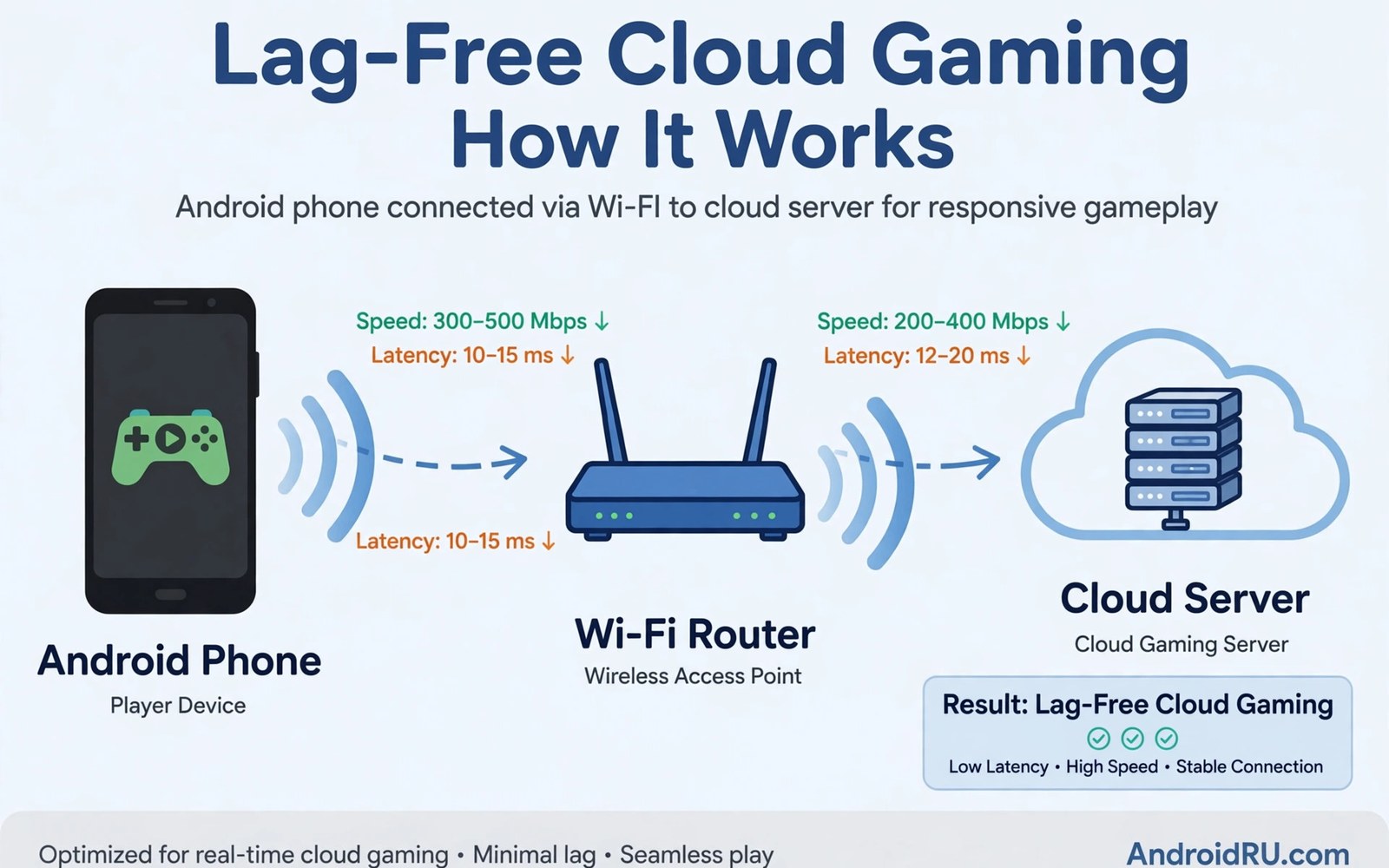
Internet speed for cloud gaming decides whether your session feels smooth or falls apart. Many players blame the game when the real problem is the link. Cloud gaming streams video to your phone and sends inputs back many times per second. Both directions need a stable link. This article gives real numbers and simple tests so you can judge your connection with confidence.
Speed alone misleads people. A 200 Mbps plan can still stutter if latency spikes or packets drop. A modest 30 Mbps link can play beautifully when latency stays low and steady. Focus on three numbers. Download speed sets your stream quality ceiling. Latency sets your response delay. Jitter and packet loss set your stability. All three matter together.
Bandwidth numbers by quality level
A 720p stream at 60 frames per second usually needs 10 to 15 Mbps of steady download speed. A 1080p stream needs 20 to 35 Mbps. A 4K stream can demand 45 Mbps or more. These are steady numbers rather than burst peaks. Your link must hold them for the whole session. A speed test that shows a brief peak proves little.
Upload speed matters less but still counts. Your inputs and voice chat travel upstream. Most services need only 2 to 5 Mbps upstream. A weak upload link can still cause input drops and voice breaks. Check upload speed in your test results rather than ignoring that number.
Other devices share your link. A video stream in another room can take 15 Mbps or more. A cloud backup can saturate upload for minutes. A game download can crush everything. Pause heavy tasks during play or use router controls to give your phone priority. One quiet network beats one fast but crowded network.
Latency targets you should aim for
Aim for ping under 30 milliseconds to a nearby server for the best feel. Play stays enjoyable up to about 60 milliseconds for most genres. Beyond 80 milliseconds fast games start to feel soft. Beyond 120 milliseconds even slow games can feel sluggish. These targets describe network ping only. Total input delay adds server and display time on top.
Jitter matters as much as average ping. Jitter means variation between pings. A link that jumps between 20 and 90 milliseconds feels worse than a steady 50 millisecond link. Packet loss hurts even more. Lost packets force retransmits and cause visible freezes. Even 1 percent loss can ruin a session.
Test latency over time rather than once. Run a ping test for a full minute during your normal play hour. Evening hours often show worse numbers when neighbors stream video. A test at noon may flatter a link that struggles at night. Judge your link at the hour you actually play.
Wi-Fi setup for stable streams
Use the 5GHz band for gaming when your router offers it. The 5GHz band moves faster and faces less interference from neighbors. Its range is shorter though. Play in the same room as the router or add an access point nearby. The 2.4GHz band reaches further but shares crowded airwaves with many gadgets.
Place your router in the open. A router buried in a cabinet or behind a TV loses signal strength. Raise it to shelf height. Keep it away from thick walls and metal objects. Small placement changes can cut latency more than a plan upgrade. Test before you spend money on new gear.
Restart your router weekly if streams degrade over time. Firmware updates also help. Log into your router settings and check for updates twice a year. Old firmware can carry bugs that hurt real time traffic. A fresh update is free and often fixes odd stutter.
A script to log your link quality
The script below pings a test host once per second for a minute and prints a summary. Run it during your usual play hour to see real evening performance.
import subprocess
import re
import statistics

host = "8.8.8.8"
proc = subprocess.run(
    ["ping", "-c", "60", "-i", "1", host],
    capture_output=True, text=True
)
times = [float(x) for x in re.findall(r"time=([0-9.]+)", proc.stdout)]
loss = re.search(r"([0-9.]+)% packet loss", proc.stdout)
if times:
    print("Samples:", len(times))
    print("Mean ms:", round(statistics.mean(times), 1))
    print("Std dev ms:", round(statistics.pstdev(times), 1))
    print("Max ms:", round(max(times), 1))
if loss:
    print("Loss:", loss.group(1) + "%")
if times and statistics.mean(times) < 40 and statistics.pstdev(times) < 10:
    print("Link looks stable for cloud gaming")
else:
    print("Link looks unstable. Fix Wi-Fi or wiring first")
This snippet is an original adaptation of a common ping logging pattern. It is included here so you can measure stability across a full minute rather than trusting a single quick test.
Common mistakes
Many players test speed once and stop there. A single test misses evening congestion and jitter. Test at your real play hour for honest numbers. Another mistake is paying for a faster plan while the router sits far away. Distance and walls often matter more than plan speed. Move closer or add an access point first.
Some players game on a VPN without realizing the cost. A VPN adds hops and latency to every packet. Turn the VPN off for gaming unless you truly need it. Others leave cloud backups running during play. A backup can saturate upload and cause input lag. Pause backups during sessions.
A final mistake is trusting the router app speed test. That test measures the router link to the internet. It says nothing about your phone link to the router. Test from your phone in your play spot. That number is the one that decides your session.
Router upgrades worth buying
A router upgrade helps cloud gaming only when the old router is the bottleneck. Signs of a weak router include frequent drops and high jitter near the device. A modern Wi-Fi 6 router improves scheduling for many devices. It also offers cleaner bands with less interference. Buy one when your home has many gadgets competing for airtime. A small household with few devices gains less.
Placement beats purchase in many homes. A new router in a bad spot performs like an old router. Place the router centrally and high and in the open. Avoid cabinets and thick walls and metal shelves. Test placement changes before spending money. A ten minute move can fix problems a new purchase would not.
Mesh systems suit large homes with dead zones. A mesh node near your play spot gives a strong local signal. Wired backhaul between nodes works best. Wireless backhaul still helps but shares airtime. A single strong access point near your gaming chair often beats a full mesh for one player. Buy for your actual play spot rather than whole home coverage.
Testing tools beyond ping
Ping tests show latency but miss other problems. A speed test with sustained load reveals whether your link holds speed over minutes. Run a long test during your play hour. Watch for drops midway through the test. A link that starts fast and sags under load will sag during games too. Sustained tests expose weakness that quick tests hide.
Jitter tools add another view. Some apps graph ping over time rather than reporting one average. A graph shows spikes clearly. Spikes matter more than averages for gaming feel. A link with rare huge spikes feels worse than a link with steady moderate delay. Graph your link for a full minute before you judge it.
Packet loss tests complete the picture. Even small loss rates cause visible freezes in streams. Test loss during evening hours when neighbors stream video. A loss rate above one percent deserves attention. Check cables and router placement and interference sources. Fix loss before chasing faster plan speeds.
When to call your internet provider
Call your internet provider when problems persist after you fix placement and bands and router restarts, because line faults hide beyond your home. Signs of a line fault include packet loss at all hours and speeds far below your plan at the router itself. Test at the router with a wired device before calling, since provider support asks for that number first. A wired test separates home Wi-Fi problems from line problems clearly. Support helps faster when you present wired evidence.
Prepare details before the call to avoid repeated troubleshooting scripts. Note your plan speed and wired test results and times of worst performance. Mention that Wi-Fi placement and restarts already failed. Support agents follow scripts, and clear evidence moves them past basic steps faster. Ask for a line test from their side during the call. Line tests reveal faults invisible from your home.
Escalate politely when first line support cannot help, because complex faults need higher tiers. Ask for a technician visit when line tests show faults. Note appointment times and reference numbers. Technician visits fix street level faults that no router setting can solve. A fixed line transforms cloud play more than any device upgrade when the line was the real problem.
Consider plan changes only after line health is confirmed, because a faster plan on a faulty line wastes money. A healthy line at modest speed plays better than a faulty line at high speed. Confirm health first, then upgrade speed when stability proves solid. This order saves money and frustration for players tempted to buy speed as a cure all.
Neighbor reports add useful evidence for provider calls, because area faults affect many homes at once. Ask neighbors whether they see similar evening slowdowns. Shared symptoms point to street equipment rather than your home. Providers act faster on area faults with multiple reports. Community evidence strengthens your case more than a single complaint.
Upload capacity also deserves a check when streams stutter, because cloud gaming sends controller inputs and voice data upstream continuously. A saturated upload link delays inputs even when download speed looks excellent. Pause cloud photo backups and large file uploads during play sessions. Test upload speed separately from download speed in your speed test results. A healthy upload link usually needs only a few megabits per second, but it must stay steady without long pauses or drops.
FAQ
What download speed do I need for cloud gaming?
A steady 25 Mbps suits 1080p play for most services. A 720p stream can work on 15 Mbps. Higher quality and higher frame rates need more. Stability matters more than peak speed.
Does upload speed affect cloud gaming?
Yes but less than download speed. Inputs and voice need only a few Mbps upstream. A saturated upload link still causes lag. Pause cloud backups and large uploads during play.
Is mobile data fast enough for cloud gaming?
Strong 5G often works well for short sessions. Data use runs high at good quality. Wi-Fi remains the better choice for daily play and long sessions.
Link choice shapes every number in this article so compare your options before you upgrade a plan. The Wi-Fi 6 versus cellular stability comparison shows when each link holds up. The explainer on how 5G transforms mobile cloud gaming covers mobile speed gains and limits. The guide to stream resolution and data consumption translates quality settings into gigabytes per hour.
Conclusion
Internet speed for cloud gaming is really about stability. Aim for steady download headroom and low jitter and near zero packet loss. Test from your phone at your real play hour. Fix placement and band choice before you buy a faster plan. Your next step is simple. Run a one minute ping test tonight from your play spot. If the numbers look stable then your link is ready. If they jump around then fix your Wi-Fi first and retest before your next session.

