

The PSP library still feels rich and varied today. It holds action games and role playing games and clever puzzle titles. PSP emulators for Android can make those games look sharper than the original handheld. The phone screen shows more detail than the old small display. This article shows how to reach that sharper picture safely.
High resolution tweaks are the main appeal of PSP emulation. The emulator renders the game at a higher internal resolution. That process sharpens edges and text in a clear way. It also costs processor power so tuning matters. A careful approach gives beauty without stutter.
Start with a game you know well. A familiar game makes visual changes easy to judge. You will notice sharpness gains and flaws at once. A console emulator setup follows a similar tuning pattern. The skills carry over between systems nicely.
Why PSP games upscale so well
PSP games used 3D graphics that scale cleanly to higher resolutions. The emulator redraws the scene with more pixels. Edges become smoother and text becomes easier to read. The original art style stays intact through the process. That is why upscaling feels like a remaster rather than a filter.
Two dimensional games benefit too but in a smaller way. Sprites gain cleaner edges at higher render scales. The gain is clearest in menus and text boxes. Test both 3D and 2D titles to see the difference. Each game type rewards a different setting mix.
Resolution and rendering settings
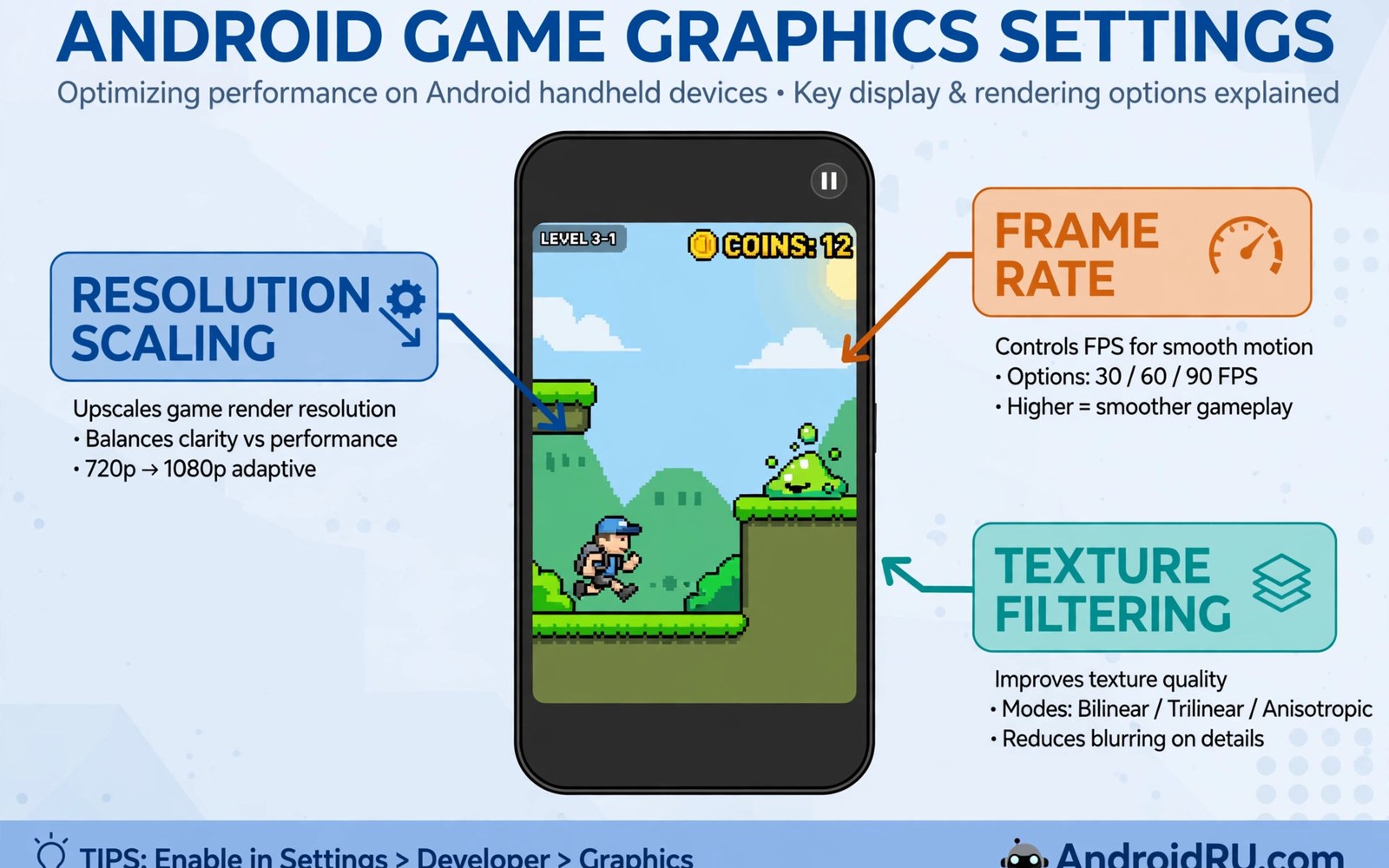
Rendering resolution is the first setting to tune. Start at twice the original resolution for a first test. Raise it one step at a time while speed stays stable. Stop when the frame rate drops in busy scenes. A stable picture beats a slightly sharper stuttering one.
Texture scaling can sharpen low resolution textures in some games. It uses extra memory and it can change the art style. Test it on one game before you apply it widely. Some players love the cleaner look. Others prefer the original texture feel.
Frame rate and speed controls
Most PSP games target thirty or sixty frames per second. The emulator should match that target without wild swings. A steady frame rate feels better than a higher uneven rate. Watch a busy scene for dips rather than a quiet menu. Busy scenes reveal the true cost of high resolution.
Fast forward is handy for grinding and slow sections. It is not a fix for a slow game. A game that stutters at normal speed will feel worse when sped up. Fix the base speed first. Then use fast forward as a convenience tool.
Controls for handheld action
PSP games used one analog nub and a full button set. Touch controls can work but they need a thoughtful layout. Place the nub where your left thumb rests naturally. Keep action buttons large enough for fast presses. Test the layout in a combat scene and not only in a menu.
A telescopic controller turns a phone into a true handheld console. It grips the phone on both sides like the original device. That form feels natural for PSP titles. It also frees the screen from finger cover. The game picture stays fully visible during play.
Saving and transferring progress
PSP emulators support both in-game saves and save states. In-game saves work like the original memory stick. Save states add quick slots for practice and retries. Use both systems for important progress. A backup of the save folder protects long role playing campaigns.
Moving saves to a new phone is usually simple. Copy the save folder to the same place on the new device. Test one save before you copy the whole library. A quick test catches folder mistakes early. Your campaign is too valuable to risk on a blind copy.
Upscaling and texture work in detail
Internal resolution scaling redraws the game world with more pixels. A scale of two times already sharpens most PSP titles clearly. A scale of three times suits strong flagship phones better. Each step costs processor power in a direct way. Test busy scenes at each step before you settle. A quiet menu hides the true cost of a high scale. Busy battles reveal whether the phone can sustain the setting. Choose the highest scale that stays smooth in battle.
Texture filtering works on the surfaces inside the game world. It can smooth blocky textures on walls and characters. Some games gain a cleaner look from filtering. Others lose their original art charm through over smoothing. Test filtering per game rather than as a global rule. A racing game and a puzzle game may want different choices. Per game profiles store those choices without manual switching. Profiles turn careful testing into lasting convenience.
Anisotropic filtering sharpens textures seen at a shallow angle. Roads and floors benefit most from this option. It costs less than full resolution scaling in many titles. Enable it after resolution is settled for a game. Compare a driving scene with the option on and off. The difference shows clearly on long road surfaces. Keep the option only when the gain is visible. Invisible options waste power for no benefit at all.
Battery life during long handheld sessions
High resolution rendering drains battery faster than native play. A long session at high scale may need a charger nearby. Lower the scale slightly when playing away from power. A small scale reduction extends battery life noticeably. The picture still looks far better than the original handheld. Battery planning matters for travel sessions most of all. A power bank in the bag removes anxiety about long trips.
Screen brightness also shapes battery drain during play. A very bright screen costs power on every minute of play. Lower brightness to a comfortable level indoors. Comfortable brightness plus modest scaling gives long sessions. Outdoor play needs more brightness and shorter expectations. Adjust expectations to the environment honestly. A realistic battery plan beats surprise shutdowns during a boss fight.
Background apps drain battery even when the game runs in front. Close social apps and browsers before a long session. A clean background lets the game use the battery efficiently. Check battery usage after a session to spot hungry apps. Remove or restrict apps that drain power silently. A tidy phone battery lasts longer for the games you love.
Playing PSP games with a friend nearby
PSP games were often solo adventures on a small screen. A phone setup can still share the experience with a friend. Television output turns a solo game into a shared spectacle. A friend can watch story scenes and suggest choices. Shared watching adds commentary and laughter to long games. Turn based battles suit shared decision making especially well. Let the friend pick dialogue choices sometimes. Shared choices make a solo game feel cooperative.
Some PSP games support local multiplayer between devices. Local play needs both devices running the same game version. Matching versions prevents connection failures during setup. Test the connection before a planned multiplayer session. A quick test avoids disappointment when friends gather. Keep both devices charged for the session length. A dead battery ends multiplayer at the worst moment. Preparation makes local play feel effortless.
Take turns on single player games to share the fun fairly. A timer or a level based rotation keeps turns balanced. Short turns keep both players engaged throughout. Long turns leave the watcher bored and restless. Agree on turn length before play begins. Fair rotation is the core rule of shared single player. A fair system keeps friendships intact through competitive games. Fun shared beats a high score kept selfishly.
Discuss the game after a shared session ends. Talk about favourite moments and hard sections together. Shared discussion deepens appreciation of story and design. It also reveals strategies neither player found alone. A post game chat extends the session value beyond play. Friends remember shared stories longer than solo scores. Conversation turns a game night into a lasting memory. The best retro nights end with talk and not silence.
Common mistakes
The most common mistake is jumping straight to maximum resolution. Maximum settings look tempting in screenshots. They often crush speed in real gameplay. Start at a modest scale and climb slowly. Your phone will tell you where the limit sits.
Another mistake is ignoring per game settings. One global setting rarely suits a whole library. A puzzle game and a racing game need different tradeoffs. Save a profile for each demanding title. Profiles turn tuning into a one time job per game.
Do not forget to test audio after a graphics change. Heavy graphics load can cause audio crackle. Crackle is a warning that the phone is overloaded. Lower the resolution one step and test again. Smooth sound usually returns with a lighter load.
A practical example you can try
cp -r ~/PSP/SAVEDATA ~/Backups/PSP-SAVEDATA
# back up saves before emulator updates
# restore one save first to check the folder path
This snippet is an original example written for this article. It shows the idea in a compact form that you can adapt to your own setup and change as you learn what works best on your phone.
Frequently asked questions
Which resolution should I start with?
Start at twice the original resolution on most modern phones. That level gives a clear sharpness gain. It also leaves headroom for busy scenes. Raise it only if speed stays stable in action. A modest start saves a lot of retesting.
Twice the original resolution suits most modern phones well. It gives a clear sharpness gain without crushing speed. Strong phones can try three times on light titles. Test a busy scene at each level before you commit. The highest stable scale is the right scale for your phone.
Do PSP games need a BIOS file?
Most PSP emulators on Android do not need a separate BIOS file. They include the needed system behaviour in the app. That makes setup simpler than some console systems. A handheld emulator setup is similarly friendly for beginners. Check the emulator docs if a game behaves oddly.
Most PSP emulators include the needed system behaviour inside the app. That design removes the separate BIOS step for beginners. A simple handheld setup shares that friendly trait. Check emulator documentation if a specific game behaves oddly. Odd behaviour usually points to a setting and not a missing file.
Why do shaders matter for PSP games?
Shaders change how pixels look on a modern screen. A shader filter for retro pixels can soften harsh edges or add a retro feel. PSP games usually need only a light touch. Test shaders at normal play distance for the honest result.
Shaders add a final polish layer on top of high resolution rendering. A light shader can soften harsh digital edges gently. Heavy shaders can undo the clarity that upscaling provides. A light shader choice suits PSP games best. Test shaders at normal play distance for an honest result.
Conclusion
Your concrete next step is to tune one favourite PSP game today. Set rendering to twice the original resolution and test a busy scene. Raise it one step only if the frame rate stays steady. Save that profile for the game. That one polished title shows what your phone can really do.
Save a separate profile for each PSP game you polish. A profile stores resolution and filtering choices per title. Profiles remove the need to retune a game every time you return. After five polished games you own a personal best settings library. That library makes every future PSP session start beautifully.

