

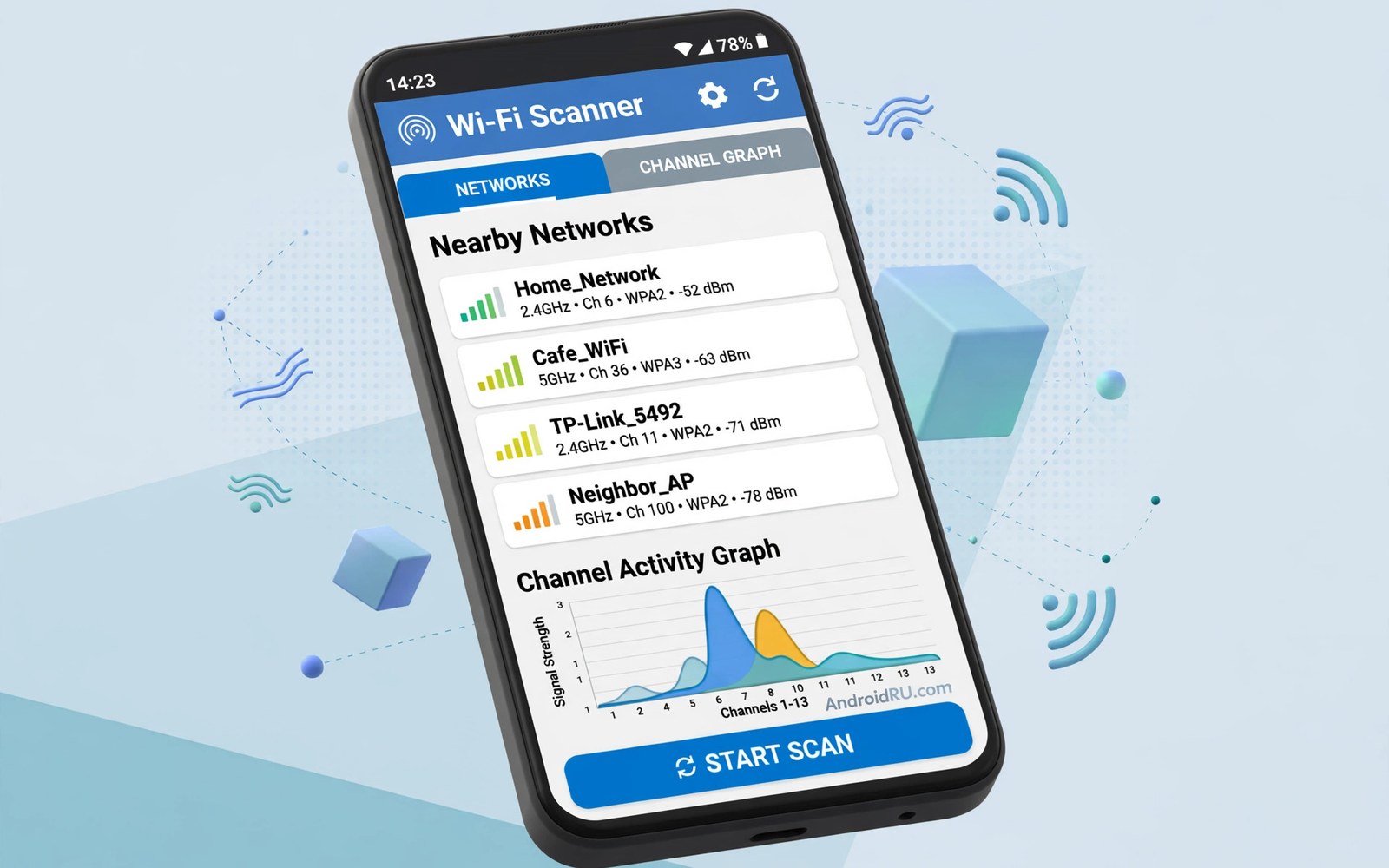
Wi-Fi scanner tools show every network around you and which channels they use. Crowded channels slow your connection even when signal looks strong. This guide explains how to find the least crowded channels and move your router to a quieter spot in the spectrum.
Channels are like lanes on a road. Too many networks in one lane means traffic jams. A scanner maps the lanes and shows where space exists. If you already ran a network speed diagnosis and found slow speeds with strong signal then channel crowding is a likely culprit worth checking next.
How Wi-Fi channels work
Wi-Fi bands split into channels that carry data. The two point four gigahertz band has few non overlapping channels. Channels one and six and eleven avoid overlap on that band. The five gigahertz band offers many more channels and wider widths.
Wider channels carry more speed but crowd faster. An eighty megahertz channel uses four basic channels at once. In a dense building that width may overlap many neighbors. A narrower channel can beat a wider one when the air is crowded.
Reading a scanner graph
A scanner graph plots networks by channel and signal strength. Tall peaks mean strong nearby networks. A channel with short peaks or no peaks is quiet. Pick the quietest channel near your router location and not just near your phone.
Scan from the router spot for the best view. Phone position changes which networks look strong. Walk the home and scan in two or three rooms. The best channel balances quiet across the whole home and not just in one corner.
Choosing channels for each band
On two point four gigahertz pick one or six or eleven with the lowest total overlap. Avoid in between channels since they overlap two neighbors at once. Accept that this band stays crowded in apartments. Use it for range and smart home gear.
On five gigahertz pick a channel with no strong neighbors and room for your width. Lower channels suit most routers. DFS channels offer extra space but routers may vacate them when radar appears. Test a DFS channel for a day before you commit the whole home to it.
Applying the change on your router
Open router settings from a browser on your home network. Find the wireless settings page for each band. Change the channel from auto to your chosen channel. Save and let the router restart its radios.
Test speed after the change in your worst room. A good channel change lifts speed and cuts drops within minutes. If nothing improves then rescan since neighbors may have shifted too. Auto channel sounds smart but it often picks crowded channels at boot and never revisits the choice.
When channels are not the problem
Channel changes cannot fix a weak signal from distance. They cannot fix an old router with slow radios. They cannot fix an internet plan slower than your Wi-Fi link. Diagnose signal and plan speed before you blame channels.
Interference from non Wi-Fi devices also escapes channel scans. Microwaves and baby monitors hit the two point four band. Bluetooth gear shares that band too. If the two point four band stays slow on every channel then move devices to five gigahertz where possible.
Two point four versus five gigahertz strategy
Assign bands by device need and not by habit. Smart home gear suits two point four gigahertz for range. Laptops and phones suit five gigahertz for speed. Televisions streaming 4K suit five gigahertz near the router. That split reduces crowding on both bands.
Separate band names to control assignment manually. One combined name lets devices choose poorly. A phone may cling to slow two point four gigahertz far from the router. Separate names let you pick the right band per spot. Manual control beats automatic guessing in mixed homes.
DFS channels and radar events
DFS channels share spectrum with radar systems. Routers must vacate a DFS channel when radar appears. That vacate drops Wi-Fi briefly while the router picks a new channel. Users notice a short outage and blame the router. The behavior is legal requirement and not a fault.
DFS channels offer quiet space in crowded areas. Test a DFS channel for a week before committing. If radar events disrupt often then leave DFS alone. If no events occur then DFS gives real speed gains. Log outages to judge DFS fairly.
Neighbor networks and polite coexistence
Wi-Fi is shared airspace with neighbors. Choosing a crowded channel hurts you and them. Picking a quiet channel helps everyone. Lower transmit power when your home is small. High power reaches neighbors and raises their interference too.
Coordinate informally in apartment buildings when possible. Stagger channels among nearby flats. Each flat gains speed from the agreement. Even without coordination a quiet channel choice is polite and effective. Good neighbors make good spectrum.
Scanning with phone position in mind
Phone antennas face one direction at a time. Rotating the phone changes which networks look strong. Hold the phone flat and still during scans for consistency. Scan the same spot twice and average the results. Averaging removes orientation noise.
Height changes scans too. A scan at desk height differs from a scan at floor level. Scan at the height where devices actually sit. Router height scans suit router placement. Desk height scans suit laptop use. Match scan position to the real use case.
When to upgrade the router itself
Channel tuning cannot rescue a decade old router. Old radios cap speed and lack modern bands. If your router lacks five gigahertz then upgrade first. If it lacks current security standards then upgrade for safety alone.
Compare upgrade cost against daily frustration. A new router costs less than months of slow video calls. Choose a router with good coverage for your home size. Test return policies before committing. A trial week proves whether new hardware truly fixes the problem.
Signal overlap from neighboring routers
Neighbor routers on the same channel share airtime directly. Each router waits for quiet moments before transmitting. More neighbors means more waiting and lower effective speed. Scanners reveal neighbor counts per channel clearly. A channel with two strong neighbors often beats a channel with eight weak ones since waiting time dominates.
Channel width multiplies overlap effects. A wide channel touches more neighbor channels at once. In dense buildings narrow channels coexist better. Forty megahertz width on five gigahertz balances speed and coexistence well. Eighty megahertz suits detached homes with few neighbors. Match width to density rather than maximizing it blindly.
Testing speed at different times of day
Speed varies by time as neighbors use their networks. Evening peaks slow shared spectrum for everyone. Morning tests show best case speed. Evening tests show worst case reality. Compare both before judging a channel change. A change that helps evenings matters more than one that helps mornings.
Log tests at three times for a fair picture. Morning and afternoon and evening samples reveal the daily curve. A flat curve suggests a stable link. A deep evening dip suggests congestion that channel changes may only partly fix. Time aware testing guides realistic expectations.
Router firmware and channel behavior
Router firmware shapes channel selection and stability. Old firmware may pick poor channels or crash on DFS events. Update firmware before blaming channels for persistent problems. Check vendor release notes for wireless fixes. A firmware update sometimes resolves months of mysterious drops.
Beta firmware can introduce new wireless bugs. Prefer stable releases for home routers. Test beta firmware only when a specific fix interests you. Roll back promptly when beta behavior worsens. Stable firmware plus good channels beats experimental firmware plus guesswork.
Wi-Fi 6 and channel planning differences
Wi-Fi 6 improves dense environment handling through better scheduling. It reduces contention even on crowded channels. Channel planning still matters under Wi-Fi 6 but the penalty for crowding shrinks. Older devices on the same network still suffer crowding fully. Mixed networks need channel care for legacy devices.
Wi-Fi 6 routers also use wider channels more efficiently. They split channels among devices with OFDMA techniques. That efficiency helps apartments greatly. Upgrade clients gradually to gain full benefits. Router upgrades alone help partially. Client upgrades complete the gain.
Channel planning for smart home gear
Smart home gear crowds the two point four band heavily. Bulbs and plugs and cameras each hold a Wi-Fi connection all day. Their traffic is tiny but their presence adds contention. Reserve a quiet two point four channel for smart gear when your router allows band steering rules.
Move phones and laptops to five gigahertz to free the crowded band further. Smart gear cannot use five gigahertz on many models. Giving smart gear a calmer two point four band improves reliability for lights and locks. Channel planning is really device planning in a smart home.
adb shell cmd wifi list-scan-resultsThe command above follows the standard syntax for the Android developer bridge and lists recent Wi-Fi scan results so you can compare scanner app data with system scan output.
Common mistakes
The biggest mistake is picking a channel from one scan at one spot. Neighbors shift and signal varies by room. Scan in several rooms and at two times. The best channel is the one that stays quiet across those scans.
Another mistake is choosing a channel between one and six and eleven on the two point four band. Middle channels overlap both neighbors and perform worse than a busy clean channel. Stick to the three non overlapping channels on that band.
People also forget to test after changing. A channel change needs a speed test to prove it helped. Test the worst room before and after. A remote test from a PC while you walk rooms can log results without juggling the phone and a notebook.
Frequently asked questions
How often should I rescan channels?
Every few months or when speed drops for no clear reason. Neighbors add routers and change settings over time. A fresh scan catches new crowding before it becomes a daily annoyance.
Do scanner apps need root?
No. Basic channel and signal scans work without root. Some deep radio details need special access but channel selection never does. Skip scanners that demand root for a simple graph.
Will changing channels affect my devices?
No. Devices follow the router to the new channel automatically. They reconnect within seconds after the router restarts its radios. No device settings need manual changes.
Conclusion
Wi-Fi scanner tools turn invisible crowding into a clear graph. Pick quiet non overlapping channels per band and test the worst room after each change. Rescan every few months as neighbors shift.
Your next step is concrete. Scan your home today and note the busiest channel on each band. Change the router to the quietest option tonight. Then check audio analyzer tools only if you also want to measure interference noise in a different domain for a full home audit.

