

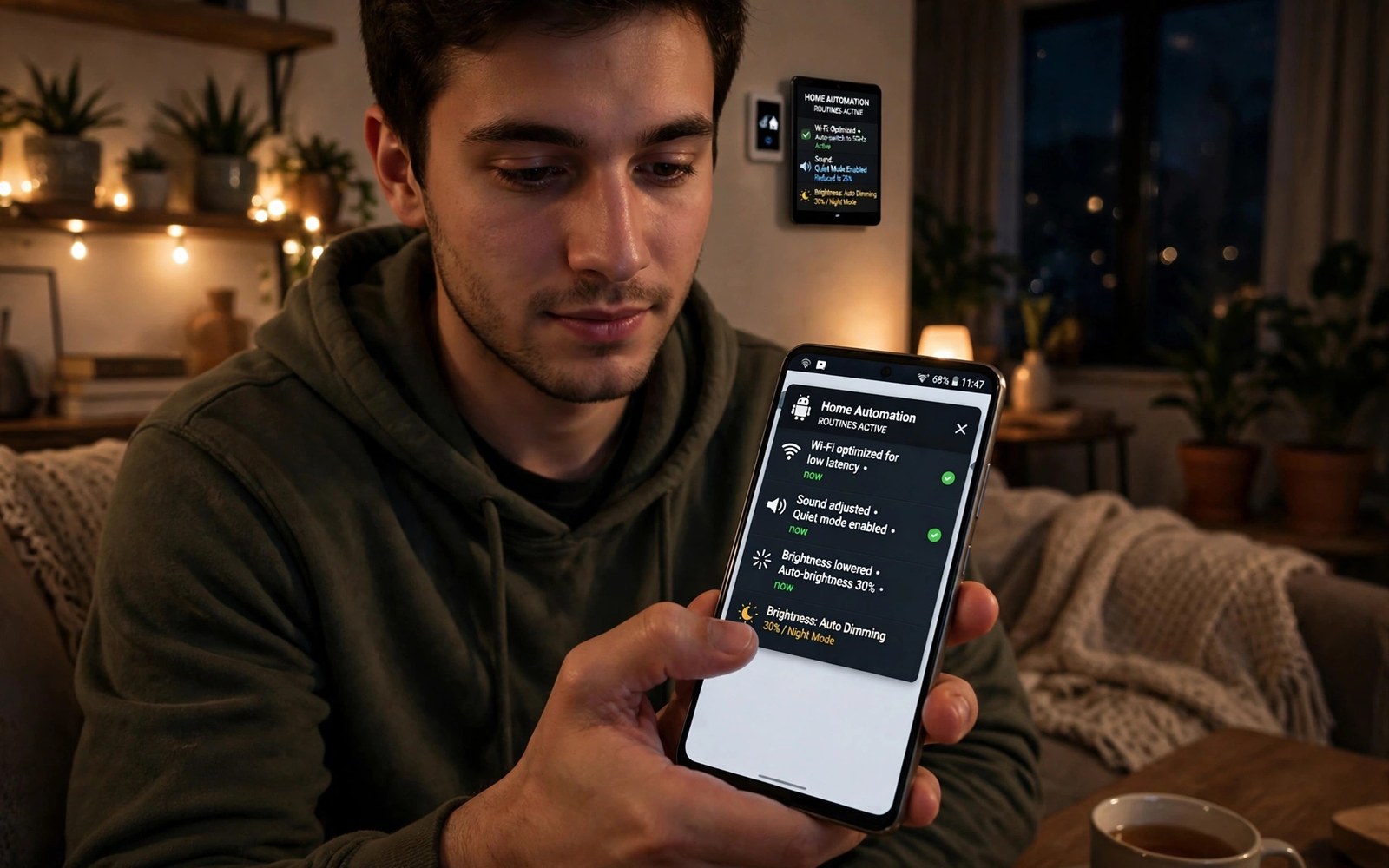
How Automation Tools Automate Daily Android System Settings
My phone used to demand attention all day. I turned Wi-Fi off when I left home, silenced alerts before bed, raised brightness in sunlight, and lowered volume in meetings, one manual tap after another. After a week of testing automation apps on a Pixel running Android 15, I stopped doing most of that by hand. A routine now watches for a moment I define, then changes the setting for me, and logs the result so I can check what happened. That is the whole idea behind automation tools: a trigger, an action, and a record.
This guide covers how those tools work on real phones, which triggers you can trust, which actions are safe to automate first, and where the traps sit. You will get concrete menu paths, named apps, example routines for morning, driving, work, and bedtime, plus a testing method that catches a bad routine before it silences an important call. If you manage routines from a PC, test each routine on the phone first, because remote edits can break a setup that already works.
Automation is not about building fifty routines on day one. It is about one routine that fires every time, then a second one, until the phone quietly handles the repetitive parts of your day. Start small, prove each routine for a week, and keep only the ones you stop noticing.
How Automation Tools Change Android System Settings Without Constant Tapping
Every routine has two parts. A trigger watches for an event: a time of day, a Wi-Fi network, a Bluetooth device, an app opening, a battery level, or a charger being plugged in. An action changes a setting or starts something: silence the ringer, set brightness, switch on Do Not Disturb, open navigation, send a preset reply, or turn on battery saver. Some tools add a condition in the middle, so the routine only runs when both the trigger and the condition are true.
On Android, automation apps use a mix of standard permissions, accessibility services, notification access, and device administrator rights to change settings. Modern Android versions restrict some toggles, such as mobile data and GPS, so a few actions need a helper app installed through ADB, or a specific permission granted from a computer. That sounds technical, and it takes about five minutes, but most daily routines — sound, brightness, Wi-Fi, Bluetooth, Do Not Disturb, app launches, volume — work without it.
Triggers, actions, and conditions in plain terms
Think of a trigger as the “when”, an action as the “what”, and a condition as the “only if”. A bedtime routine might read: when the time is 11:00 pm, only if the phone is charging, then set Do Not Disturb on and brightness to 15 percent. The condition stops the routine firing on a late night out when you are not home. Without conditions, triggers are blunt. With them, routines feel smart.
Most apps keep a run log. That log is your best friend during the first week. It shows the exact time a routine fired, which action succeeded, and which one failed. I check the log every evening for the first three days of any new routine. A routine with no log entry either never fired or fired silently, and both outcomes need investigation.
Reading a run log the right way
Open the log, find your routine, and look for three things: the trigger time, the action result, and any error code. A trigger that fired at the wrong time points to a trigger problem. An action that failed points to a missing permission. An entry that never appears points to the app being killed in the background, which is the most common failure on Android phones from Samsung, Xiaomi, and other makers with aggressive battery management.
Why routines fail on some phones and not others
Android itself allows automation apps to run in the background, but many manufacturers add their own battery rules on top. Samsung, Xiaomi, Oppo, Vivo, and Huawei phones can pause background apps even when Android would not. The fix is the same on most of them: open Settings, search for battery optimisation, find your automation app, and set it to unrestricted, then lock it in the recent apps screen so the system does not swipe it away. After a system update, check that exemption again, because updates sometimes reset it.
Tasker vs MacroDroid vs Automate: Which Automation App Fits Daily Settings
Three apps cover almost every daily settings job on Android, and they suit different people. Tasker is the most powerful and the hardest to learn. MacroDroid is the easiest starting point and handles most routines with templates. Automate sits between them, with a flowchart style that makes multi-step routines easy to follow. A quick search for automation apps on your phone can also surface older tools you installed and forgot, so check before you pay for a new one.
| App | Price | Ease of use | Best for | Limitation |
|---|---|---|---|---|
| Tasker | Paid, around $3.49 one-time | Steep learning curve | Complex routines, plugins, variables | Overwhelming for beginners |
| MacroDroid | Free tier, Pro around $5–$12 | Easy, template driven | Daily settings, first routines | Free tier limits routine count |
| Automate | Free tier, premium upgrade in-app | Moderate, flowchart blocks | Multi-step flows you can see | Flowcharts get messy at scale |
| IFTTT | Free tier, Pro subscription | Easy | Cloud services and smart home | Weak for on-device settings |
| Built-in Routines / Modes | Free, included | Easy | Bedtime, driving, focus modes | Fewer triggers than Tasker |
Tasker, at roughly $3.49 as a one-time purchase on Google Play, can do almost anything: read notifications, react to variables, run JavaScript, and talk to plugins for smart home gear. I use it for routines with three or more conditions, such as a work routine that needs weekday, time, and office Wi-Fi all at once. The trade-off is real: the interface looks dated, and a first routine can take an hour to build.
MacroDroid is where I tell most people to start. Its free tier allows a handful of macros, and the Pro upgrade removes the limit. You pick a trigger from a list, pick an action, and you are done. The template library holds hundreds of ready routines, including bedtime silence and car mode, which you can import and edit. That said, MacroDroid struggles with routines that need stored values or branching logic.
When the built-in Modes and Routines app is enough
Before you install anything, look at what your phone already has. Samsung Modes and Routines, Pixel Rules and Bedtime mode, and the standard Do Not Disturb schedules cover bedtime, driving, and work focus without a third-party app. On my Pixel, Bedtime mode dims the wallpaper, silences alerts, and turns the screen greyscale at 11:00 pm, and it has never failed. If your needs stop there, the built-in tools win on reliability and battery use, because the system never kills its own routines.
Which app should you pick first
Pick MacroDroid if you want your first routine running tonight. Pick Tasker if you enjoy tinkering and want routines that no other app can build. Pick Automate if you think in flowcharts and want to see each step of a chain. Pick the built-in Modes app if your routines are bedtime, driving, and work hours only. You can move routines between apps later, but each move means rebuilding, so choose with a week of testing in mind rather than an afternoon of reading reviews.
How I tested the three apps side by side
I built the same bedtime routine in all three: at 11:00 pm, enable Do Not Disturb, set brightness to 15 percent, and turn Wi-Fi off only if the phone was charging. MacroDroid took four minutes. Automate took nine. Tasker took twenty, mostly because I had to find the right action names. All three fired correctly for seven nights. The difference was not reliability, it was how long I spent building.
Time Triggers That Automate Android Bedtime and Morning Settings
Time triggers are the most reliable trigger type on Android. They do not depend on GPS, Wi-Fi, or Bluetooth, and they fire even in airplane mode. A bedtime routine at 11:00 pm fires every night without fail, and a morning routine at 7:00 am fires every morning. That reliability makes time the best first trigger for anyone new to automation.
A good bedtime routine does four things: it enables Do Not Disturb, dims the screen, silences media volume, and turns on any charging protection your phone offers. Build it with a time trigger at the hour you actually go to bed, not the hour you wish you did. A routine set for 10:00 pm that you ignore until midnight teaches you to distrust it. Set it for your real bedtime and let it work.
A morning routine is the mirror image. At 7:00 am it turns Do Not Disturb off, restores media volume to 60 percent, sets brightness to automatic, and opens your calendar app. Some people add a weather readout through their voice assistant. Keep the morning chain short: two or three actions that you check every day anyway. If the routine opens five apps at once, you will delete it within a week.
Building a bedtime routine step by step
Open your automation app and create a new routine. Choose a time trigger, set it to 11:00 pm, and set it to repeat daily. Add the Do Not Disturb action first, then the brightness action at 15 percent, then the media volume action at zero. Save it, then fire it by hand: most apps have a test or play button. Watch each action happen. If brightness does not change, the app lacks the display permission, so grant it and test again.
Live with that routine for a week before you add anything. Check the log each morning. If it fired seven times out of seven, it is trustworthy. If it missed a night, check whether the phone restarted, whether battery optimisation re-enabled itself, or whether a system update reset a permission. Those three causes cover most missed time triggers.
Morning routines that do not overwhelm you
The best morning routine is boring. It restores the settings that bedtime changed, and it opens one app you need. My morning routine turns Do Not Disturb off at 7:00 am, sets brightness back to automatic, and opens the calendar. That is all. I tried a version that also read the news, opened email, and started a podcast, and it felt like the phone was shouting at me before coffee. Simple routines survive; ambitious ones get deleted.
Location and Wi-Fi Triggers for Home and Work Routines
Location triggers watch where you are. A home routine might turn Wi-Fi on and silence work email when you arrive. A work routine might silence personal apps and set the ringer to vibrate when you reach the office. They are useful, but GPS-based location can drift, especially near borders between home and away, and constant GPS polling costs battery.
Wi-Fi triggers solve most of that. A home Wi-Fi connection signals arrival reliably, indoors, without GPS. An office Wi-Fi signals work hours reliably. Wi-Fi triggers use far less battery than constant GPS polling, and they work in buildings where GPS struggles. The catch is that Wi-Fi triggers need the phone to actually connect, which takes a few seconds after you walk in, so they suit routines that can wait a minute.
Using a wide radius instead of a tiny GPS circle
The biggest mistake with location routines is a tight radius. A 50-metre circle around home flaps as GPS drifts by 30 or 40 metres, and the phone toggles Wi-Fi on and off all evening. Use a radius of at least 200 metres, or switch to a Wi-Fi trigger entirely. Time plus location triggers are the most reliable combination I have tested: home Wi-Fi plus evening time means a true evening home routine, while either signal alone could misfire.
Combine Wi-Fi with time for precision. Home Wi-Fi plus the hours of 6:00 pm to 11:00 pm means the evening routine only runs at home in the evening. At home at noon, nothing happens. Out in the evening, nothing happens. Together the two signals rarely misfire, and that combination pattern suits most location routines without any GPS cost at all.
Setting up a Wi-Fi arrival routine
Create a routine with a Wi-Fi connected trigger, pick your home network name, and add actions: turn Bluetooth off, set media volume to 50 percent, and turn Do Not Disturb off. Test it by walking out of range and back in, or by toggling Wi-Fi off and on. Watch the log for the exact connection time. If the routine fires late, that is normal: the phone needs a few seconds to join the network and confirm internet access.
App Launch Triggers and Driving Mode Automation on Android
App launch triggers fire when you open a specific app, and they suit context changes well. Open a navigation app and the phone can raise media volume, turn on location accuracy, and reply to texts with a driving message. Open a reading app and the phone can dim the screen and silence notifications. Open a camera app and the phone can raise brightness so you can see the viewfinder in sunlight.
Driving mode is the classic example. The trigger is a car Bluetooth connection, or the launch of a maps app, and the actions are: raise media volume to 80 percent, open navigation, enable Do Not Disturb with an auto-reply, and turn the screen timeout to two minutes. On my phone, connecting to car Bluetooth opens maps within three seconds, and I have not opened maps by hand while driving in over a year. That is the point of a good routine: it removes a repeated manual step at a moment when your hands are busy.
Reading mode and focus mode through app launches
When I open my reading app after 9:00 pm, a routine dims the screen to 20 percent, turns on the blue light filter, and silences all but calls from favourites. When I close the app, a second routine restores brightness to automatic. The pair works because the trigger and its reverse are both defined. A routine without a reverse leaves settings changed long after the moment has passed, which is how people end up with a dim screen at noon wondering what happened.
Always build the reverse routine at the same time as the forward one. If opening an app changes three settings, closing it should restore those three settings. Write both routines in the same session, test both by hand, and name them as a pair, such as “Reading on” and “Reading off”, so a monthly review finds them together.
Voice triggers for hands-busy moments
Voice triggers start routines without touching the phone. A driving phrase can open maps and raise volume. A cooking phrase can set timers and open recipes. Voice suits hands-busy moments better than any button, but it needs clear, unique phrases. Short common phrases misfire in conversation. Pick a phrase you never say casually, test the misfire rate for a week, and delete any phrase that fires during normal talk. A routine that fires by accident annoys fast and gets deleted.
Battery and Charging Automation That Protects Battery Health
Charging routines protect battery health automatically. A routine can alert you at 80 percent charge, because lithium batteries age slower when they spend less time at full charge. Another can enable battery saver at 20 percent, so the phone lasts until you reach a charger. A night routine can slow charging until morning, which some phones now do natively under names like adaptive charging.
Battery routines need reliable triggers. Charge level triggers work well on most phones. Time triggers suit night charging windows. Combine both for a routine that only slows charging overnight: when the time is between 11:00 pm and 6:00 am and the charger is connected, limit charging. Daytime fast charging stays untouched and useful, which is the result you want.
The 80 percent alert routine
Create a routine with a battery level trigger at 80 percent and a condition that the charger is connected. Add a notification action: “Battery at 80 percent — unplug when you can.” Add a second routine at 20 percent that enables battery saver and lowers brightness to 30 percent. These two routines cost nothing to run and they change how long a battery lasts over two years. The 80 percent alert is the single battery routine I would keep if I could only keep one.
Battery saver at low charge without surprises
Battery saver changes real behaviour: it limits background sync, lowers brightness, and throttles performance. That is fine at 20 percent when you need hours of standby, but it is annoying if it fires at 35 percent during a video call. Set the trigger at 20 percent, not higher, and add a notification so you know it fired. A silent battery saver routine feels like the phone suddenly got slow for no reason.
Whitelisting your automation app from battery optimisation
Automation apps must run in the background to watch triggers, so exclude them from battery optimisation or triggers will miss. On a Pixel, go to Settings, then Apps, then your automation app, then App battery usage, and set it to Unrestricted. On Samsung, go to Settings, then Battery, then Background usage limits, and add the app to Never sleeping apps. Battery optimisation exemption costs a little battery, and the cost is worth it when routines save more effort than the power they use. From a computer, the ADB command below whitelists a package the same way:
adb shell cmd deviceidle whitelist +com.example.automationRe-check the whitelist after system updates, since updates sometimes reset it. A routine that worked for months can die from one update resetting its exemption, and the log will show the gap clearly.
Notification and Do Not Disturb Automation for Focus Hours
Automation can sort notifications by context. Work hours silence social apps and allow calls from favourites. Evening hours reverse the pattern. Driving mode silences all but navigation and calls. These rules protect attention without manual toggling every day, and they work because Do Not Disturb on Android is flexible: you can allow calls from starred contacts, allow repeat callers, and allow alarms while blocking everything else.
Test notification routines carefully. A silenced emergency call is a serious failure. Always allow favourite contacts through Do Not Disturb, and review the allowed list monthly. A routine that blocks the wrong person costs more than the focus it saves. I keep my allowed list to eight people: family and two colleagues who only call when something is genuinely urgent.
Work hours focus routine
A work routine with a time trigger of 9:00 am to 5:00 pm on weekdays can set Do Not Disturb to allow calls only, silence social apps through notification channels, and set the ringer to vibrate. At 5:00 pm a reverse routine restores normal sound. The weekday condition matters: the same routine firing on Saturday morning would silence a weekend call from a friend, which is exactly the kind of surprise that makes people distrust automation.
On Samsung phones, Modes can do this natively with a Work mode. On Pixel phones, Do Not Disturb schedules plus a Focus mode in Digital Wellbeing cover most of it. A third-party app adds the app-specific notification control that the built-in tools lack, such as silencing one social app while allowing another.
Evening wind-down and notification sorting
An evening routine at 9:00 pm can silence work email, allow personal messages, and dim the screen. The point is not to block everything, it is to change which interruptions are allowed. I think of it as a door policy: during work hours, work calls get in and social apps wait outside; in the evening, the list flips. That framing helps when you design the allowed list, because you ask who should reach you now, not which apps to block.
Testing, Troubleshooting and Privacy Audits for Android Automation Routines
Every routine needs a fallback for failure days. A silenced phone routine that fails leaves notifications blasting at night. A driving routine that fails leaves maps unopened. Build manual habits as backups for critical routines, and check routine logs weekly for missed runs that you did not notice. Testing is not a one-time step; it is a habit that keeps automation trustworthy.
Test every routine by hand first. Fire the trigger yourself and watch the action happen. Check the log the app keeps for each run. Logs show missed triggers and failed actions that you would otherwise miss for days. Test edge cases too: what happens when two routines fire at once, what happens when the phone reboots, and what happens when location is off. Answering these questions early prevents a routine from silencing your phone during an important call.
What to do when two routines conflict
Most apps run routines in order and the last action wins. Design routines so their triggers never overlap. Use conditions like time plus location to keep each routine in its own lane. If two routines must share a trigger, give one a higher priority in the app, or merge them into a single routine with a branching condition. Merging is usually the better answer: one routine with a condition is easier to debug than two routines fighting over the same setting.
After a reboot, some routines need the phone opened with your PIN once before triggers work, because Android restricts background work until the first sign-in. Test this: reboot, wait ten minutes without opening it, then open it and check the log. If a time routine missed its slot during that window, add a boot-completed trigger that re-applies the correct settings based on the current time.
Permission and privacy audit for automation apps
Automation apps request broad permissions by nature, so audit those permissions quarterly, because routines change over time. A routine you deleted may leave its permission granted. Revoke permissions for deleted routines promptly, and keep a list of active routines next to granted permissions, reconciling the two lists regularly. An app that wants full device control for a simple bedtime routine asks for too much, and you should say no to the extra access.
Location permission deserves special attention. An automation app with always-on location access tracks movement continuously. Restrict location to while in use when routines only need foreground triggers. Wi-Fi based home detection avoids constant location tracking entirely. One routine at a time is also a privacy habit: it keeps the permission list small, because each routine only asks for what it uses, and you can see exactly why each permission exists.
Monthly review checklist for routines
Once a month, open the routine list and ask four questions about each one: did it fire last week, did it ever fire at the wrong time, does it still match my schedule, and does it still need every permission it holds. Delete any routine that fails the first question. Fix any routine that fails the second. Update any routine that fails the third. Revoke permissions for any routine that fails the fourth. A ten-minute monthly review keeps a routine library honest.
Digital wellbeing routines that actually last
Automation can enforce screen time limits gently. A routine can silence social apps after a bedtime hour. Another can open a reading app instead of a feed app in the morning. These nudges shape habits without willpower battles, because the phone itself enforces the boundary you chose calmly. Design wellbeing routines with kindness toward yourself. Harsh blocks frustrate and get deleted within days. Gentle nudges last for months. Start with one evening routine that dims the screen and silences feeds, then expand only when the first routine feels natural.
Frequently Asked Questions About Android Automation Settings
Do automation apps need root to change Android system settings?
No. Most routines work without root using standard permissions, accessibility services, and notification access. Root adds deeper toggles like mobile data on some phones and GPS toggling on others. Start without root and add it only for a specific toggle you truly need, because root changes how updates and banking apps behave on the phone.
Will automation drain my battery?
A little. Background watching costs power, but well-built routines cost less than the manual taps they replace. Time and Wi-Fi triggers cost almost nothing, while constant GPS polling costs the most. Exclude the app from battery optimisation, keep triggers simple, and avoid GPS where Wi-Fi will do, and the drain stays small enough that most people never notice it.
What if two routines conflict with each other?
Most apps run routines in order and the last action wins, so design routines so their triggers never overlap. Use conditions such as time plus location to keep each routine in its own lane, and merge routines that share a trigger into one routine with a condition. If a conflict already happened, the run log shows which routine fired last, and that tells you which trigger to narrow.
Can automation routines run on a schedule after the phone reboots?
Yes, with one caveat. Android restarts automation apps after a reboot, but some routines need the phone opened with your PIN once before background triggers work. A boot-completed trigger that re-applies settings based on the current time covers that gap. Test it by rebooting in the morning and checking whether the morning routine applied once you opened the phone.
Is it safe to let an automation app change Do Not Disturb?
Yes, when you set the allowed contacts first. Always allow favourite contacts through Do Not Disturb before you automate it, and test the routine by asking a favourite contact to call while it is active. Favourite contacts always allowed is the rule that makes Do Not Disturb automation safe, and a monthly review of that list keeps it honest.
Putting Your First Android Automation Routine Together Today
Automation tools repay a small setup effort every day. Pick reliable triggers and simple actions and test each routine by hand. Review routines monthly so they match your current life, and delete the ones that stopped helping. Your next step is concrete: build one bedtime routine tonight with a time trigger at your real bedtime and a silence action, test it by hand before sleep, and live with it for a week before you build a second one.
Once that routine feels invisible, add a morning reverse routine, then a driving routine if you commute. Each new routine should solve a repeated annoyance you can name in one sentence. Then explore clipboard utilities for another small daily time saver that pairs well with automation, because the best phone setup is a collection of small, reliable helpers rather than one grand system that nobody maintains.

