

Voice calls over the internet feel magical until the signal weakens. Then voices robotise and words vanish. Understanding VoIP apps low bandwidth networks explains why that happens. This guide covers codecs and jitter and packet loss in plain language. You will learn settings that keep calls usable on slow connections.
Start by testing your real connection before blaming the app. Run a speed test at the exact spot where calls fail. Also check best video conferencing apps for mobile work calls for meeting app comparisons. Note download speed and upload speed separately. Voice calls care deeply about upload speed.
How voice becomes packets
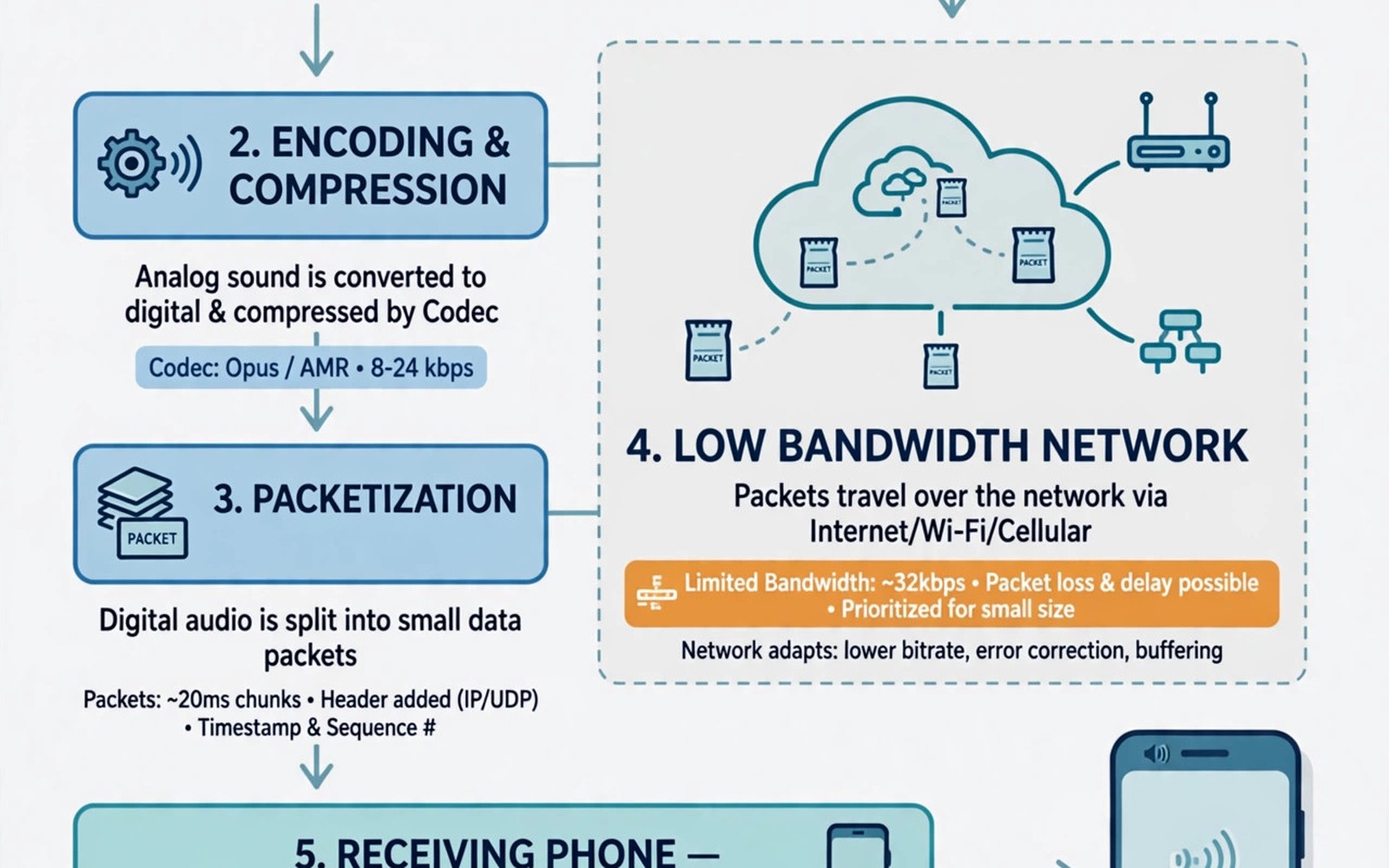
Your phone microphone captures sound as a continuous wave. A codec compresses that wave into small digital packets. Those packets travel across the internet to the other phone. The other phone decodes packets back into sound. This whole loop must finish in under about two hundred milliseconds for natural talk.
Delay above that threshold makes people talk over each other. The brain expects instant replies in conversation. Packet delay breaks that expectation. Good VoIP apps therefore prioritise low delay over perfect sound quality. A slightly thin voice with low delay beats a rich voice that arrives late.
Codecs and the bandwidth tradeoff
Different codecs use different amounts of data for the same voice. Opus adapts well to changing bandwidth and is common in modern apps. Older narrowband codecs use very little data but sound thin. Wideband codecs sound natural but need more bandwidth. Apps often switch codecs automatically as network quality changes.
You can sometimes force a low bandwidth mode in app settings. That mode caps audio quality to preserve stability. It is ideal for rural connections and crowded Wi-Fi. Test low bandwidth mode on a real call before an important meeting. Stability matters more than fidelity when words must not drop.
Jitter and packet loss explained simply
Jitter means packets arrive at uneven times. Some arrive fast and some arrive late. A jitter buffer holds early packets briefly to smooth playback. A large buffer smooths jitter but adds delay. A small buffer keeps delay low but lets late packets sound like gaps. Apps tune this balance constantly during a call.
Packet loss means some packets never arrive at all. The decoder must guess missing sound from neighbours. Small losses sound like clicks. Large losses delete whole syllables. Apps use concealment tricks to hide small gaps. They cannot invent large missing chunks convincingly. That is why loss above a few percent ruins calls.
Why mobile networks hurt VoIP more
Mobile networks vary second by second as you move. Signal strength shifts with buildings and crowds and weather. Handover between towers can pause packets briefly. Wi-Fi has similar issues when many devices share one access point. Wired networks stay far steadier than either mobile option.
Upload congestion is a hidden mobile problem. Many plans offer far less upload than download speed. A video call needs upload for your camera and voice. Also read how social media apps impact battery and data use for background data competition. Background uploads from photos and backups can starve a live call. Pause cloud sync during important calls.
Settings that rescue weak calls
Turn off video first on any struggling call. Video uses far more bandwidth than voice. Audio only mode often rescues a call that video kills. Turn off HD voice or high quality audio if the app offers a data saver. Close other apps that stream or upload in the background.
Move closer to the Wi-Fi router or switch to mobile data for a test. Sometimes mobile data beats a congested Wi-Fi network. Use a wired headset to reduce echo and background noise. Echo worsens when the phone speaker feeds back into the microphone. A headset gives the codec a cleaner signal to compress.
Testing and diagnosing call quality
Test with a friend on a quiet call before a work call. Speak test sentences with numbers in them. Numbers reveal dropped syllables fast. Note whether problems affect one direction or both directions. One way problems point to upload limits on the bad side.
Check call statistics inside the app where available. Look for packet loss and jitter numbers. Loss above three percent needs action. Also check managing notification overload from social networking apps to silence interruptions during calls. Notifications can steal focus and bandwidth at the worst moment.
ping -c 20 8.8.8.8
# High variation in ping times suggests jitter on your connection
These commands follow the standard network diagnostic documentation pattern for measuring latency. They only send test packets and they change nothing on the phone.
Diagnosing a bad call in five minutes
Start diagnosis by identifying whether the problem is one way or two way. Ask the other person if they hear you clearly. If they hear you well but you hear them poorly then your download path struggles. If they hear you poorly but you hear them well then your upload path struggles. That simple question narrows the cause immediately. Note the answer before changing any setting. Random setting changes without diagnosis waste time and hide the real cause. A clear symptom description also helps support teams if you escalate later.
Test the network next with a speed test at the call location. Record download and upload speeds and ping variation. High ping variation signals jitter that will hurt voice. Low upload speed signals trouble for your outgoing voice. Compare results on Wi-Fi and on mobile data. One network often beats the other clearly at a given location. Switch to the better network for the call. That switch alone fixes many mobile call problems without any app change. Document the winning network for that location for future calls.
Test the app last by restarting it and rejoining the call. Close other apps that use network or microphone. Disable video and enable data saver mode. Speak number sentences to check for dropped syllables. If quality improves then the original settings or background apps caused the issue. If quality stays poor then the network itself is the limit. In that case switch to a plain phone call if available. A plain call uses a different network path and often works when VoIP fails. Knowing when to switch tools is part of good troubleshooting.
VoIP for remote teams and travellers
Remote teams should standardise on one calling app for consistency. Mixed apps create confusion about links and features. Choose the app that works best on the weakest team member connection. That weakest link test matters more than feature lists. Document the chosen app and its data saver settings in a team guide. New members should follow the guide on day one. Consistent tooling reduces meeting friction across time zones. It also simplifies support when calls fail. One app done well beats three apps done poorly.
Travellers should prepare offline and low bandwidth habits before trips. Download offline maps and documents before departure. Set calling apps to data saver mode permanently during travel. Carry a wired headset as a backup to Bluetooth issues. Bluetooth audio can add latency and dropouts in crowded places. Wired headsets avoid that extra wireless hop. Test calls from hotel Wi-Fi before important meetings. Hotel networks vary wildly in quality. An early test reveals whether mobile data will be needed instead.
Emergency communication needs a VoIP fallback plan. Keep a plain phone number available for critical contacts. VoIP depends on internet and power and app servers. Plain calls depend on cellular voice networks that often survive internet outages. Share both contact methods with key colleagues. Test the plain call path quarterly so numbers stay current. That redundancy feels old fashioned. It saves critical communication when modern tools fail together. Plan for failure in advance rather than improvising during a crisis.
Your low bandwidth call checklist
Run this checklist before any call on a weak connection. First test download and upload speed at the call location. Second pause cloud photo backup and other background uploads. Third close streaming apps and browser tabs that use data. Fourth enable data saver or low bandwidth mode in the calling app. Fifth turn off video before the call starts rather than after it degrades. Sixth use a wired headset to reduce echo and background noise. Seventh speak test numbers with a friend to check for dropped syllables. Eighth check call statistics for packet loss above three percent. Ninth switch from Wi-Fi to mobile data or reverse if quality stays poor. Tenth agree a plain phone call fallback with the other person in advance. Eleventh keep calls shorter and summarise decisions in chat afterwards. A call that follows this checklist stays intelligible where an unprepared call collapses. Intelligibility matters more than video quality or rich sound. Participants forgive thin audio when every word arrives clearly. They do not forgive a call where half the sentences vanish. Preparation for weak networks is a professional skill for remote workers and travellers. It also helps family calls from rural areas and crowded events. Adopt the checklist as standard practice for any call outside strong office Wi-Fi. That habit will save many meetings from frustrating failure.
Common mistakes
Blaming the app before testing the network wastes troubleshooting time. Test speed at the failing location first. Leaving video on during a weak call guarantees worse audio. Turn video off early. Forgetting background uploads is another trap. Pause photo backup during important calls.
Using speakerphone in a noisy room hurts codec quality. A headset gives cleaner audio to compress. Ignoring one way problems delays the real fix. Test both directions with number sentences. Expecting perfect quality on a congested network is unrealistic. Aim for stable intelligible voice first.
Skipping low bandwidth mode on a weak connection is a missed rescue. Turn it on before the call degrades. Waiting until words vanish makes recovery harder.
Frequently asked questions
How much bandwidth does a voice call need?
A typical voice call needs roughly 30 to 100 kilobits per second in each direction. Low bandwidth codecs need less. Video calls need far more. Stable low latency matters more than raw speed for voice.
Why do calls sound robotic on weak signal?
Packet loss and jitter force the decoder to guess missing sound. That guessing creates robotic artefacts. A jitter buffer can smooth small variation. Large loss deletes syllables and no setting can invent them back.
Does 5G fix VoIP problems completely?
No 5G helps where coverage is strong and uncongested. Indoor weak spots and crowded cells still cause jitter and loss. Good codec and buffer tuning matters on every network type. Test your exact location rather than trusting the network label.
Conclusion
VoIP quality is a balance of codec choice and delay and loss control. Low delay beats rich sound for natural talk. Jitter buffers smooth uneven packets at a delay cost. Packet loss above a few percent breaks intelligibility fast. Mobile networks demand active management of video and background data.
Your concrete next step is to enable data saver mode in your main calling app today. Then make a test call on your weakest regular spot. Note whether audio stays intelligible without video. That test proves your low bandwidth setup works.

