

Top Clipboard Manager Apps to Store and Retrieve Copied Text
I copy the same six things almost every day: my home address, a short greeting for new contacts, a bank detail I send to clients, a tracking reply, a meeting link, and a discount code I reuse for orders. For years I typed them out again each time, or I kept them in a notes app and switched back and forth to copy them. A clipboard manager ended that routine. It keeps a history of everything I copy, lets me pin the snippets I reuse, and lets me search for an address I copied three hours ago instead of copying it again.
The difference is bigger than it sounds. Copying something once and pasting it five times across the day turns a small chore into a single tap. That is the whole point of this guide. I tested the clipboard tools below on a mid-range Android phone over several weeks of normal work, copying addresses, links, numbers, and replies between messaging apps, email, and the browser. Some tools earned a permanent place on my phone. Others looked good on first launch and fell apart once the history grew past fifty items.
This guide covers what a clipboard manager does, the seven best clipboard manager apps I would actually recommend, how keyboard clipboards compare with standalone apps, the privacy rules that keep passwords out of your history, and a five-minute setup routine you can copy today. Every app below gets its own section with features, pros, cons, and who it suits best, so you can skip straight to the one that matches how you work.
What a Clipboard Manager Does for Your Daily Copy and Paste
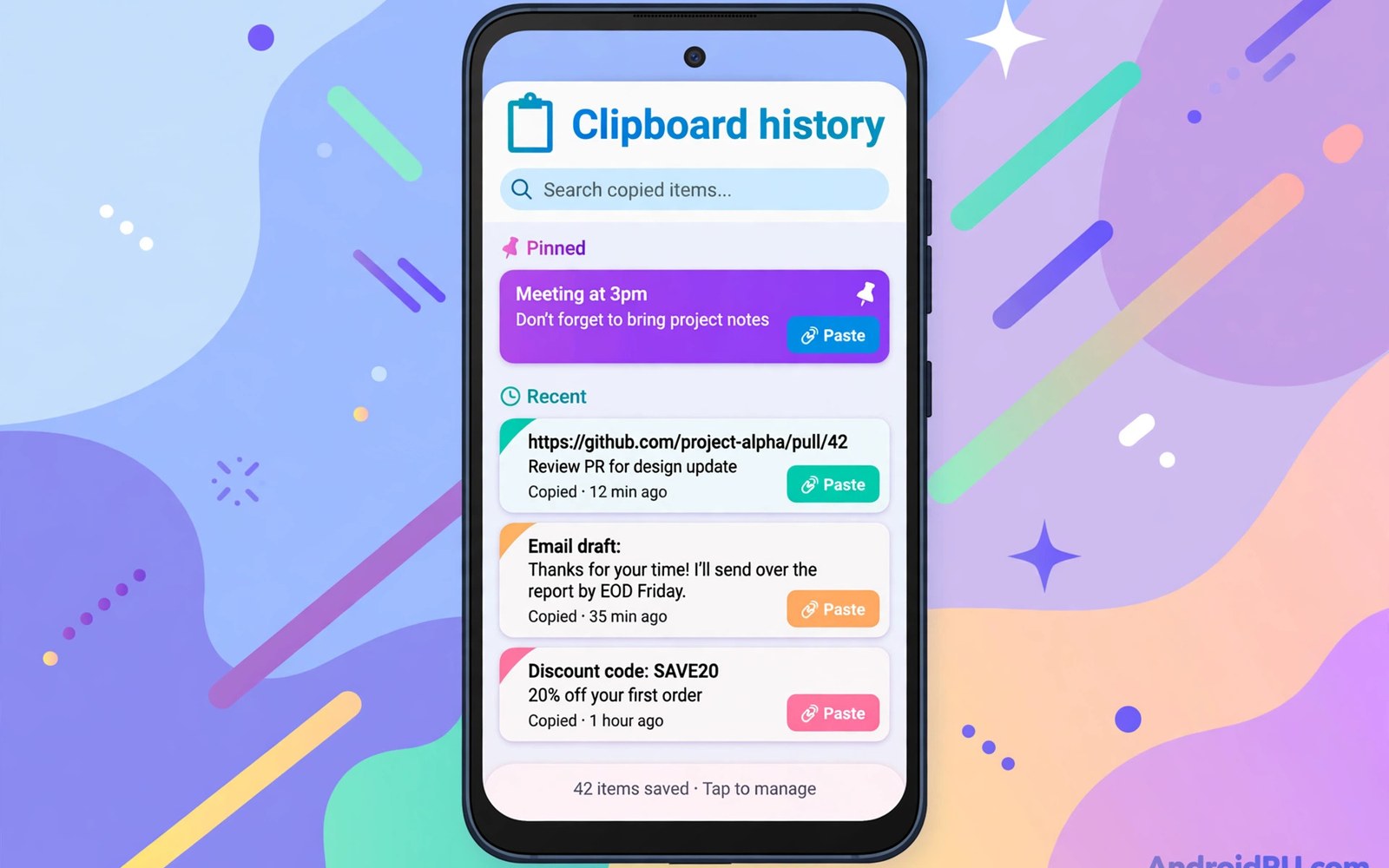
Android already has a clipboard, but the built-in version holds only the last thing you copied. Copy an address, then copy a link, and the address is gone. A clipboard manager fixes that by keeping a running history of copied text. Open the history, tap the item you want, and it is ready to paste. Most managers also add pinning, so the five snippets you reuse stay at the top, and search, so you can find a copied tracking number by typing two or three letters of it.
The practical payoff shows up in small moments. A customer asks for your address while you are in the middle of a chat, and you paste it in two taps instead of leaving the chat. A form asks for a reference number you copied this morning, and you pull it from history instead of asking for it again. A long link you copied from an email can be pasted into a message hours later. None of these moments feels important on its own, but together they save real time every day, and they remove the low-grade annoyance of retyping text you already had on screen.
How Clipboard History Works on Android
A clipboard manager runs in the background and watches for copy events. Each time you copy text in any app, the manager saves a copy of that text with the time it was copied and, in some apps, the name of the app it came from. The history lives inside the manager app, and you open it from a floating bubble, a notification, a keyboard button, or a home screen shortcut, depending on the tool. Tapping an entry copies it back to the system clipboard, so the next paste gives you that text.
Most managers cap the history at a number you can change in settings. A limit of fifty to one hundred items covers a busy day without turning search into a chore. Some managers sort history by app, which helps when you want every address copied from a maps app, or every link copied from a browser. A few offer categories or labels, so you can tag work snippets separately from personal ones. The details vary, but the core idea stays the same: everything you copied stays reachable until you decide to clear it.
Where Android Keeps Copied Text by Default
Without a manager, Android keeps a single clipboard slot. The moment you copy something new, the old text is replaced. Some keyboards, including Gboard and SwiftKey, add their own small history on top of this, usually the last five to ten items, and some phone makers add a clipboard panel to their own keyboard. That built-in history is a good start, but it is short, it rarely offers search, and it often clears itself when the phone restarts. A dedicated manager keeps a longer history, adds search and pins, and survives restarts.
Clipboard History, Pins, and Search: The Three Features That Matter
If you judge a clipboard manager by only three features, judge it by history length, pinning, and search. History length decides how far back you can reach. Pinning decides whether your most-used snippets survive a cleanup. Search decides whether a history of two hundred items is useful or just clutter. An app that does all three well will feel fast on day thirty, not just on day one. An app that does only one of them will feel clever at first and frustrating later, because you will scroll through a long list to find one address you know is in there somewhere.
Why Pins Beat a Long History List
A pin is a promise that a snippet stays put. Pinned items sit at the top of the list, survive automatic cleanup, and survive an app restart. I pin five things: my home address, my work email signature, a short greeting, a payment detail I send often, and a meeting link template. Those five cover most of my repeat pasting. Everything else can expire after a day. Five pinned items save more time than a thousand unpinned entries, because the pinned ones are the ones I reach for without thinking.
The Best Clipboard Manager Apps I Tested on Android
I judged each app on the same points: how long its history lasts, whether it has pins and search, how fast it feels with a full history, whether it syncs between devices, and how it handles privacy. I also checked whether it works from the keyboard, from a floating panel, or both, because where you paste decides which style fits. The seven apps below are the ones that passed those checks in real daily use. They range from a keyboard you may already have to small specialist tools that do one job well.
1. Gboard: The Keyboard Clipboard Most People Already Have
Gboard is the keyboard that ships on many Android phones, and its built-in clipboard is the easiest clipboard manager to start with because there is nothing to install. Tap the clipboard icon above the keyboard, and you see recent copied text. Long-press an item to pin it, tap the pencil icon to edit it, and tap any entry to paste it. I used Gboard as my only clipboard tool for a week, and it handled addresses, links, and short replies without a single extra app on my phone.
Gboard keeps recent items for about an hour by default unless you pin them, which is its main limit. Pinned items stay until you remove them. The clipboard also copies images, which is handy for pasting a screenshot into a chat. A clipboard history with search and pins is the core of any good manager, and Gboard covers pins well while keeping history short. That trade-off suits people who paste inside chats and email all day, because the clipboard is already open under their thumbs.
Gboard Clipboard Settings Worth Changing First
Open Gboard settings, go to Clipboard, and turn on the clipboard history if it is off. Then pin the five snippets you reuse most, and check the setting that clears unpinned items, so old copies do not linger. If you share your phone, remember that anyone who opens the keyboard can see the clipboard, so keep sensitive text out of pins and clear the history at the end of the day.
Pros:
- Already installed on most Android phones, with no extra app to open or learn.
- Pins keep your most-used snippets ready inside the keyboard while you type.
- Copies images as well as text, which helps when pasting screenshots into chats.
- Simple and fast, with no accounts, no sync setup, and no learning curve.
Cons:
- Unpinned history lasts only about an hour, which is too short for a full workday.
- No search inside the clipboard, so finding an old item means scrolling.
Who it is for: people who paste mainly while typing in chats and email, and who want a clipboard manager without installing anything new.
2. Microsoft SwiftKey: A Keyboard Clipboard With Cloud Sync
SwiftKey is a full keyboard replacement with a clipboard that syncs between devices when you sign in with a Microsoft account. Copy text on your phone, and the same snippet can appear in the clipboard on your tablet or Windows PC through the cloud clipboard. I tested this by copying an address on my phone and pasting it into a document on a laptop minutes later, and it worked without any extra step beyond signing in on both devices.
SwiftKey keeps a longer history than Gboard and lets you pin items, and its clipboard panel sits one tap above the keyboard. The sync is the reason to pick it: if your work moves between a phone and a computer, a synced clipboard removes the step of sending yourself links and addresses. The catch is that sync means your copied text travels through a cloud account, so you should turn off sync for sensitive items and keep passwords out of the clipboard entirely.
Pros:
- Cloud sync carries copied text between phone, tablet, and Windows PC.
- Longer history than Gboard, with pins for the snippets you reuse most.
- Strong autocorrect and predictions, so the keyboard itself is a genuine upgrade.
- Clipboard panel is one tap away while typing, with no floating window to manage.
Cons:
- Sync needs a Microsoft account, and copied text passes through cloud servers.
- Clipboard history is still tied to the keyboard, so it is less handy when you paste outside typing.
Who it is for: people who work across a phone and a computer and want copied text to follow them between devices.
3. Clipper: A Long-Running Clipboard Manager With Lists and Sync
Clipper is one of the oldest standalone clipboard managers on Android, and it still does the job well. It keeps a full history of copied text, lets you organise snippets into lists, and offers a paid upgrade that adds sync between devices and unlimited history. The free version covers daily use for most people, with a history limit that is generous enough for a busy week. I used Clipper for two weeks as my main history, and its lists were the feature I kept coming back to: one list for work replies, one for addresses, one for links I send often.
Clipper opens from a notification or a floating panel, and tapping an entry copies it back to the clipboard. You can also create a new snippet by typing it directly into the app, which is useful for saving a reply you write often. The paid version adds sync and a larger history, but the free version is enough to learn whether a standalone manager fits your routine before you pay for anything.
Pros:
- Lists keep snippets organised by topic, so work replies and personal text stay apart.
- Full history with search, so an item copied days ago is still easy to find.
- You can type new snippets directly into the app instead of copying them first.
- Optional paid sync carries your lists to another Android device.
Cons:
- The interface looks dated next to newer apps, and some settings take a while to find.
- Sync and unlimited history sit behind the paid upgrade, so the free version has limits.
Who it is for: people who want a proper history with lists and search, and who copy across many different apps during the day.
4. Native Clipboard Manager: A Lightweight History That Stays on Your Phone
Native Clipboard Manager is a small, focused app that does one thing: it keeps a searchable history of copied text on the device, with no account and no cloud. It opens from a notification or a floating bubble, and it shows each copied item with the time it was copied and the app it came from. I liked how light it felt. It opened fast with two hundred items in history, and it never asked me to sign in or turn on a feature I did not want.
The app lets you pin items, star favourites, and set rules for which apps it should ignore, which is the privacy feature I look for first. You can tell it to skip your password manager and banking app, so codes and logins never enter the history. That kind of exclusion rule matters more than any theme or extra feature, because a clipboard history is only as safe as the text you keep out of it.
Pros:
- No account and no cloud, so copied text stays on the device by default.
- Exclusion rules stop the history from saving text copied in password and banking apps.
- Fast search across a long history, with pins and favourites for daily snippets.
- Light on battery and storage, with no extra features getting in the way.
Cons:
- No sync between devices, so history on your phone stays on your phone.
- The design is plain, and setting up exclusion rules takes a few minutes of reading.
Who it is for: privacy-minded users who want a long, searchable history that never leaves the phone.
5. Clip Stack: An Open and Simple Clipboard History
Clip Stack is a free, open source clipboard manager with a clean list of copied text, search, and pinning, and very little else to distract you. It records copied text in the background, shows it in a simple list, and lets you tap any entry to copy it again. You can also share an entry straight from the list, or edit it before pasting. I ran Clip Stack for a week alongside my keyboard clipboard, and it caught every copy I made, including text copied from the browser and from documents.
Because it is open source, anyone can read how it works, which suits users who want to know exactly what an app does with their copied text. The trade-off is that it has no sync and no cloud backup, so your history lives only on the phone. For most people that is a fair trade: a clipboard history is most useful on the device where you copied the text, and keeping it local is the safer default.
Pros:
- Free and open source, with a simple list that is easy to read and search.
- Pins and editing, so you can fix a snippet once and paste the fixed version every time.
- Reliable background recording that caught every copy in my testing.
- No account, no ads in the core flow, and no cloud upload of copied text.
Cons:
- No sync or backup, so a factory reset wipes the history.
- Fewer organisation tools than Clipper, with no lists or categories.
Who it is for: people who want a free, honest clipboard history and do not need sync or fancy organisation.
6. Clipboard Actions and Manager: A History That Can Act on Copied Text
Clipboard Actions and Manager goes one step further than a plain history: when you copy text, it offers actions based on what the text looks like. Copy a phone number and it offers to call it. Copy a link and it offers to open it. Copy an address and it offers to show it on a map. Copy text in another language and it offers a translation. Those small actions save a tap or two each time, and over a day they add up.
The app also keeps a searchable history with pins, and it lets you create snippets in advance, which is handy for replies you send often. I found the actions most useful for links and phone numbers copied from messages, where the next step is usually obvious. The history itself is solid, and the actions are the reason to pick this app over a plainer one. The one habit to build is checking the history at the end of the day, because an app that watches every copy will collect sensitive text unless you clear it.
Pros:
- Smart actions for links, numbers, addresses, and translations save taps after every copy.
- Searchable history with pins, plus snippets you can create in advance.
- Opens from a notification, so the history is one swipe away from any app.
- Works well for people who copy contact details and links from messages all day.
Cons:
- The extra actions can feel busy if you only want a quiet history list.
- Some actions need extra permissions, and the setup takes longer than a simpler app.
Who it is for: people who copy links, numbers, and addresses from chats and want the next step offered at once.
7. Clipt: Clipboard Sync Between Phone and Computer
Clipt, from the makers of OnePlus software, syncs your clipboard between an Android phone and a Windows or Mac computer. Copy text on the phone, and it appears in the computer clipboard a moment later. Copy on the computer, and it appears on the phone. It also handles images and files, so a screenshot copied on the computer can be pasted into a phone chat. I tested it while writing on a laptop and replying on a phone, and the flow felt natural after a day: copy on one screen, paste on the other, with no messaging app in between.
Clipt needs an account and the companion app on the computer, so the setup takes a few minutes longer than a local-only manager. It also sends copied text through its own servers to reach the other device, which means you should keep sensitive text out of it, just as with any synced clipboard. For people who split their work between a phone and a computer, that trade is worth it, because the clipboard becomes one shared space instead of two separate ones.
Pros:
- Syncs text, images, and files between phone and computer in both directions.
- Fast and reliable in daily use, with no manual step after the first setup.
- Clean interface that stays out of the way once it is running.
- Free to use, with no history limit that blocked my normal work.
Cons:
- Needs an account and a companion app on the computer, so setup takes longer.
- Synced text travels through outside servers, so it is not the pick for sensitive text.
Who it is for: people who write on a computer and reply on a phone, and want one clipboard across both screens.
Keyboard Clipboard vs Standalone Clipboard App: Which Setup Fits You
The choice between a keyboard clipboard and a standalone app comes down to where you paste. If most of your pasting happens while you type, inside chats, email, and documents, a keyboard clipboard is faster because it is already open. You tap the clipboard icon, pick the snippet, and keep typing. There is no app switch, no floating window, and nothing extra to manage. Gboard and SwiftKey both work this way, and for many people they are enough on their own.
If you copy across many apps and paste in places where the keyboard is not open, a standalone app fits better. A floating panel or a notification shade entry lets you grab a copied address while you are in a maps app, a browser, or a banking app, and paste it where it belongs. When I copy figures between two apps I often run them side by side, and split-screen multitasking pairs well with a floating clipboard panel, because the history sits next to both apps at once. The honest answer for heavy users is to run both: a keyboard clipboard for typing, and a standalone history for everything else.
When the Keyboard Clipboard Wins
The keyboard wins when speed matters more than history length. Replies in chats, short emails, and form fields are all typing tasks, and the clipboard button is right there above the keys. It also wins when you want zero setup: Gboard is already on the phone, and SwiftKey needs only a download and a sign-in. If you copy fewer than twenty things a day and reuse the same five snippets, a keyboard clipboard covers you with nothing else to learn.
When a Standalone App Wins
A standalone app wins when your history needs to last all day, when you need search, and when you copy from apps where the keyboard never appears. It also wins when you want exclusion rules for password apps, because keyboard clipboards rarely offer them. Anyone who copies addresses, tracking numbers, and reference codes across a workday will feel the difference by the second day, because the history becomes a tool they check on purpose instead of a short list they hope still holds the right item.
Clipboard Privacy: How to Keep Passwords and Codes Out of History
A clipboard history is useful precisely because it remembers everything, and that is also what makes it risky. Passwords, login codes, card numbers, and private addresses can all pass through the clipboard in a normal day. A manager that saves them all and keeps them for weeks creates a record you would not want anyone to find on a lost or shared phone. The fix is not to avoid clipboard managers. The fix is to set rules that keep sensitive text out of the history in the first place.
Start with exclusion rules. A good manager lets you list apps whose copied text should never be saved, and your password manager and banking app belong at the top of that list. Next, set auto-delete to one day for general history, so ordinary copies fade away on their own. Pin only safe snippets, never a password or a one-time code. A clipboard history with auto-delete after 24 hours gives you a full day of reuse and a clean slate each morning, which is the balance I settled on after trying both shorter and longer limits.
Rules That Keep Sensitive Text Out of Your History
First, never pin a password, a card number, or a login code, even for a day. Second, clear the history at the end of a day when you copied anything sensitive by mistake. Third, turn off sync for any manager that uploads copied text, unless you need sync for work and you trust the account it uses. Fourth, lock the manager app itself if it offers a lock, so a borrowed phone does not open your full copy history. These four habits take less than a minute a day, and they remove the main privacy risk of keeping a clipboard history at all.
What to Do After You Copy a Password by Mistake
Open the manager at once, find the password entry, and delete it. Then copy a harmless word, such as a greeting, so the system clipboard no longer holds the password either. If the manager syncs, delete the entry on every device it reached, and change the password if it sat in a synced history for long. It takes two minutes, and it is worth doing at once instead of leaving it for later.
A Daily Clipboard Routine That Takes Five Minutes to Set Up
Set the routine up once, and it runs itself. First, pick your manager and turn on history, pins, and search. Second, pin the five snippets you reuse most: an address, a greeting, a payment detail you send often, a meeting link, and a short reply you send every day. Third, set auto-delete to one day and add your password manager and banking app to the exclusion list. Fourth, put the manager in the notification shade or on the home screen, so opening history takes one tap from anywhere.
My morning routine pairs those pins with the rest of my workday. I plan my week with calendar and scheduling apps and pin the three replies I send most that week, so the clipboard matches the week ahead instead of last month. Most of my copied numbers come from mobile spreadsheet apps, so I pin the current price list at the top of the history on Monday and replace it when the numbers change. At the end of the day I clear everything except the pins, which takes ten seconds and keeps the next morning fast and clean.
Mistakes That Make a Clipboard History Useless
The most common mistake is letting history grow without limits. A list of two thousand items with no pins and no search is not a tool, it is a pile. Set a history limit, pin what matters, and clear the rest each day. The second mistake is pinning sensitive text for convenience, which trades a few seconds of typing for a real privacy risk. The third mistake is installing three clipboard apps at once, which splits your history across tools and means no single history holds everything. Pick one manager, learn it, and let it hold the whole history.
Another mistake is ignoring the exclusion list. Every password copied by mistake lands in the history and stays there until you delete it, so the exclusion list is the one setting worth checking on day one. The last mistake is treating the clipboard as a notes app. Long notes, drafts, and documents belong in a notes app with folders and backup. The clipboard is for text you paste, and keeping it short is what keeps it fast.
Clipboard Manager Apps FAQ
Is it safe to keep copied passwords in a clipboard history?
No, and you should avoid it. Passwords copied into a clipboard history can sit there for days, and any app with clipboard access or anyone holding the phone can read them. Use a password manager that fills logins directly instead of copying them, and set your clipboard manager to ignore your password app. If a password does land in the history, delete the entry at once and copy a harmless word to clear the system clipboard.
How long should a clipboard manager keep my copied text?
One day is the sweet spot for most people. A day of history covers everything you copied this morning and still need this evening, while keeping the list short enough to search quickly. Pin the five snippets you reuse across weeks, and let everything else expire. People who work on long projects can stretch the limit to a week, but a longer history needs search and pins to stay usable, so check that your manager offers both before you raise the limit.
Does a clipboard manager drain battery or slow down my phone?
A well-built clipboard manager uses very little battery, because it only wakes when you copy something. The managers in this guide all ran for weeks on my phone without showing up in the battery stats. What can slow a phone down is a history of thousands of items in an app with poor search, so keep the limit near one hundred items and clear the history daily. If a manager ever appears high in battery use, check whether it is syncing constantly and turn sync off.
Can I sync my clipboard history between my phone and my computer?
Yes, with SwiftKey or Clipt, and both need an account and a companion setup on the computer. Copy on the phone and paste on the computer, or the other way around. Sync is worth it if your work truly moves between screens, but it means copied text travels through outside servers, so keep passwords and sensitive codes out of a synced clipboard. If you only paste on the phone, a local-only manager is simpler and safer.
Which Clipboard Manager Should You Pick First
If you want the fastest start, use the Gboard clipboard you already have, pin five snippets, and see how far it takes you. If you copy across many apps and want a real history with search, install Native Clipboard Manager or Clip Stack for a local-only history, or Clipper if you want lists. If your work moves between phone and computer, SwiftKey or Clipt earns its place through sync. My own setup is Gboard for typing plus a standalone history for the rest, with auto-delete at one day and my password app on the exclusion list.
Your next step takes five minutes: open your clipboard settings, pin the five snippets you paste most, set auto-delete to one day, and add your password manager to the exclusion list. Do that today, and by the end of the week you will notice how rarely you retype the same text twice.

