

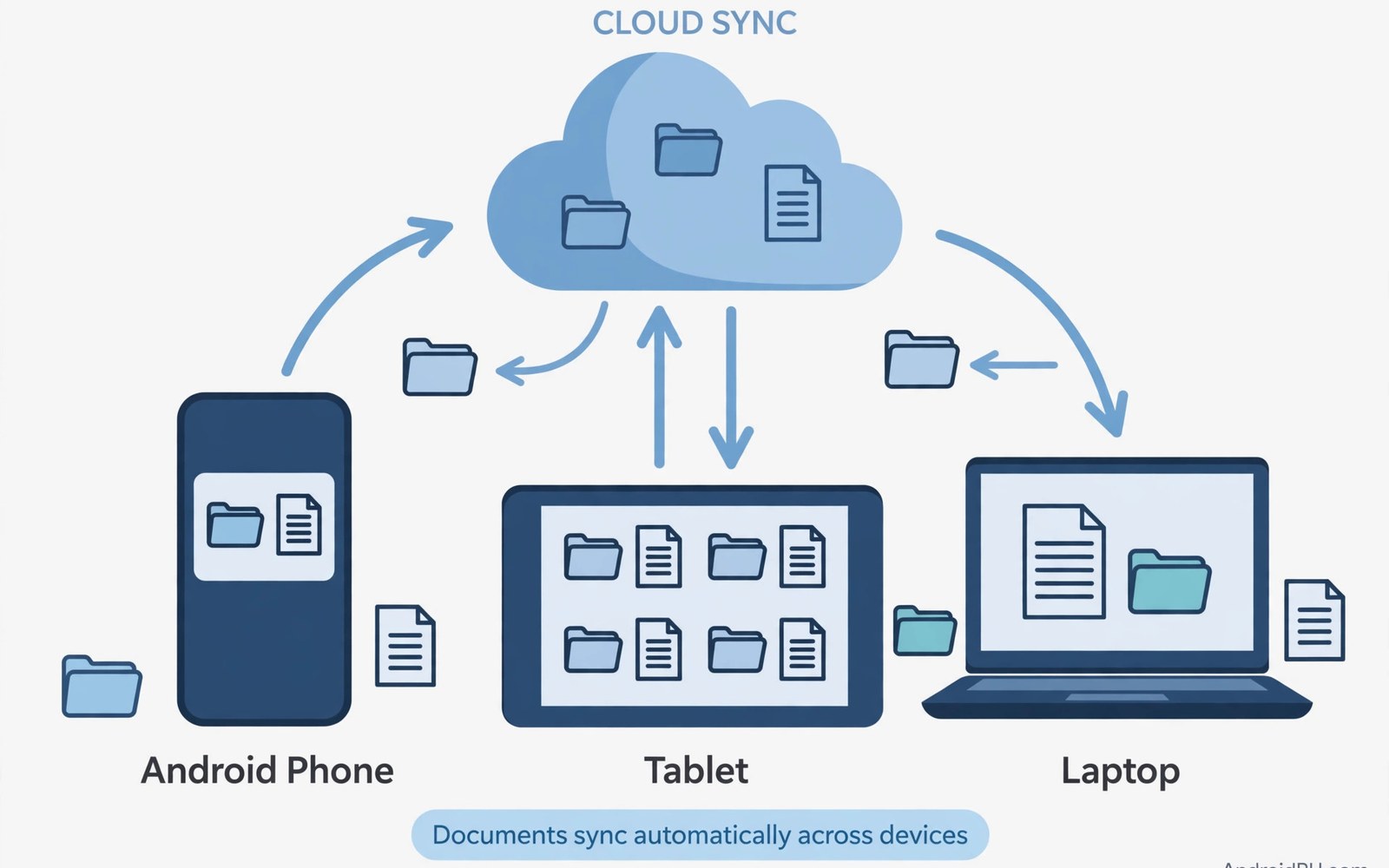
Top cloud syncing apps for Android solve a simple problem and that problem is access on any device. A good sync app keeps the latest document on a phone and a tablet and a computer without manual transfers. This article shows how to sync workspace files safely without duplicates or lost versions.
Many sync failures come from treating sync as backup or backup as sync. Sync mirrors changes across devices and a deleted file can vanish everywhere at once. Backup keeps older copies safe even when sync deletes a file by mistake. Both tools matter and neither replaces the other.
Start by listing the folders that must travel with you every day. Active projects and reference documents and shared team files each need different sync rules. A clear folder list prevents a whole phone from syncing files that nobody needs on the move. A closer look at automation apps can help you compare daily tools before you commit to one setup.
What matters most
Selective sync matters because a phone cannot hold a whole workspace library. A good app lets you choose folders for offline use and leaves the rest in the cloud. Offline folders should cover active work and travel needs and nothing more.
Version history protects work when an edit goes wrong or a file is overwritten. A sync app that keeps older versions lets you restore a document from yesterday with one action. Check how long versions are kept because short history can expire before a mistake is found.
Conflict handling decides what happens when the same file changes on two devices. A good app creates a conflict copy rather than silently overwriting one version. A conflict copy is annoying but it never loses work without warning.
How to choose the right setup
Solo users need simple sync and offline folders and a clear storage limit. Team users need shared folders and permission controls and activity history. A solo sync app forced into team work will lack the controls that shared files need.
Storage plans matter because documents and media fill cloud space faster than expected. A plan that suits text documents may fail for video and large design files. Check storage use monthly and archive finished projects to a separate backup.
Speed matters on mobile networks where large files can stall a sync for hours. A sync app with pause and resume and Wi-Fi only options protects mobile data. Set large uploads to Wi-Fi only unless a file is urgently needed on another device.
A practical daily routine
Start work by opening the synced folder and confirming the latest file version is present. A quick version check prevents editing an old copy that later creates a conflict. A habit of checking first saves merge work later in the day. A related look at keyboard apps with text expansion can show how a second tool fits the same workday without adding clutter.
Save work inside the synced folder rather than in a local folder that never syncs. A file saved outside the sync folder will stay on one device and surprise you later. Make the synced folder the default save location for active work.
End work by letting sync finish before closing the device or switching networks. A sync interrupted by shutdown can leave a partial file on another device. Wait for the sync icon to settle before you put the device away.
Costs and privacy and limits
Free cloud plans often offer limited storage that suits text and small files. Large media and long version history usually need a paid plan. Compare the cost of a paid plan against the cost of lost work and duplicate files.
Sync apps can expose files when sharing links stay open too long. A sharing link with no expiry can circulate beyond the intended team. Set expiry dates on sharing links and review shared folders monthly.
Privacy varies by provider and by encryption options for synced files. Some providers can read file contents and others offer client side encryption. Check encryption and access policies before syncing sensitive work documents.
A useful example
A sync tool should prove that local and remote files match rather than assume success. The commands below copy a workspace folder to a remote and then check the copy. Use the same check after a large sync before you delete local files.
rclone copy ~/workspace remote:workspace --progress
rclone check ~/workspace remote:workspace
rclone ls remote:workspace | head -20
This sync check pattern follows the approach described in the official Rclone documentation for copying and checking cloud storage. The same documentation explains how a check compares local and remote files before work continues.
What to check after a week
After a week check a file edited offline on two devices for conflicts. A clean conflict copy shows that sync protected both versions. A silent overwrite shows a sync rule that needs changing at once.
After a week check storage use and offline folders on your phone. A phone full of synced files will slow down and fill storage fast. Remove offline access for finished projects and keep only active work local. A practical look at mind-mapping apps can help you judge whether your current setup still earns its place on your phone.
After a week check version history by restoring an older version of a test file. A restore that works in seconds gives confidence for real mistakes. A restore that fails reveals a history limit that needs a backup plan.
Deeper checks for careful users
Selective sync rules can differ by device so a tablet and a phone need separate settings. A tablet may hold more offline folders than a phone with less storage. Review sync settings per device rather than assuming one rule fits all.
Large file sync needs chunked uploads that resume after a network drop. A sync app without resume will restart a large upload from zero after each drop. Test a large file on a weak network before relying on sync for video work.
Team folders need an owner who tidies structure and removes stale files. A shared folder without an owner drifts into clutter within months. Agree on folder names and archive rules before a team folder grows large.
Making the choice stick
A sync habit sticks when the synced folder is the default save location in every work app. Set the default in each app during setup rather than after files pile up elsewhere. A default that points elsewhere will create local files that never sync. A correct default removes a move step for every document. Check defaults after each app update because updates can reset them.
A folder structure for sync needs a clear archive rule for finished work. Move finished projects to an archive folder that does not sync to the phone. An archive rule keeps the phone light and search fast. A workspace that never archives will grow until sync slows down. Review active folders monthly and archive any project finished for more than a month.
Sharing a synced folder needs a permission review each month. Check who can view and who can edit each shared folder. A former collaborator with edit access can change files long after a project ends. A monthly review removes stale access before it causes trouble. A shared folder with tight permissions will feel safe for sensitive work.
A sync conflict is a warning rather than a failure when it creates a copy. Open both conflict copies and merge the best parts into a final version. A conflict ignored will leave two versions that diverge further each week. A merged final version restores a single source of truth. Delete conflict copies only after the merge passes a check.
Large files need a sync schedule that respects mobile data and battery. Set large uploads to Wi-Fi only and pause sync during low battery. A large upload on mobile data can cost money and drain power fast. A Wi-Fi only rule protects both data and battery without blocking urgent small files. Review sync settings after travel because needs change by location.
A sync setup earns a permanent place when it survives a device change without loss. Test restore on a new device or a second device before trusting sync fully. A restore test reveals folder and version gaps while they are still easy to fix. A test skipped will reveal gaps during a real phone loss. Keep a separate backup even when sync feels perfect.
A week of practice
Day one of practice should set the synced folder as the default save location in your main apps. Save three real documents into the synced folder during the day. A save that lands in sync without a move step proves the setup works. A save that lands elsewhere shows a default setting to fix. Check defaults in every work app before day two.
Day three of practice should test an offline edit on two devices. Edit a file offline on the phone and a different file offline on a tablet. Sync both and check for conflicts or lost edits. A clean sync proves conflict handling works for your workflow. A conflict copy shows a rule to learn rather than a failure to fear.
Day five of practice should test version history by restoring an older version of a test file. Time the restore and check that the old version opens cleanly. A fast restore proves history will save a real mistake. A slow or failed restore shows a history limit to fix with a backup. Keep a separate backup for critical files regardless of history.
Day seven of practice should review storage and offline folders on the phone. Remove offline access for finished projects and keep only active work local. A phone that stays light will sync faster and search better. A phone full of old synced files will slow down over time. Decide on evidence and keep the sync app that passed conflict tests.
Common mistakes
Most sync problems come from folder habits rather than from app failures. The list below names the mistakes that lose files most often.
- Treating sync as backup and deleting the only local copy.
- Saving active work outside the synced folder by habit.
- Syncing a whole library to a phone with limited storage.
- Ignoring conflict copies until two versions diverge badly.
- Sharing folders with links that never expire or get reviewed.
- Closing a device before sync finishes after an edit.
Each mistake above is easy to avoid with selective sync and a daily finish check. A sync setup that protects versions will survive offline edits and device changes. Keep active folders synced and finished work backed up separately.
Frequently asked questions
Is cloud sync the same as backup?
Cloud sync mirrors files across devices and a deletion can spread everywhere. Backup keeps older copies safe even after a sync deletion. Use both tools and keep a separate backup for important work.
Can I use cloud sync offline on Android?
Cloud sync apps on Android offer offline folders for files you choose in advance. Edits to offline files sync when connection returns. Choose offline folders for active work before travel.
How much cloud storage do I need for workspace files?
Text and office documents need modest storage while media and design files need far more. Check current storage use and growth over a month. Archive finished projects to separate backup storage to control costs.
Conclusion and next step
Cloud sync works when folders are selective and versions are kept and conflicts create copies rather than losses. Sync alone is not a backup and a backup alone is not access everywhere. Use both with clear rules for active and finished work.
Your concrete next step is to choose offline folders for active projects today and test a conflict with an offline edit this week. Keep the sync app that passes the conflict test. A proven sync setup will travel with you without surprises.

